How to Enable or Disable Warning When Closing Multiple Tabs in Windows Terminal

You can enable or disable the warning prompt when closing multiple tabs in Windows Terminal to confirm your action.
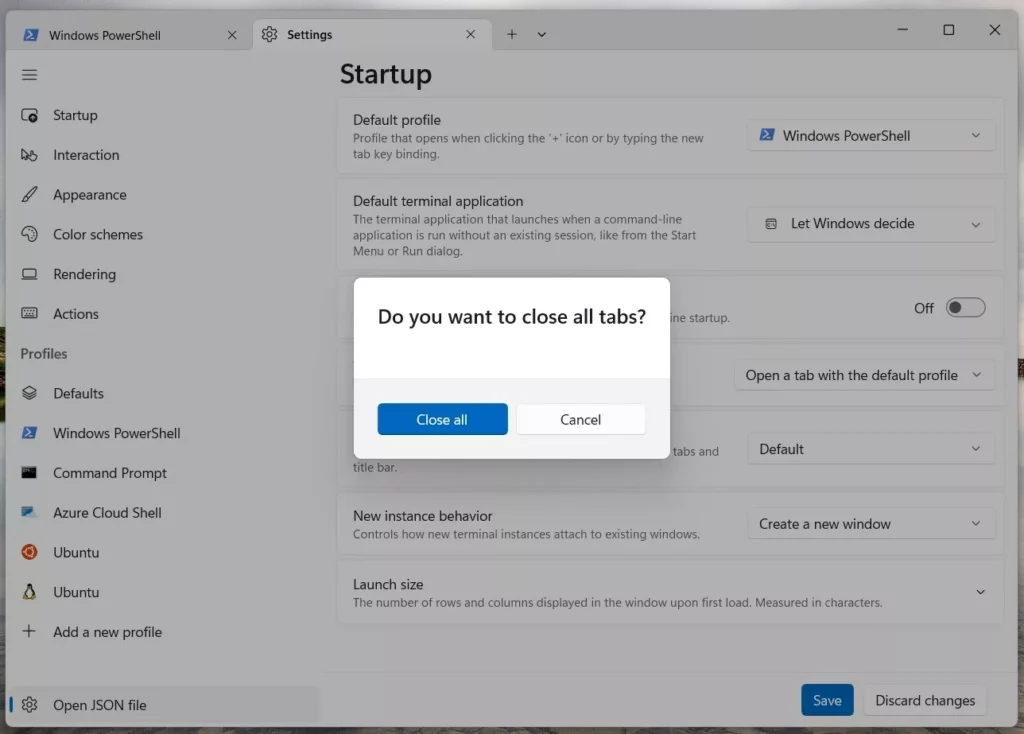
This prompt, which is the “Close all tabs?” confirmation dialog, shows up when you try to close Windows Terminal with more than one tab open.
Since Windows Terminal version 1.18.10312.0, this feature is on by default to help you avoid losing your work by accident.
If you find this prompt disruptive or want to ensure you never miss it, you can adjust its settings.
Open Windows Terminal settings, navigate to the Interaction tab, and toggle the “Warn when closing more than one tab” option. This setting controls whether a confirmation prompt appears when you attempt to close multiple tabs.
What is Windows Terminal?
Windows Terminal is a modern app that lets you use command-line tools like Command Prompt, PowerShell, and Linux Bash all in one place on Windows 11. You can also enjoy features like multiple tabs, split views, and custom colors.
Why is the Warning Useful?
When you have many tabs open and try to close the terminal, this warning helps you avoid accidentally closing everything. You won’t lose your work by mistake.
How to Turn the Warning On or Off Using Windows Terminal Settings
- Open Windows Terminal: Click the Start button, type Terminal, and click the Windows Terminal app to open it.
- Go to Settings: In the Windows Terminal window, click the down arrow next to the tabs at the top, then click Settings or press
Ctrl + ,. - Find the Interaction Tab: In the Settings window, select the Interaction tab on the left side.
- Toggle the Warning: Look for the option “Warn when closing more than one tab” and switch it On to get the warning, or Off to disable it .
- Save Changes: Click Save at the bottom to apply your changes.
You can easily turn the warning on or off for closing multiple tabs in Windows Terminal right from its settings menu. This helpful feature stops you from accidentally closing all your open tabs at once.
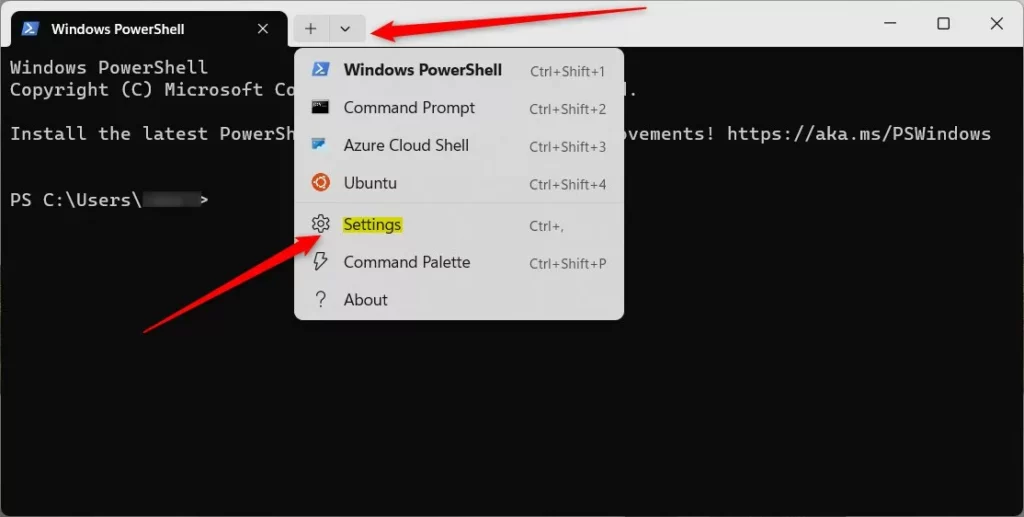
You can easily turn the warning on or off for closing multiple tabs in Windows Terminal right from its settings menu. This helpful feature stops you from accidentally closing all your open tabs at once.
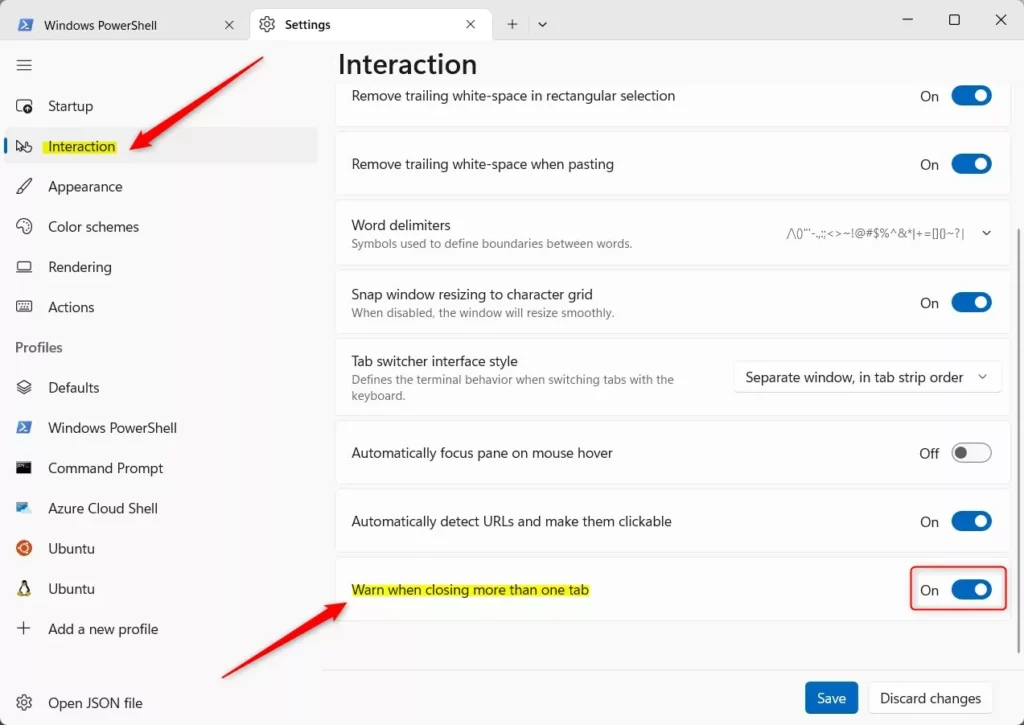
You can easily turn the warning on or off for closing multiple tabs in Windows Terminal right from its settings menu. This helpful feature stops you from accidentally closing all your open tabs at once.
How to Turn the Warning On or Off Using the JSON File
For those comfortable with code, you can also change the Windows Terminal close warning setting by directly editing its JSON configuration file. This method lets you manually toggle the ‘confirmCloseAllTabs’ option to either true or false.
- Open Windows Terminal.
- Go to Settings as explained above.
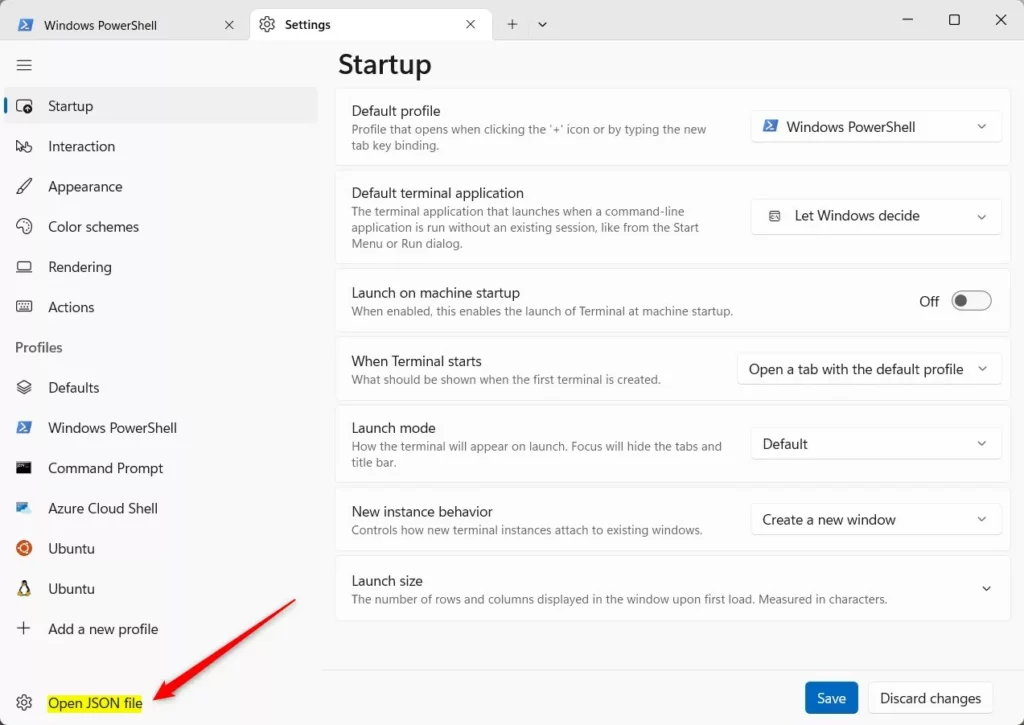
- At the bottom left of the Settings window, click Open JSON file.
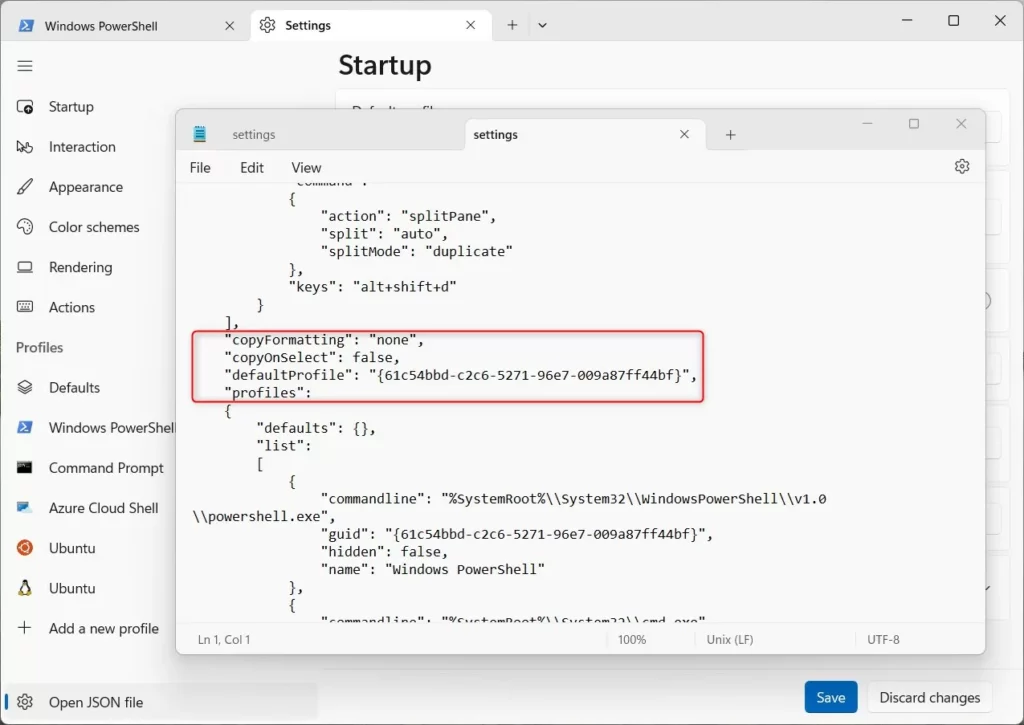
- Look for the line that says
"confirmCloseAllTabs":trueor"confirmCloseAllTabs":false. - To enable the warning, make sure it says:
"confirmCloseAllTabs": true, - To disable the warning, change it to:
"confirmCloseAllTabs": false, - Save the file and close it.
What the Warning Looks Like
When enabled, if you try to close Windows Terminal with multiple tabs open, you will see a warning like this:
Summary
- Windows Terminal lets you run multiple command-line tabs at once.
- You can turn on or off a warning message that appears when closing the app with many tabs open.
- This setting can be changed easily through the app’s Settings or by editing the JSON file.
- The warning helps prevent accidentally closing all your tabs and losing your work.
Windows Terminal makes it simple to manage multiple command-line tabs, and you can control whether you get a warning when closing many tabs at once. This warning helps prevent losing your work by mistake.
That’s it! Now you know how to control the close warning in Windows Terminal.
How do you toggle mark mode?
It is bound by default in Settings -> Actions -> Toggle mark mode: Ctrl+Shift+m.
Why can't I close the Command Prompt?
To close Command Prompt, you can use one of the following methods: Method 1: Click the “X” button in the top-right corner of the Command Prompt window. Method 2: Press the “Alt” and “F4” keys simultaneously. Method 3: Type “exit” into the Command Prompt window and press “Enter”.
Was this guide helpful?

About the Author
Richard
Tech Writer, IT Professional
Richard, a writer for Geek Rewind, is a tech enthusiast who loves breaking down complex IT topics into simple, easy-to-understand ideas. With years of hands-on experience in system administration and enterprise IT operations, he’s developed a knack for offering practical tips and solutions. Richard aims to make technology more accessible and actionable. He's deeply committed to the Geek Rewind community, always ready to answer questions and engage in discussions.




No comments yet — be the first to share your thoughts!