How to Turn On or Off Show Notifications in Notification Center in Windows 11

This tutorial shows you how to notifications-on-or-off-in-the-settings-app-on-windows-11/" class="sal-link" rel="noopener" target="_blank" data-sal-id="40967">turn on or off notifications in the notification center for your account in Windows 11.
Notifications are alerts from apps, your system, and other sources.
Windows 11 shows notifications in three places:
- On the lock screen (⊞ Win+L)
- In Notification Center (⊞ Win+N)
- In notification banners at the lower-right corner of your screen above the taskbar
You can choose to turn on or off notifications from specific apps in the notification center. Let’s see how.
Option 1Use Settings
Why do this? Settings is the easiest way to control notifications for most people.
- Open Settings by pressing ⊞ Win+I.
- Click System on the left side. Then click Notifications on the right side. (see screenshot below)
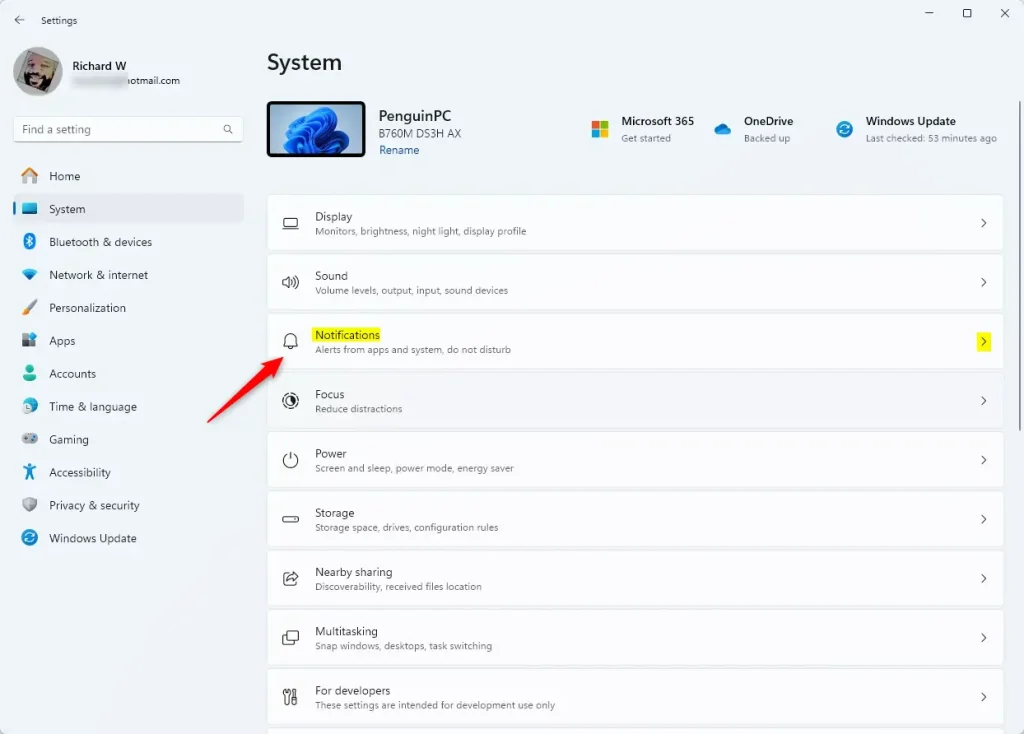
- Under Notifications from apps and other senders, click on the app you want to change. For example: “Messages (via Phone Link)”. (see screenshot below)
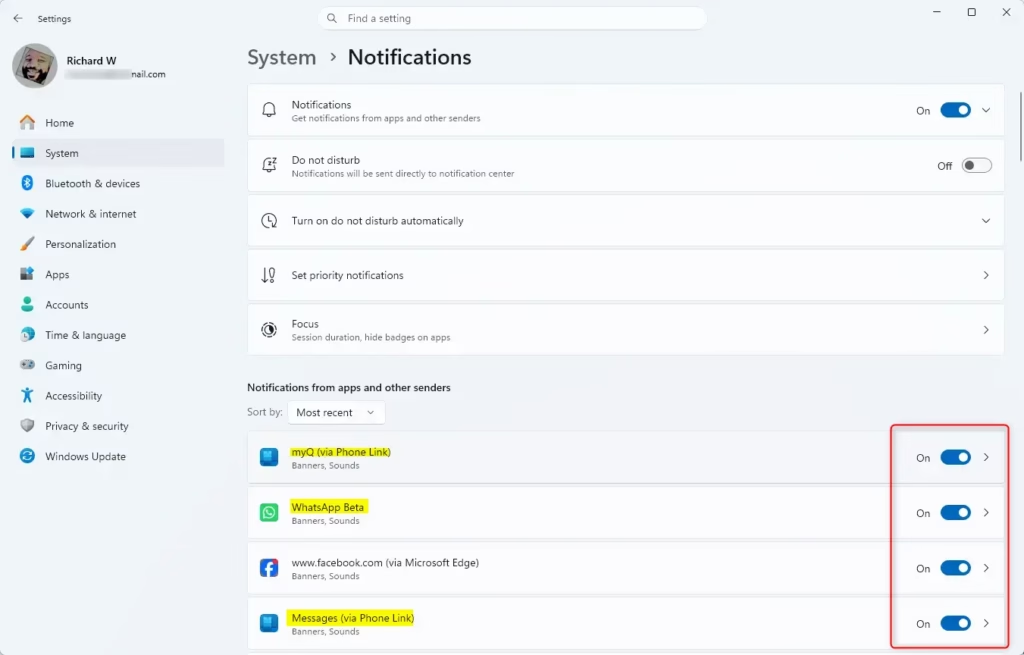
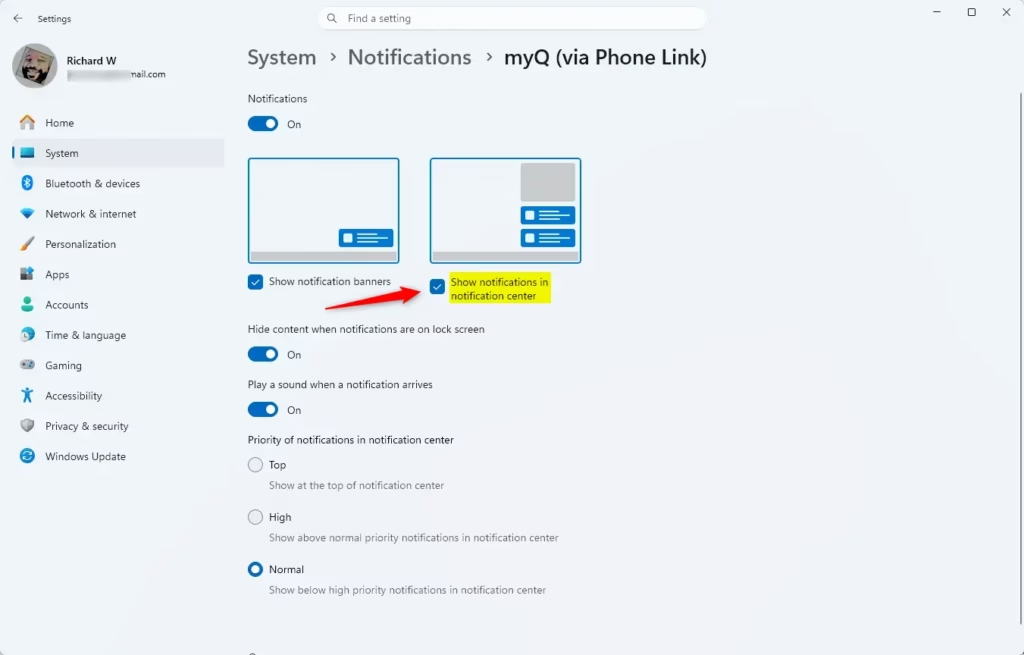
- Check the box next to Show notifications in notification center to turn it on. Uncheck the box to turn it off. (see screenshot below)
- When you’re done, you can close Settings.
Option 2Use Registry Editor
Why do this? Registry Editor gives you direct control over notification settings if Settings doesn’t work.
- Open Registry Editor by typing
regedit.exeinto the search box and pressing Enter. - Navigate to this location in the left pane of Registry Editor:
HKEY_CURRENT_USER\Software\Microsoft\Windows\CurrentVersion\Notifications\Settings
- Under the Settings key in the left pane, click on the app you want to change. For example: “Microsoft.YourPhone_8wekyb3d8bbwe!YourPhoneMessages“.
Turn On Show Notifications from an App
What happens? The app will show notifications in your notification center.
This is the default setting.
- In the right pane of the app’s key, right-click on the ShowInActionCenter DWORD value and click Delete.
If you don’t have a ShowInActionCenter DWORD, the app is already set to show notifications.
- Click Yes to confirm.
Turn Off Show Notifications from an App
What happens? The app will stop showing notifications in your notification center.
- In the right pane of the app’s key, double-click on the ShowInActionCenter DWORD value to edit it.
If you don’t have a ShowInActionCenter DWORD:
- Right-click on an empty area in the right pane.
- Click New, then click DWORD (32-bit) Value.
- Type
ShowInActionCenterfor the name. - Press Enter.
- Type
0for the Value data and click OK.
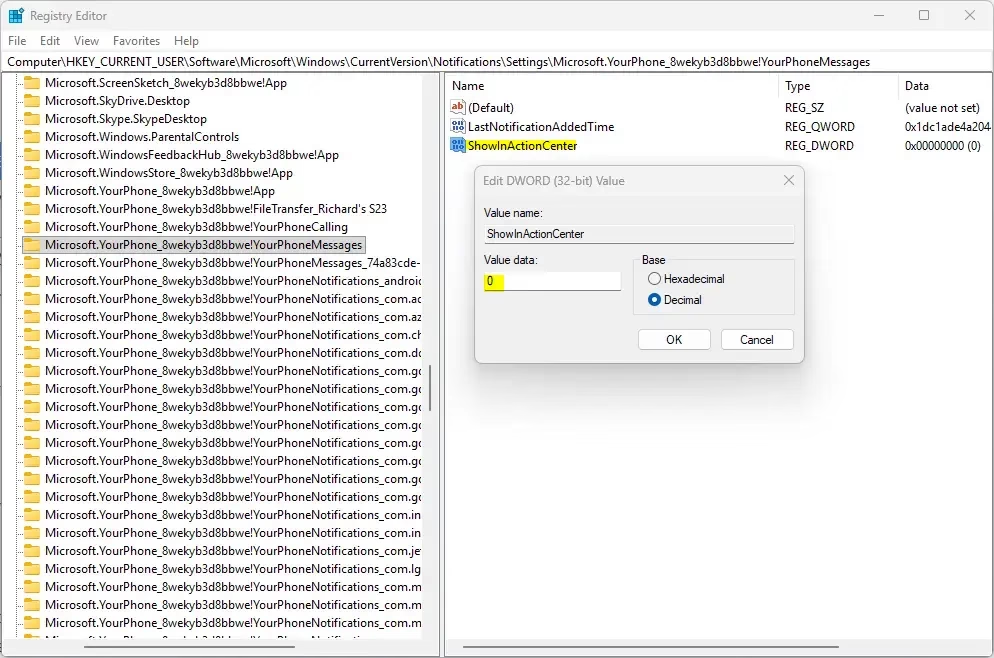
- Go to step 7 when finished.
- When you’re done, you can close Registry Editor.
That’s it!
Summary
You now know how to control notifications in Windows 11’s notification center. Use Settings for simple changes. Use Registry Editor if Settings doesn’t work or if you need more control. With these steps, you can decide which apps send you notifications and which ones don’t.
Was this guide helpful?

About the Author
Richard
Tech Writer, IT Professional
Richard, a writer for Geek Rewind, is a tech enthusiast who loves breaking down complex IT topics into simple, easy-to-understand ideas. With years of hands-on experience in system administration and enterprise IT operations, he’s developed a knack for offering practical tips and solutions. Richard aims to make technology more accessible and actionable. He's deeply committed to the Geek Rewind community, always ready to answer questions and engage in discussions.



No comments yet — be the first to share your thoughts!