How to Automatically Wake PC with Presence Sensing in Windows 11


Presence sensing in Windows 11 automatically wakes your computer the moment you walk up to your desk and locks it when you step away. This power feature uses a compatible hardware sensor built into your PC to detect your body, turning on the screen from sleep without requiring you to touch the keyboard or mouse.
You need a Windows 11 PC equipped with a supported presence sensor to use this feature.
Enable automatic wake-up by navigating to Settings System Power & battery Screen and sleep. Turn on the “Automatically wake up my device when I approach” switch if your PC has a compatible presence sensor. This feature uses sensors to wake your PC when you are near.
What is Presence Sensing?
Presence Sensing relies on specialized hardware built into your machine to detect human movement nearby.
How to Make Your PC Wake Up When You Get Close
Return to work faster by enabling this functionality with a few quick adjustments.
Step 1Open Windows Settings
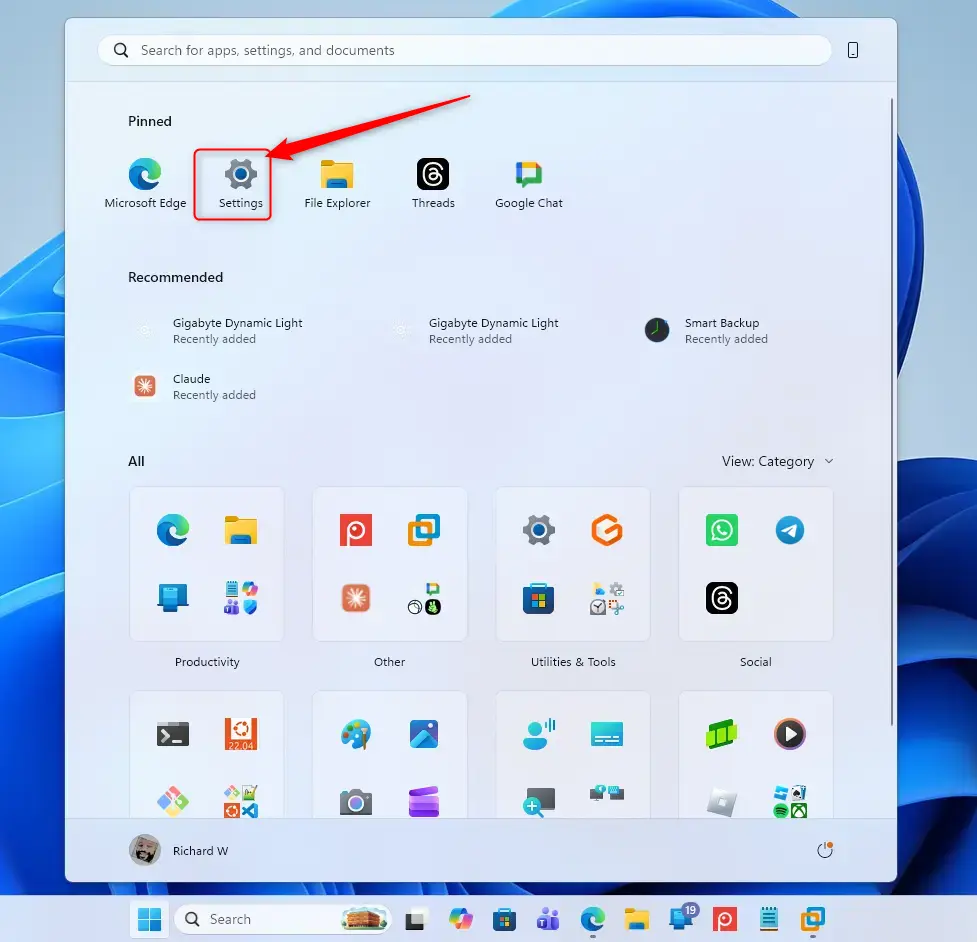
Press Win+I to open Settings .
Press the Windows key + I keys on your keyboard together to open Settings immediately.
Step 2Go to Power & Battery Settings
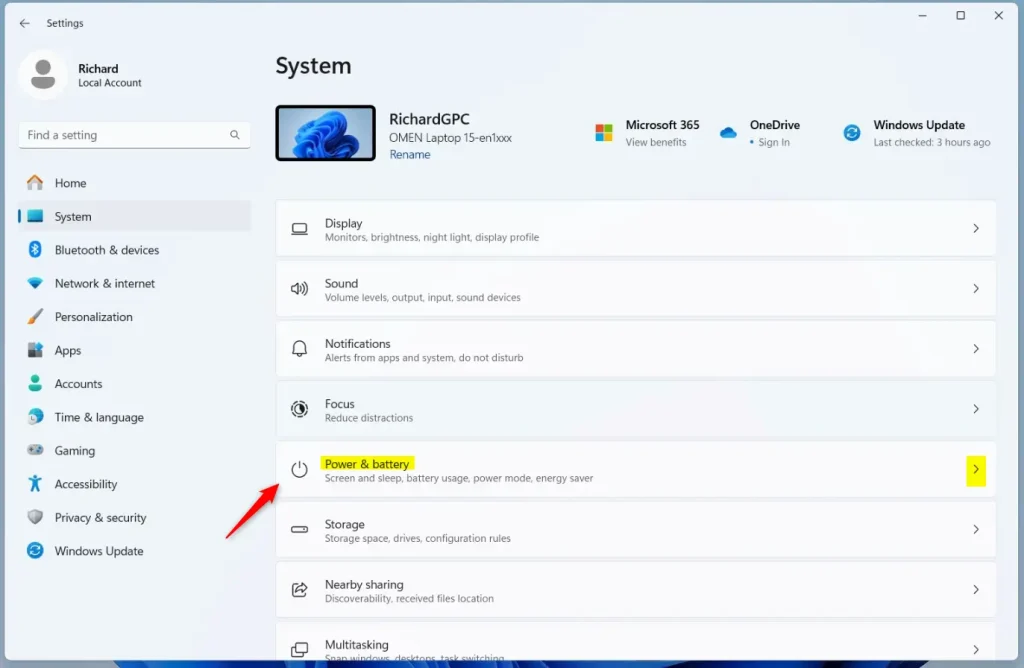
Click System on the left menu. Scroll down the right pane until you find Power & battery, then click it to access power management controls.
Step 3Find Screen and Sleep Settings
Manage your energy settings here. Locate and select Screen and sleep to adjust display timeouts and sleep schedules.
Step 4Turn on Automatic Wake-Up
Windows 11 presence sensing lets you wake up your computer automatically as you walk up to it, but you need to turn on the setting first. Open the Settings app, go to Privacy & security, and select Presence sensing. Find the option to automatically wake up your device when you approach and turn it on so your PC is ready the moment you sit down.
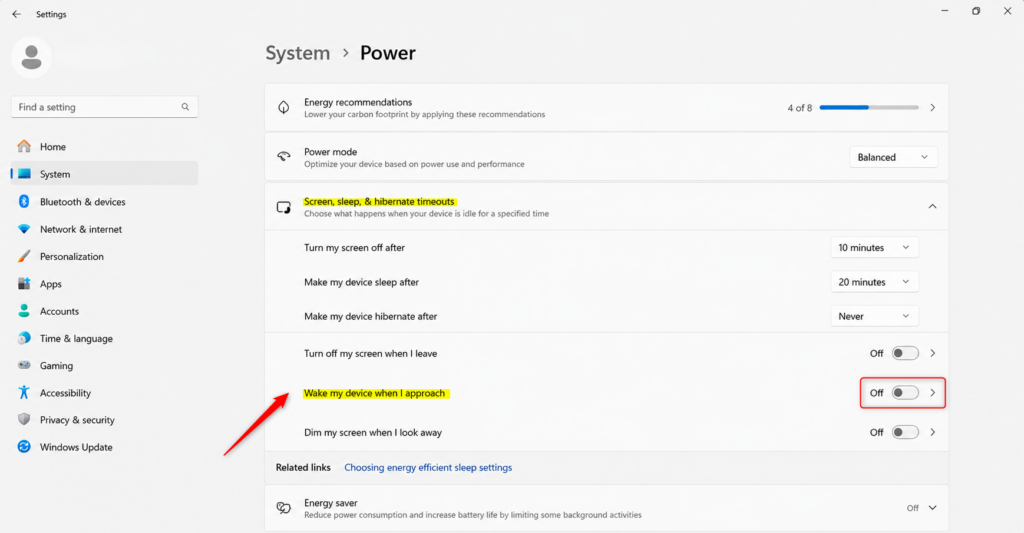
The absence of the "Automatically wake up my device when I approach" option indicates missing compatible hardware or required drivers.
Reference:
Summary
Presence Sensing transforms Windows 11 into a responsive environment that reacts instantly to your presence while optimizing power usage.
Was this guide helpful?

About the Author
Richard
Tech Writer, IT Professional
Richard, a writer for Geek Rewind, is a tech enthusiast who loves breaking down complex IT topics into simple, easy-to-understand ideas. With years of hands-on experience in system administration and enterprise IT operations, he’s developed a knack for offering practical tips and solutions. Richard aims to make technology more accessible and actionable. He's deeply committed to the Geek Rewind community, always ready to answer questions and engage in discussions.

… liked this!