How to Turn On or off Narrator Announcing Keys in Windows 11

Narrator announcing keys in Windows 11 makes the built-in screen reader speak the keys you press as you type. Depending on your settings, that can include letters, numbers, punctuation, and keys like Arrow and Tab. It lets you check your typing without looking at the monitor.
To start Narrator, press the Win+Ctrl+Enter shortcut. Once it is running, open the Narrator settings page and choose what you want to hear: every keystroke, only text characters, or just control keys. The feature works the same in Windows 11 Home and Pro. You don’t need a restart for any of it.
Press Win+Ctrl+Enter to start Narrator. Go to Settings Accessibility Narrator, expand Have Narrator announce when I type, then toggle Arrow, Tab, and other navigational keys to On or Off. The change takes effect immediately.
What Is Narrator?
Narrator is a built-in screen reader that reads on-screen text aloud, mainly for blind and low-vision users. It also announces navigation keys such as the arrow keys. That helps you follow where the cursor is and type accurately without watching the screen.
Hearing these keys tells you what you just pressed and where the cursor moved. If you press the Left Arrow key and nothing is announced, you know straight away that the cursor may not be where you expect. The same goes for Tab when you move between buttons, fields, and menu items.
Why Use This Feature?
- It helps people who have trouble seeing by speaking which keys they press, so they can catch a wrong key before it ends up in a document or form.
- It makes typing easier if you work best with sound feedback. You get confirmation of each key without checking the screen.
- Arrow and Tab keys move you through menus, dialog boxes, and text. Hearing them tells you where focus has landed, which makes navigating by keyboard much easier.
How to Turn On or Off Narrator Announcing Keys
Go to Accessibility, open the Narrator page, and change the typing announcement option. With it on, Narrator speaks the keys you press, which helps you check your typing. If the spoken keys get distracting while you work, you can come back and switch it off at any time.
If you hear nothing after changing it, press Win+Ctrl+Enter to start Narrator, then try again.
- Open Windows Settings: Click the Start menu (the Windows icon on the taskbar) and select Settings. Or press
Windows key + Ion your keyboard. The Settings window should open. - Go to Accessibility: In the Settings window, click Accessibility in the left sidebar. The accessibility options appear on the right.
- Open Narrator settings: Scroll down in the right panel and click Narrator. The Narrator page opens with its on/off switch at the top, followed by the voice, verbosity, and keyboard options.
- Find "Have Narrator announce when I type": Under the Verbosity section, click the arrow next to Have Narrator announce when I type to expand it. A list of typing-related options appears. Menu labels and their placement can vary slightly between Windows 11 builds, so if you don't see this exact wording, look through the other expandable sections on the Narrator page.
- Turn on or off announcing keys: Find the option named Arrow, Tab, and other navigational keys and flip its switch to On or Off. The change takes effect straight away. Press an arrow key to test it. To undo the change, flip the same switch back.
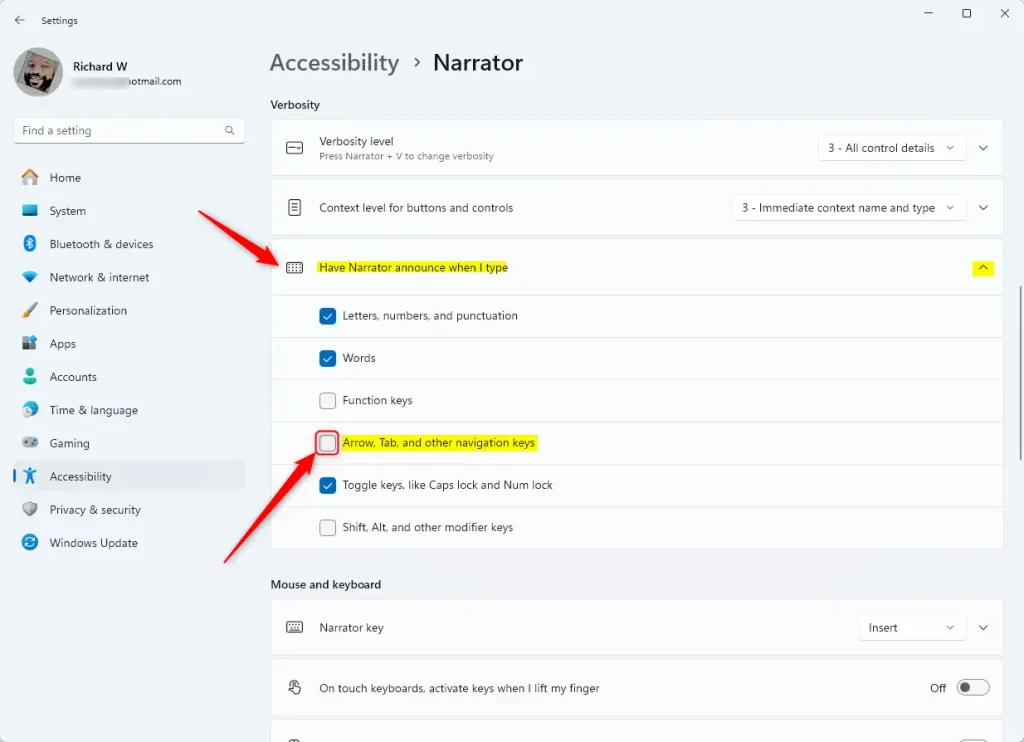
Narrator's key announcing feature in Windows 11 either speaks or silences keys like Arrow and Tab as you type. Turn it on and you hear those keys. Turn it off and they stay quiet. Narrator still reads other things, such as text and controls, either way.
What Happens When You Enable This?
With the switch on, the computer announces every navigational key you press. This gives you spoken feedback on what you are doing as you do it. With the switch off, the announcements stop immediately, with no restart or sign-out needed. If you only want to quiet Narrator for a moment, pressing the Ctrl key stops the current speech.
For more tips on using Narrator and making Windows easier to use, visit the full Narrator guide.
Summary
Narrator announcing keys is a useful Windows 11 feature that speaks navigation keys like Arrow and Tab when you press them. You can switch it on or off in Settings Accessibility Narrator whenever you like, and the change applies immediately.
Did this guide fix your problem?

About the Author
Richard
Tech Writer, IT Professional
Richard is a writer at Geek Rewind who turns complex IT tasks into clear, step-by-step guides. He draws on years of hands-on experience in system administration and enterprise IT operations, focusing on Windows, Linux and WordPress: the problems people actually run into, and the fixes that work. His server and WordPress guides come from systems he runs himself. Richard builds and maintains the platform behind Geek Rewind, from its Ubuntu servers and Nginx configuration to its custom WordPress plugins. Many new tutorials start with readers' questions, and he's always glad to answer them in the comments.
No comments yet — be the first to share your thoughts!