
This guide will help you easily turn Battery Saver on or off on your Windows 11 laptop or tablet to save battery power.
What is Battery Saver?
Battery Saver is a feature in Windows 11 that helps your device use less power when it’s running on battery. When Battery Saver is on, some features like background apps or screen brightness might be limited to save energy.
By default, Battery Saver turns on automatically when your battery drops below 20%. It also lowers your screen brightness a bit to help your battery last longer.
Note: Battery Saver only works when your computer is running on battery power. It will turn off automatically when you plug in your charger.
How to Turn On or Off Battery Saver
Option 1: Use Quick Settings
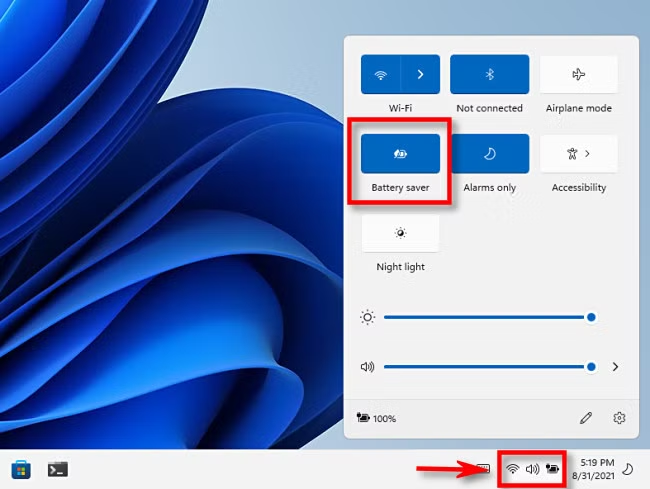
- Press Win + A on your keyboard to open Quick Settings.
- Look for the Battery Saver button (it looks like a battery with a heart).
- Click the button to turn Battery Saver on or off.
Option 2: Use Settings
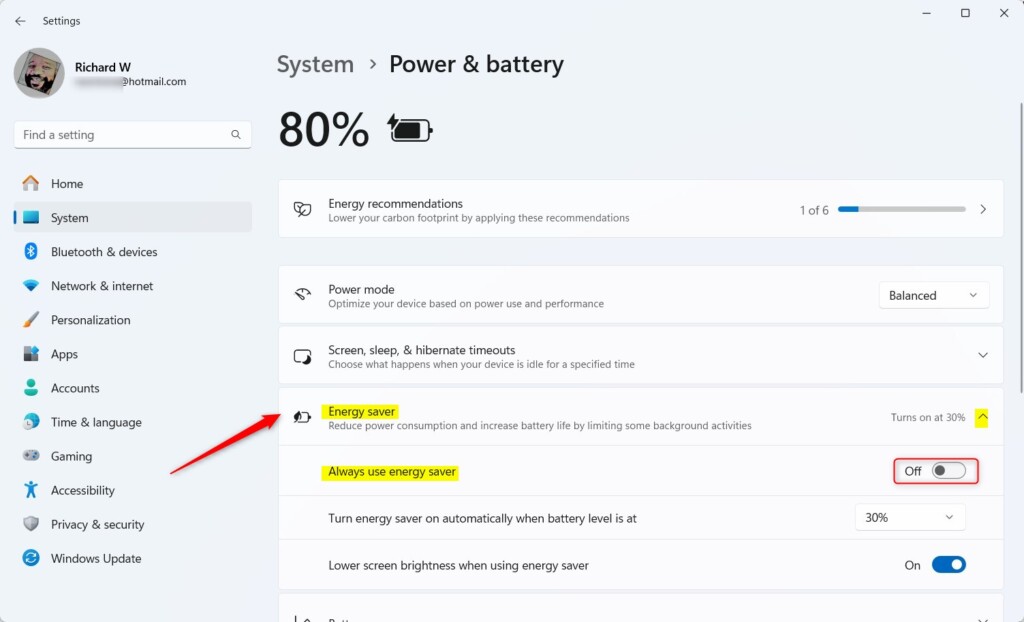
- Press Win + I to open the Settings app.
- Click System on the left menu.
- Select Power & battery on the right side.
- Find Battery saver and click it to expand.
- Click Turn on now or Turn off now to change Battery Saver status.
You can also open Power & battery settings directly by clicking this link (only works on your Windows 11 PC): Open Power & battery settings
Option 3: Set When Battery Saver Turns On Automatically
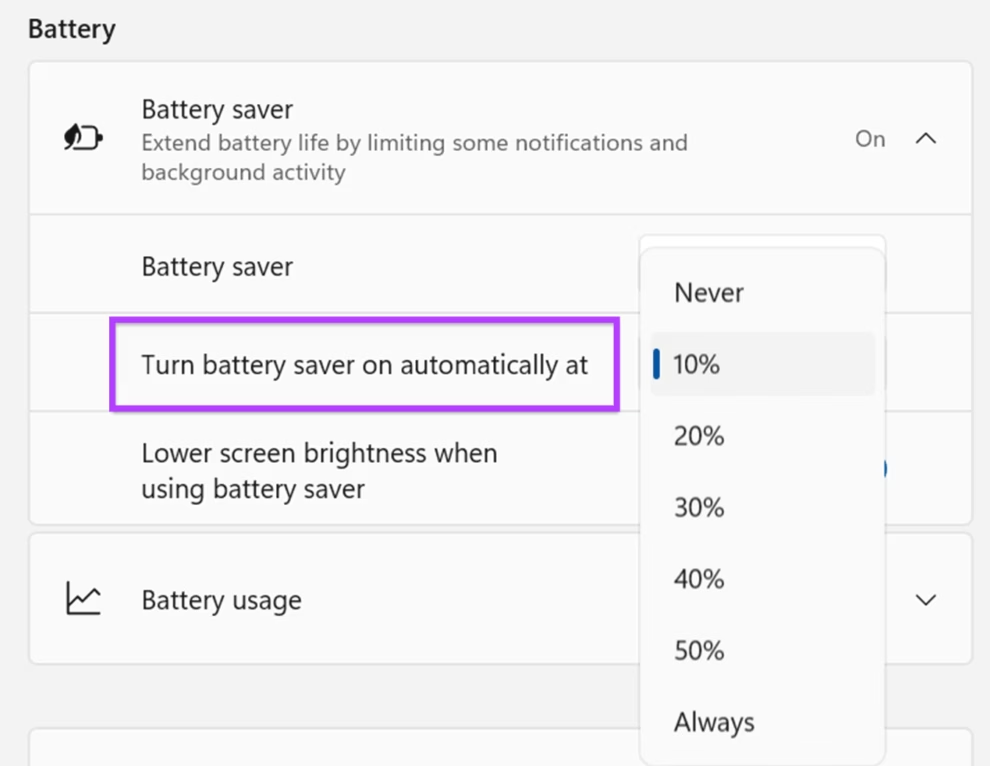
You can choose the battery level at which Battery Saver starts automatically.
- Open Settings with Win + I.
- Go to System > Power & battery.
- Expand Battery saver.
- Under Turn battery saver on automatically at, pick a percentage like 10%, 20% (default), 30%, or even Never if you don’t want it to turn on automatically.
Option 4: Use Windows Terminal (for advanced users)
You can also set when Battery Saver turns on automatically using a command:
- Open Windows Terminal by right-clicking the Start button and selecting it.
- Type this command and press Enter:
powercfg /setdcvalueindex SCHEME_CURRENT SUB_ENERGYSAVER ESBATTTHRESHOLD <percentage>Replace <percentage> with a number between 0 and 100:
- 0 = Never turn on Battery Saver automatically
- 20 = Default, turn on at 20% battery
- 100 = Always keep Battery Saver on when on battery
Example (to set Battery Saver to turn on at 20%):
powercfg /setdcvalueindex SCHEME_CURRENT SUB_ENERGYSAVER ESBATTTHRESHOLD 20What is Energy Saver in Windows 11?
Starting with new Windows 11 versions, Microsoft also added Energy Saver. This is similar to Battery Saver but works even when your PC is plugged in (including desktop PCs) to help reduce energy use without slowing down your computer too much.
Summary – Why Use Battery Saver?
- Save Battery Life: Helps your laptop last longer by saving power.
- Auto On: Turns on automatically when battery is low (default 20%).
- Brightness Reduced: Makes your screen a bit dimmer to save energy.
- Easy to Use: Turn on or off quickly from Quick Settings or Settings.
- Customizable: Choose when Battery Saver should start automatically.
- Energy Saver: New enhanced mode for saving energy even when plugged in.
Using Battery Saver is a simple way to help your Windows 11 device last longer on battery and use energy more wisely.



Leave a Reply