Why use Windows 11 Calculator always on top?

When you are working on a spreadsheet or writing a report, you might need to do math without constantly switching back and forth between apps. The Windows 11 Calculator always on top feature keeps the calculator floating above your other programs. This improves your multitasking with Windows 11 productivity tools by ensuring your numbers are visible at all times.
What happens when you are done?
Once you finish your calculations, you can easily turn this feature off. This allows the calculator to behave like a normal window again, so it will no longer block your view of other programs or clutter your workspace.
How to keep the Calculator on top
You do not need special permissions for this. This feature is built directly into the app. Follow these steps:
- Open the Start menu.
- Search for Calculator and click to open it.
Once the app is open, look for the Keep on top button. Pro-tip: Look for the icon that looks like two overlapping squares. It is located in the top-right corner of the calculator window. You can also press Alt + Up Arrow on your keyboard to activate it.
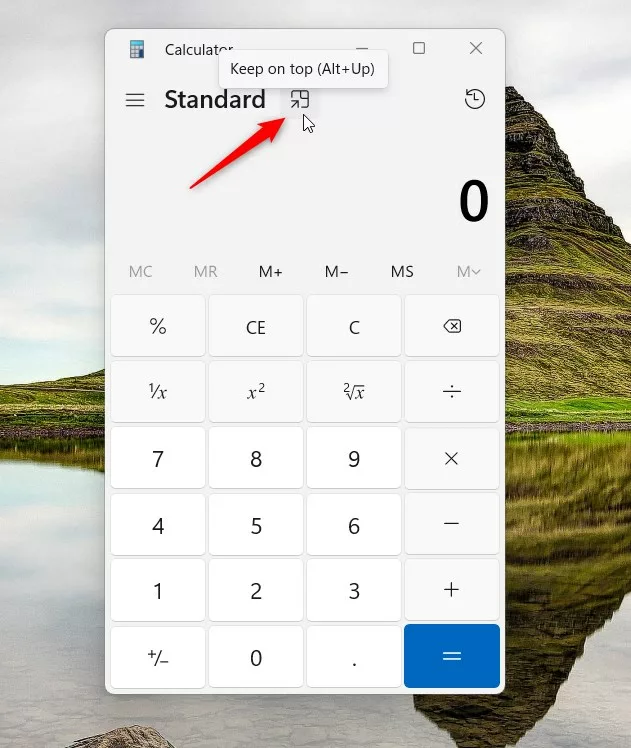
The calculator will now stay visible over any other window you have open on your screen.
Calculator modes and UI behavior
The Always on Top feature works across all modes, including Standard, Scientific, and Graphing. When you pin the app, the Calculator window behavior changes to stay locked in the foreground. Note that when you pin the window, it may automatically snap to a corner of your screen to save space. This is normal UI pinning behavior designed to keep your main work area clear.
Troubleshooting missing features
If you do not see the Keep on top button, your app might be outdated. To fix this, open the Microsoft Store, search for Windows Calculator, and click Update. You can also visit the official Microsoft Support page for more help.
How to return to normal mode
If you want the calculator to act like a regular window again, simply click the Keep on top button one more time. Alternatively, you can press Alt + Down Arrow on your keyboard.
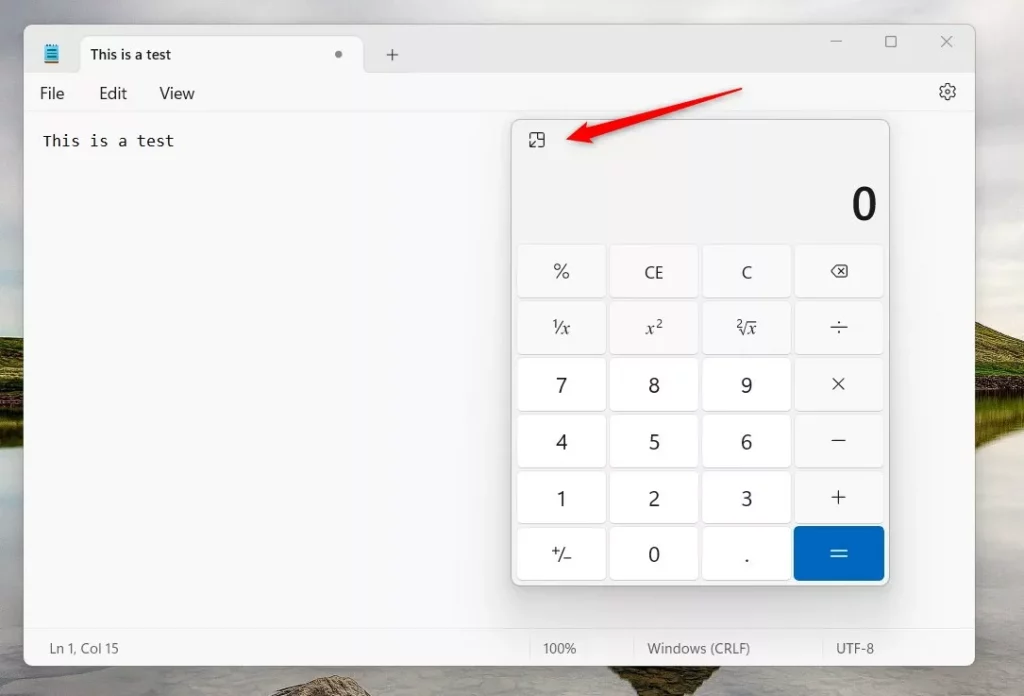
That is all there is to it! You can now toggle this setting whenever you need it.
Summary
The Windows 11 Calculator always on top feature helps you work faster by keeping your math tools visible. You can enable or disable this mode using the overlapping squares icon or by using the keyboard shortcuts Alt + Up Arrow and Alt + Down Arrow. If the button is missing, update your app via the Microsoft Store.
Why does the calculator jump to the corner when pinned?
When you enable the always on top feature, Windows automatically moves the calculator to a corner of your screen. This is a default UI behavior designed to prevent the calculator from blocking the center of your workspace, allowing you to continue typing or viewing your main documents without obstruction.
Can I use a keyboard shortcut to toggle Always on Top?
Yes, you can use keyboard shortcuts to manage the window. Press Alt + Up Arrow to pin the calculator to the top of your other windows. To return the calculator to normal behavior, simply press Alt + Down Arrow. These shortcuts work instantly in any calculator mode.
Was this guide helpful?

About the Author
Richard
Tech Writer, IT Professional
Richard, a writer for Geek Rewind, is a tech enthusiast who loves breaking down complex IT topics into simple, easy-to-understand ideas. With years of hands-on experience in system administration and enterprise IT operations, he’s developed a knack for offering practical tips and solutions. Richard aims to make technology more accessible and actionable. He's deeply committed to the Geek Rewind community, always ready to answer questions and engage in discussions.




No comments yet — be the first to share your thoughts!