Allow Websites to Access Your Language Preferences in Windows 11

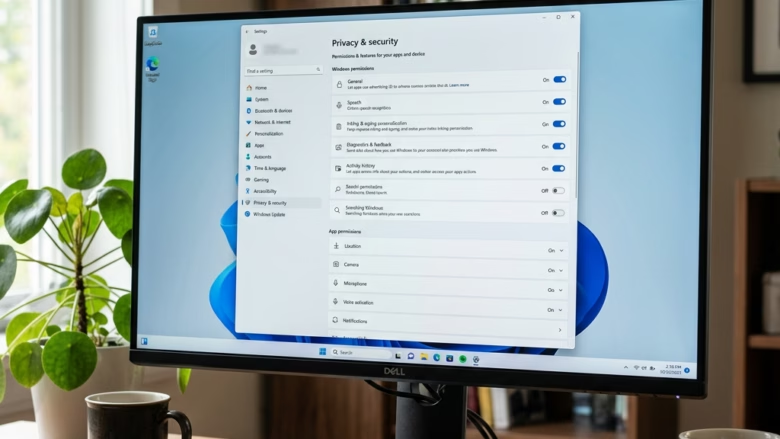
Language preference sharing in Windows 11 lets websites show content in your language automatically. They do this by reading the list of preferred languages saved on your PC. The feature has been available since Windows 11 version 21H2. It saves you from changing the language on every new shopping or news site you open.
Windows only shares the languages you have added to your list. It does not share other personal data, so you get a better browsing experience without giving much away. The setting is the same on Windows 11 Home and Pro.
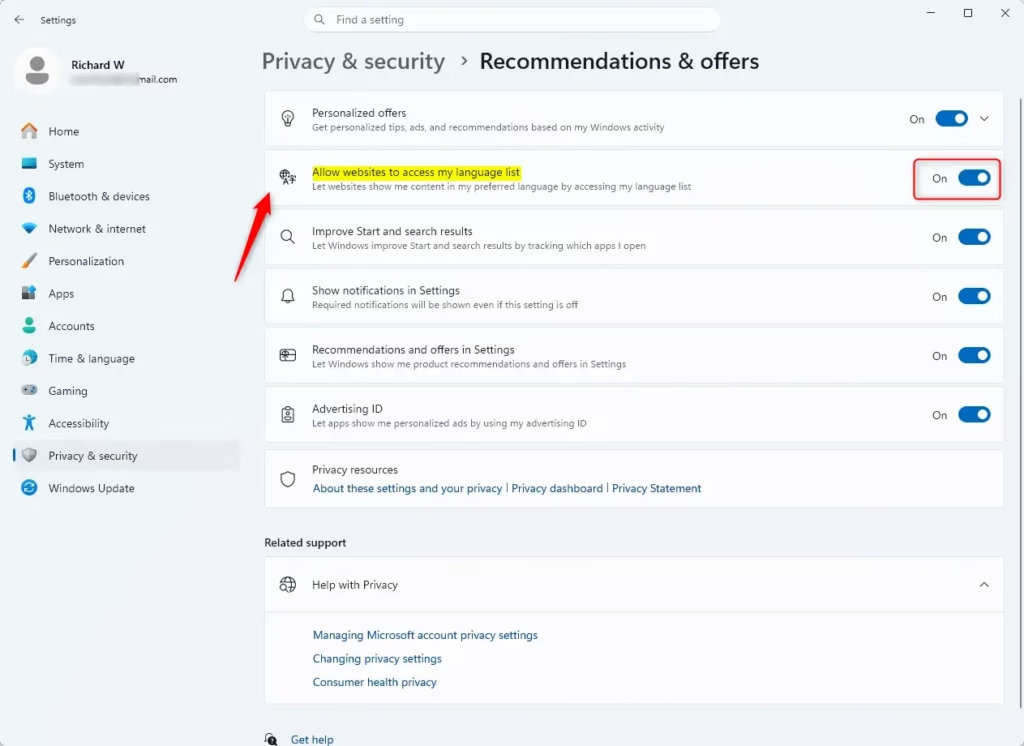
To allow websites to access your language preferences in Windows 11, open Settings , click Privacy & security, scroll to Recommendations & offers, find the setting labeled “Let websites show me locally relevant content by accessing my language list,” and toggle the switch to On. The change applies immediately.
Steps to Let Websites See Your Language
The setting is in the Windows 11 privacy and security options. Here is how to find it and change it:
- Open the Settings app. Press the Win+I on your keyboard. Or click the Start button (the Windows logo, usually in the middle of the taskbar ) and click the gear-shaped Settings icon. If the icon is not on the Start menu , click All apps and pick Settings from the list. The Settings window should now be open, with a list of categories down the left side.
- Click Privacy & security in the left-hand list. This is where Windows controls how it handles your data and privacy. The privacy options appear on the right.
- Scroll down and find Recommendations & offers. This area holds some of the main privacy settings in Windows 11. Depending on your build, these options may sit under the General page of Privacy & security instead. If you don’t see the language setting right away, open General and look there.
- Find the language list setting. Look for a line that reads something like “Let websites show me locally relevant content by accessing my language list.” There is a switch next to it. The exact wording can vary a little between Windows 11 versions.
- Set the switch the way you want it.
- To allow sharing, make sure the switch reads On. If it reads Off, click it once.
- To stop sharing, click the switch so it reads Off.
Its policies can lock the setting, and you will need to ask your administrator to change it.
To change which languages are on that list, open Settings, go to Time & language, and select Language & region. Some browsers also keep their own language settings, so a site may still show a different language if the browser is set that way. If a site still shows the wrong language after you change the setting, reload the page or restart the browser.


Summary
Letting Windows 11 share your language preferences helps websites show content in your preferred language automatically, which improves your browsing experience. If you would rather keep that information to yourself, turn the switch off. You can switch it back on at any time.
Have a question about this guide?
Answered by AI from this guide. Good questions may be added to this page — please don't include personal details.
Did this guide fix your problem?

About the Author
Richard
Tech Writer, IT Professional
Richard is a writer at Geek Rewind who turns complex IT tasks into clear, step-by-step guides. He draws on years of hands-on experience in system administration and enterprise IT operations, focusing on Windows, Linux and WordPress: the problems people actually run into, and the fixes that work. His server and WordPress guides come from systems he runs himself. Richard builds and maintains the platform behind Geek Rewind, from its Ubuntu servers and Nginx configuration to its custom WordPress plugins. Many new tutorials start with readers' questions, and he's always glad to answer them in the comments.
No comments yet — be the first to share your thoughts!