How to Enable Live Caption in Google Chrome


Live Caption in Google Chrome is a built-in accessibility tool that displays automatic text on your screen for any audio or video playing in the browser. Available since Chrome version 89, the feature runs completely offline on your device to keep your audio private.
Turn on Live Caption in the settings menu to read spoken words instantly, even when you mute your speakers.
Enable Live Caption in Chrome by going to Settings, then Accessibility, and toggling the Live Caption switch on. This feature automatically generates captions for audio and video played in your browser. You can also manage language packs and translation options here.
Enable or disable Live Caption in Google Chrome
Live Caption Google Chrome settings let you display automatic subtitles for any video or audio playing in your browser. To turn Live Caption on or off, open Chrome, click the three vertical dots in the top right corner, select Settings, click Accessibility on the left menu, and toggle the Live Caption switch to your preferred setting.
- Open the Google Chrome browser.
- Click the Customize and Control button (the three vertical dots) in the top right corner.
- Select Settings.

1. Open Google Chrome and click the Customize and Control button (the three vertical dots) in the top right corner.
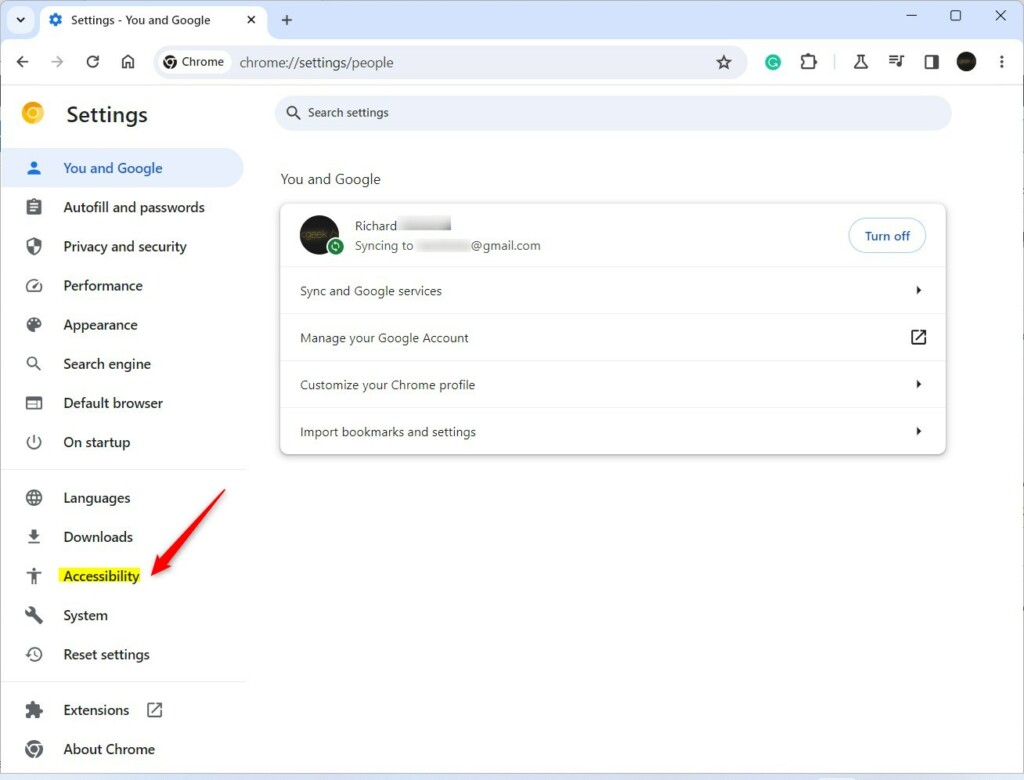
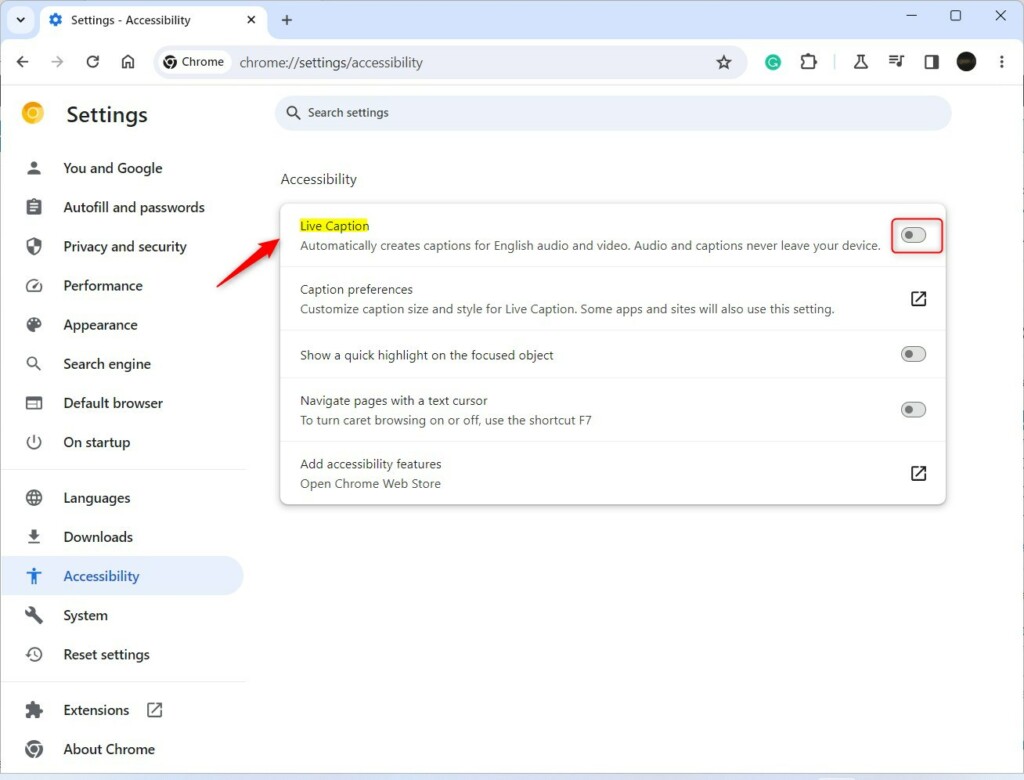
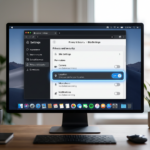
On the right side, click the Live Caption tile. Typing chrome://settings/accessibility into the address bar also brings up this page directly.
Toggle the Live Caption switch to On or Off.
Managing Languages and Translation
Live Caption Google Chrome supports multiple languages by downloading speech recognition packs directly to your computer. You can add extra language packs in the Accessibility settings to generate captions in other languages, or use the Live Translate feature to automatically convert English audio into foreign language text as you watch.
The Live Translate feature also translates English captions into other languages as they appear. Pick a preferred language in the Live Caption settings, and the text will update while media plays.
Media playing in Google Chrome will now display automatic captions without any extra setup required.
Managing Live Caption takes a quick toggle in the settings menu whenever the feature needs turning on or off. This accessibility feature benefits everyone. To change the Live Caption appearance, adjust the style settings in the same menu where you turn Live Caption on or off.
Was this guide helpful?

About the Author
Richard
Tech Writer, IT Professional
Richard, a writer for Geek Rewind, is a tech enthusiast who loves breaking down complex IT topics into simple, easy-to-understand ideas. With years of hands-on experience in system administration and enterprise IT operations, he’s developed a knack for offering practical tips and solutions. Richard aims to make technology more accessible and actionable. He's deeply committed to the Geek Rewind community, always ready to answer questions and engage in discussions.

No comments yet — be the first to share your thoughts!