How to Show the Language Bar on Your Desktop or Taskbar in Windows 11

You can show the Language Bar in Windows 11 to quickly switch between installed input languages and keyboard layouts.
The Language Bar is a small toolbar that pops up on your screen, usually on the taskbar or desktop. It lets you switch languages with ease.
This feature is a lifesaver if you often type in more than one language, like switching between English and Spanish for your documents or emails.
Displaying the Language Bar in Windows 11 involves a few clicks within the Settings app. But what exactly is the Language Bar?
What is the Language Bar?
The Windows 11 language bar is a simple tool that helps you switch between different keyboard layouts, making it easy to type in other languages or use special characters on your computer.
When you add a new language, Windows also adds the keyboard layout for it. You can add more keyboard layouts if you want.
If you have more than one keyboard or language, you can switch between them using the Language Bar or by pressing Win + Spacebar.
Option 1Show Language Bar Using Windows Settings
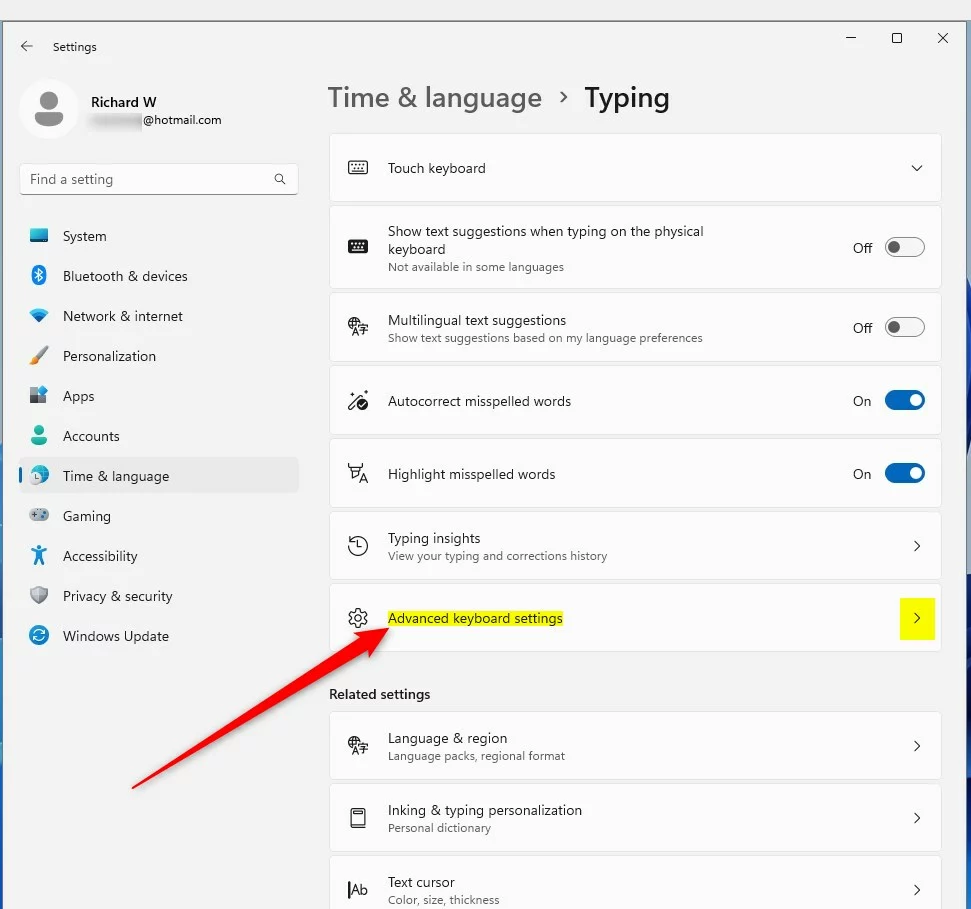
- Open Settings by pressing
Win + I. - Click Time & language on the left side.
- Click Typing on the right side.
- Scroll down and click Advanced keyboard settings.
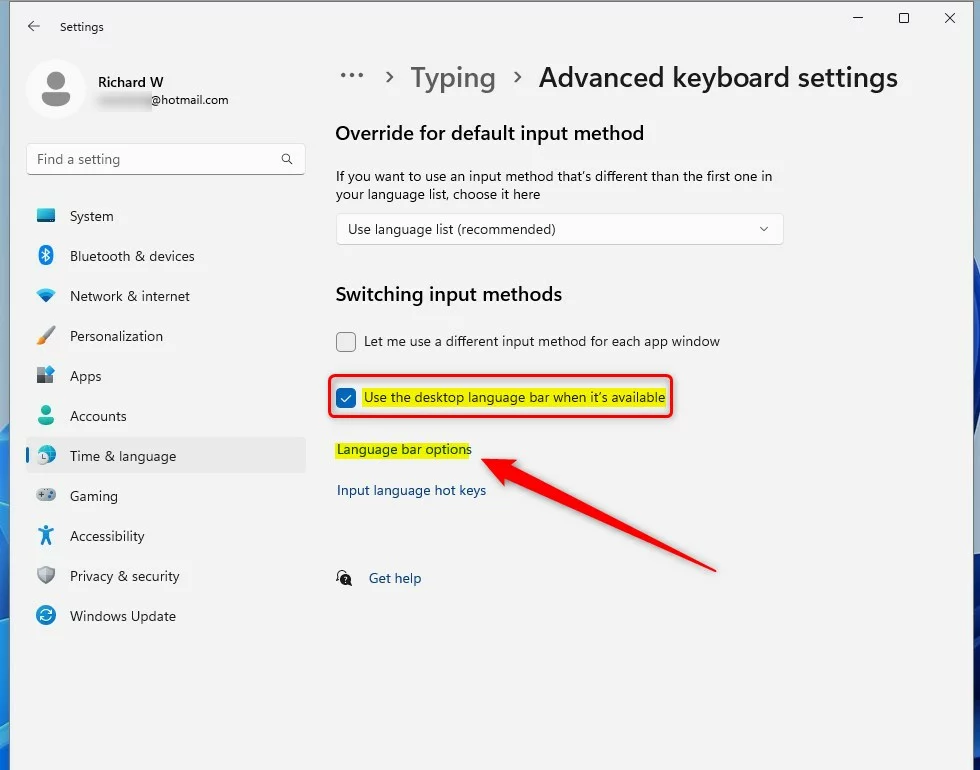
- Check the box for Use the desktop language bar when it’s available if you want the bar on your desktop.
- Uncheck it if you want the language bar to appear on the taskbar (this is the default setting).
- You can now close Settings.
You can turn on the Windows 11 language bar through your computer’s Settings menu by pressing the Windows key and I at the same time.
Option 2Show Language Bar Using PowerShell
If you like using commands, here’s how to do it with PowerShell:
- Open Windows Terminal by right-clicking the Start button and choosing it.
- Make sure you select the Windows PowerShell tab.
- Copy and paste one of the commands below depending on what you want:
Show Desktop Language Bar
This command will show the desktop language bar and turn off using different input methods for each app window:
Set-WinLanguageBarOption -UseLegacyLanguageBarOr, this command shows the desktop language bar and allows different input methods for each app window:
Set-WinLanguageBarOption -UseLegacyLanguageBar -UseLegacySwitchModeShow Taskbar Language Bar (Default)
If your Windows 11 language bar isn’t showing on the taskbar, you can easily bring it back by using a simple command in PowerShell to reset it to its default settings.
Set-WinLanguageBarOptionOr, this command hides the desktop bar but allows different input methods for each app window:
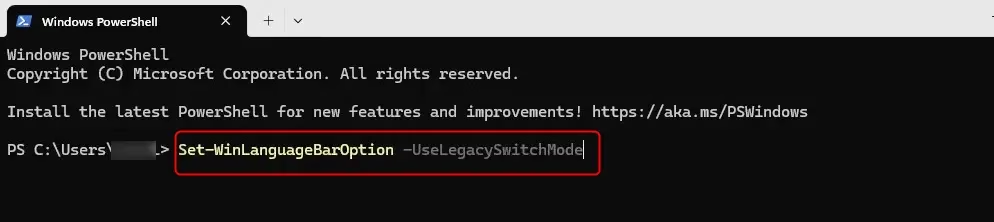
Set-WinLanguageBarOption -UseLegacySwitchModeAfter running your command, you can close Windows Terminal.
Here are pictures of how it looks in PowerShell:
Summary
- The Language Bar makes it easy to switch between keyboard languages on your Windows 11 PC.
- You can type special letters and characters in different languages by changing your keyboard layout.
- Switch languages quickly using the Language Bar or the shortcut keys
Win + Spacebar. - You can choose to show the Language Bar on your desktop or taskbar using Settings or PowerShell commands.
- This helps if you use more than one language and want to type comfortably.
The Windows 11 language bar is a useful tool that makes switching between keyboard languages on your PC quick and simple.
How do I bring back the language bar in 🪟 Windows 11?
Bringing back the Windows 11 language bar to your taskbar is straightforward; you just need to adjust a setting in the advanced keyboard options within Windows Settings.
What is the language bar hotkey on 🪟 Windows 11?
Use Windows + Spacebar to change the keyboard language. Hold down the Windows key and press the Spacebar to switch to the next language in the list until you get to the keyboard layout you want.
Was this guide helpful?

About the Author
Richard
Tech Writer, IT Professional
Richard, a writer for Geek Rewind, is a tech enthusiast who loves breaking down complex IT topics into simple, easy-to-understand ideas. With years of hands-on experience in system administration and enterprise IT operations, he’s developed a knack for offering practical tips and solutions. Richard aims to make technology more accessible and actionable. He's deeply committed to the Geek Rewind community, always ready to answer questions and engage in discussions.


No comments yet — be the first to share your thoughts!