How to Reset Windows Terminal to Default Settings in Windows 11

You reset Windows Terminal to its default settings by deleting its configuration file.
Windows Terminal is a modern, powerful application that consolidates Command Prompt, PowerShell, and WSL environments into one tabbed interface. It offers advanced features like custom themes, key bindings, and split panes.
If you’ve made changes to your Windows Terminal configuration, perhaps in the `settings.json` file located at `📂%LocalAppData%\Packages\Microsoft.WindowsTerminal_8wekyb3d8bbwe\LocalState\`, and things aren’t working right, a reset is your quickest fix. This action returns the application to its original state, as if you just installed it.
Resetting removes all your personalized settings, profiles, and customizations.
Open Settings, click Apps, then Installed apps. Find Terminal, click the three dots, and select Advanced options. Click the Reset button to restore default settings. Alternatively, delete the settings.json file via Command Prompt, PowerShell, or File Explorer.
Method 1Use the Settings App
You can reset Windows Terminal settings to their defaults using the Windows Settings app. This is a simple way to get your terminal back to how it was when you first installed it.
When Settings opens, click the Apps button on the left side.
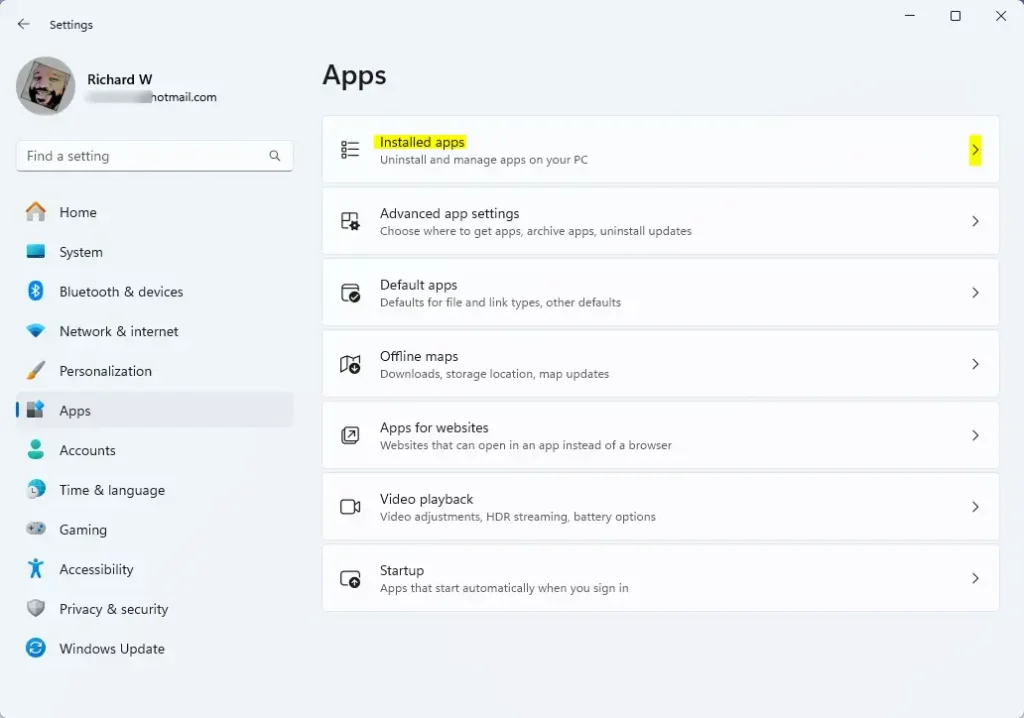
On the right side, select Installed apps to expand the list.
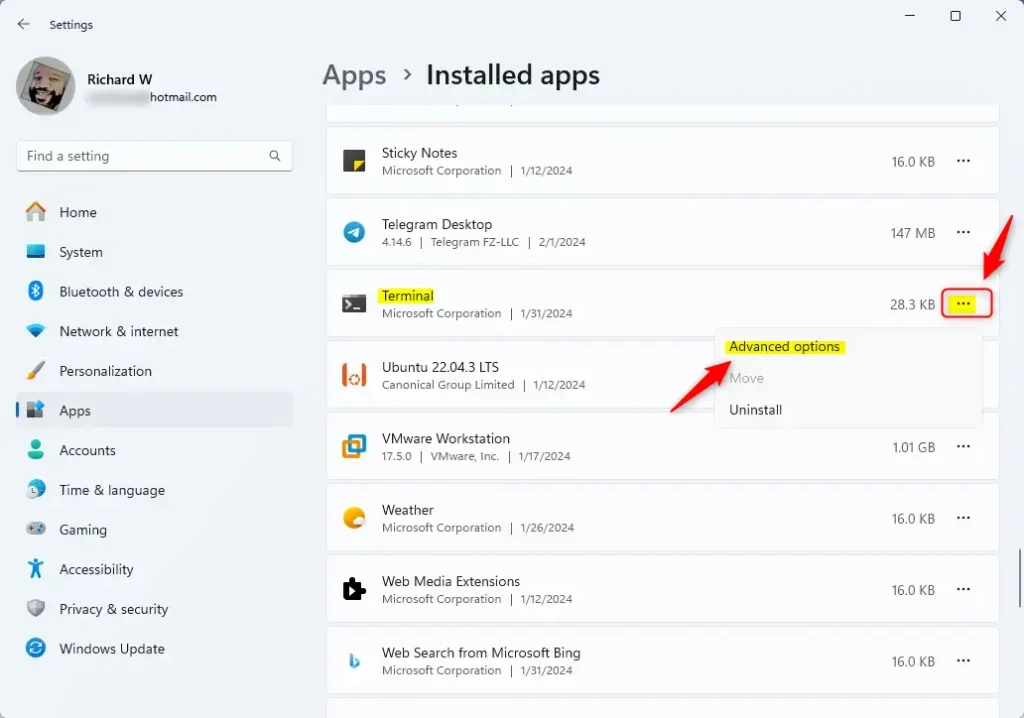
Find Terminal in the list. Click the three dots next to it, then select Advanced options.
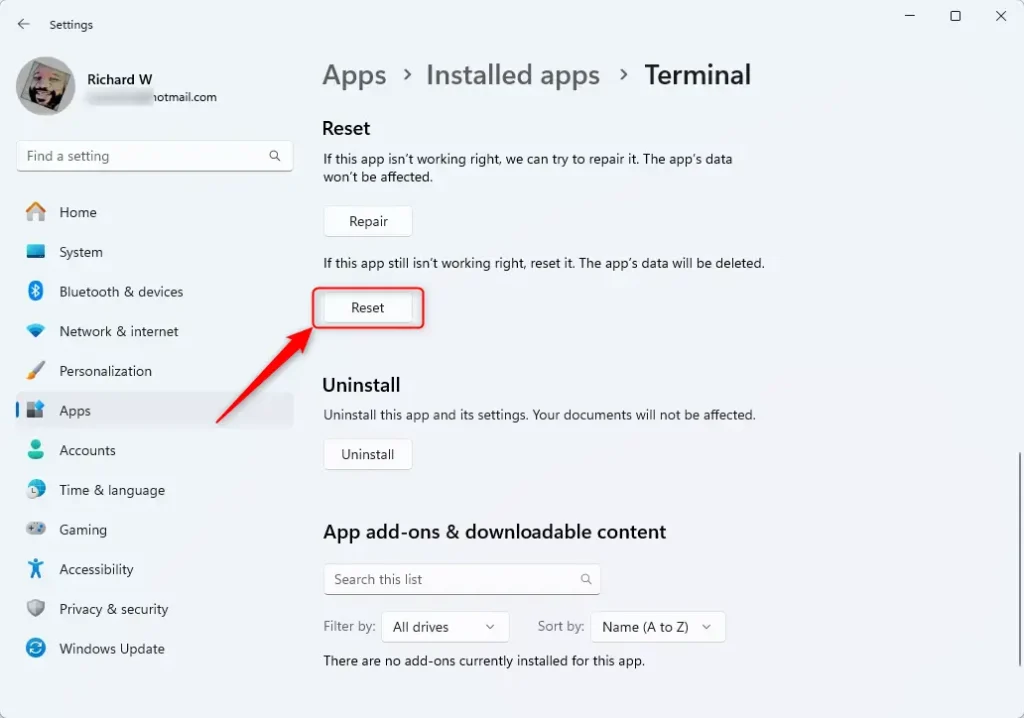
On the Windows Terminal settings page, click the Reset button. This restores all default settings.
When you’re done, close the Settings app.
Method 2Use Command Prompt or PowerShell
If you like using the command line, you can reset Windows Terminal settings by deleting its settings file. This method uses either Command Prompt or PowerShell to quickly remove the configuration.
Using Command Prompt:
Open Command Prompt as an administrator. Run this command:
del /f /s /q /a "%LocalAppData%\Packages\Microsoft.WindowsTerminal_8wekyb3d8bbwe\LocalState\settings.json"
Using PowerShell:
Open PowerShell as an administrator. Run this command instead:
Remove-Item -Path "$env:LOCALAPPDATA\Packages\Microsoft.WindowsTerminal_8wekyb3d8bbwe\LocalState\settings.json" -Force
Method 3Use File Explorer
You can also reset Windows Terminal settings by finding and deleting the settings file yourself using File Explorer. This lets you manually remove the configuration file to reset the program.
Open File Explorer. Click the address bar at the top and type this path:
%LocalAppData%\Packages\Microsoft.WindowsTerminal_8wekyb3d8bbwe\LocalState
Press Enter to go to that folder.
Find the file named settings.json. Right-click it and select Delete.
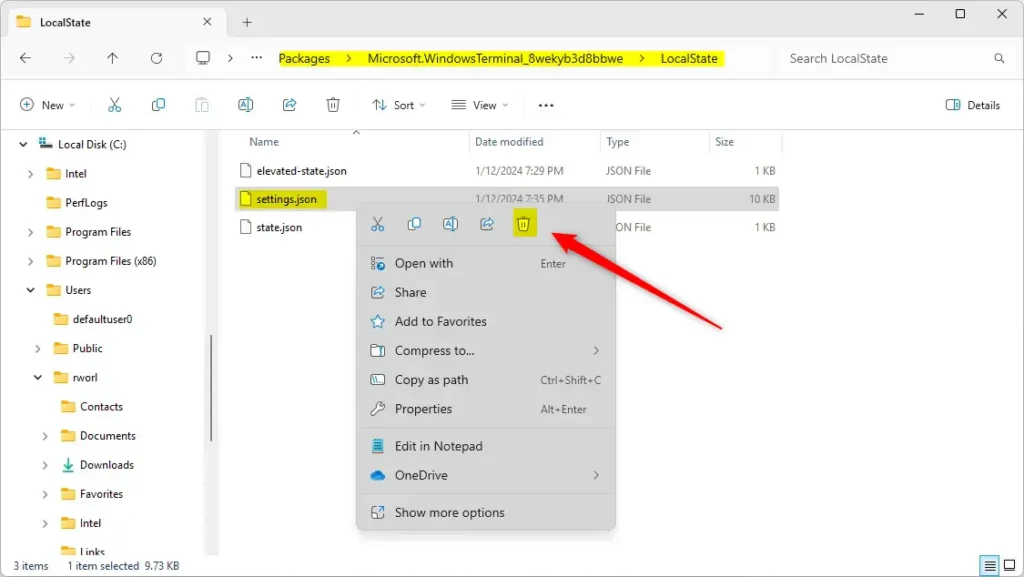
That’s it! Windows Terminal is now reset to default.
Summary
Resetting Windows Terminal settings is simple, with three main methods available: the Settings app for ease of use, the command line for speed, or File Explorer for a visual approach.
Was this guide helpful?

About the Author
Richard
Tech Writer, IT Professional
Richard, a writer for Geek Rewind, is a tech enthusiast who loves breaking down complex IT topics into simple, easy-to-understand ideas. With years of hands-on experience in system administration and enterprise IT operations, he’s developed a knack for offering practical tips and solutions. Richard aims to make technology more accessible and actionable. He's deeply committed to the Geek Rewind community, always ready to answer questions and engage in discussions.




No comments yet — be the first to share your thoughts!