How to Show or Hide Libraries Folder in Windows 11

You can show or hide the Libraries folder in Windows 11 by modifying a specific registry key.
The Libraries folder is a virtual container that consolidates files from various locations on your PC, making them accessible from one central point without moving them.
Accessing or hiding this feature in your File Explorer’s navigation pane can help you personalize your workflow, especially if you don’t use the Libraries function regularly.
For instance, the default location for Libraries is often found at 📂%AppData%\Microsoft\Windows\Libraries, and managing its visibility can declutter your view.
Show or hide the Libraries folder in Windows 11 via File Explorer Options. Open File Explorer, click the three dots, select Options, go to the View tab, and check or uncheck “Show libraries” under Advanced settings.
Before you begin: Back up your Registry
Warning: Modifying the Registry can cause system instability if done incorrectly. Before proceeding with advanced steps, always create a restore point or back up your registry keys. This ensures you can revert changes if something goes wrong.
Show the Libraries folder via File Explorer
You can show the Libraries folder in Windows 11 by changing a setting right in File Explorer.
- Open File Explorer.
- Click the three dots (ellipse) in the top menu bar.
- Select Options.
- Click the View tab.
- Under Advanced settings, check the box that says Show libraries.
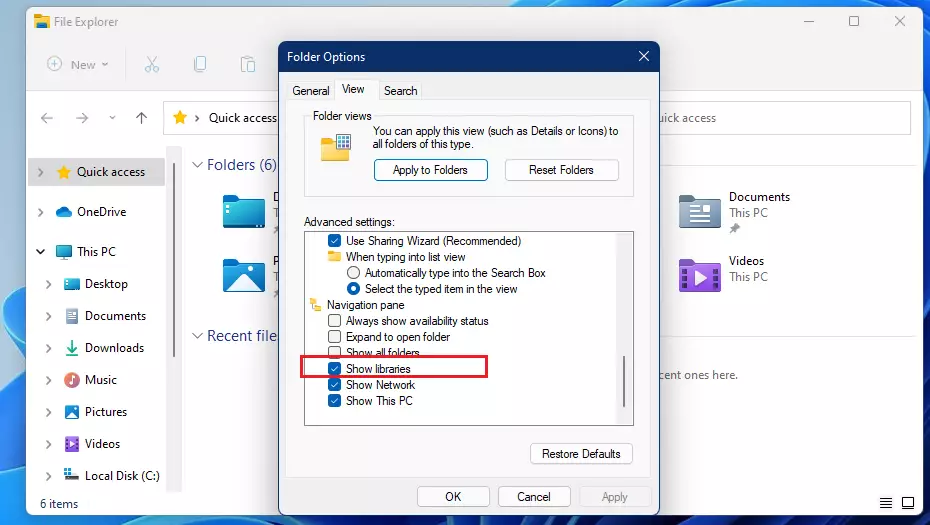
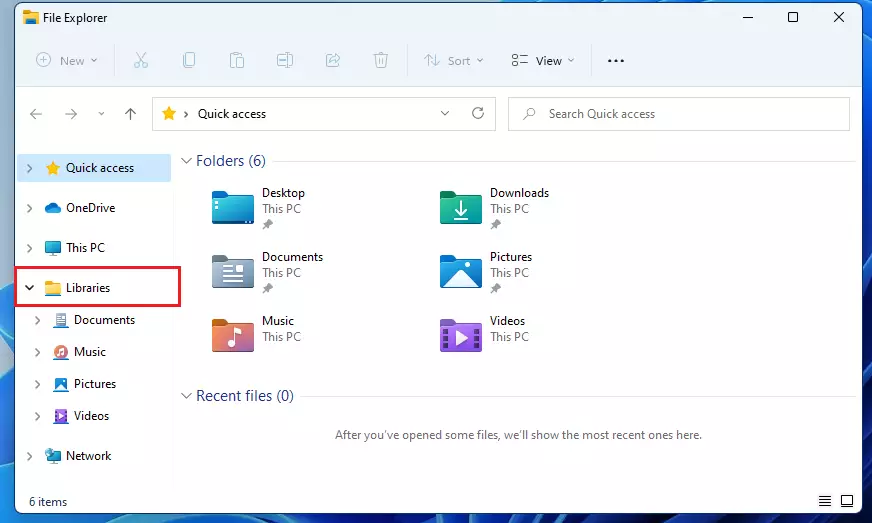
The Libraries folder will now show up in your navigation menu on the left.
Hide the Libraries folder
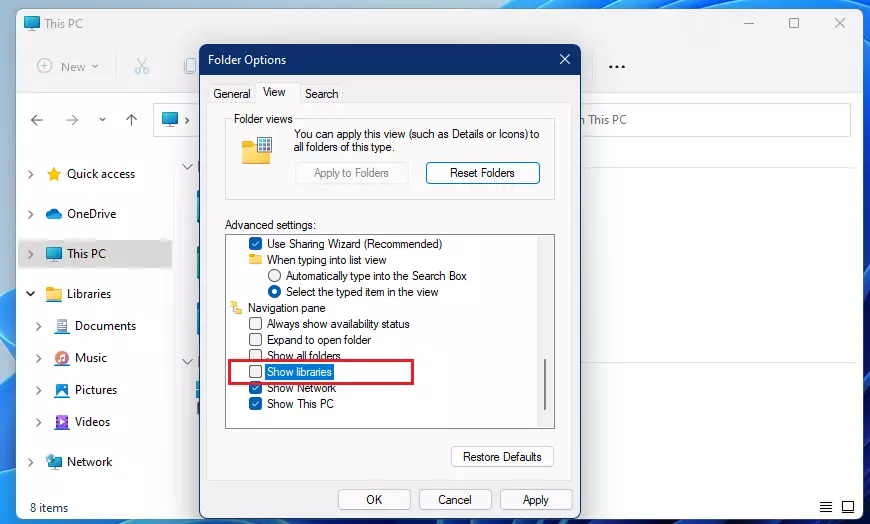
If you prefer a minimalist look, you can hide the folder:
- Open File Explorer and click the three dots in the menu.
- Select Options.
- Click the View tab.
- Uncheck the box next to Show libraries.
Advanced: Registry Editor modification
If the usual way doesn’t work to show or hide the Libraries folder in Windows 11, you can try changing a setting in the Registry Editor.
- Press ⊞ Win+R, type
regedit, and hit Enter. - Navigate to
HKEY_CURRENT_USER\Software\Classes\CLSID\{031E4825-7B94-4dc3-B131-E946B44C8DD5}. - Locate the System.IsPinnedToNameSpaceTree DWORD.
- Set the value to 1 to show or 0 to hide.
Group Policy Editor settings
For enterprise environments, you can use the Group Policy Editor to enforce this setting.
- Press ⊞ Win+R, type
gpedit.msc, and hit Enter. - Go to User Configuration > Administrative Templates > Windows Components > File Explorer.
- Find Show libraries in the navigation pane and set it to Enabled or Disabled.
Add files or folders to Libraries
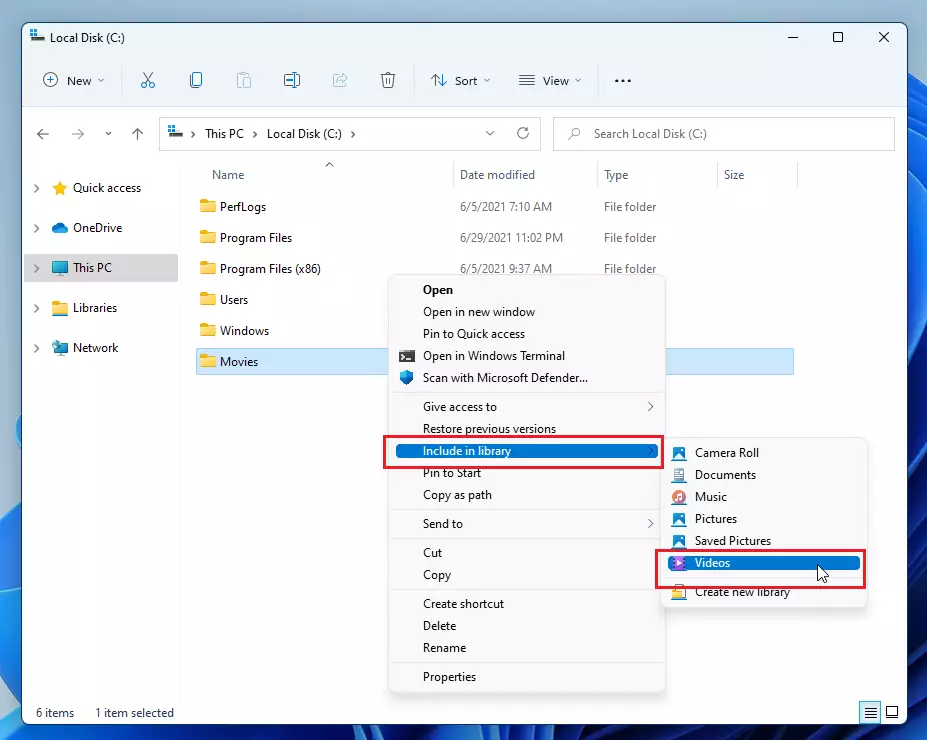
- Right-click the folder you want to add.
- Select Show more options.
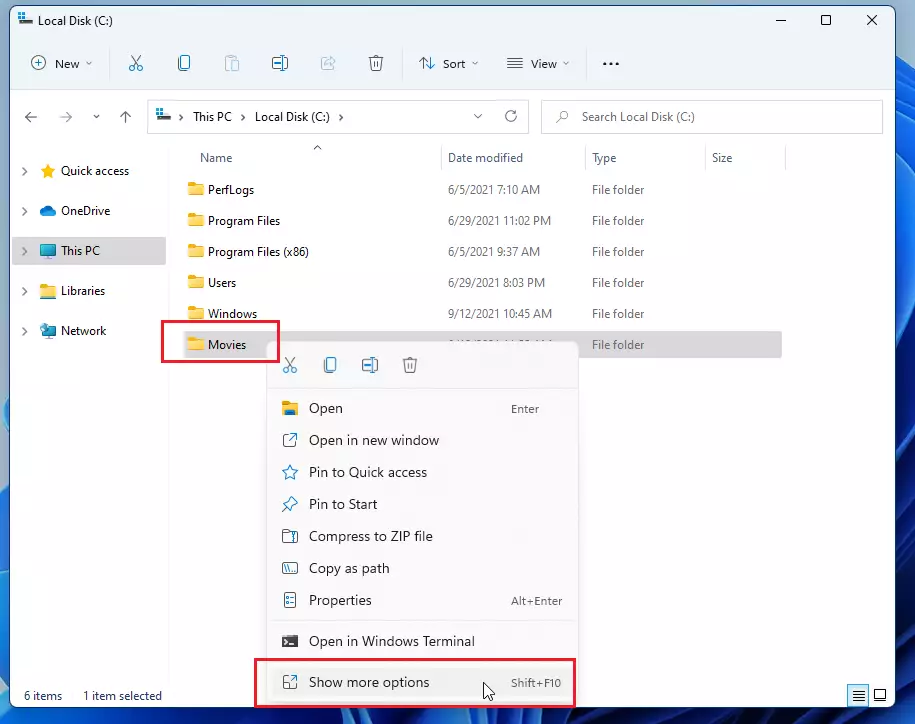
- Choose Include in library.
- Select the specific library where you want the folder to appear.
Summary
Managing the Libraries folder in Windows 11 helps you keep your File Explorer organized. Whether you use the Folder Options menu or advanced Registry tweaks, you can show or hide this feature. Always remember to back up your registry before making deep system changes.
Why does the Libraries folder reappear after I hide it?
The folder may reappear if a system update resets your File Explorer preferences or if a third-party application forces a refresh of the navigation pane settings. If this persists, use the Registry Editor method to set the value to zero permanently.
Can I delete the Libraries folder permanently?
You should not delete the actual system files, as they are essential for Windows shell functionality. Instead, hide the folder from the navigation pane using the File Explorer Options or Registry settings. This achieves the same visual result without risking system errors or broken file paths.
Does hiding Libraries affect my file indexing?
No, hiding the Libraries folder does not affect your file indexing. Windows Search continues to index your files regardless of whether the Libraries shortcut is visible in your navigation pane. It is purely a visual setting for the File Explorer interface and does not impact background system processes.
Was this guide helpful?

About the Author
Richard
Tech Writer, IT Professional
Richard, a writer for Geek Rewind, is a tech enthusiast who loves breaking down complex IT topics into simple, easy-to-understand ideas. With years of hands-on experience in system administration and enterprise IT operations, he’s developed a knack for offering practical tips and solutions. Richard aims to make technology more accessible and actionable. He's deeply committed to the Geek Rewind community, always ready to answer questions and engage in discussions.



I can see how that should work but on my Windows 11 installation Explorer takes no notice of this configuration setting do you have any more idea
Thank you so much. Why on earth would this be hidden to start with? Sometimes I wonder if Microsoft has a dedicated team just to make things frustrating for us end-users!
Okay, thanks, gentlemen. I thought it was just me. Pretty sure the teams make ‘improvements’ based on how MS works for them, in their industry and takes no care or thought to the thousands of other industries using the product.
On windows 10 I had all my folders identified with a front photo of various scenes to identify different stages of my entries into photo competitions. In windows 11 the photos on the front of the folders have disappeared. HELP
[…] or change application settings to choose a different folder to save files and new content. Your Music folder is also in your Libraries, which can be enabled using a few […]
[…] or change application settings to choose a different folder to save files and new content. Your Videos folder is also in your Libraries, which can be enabled using a few […]
[…] or change application settings to choose a different folder to save files and new content. Your Pictures folder is also in your Libraries, which can be enabled using a few […]
[…] controlled folder access can be helpful for cases when you don’t store files in the default Windows libraries or have changed the default location of your […]