How to Turn On or Off Show Pointer Location when Press CTRL Key in Windows 11

This guide shows you how to turn on or off a helpful Windows 11 feature. When enabled, a circle appears around your mouse pointer whenever you press the Ctrl key. This makes finding your cursor on the screen much easier.
What Is the Mouse Pointer?
The mouse pointer (also called the cursor) is the small icon on your screen. It shows exactly where your mouse is pointing.
Why Use This Feature?
Sometimes your cursor gets lost on a busy screen. This feature helps you locate it quickly by pressing one key.
Where Does Windows Store This Setting?
Windows 11 stores this setting in the registry. You’ll find it at HKEY_CURRENT_USER\Control Panel\Desktop in a value called UserPreferencesMask. But don’t worry—you won’t need to edit the registry directly. The Control Panel makes this easy.
Change mouse settings – Microsoft Support
Learn how to change settings for mouse buttons, the mouse wheel, and the pointer.
How to Turn This Feature On or Off
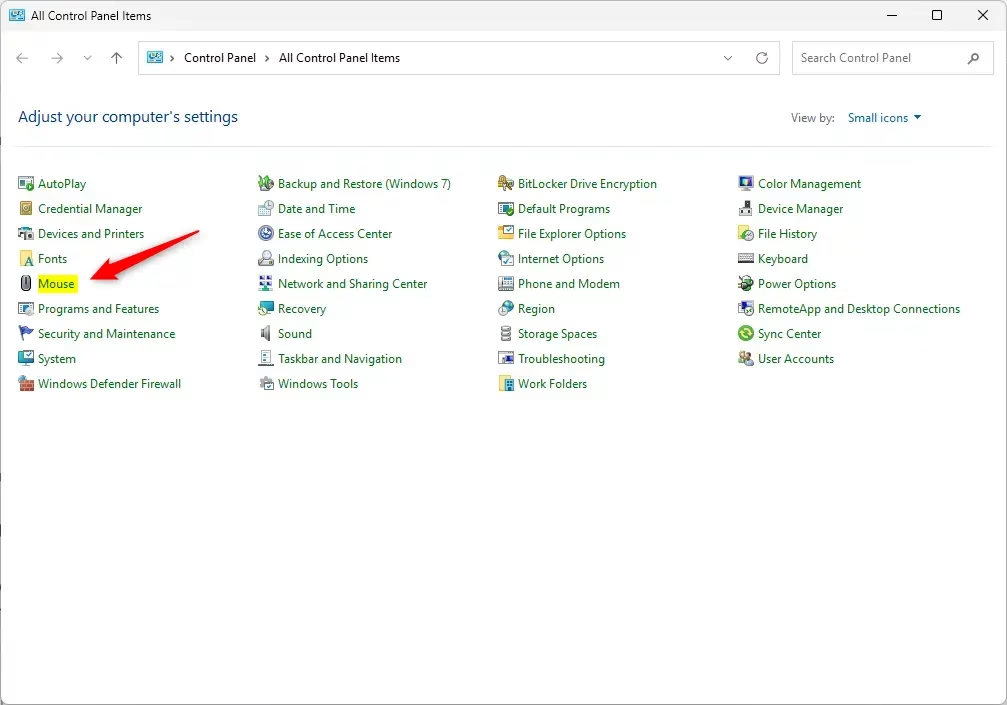
- Open the Control Panel and switch to icons view.
- Click on the Mouse icon.
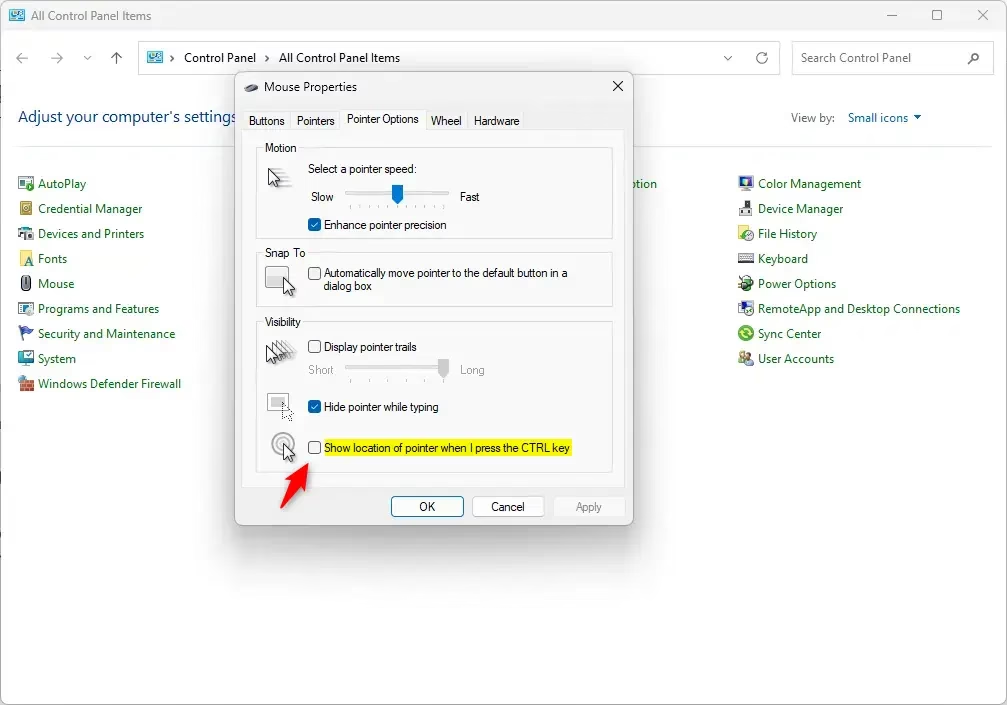
- Click on the Pointer Options tab.
- Look for the option that says Show location of pointer when I press the CTRL key. This is under the Snap To section.
- Check the box to turn the feature on. Uncheck the box to turn it off.
- Click OK to save your changes.
- Close the Control Panel.
What Happens When You Enable This?
Once enabled, simply press the Ctrl key on your keyboard. A circle will instantly appear around your mouse pointer, helping you spot it immediately.
Summary
Finding your mouse pointer in Windows 11 is simple. Open Control Panel, find the Mouse settings, go to the Pointer Options tab, and check or uncheck the Show location of pointer when I press the CTRL key option. Your choice saves automatically. Now when you press Ctrl, a circle will highlight your cursor location on the screen.
Was this guide helpful?



Leave a Reply