
This article explains how to share files from your mobile device (Android) to your Windows 11 PC.
The Phone Link app is a feature on Windows that lets you link your phone and PC using Wi-Fi or Bluetooth and access your phone’s apps and data from your PC. It lets you browse, play, order, chat, and more using your PC’s larger screen and keyboard while your phone stays in your pocket or desk.
When you link your phone to your Windows PC, you can seamlessly share files between your PC and mobile device when connected via Phone Link and the Link to Windows app.
The steps below walk you through sharing files from your mobile device (Android) to your Windows 11 PC.
Share files from Android to Windows 11 PC
As mentioned, when you link your mobile device to a Windows 11 PC, you can seamlessly share files between the two devices.
Here’s how to do it.
Select one or more files you want to share on your linked Android phone with your connected Windows 11 PC.
Select the Link to Windows app on your mobile device.

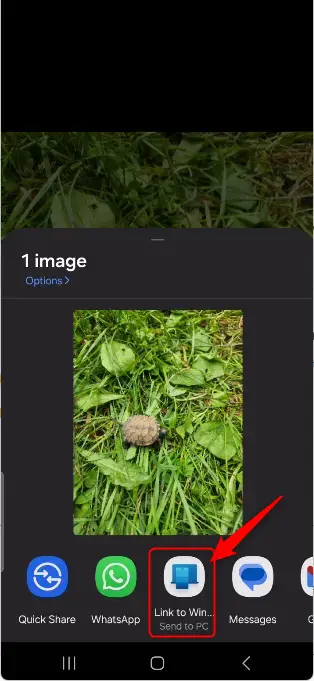
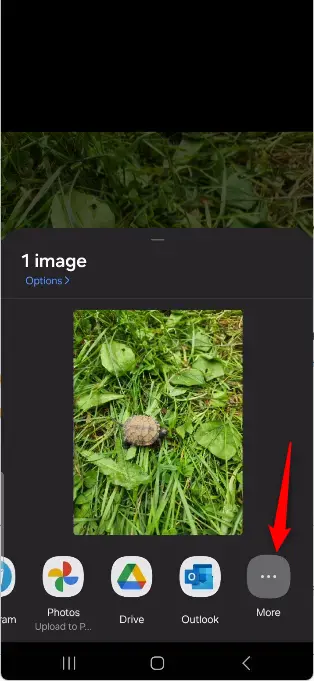
If you don’t see the link to the Windows app immediately, click More (3 dots) and then click Link to Windows.
Next, select the Windows 11 PC connected to your mobile device.
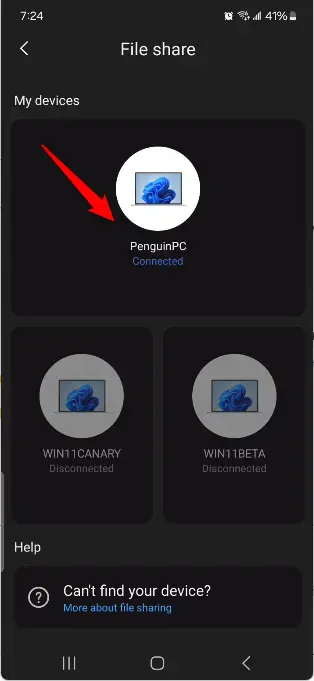
You will get a File received notification from the Phone Link app on your connected Windows 11 PC. You can click on Open or Show in folder to view the file.
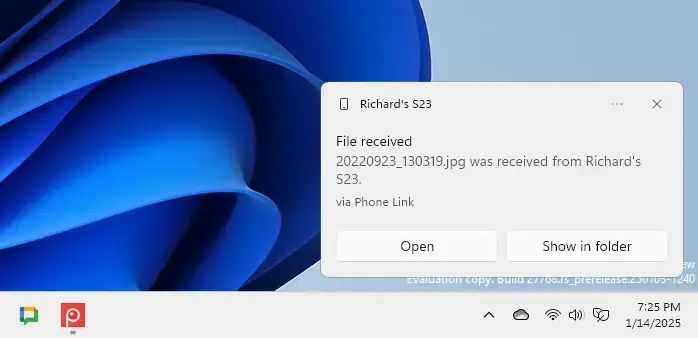
All the files you received on your Windows PC from your mobile devices are stored in C:Users<username>DownloadsPhone Link folder by default. You can change this location if you want.
That should do it!
Conclusion:
Sharing files between your Android mobile device and Windows 11 PC is straightforward with the Phone Link app. You can easily transfer files and enhance productivity by following the steps mentioned above. Here are some key takeaways:
- Seamless Integration: Link your Android phone and Windows 11 PC for smooth file sharing.
- Convenience: Access your mobile apps and data directly from your PC, making multitasking easier.
- Notification System: Receive alerts on your PC whenever files are shared successfully.
- Customizable Storage: Files can be stored in a default folder, which you can change as needed.
- Enhanced Experience: Utilize your PC’s larger screen and keyboard for a more efficient workflow.
With these advantages, sharing files has never been simpler!



Leave a Reply