
Is your desktop, taskbar, or File Explorer moving slowly or frozen? Restarting Windows Explorer can often fix the problem without restarting your whole computer. This guide shows you simple steps to restart the Windows Explorer process.
What is Windows Explorer?
Windows Explorer is the program called explorer.exe. It controls important parts of your Windows experience. These include your desktop, taskbar, Start menu, and file browsing windows. Restarting it refreshes these parts. It can solve small problems like freezes or glitches.
Why does this help? When Explorer restarts, it clears temporary problems and reloads. This is like giving your system a quick refresh without shutting everything down.
Note: When Explorer stops, your screen may go black except for your mouse pointer. Don’t worry! You just need to start Explorer again.
Option 1: Restart Explorer Using Task Manager
- Press
Ctrl + Shift + Escon your keyboard to open Task Manager. - In the Processes tab, find and click on Windows Explorer.
- Click the Restart button at the bottom right. (If you see “Restart task” instead, click that.)
- Your desktop and taskbar will refresh shortly.
- You can now close Task Manager.
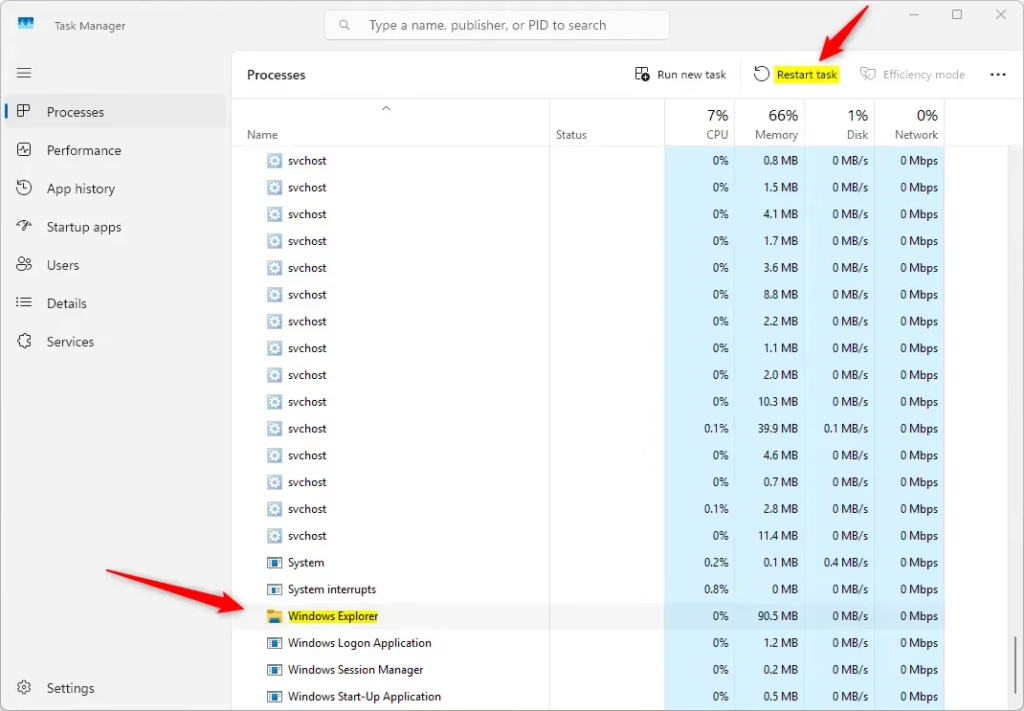
What happens: Task Manager stops and restarts the Explorer process. Your desktop reappears refreshed.
Option 2: Restart Explorer Using Command
Flag: Admin privileges required
- Open Windows Terminal, PowerShell, or Command Prompt.
- Right-click the Start button and select Windows Terminal or Windows Terminal (Admin).
- Copy and paste one of the commands below and press
Enter:
For PowerShell or Windows Terminal:
powershell "Get-Process -Name explorer | Stop-Process; Start-Process explorer.exe"For Command Prompt:
taskkill /f /im explorer.exe && start explorer.exeWhat happens: The command stops Explorer and then starts it again right away. Your desktop and taskbar refresh.
Why use this method? It works quickly and you don’t need to click through menus. It’s useful if Task Manager won’t open.
Option 3: Start Explorer Manually if It’s Stopped
If your screen is black and you only see the mouse pointer, Explorer might be completely stopped. Here’s how to start it again:
- Press
Ctrl + Shift + Escto open Task Manager. - Depending on your version of Task Manager:
- Old Task Manager: Click on File in the menu bar, then select Run new task.
- New Task Manager: Click Run new task at the top right.
- Type
explorer.exein the box and click OK. - Your desktop and taskbar should now appear again.
- You can close Task Manager when done.
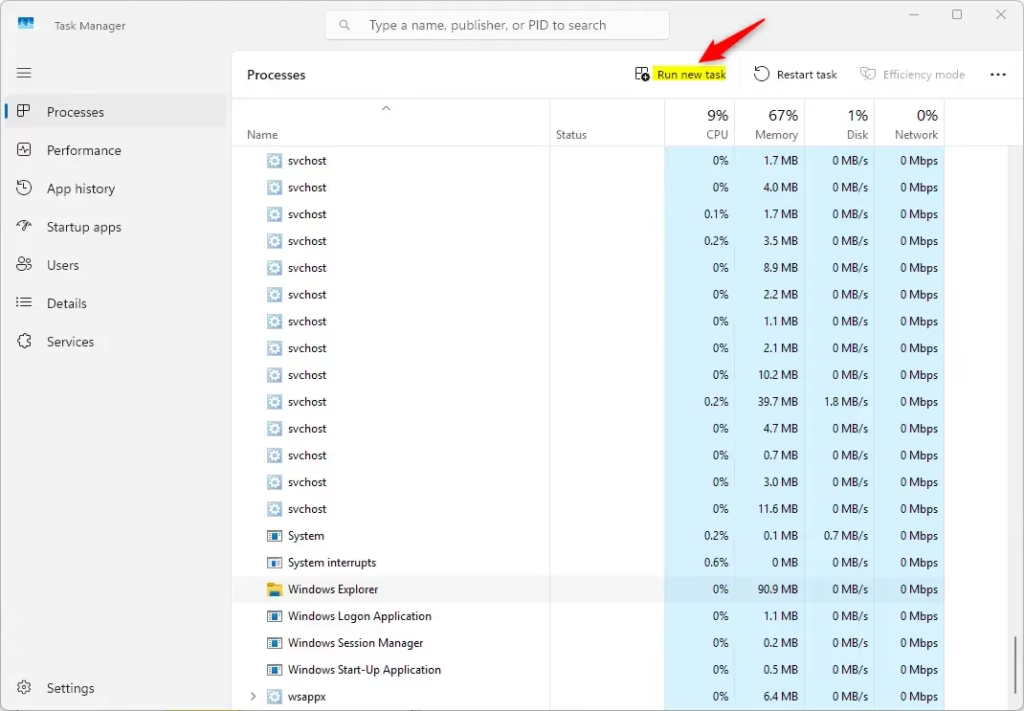
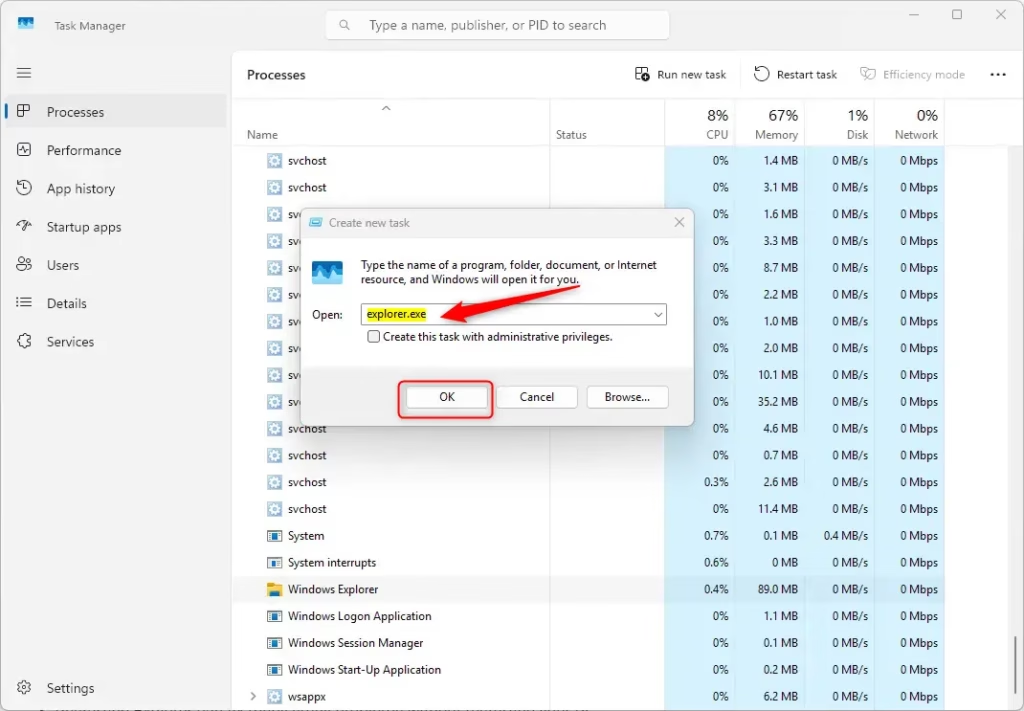
Why is this helpful? If Explorer completely stops, you need a way to start it without using the normal interface. Task Manager lets you launch the program directly.
Summary
- Windows Explorer controls your desktop, taskbar, and file browsing.
- Restarting Explorer can fix many small problems without restarting your PC.
- You can restart it easily using Task Manager or commands.
- If Explorer stops completely, you can manually start it again using Task Manager.
- These quick fixes save time and keep your Windows running smoothly.
If you want to learn more or see other tips for Windows 11, check out the original guide here: Restart Windows Explorer.exe Process in Windows 11



Leave a Reply