How to Rename Folders in Windows 11

Folders on your computer help you keep your files organized. Renaming folders means giving them new names. This makes it easier to find what you need.
Here’s a simple guide to renaming folders in Windows 11. Just follow the steps below!
Note: When naming folders, you cannot use these characters: / : * ? " < > |
1Rename Using Keyboard Shortcut
Why do this? This is the fastest way to rename a folder.
What you need: Open File Explorer open on your computer.
- Find the folder you want to rename.
- Click the folder once to select it.
- Press the
F2key on your keyboard. - Type the new name for the folder.
- Press
Enter.
2Rename With a Single Click
Why do this? This method uses your mouse instead of keyboard shortcuts.
What you need: Open File Explorer open on your computer.
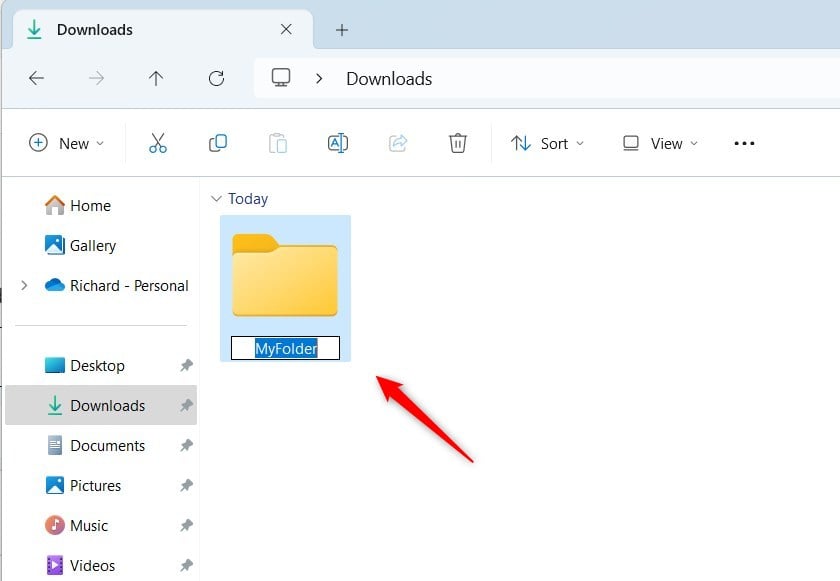
- Click the folder you want to rename once to select it.
- Click the folder name text once more (slowly). The name becomes editable.
- Type the new name.
- Press
Enter.
3Rename Using File Explorer Command Bar
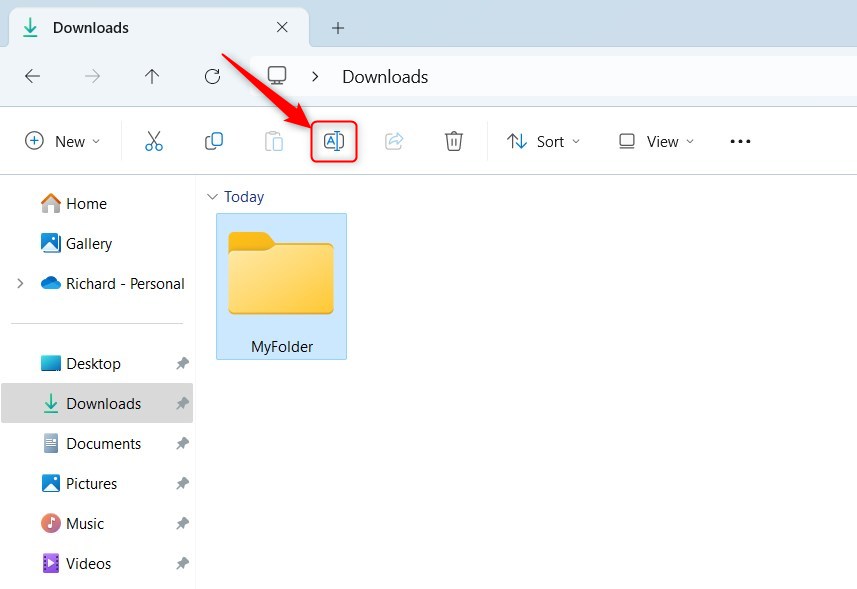
Why do this? The command bar shows you a clear Rename button.
What you need: Open File Explorer open on your computer.
- Select the folder you want to rename.
- Click the Rename button on the top command bar.
- Type the new folder name.
- Press
Enter.
4Rename Using Right-Click Menu
Why do this? Right-clicking gives you a menu with many options.
- Open File Explorer.
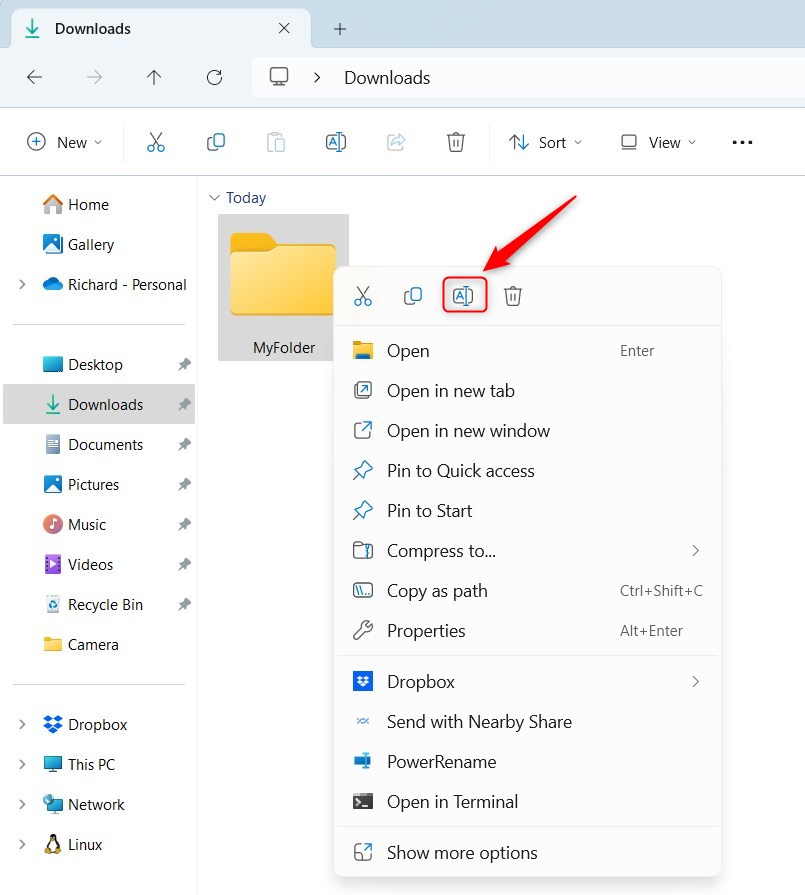
- Right-click on the folder you want to rename.
- Click Rename from the menu.
- Type the new name.
- Press
Enter.
Tip: If you see a smaller menu, click Show more options to see the full menu with the Rename option. You can also hold the SHIFT key while right-clicking to see the full menu right away.
5Rename Using PowerShell (for advanced users)
Why do this? PowerShell is useful when you need to rename many folders at once.
What happens: You type a command. PowerShell renames the folder for you.
⚠️ Admin privileges required
- Open Windows Terminal and select the PowerShell tab.
- Type the following command. Replace the text in quotes with your folder’s full path and the new name you want.
Rename-Item -Path "FullPathToFolder" -NewName "NewFolderName" -ForceExample:
Rename-Item -Path "C:\Users\UserName\Downloads\MyFolder" -NewName "FolderNewName" -Force6Rename Using Command Prompt (for advanced users)
Why do this? Command Prompt is another way to rename folders using text commands.
What happens: You type a command. Command Prompt renames the folder for you.
⚠️ Admin privileges required
- Open Windows Terminal with the Command Prompt tab.
- Type the command below. Replace the folder path and new name with yours.
ren "FullPathToMyFolder" "NewFolderName"Example:
ren "C:\Users\UserName\Downloads\MyFolder" "FolderNewName"Summary
- Renaming folders helps keep your files organized and easy to find.
- You can rename folders by pressing
F2, clicking twice slowly, using the command bar, or using the right-click menu. - Advanced users can rename folders using PowerShell or Command Prompt. Both require admin privileges.
- Remember not to use these characters in folder names:
/:*?"<>| - Organizing folders well makes your computer easier to use and keeps things tidy.
- Now you know several easy ways to rename your folders in Windows 11!
Was this guide helpful?

About the Author
Richard
Tech Writer, IT Professional
Richard, a writer for Geek Rewind, is a tech enthusiast who loves breaking down complex IT topics into simple, easy-to-understand ideas. With years of hands-on experience in system administration and enterprise IT operations, he’s developed a knack for offering practical tips and solutions. Richard aims to make technology more accessible and actionable. He's deeply committed to the Geek Rewind community, always ready to answer questions and engage in discussions.



No comments yet — be the first to share your thoughts!