
If you use Windows 11 and have combined several hard drives into one big storage space (called a Storage Pool), this guide will show you how to rename it. Renaming your storage pool makes it easier to recognize and manage your drives.
What is a Storage Pool?
Storage Spaces is a tool in Windows that lets you join multiple hard drives together. This creates one big virtual drive, called a storage pool. It helps you store data safely and add more space easily by adding new drives.
For example, your computer can keep two copies of your files in the pool. So, if one drive stops working, your files are still safe on the other.
Why Rename a Storage Pool?
Giving your storage pool a unique name helps you find it quickly, especially if you have more than one pool or manage storage on several computers.
How to Rename a Storage Pool Using Windows Settings
Open the Settings app:
- Click the Start menu and select Settings, or
- Press Windows key + I on your keyboard.
- In Settings, click System on the left side.
- Click on Storage on the right side.
- Scroll down and expand Advanced storage settings, then click Storage Spaces.
- Click on your storage pool to open its details.
- Click the Rename link.
- Type the new name you want for your storage pool.
- Click OK to save the new name.
Here are some images to help you follow these steps:
 Click System in Settings.
 Select Storage.
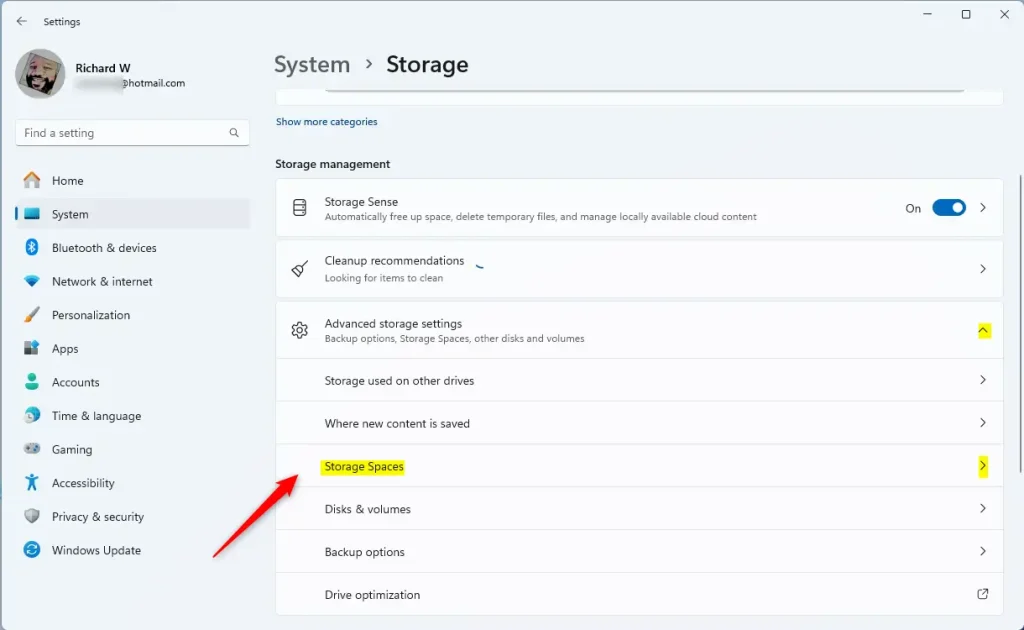 Open Storage Spaces under Advanced storage settings.
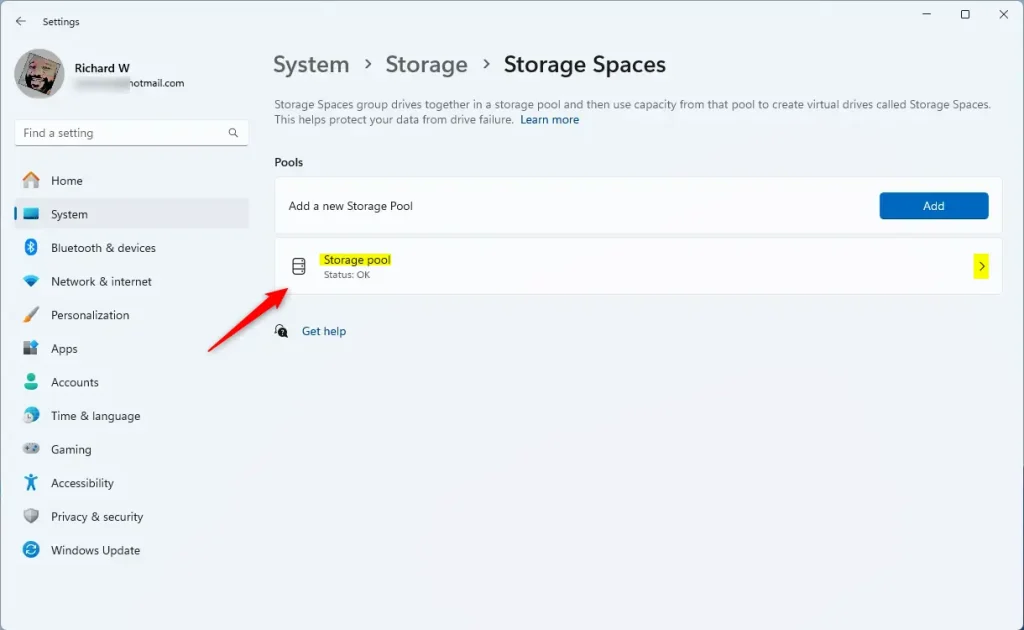 Select your Storage Pool.
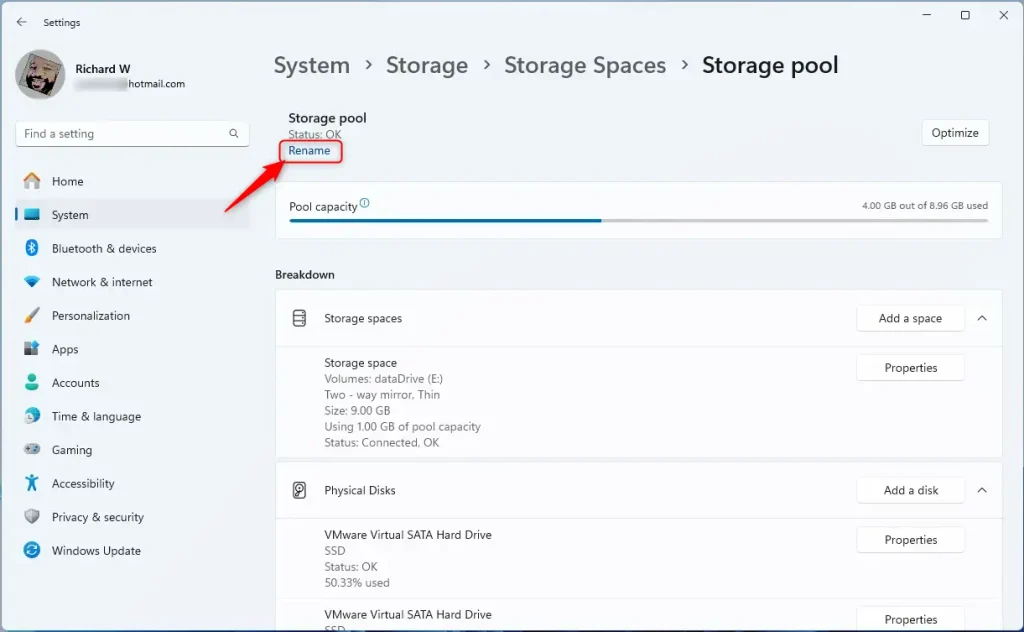 Click Rename to change the pool’s name.
How to Rename a Storage Pool Using PowerShell
If you like using commands, you can rename your storage pool using PowerShell:
Open PowerShell as Administrator (Admin privileges required):
- Right-click the Start button and select Windows Terminal (Admin) or Windows PowerShell (Admin).
Type this command to see your current storage pools:
Get-StoragePoolUse this command to rename your storage pool:
Set-StoragePool -FriendlyName "CurrentPoolName" -NewFriendlyName "NewPoolName"For example, to rename a pool called Storage pool to MyNewStoragePool, run:
Set-StoragePool -FriendlyName "Storage pool" -NewFriendlyName "MyNewStoragePool"That’s it! Your storage pool will have the new name.
Summary
- Renaming your storage pool helps keep your storage organized and easy to manage.
- You can rename it through the Windows Settings app or by using PowerShell commands.
- This is especially helpful if you have multiple storage pools or manage other users’ computers.
- For more details on creating and managing storage pools, check out this Storage Pool creation guide.



Leave a Reply