How to Remove the Home Folder from Windows 11 File Explorer

If you use Windows 11, you might have noticed the Home folder on the left side of File Explorer. Some people want to hide or remove it to keep things simple and clean. This guide will show you easy steps to hide or bring back the Home folder.
What is File Explorer?
File Explorer is the tool in Windows that helps you find, copy, move, delete, and organize your files and folders.
In Windows 11, File Explorer shows you folders like Home, Gallery, and OneDrive on the left side navigation pane.
You can customize what you see there. This guide focuses on hiding or removing the Home folder.
How to Hide the Home Folder in File Explorer
Follow these simple steps to hide the Home folder. Important: We will use the Windows Registry Editor, so please be careful and follow the instructions exactly.
Step 1: Open the Registry Editor
First, open the Registry Editor:
- Press Windows key + R on your keyboard to open the Run box.
- Type
regeditand press Enter. - If a security prompt appears, click Yes. This step requires admin privileges.
Here is a helpful guide if you want more details: How to Open Windows Registry.
Step 2: Find the Explorer Folder
In Registry Editor, use the left panel to go to this folder path:
Computer\HKEY_LOCAL_MACHINE\SOFTWARE\Microsoft\Windows\CurrentVersion\ExplorerStep 3: Create a New Value
- Right-click on Explorer.
- Choose New > DWORD (32-bit) Value.
- Name the new value HubMode.
Step 4: Change the Value
- Double-click on HubMode.
- Change the Value data to 1.
- Click OK.
Step 5: Delete the Home Folder Key
Now, go to this folder path:
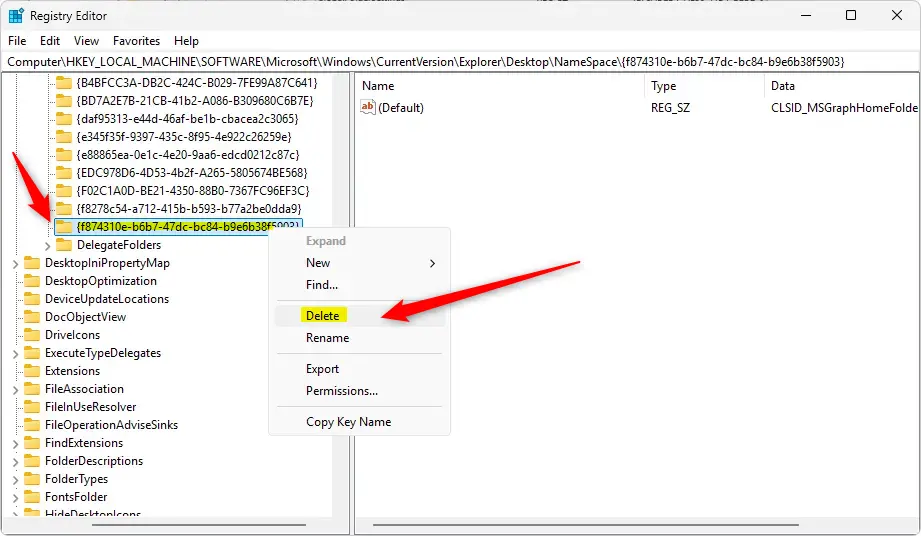
Computer\HKEY_LOCAL_MACHINE\SOFTWARE\Microsoft\Windows\CurrentVersion\Explorer\Desktop\NameSpace
- Find the folder named
{f874310e-b6b7-47dc-bc84-b9e6b38f5903}. - Right-click it and select Delete.
- Confirm the deletion if asked.
Step 6: Restart Your Computer
To make sure the changes take effect, restart your PC.
After restarting, open File Explorer and you will no longer see the Home folder. Instead, it will open to This PC or the folder you set as default.
How to Bring Back the Home Folder
If you want the Home folder back, just undo the changes.
Step 1: Open Registry Editor Again
Press Windows key + R, type regedit, and press Enter. This step requires admin privileges.
Step 2: Delete the HubMode Value
- Go to
Computer\HKEY_LOCAL_MACHINE\SOFTWARE\Microsoft\Windows\CurrentVersion\Explorer. - Right-click HubMode and select Delete.
- Confirm deletion.
Step 3: Create the Home Folder Key
- Navigate to
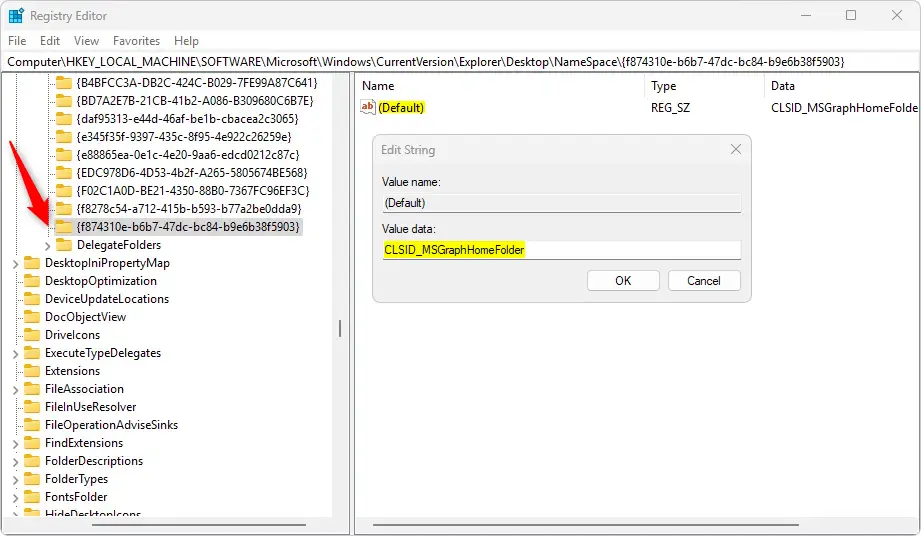
Computer\HKEY_LOCAL_MACHINE\SOFTWARE\Microsoft\Windows\CurrentVersion\Explorer\Desktop\NameSpace. - Right-click on NameSpace folder, then choose New > Key.
- Name the new key
{f874310e-b6b7-47dc-bc84-b9e6b38f5903}. - Click on the new key.
- Double-click the (Default) value on the right side.
- Set its value data to
CLSID_MSGraphHomeFolder. - Click OK.
Step 4: Restart Your Computer
Restart your PC again. The Home folder will be back in File Explorer.
Summary
- Hide Home Folder: Add and change a value in the Registry, then delete a key. This requires admin privileges.
- Restore Home Folder: Remove the value, then add the deleted key back with the right name and data. This requires admin privileges.
- Restart Needed: Always restart your computer after making these changes.
- Be Careful: Editing the Registry can cause problems if done incorrectly. Follow instructions carefully and consider backing up your Registry first.
By following these steps, you can keep your File Explorer clean or bring back the Home folder anytime you want.
Frequently Asked Questions
What is File Explorer?
Was this guide helpful?



Leave a Reply Cancel reply