How to pause or resume Recall snapshots in Windows 11

You pause or resume Windows 11 Recall snapshots by accessing the Recall settings. Recall is an AI feature that creates a searchable history of your PC activity by taking screenshots, known as snapshots.
This feature automatically saves snapshots directly to your device, with a default storage limit to manage disk space. When this limit is reached, older snapshots are automatically deleted.
You can temporarily pause Recall snapshots until midnight or manually resume them at any time. This gives you direct control over your privacy and storage, allowing you to manage what information Recall saves.
Click the Recall icon in the system tray and select “Pause until tomorrow” to temporarily disable snapshots. Click the icon again and select “Resume snapshots” to re-enable the feature.
How do I disable Recall snapshots?
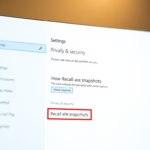
You can turn on or off saving snapshots at any time by going to Settings > Privacy & security > Recall & snapshots.
How often does Recall take snapshots?
If you opt in to the feature, then as you use your PC, a snapshot of your active screen will be saved every few seconds and when the content of your active window changes.
What is Windows recall snapshot?
Windows Recall is a new feature on some PCs that takes pictures of what you do on your computer, creating a timeline you can search.
Was this guide helpful?

About the Author
Richard
Tech Writer, IT Professional
Richard, a writer for Geek Rewind, is a tech enthusiast who loves breaking down complex IT topics into simple, easy-to-understand ideas. With years of hands-on experience in system administration and enterprise IT operations, he’s developed a knack for offering practical tips and solutions. Richard aims to make technology more accessible and actionable. He's deeply committed to the Geek Rewind community, always ready to answer questions and engage in discussions.

[…] recall options are available to users, such as disabling saving snapshots, temporarily pausing, filtering applications and websites, deleting snapshots, and […]
[…] are screenshots of your activity on your Windows 11 device. When Recall is enabled, you can temporarily pause it, filter apps and websites, delete your snapshots, and […]
[…] are other options too, like pausing snapshots temporarily, excluding certain apps, or deleting all […]
[…] Pause the snapshots anytime (learn how here). […]