How to Open File Explorer to OneDrive in Windows 11

You open File Explorer directly to your OneDrive folder in Windows 11 by changing a single setting.
File Explorer, the built-in file management application for Windows, usually defaults to opening on Quick Access. This tutorial shows you how to make it launch straight to your synced OneDrive cloud storage instead.
This is useful if you primarily work with files stored in the cloud, saving you precious clicks every time you need to access your documents.
Once completed, each time you launch File Explorer, you’ll immediately see your OneDrive contents instead of the default Quick Access view.
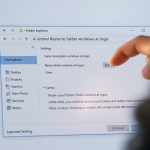
Open File Explorer, click the three dots (…), select Folder Options, and choose your OneDrive folder from the “Open File Explorer to:” dropdown menu. Click OK to save.
Understanding Files On-Demand
OneDrive’s Files On-Demand feature helps you save space on your computer by only downloading files when you open them.
Troubleshooting Common Sync Issues
| Issue | Solution |
|---|---|
| OneDrive missing from Navigation Pane | Right-click the Navigation Pane and select Show all folders. |
| Sync status stuck | Restart the OneDrive sync client from the system tray. |
| Shared folder not showing | Go to OneDrive online and click Add shortcut to my files. |
Summary
By changing your File Explorer settings, you can skip the default view and jump straight into your OneDrive files. This streamlines your workflow and keeps your cloud storage accessible. Remember to keep your sync client updated to avoid errors with shared libraries or file access.
Why is my OneDrive folder missing from File Explorer?
If your OneDrive folder isn’t showing up in File Explorer, it’s likely because the sync program isn’t running.
How do I add a shared folder to my local File Explorer?
To add a shared folder, log in to the OneDrive website. Find the shared folder, right-click it, and select Add shortcut to my files. Once you do this, the folder will automatically appear in your local OneDrive folder on your computer, allowing you to access it through File Explorer.
What is the difference between OneDrive online and File Explorer view?
OneDrive online is the web-based interface where you manage account settings and shared links. File Explorer view is the local integration on your Windows 11 PC. It allows you to manage files just like any other folder on your hard drive, using the same familiar drag-and-drop tools.
Was this guide helpful?

About the Author
Richard
Tech Writer, IT Professional
Richard, a writer for Geek Rewind, is a tech enthusiast who loves breaking down complex IT topics into simple, easy-to-understand ideas. With years of hands-on experience in system administration and enterprise IT operations, he’s developed a knack for offering practical tips and solutions. Richard aims to make technology more accessible and actionable. He's deeply committed to the Geek Rewind community, always ready to answer questions and engage in discussions.

[…] can share photos, Microsoft Office documents, files, and folders with people using Windows File Explorer. Once a resource is shared, you can manage access and remove or stop files and folder sharing, even […]
[…] you’re signed in to the OneDrive sync app on your computer, you can use File Explorer to access your OneDrive data and […]
[…] To list the current profile folders for the account on a Windows machine, go to the path below in File Explorer. […]
[…] First, make sure you set up OneDrive on Windows. Then, confirm that you can access your OneDrive files and folders via File Explorer. […]
[…] This article describes the steps to set up OneDrive on a new computer with Windows 11. […]
[…] are many ways to get to these tools. For example, one can use the Start menu, Control Panel, and File Explorer. Below, we’ll show you how to find and open Windows 11 […]
[…] way to lock or unlock your OneDrive Personal Vault is via File Explorer. First, open File Explorer and browse your OneDrive […]