How to Mute or Unmute Sound on Ubuntu Linux

You can mute or unmute sound on Ubuntu Linux by using quick controls in the system menu or more detailed options in the Settings app.
Muting your computer entirely stops all audio output, while unmuting restores it. This is distinct from simply lowering the volume, which reduces the sound level without eliminating it.
For example, on Ubuntu 22.04 LTS, you access the primary mute toggle by clicking the system status area in the top-right corner of your screen. This area displays icons for Wi-Fi, battery, and system settings.
Quickly muting your system is useful for preventing unexpected noise during calls or when you need immediate quiet.
Mute or unmute sound on Ubuntu by clicking the system menu in the top-right corner and using the volume slider. Slide it all the way left to mute, or move it right to unmute and adjust volume.
How to mute the sound volume in Ubuntu Linux
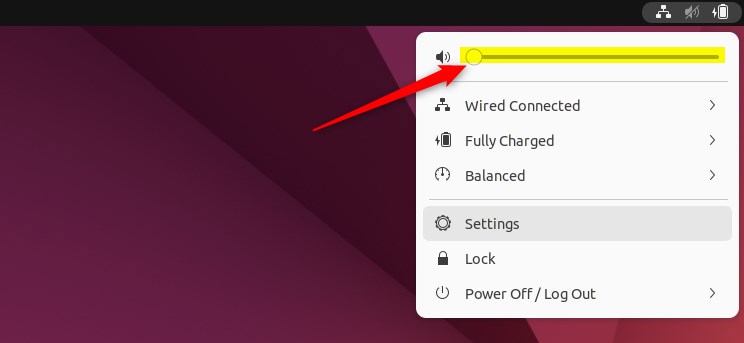
Let’s mute the sound using the system menu. You’ll find this menu on the right side of the top bar, where icons for Wi-Fi, Speaker, and Battery usually sit. Click on it, and a panel will open. You can adjust the volume with the slider here – move it left to lower the sound and right to raise it. Dragging the slider all the way to the left will mute your computer’s audio. Look for a small ‘x’ next to the speaker icon to confirm it’s muted.
Once you click on the system menu, the panel should open. You can adjust the volume with the slider here – move it left to lower the sound and right to raise it.
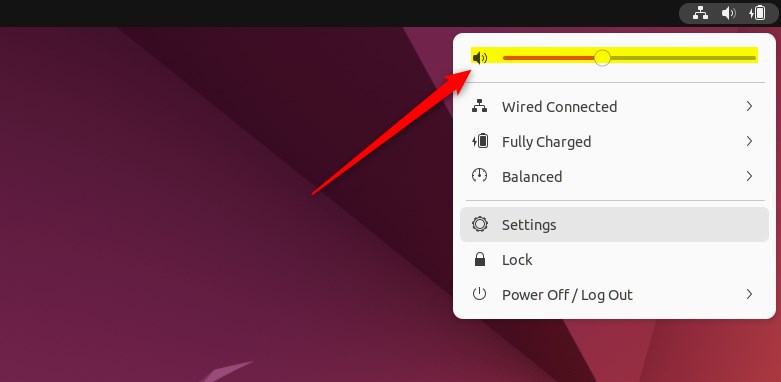
Bring the slider left to lower the volume and right to increase it.
You can also drag the slider all the way to the left to mute your computer’s audio. Look for a small ‘x’ next to the speaker icon to confirm it’s muted.
How to unmute Sound in Ubuntu Linux
To unmute, click the speaker icon again or move the slider to the right. This will unmute and increase the sound volume.
How to mute or unmute from the Ubuntu Linux settings app
You can also use the Ubuntu Linux settings app to adjust the volume. Below is how to access the Ubuntu Linux settings app.
Ubuntu Linux has a centralized location for the majority of its settings. From system configurations to creating new users and updating, all can be done from the System Settings panel.

Alternatively, click on the System menu at the top-right corner of the top bar on your desktop.
On the System menu, select Settings, as highlighted below.

In the Settings app, click on a Sound tile to open the panel.
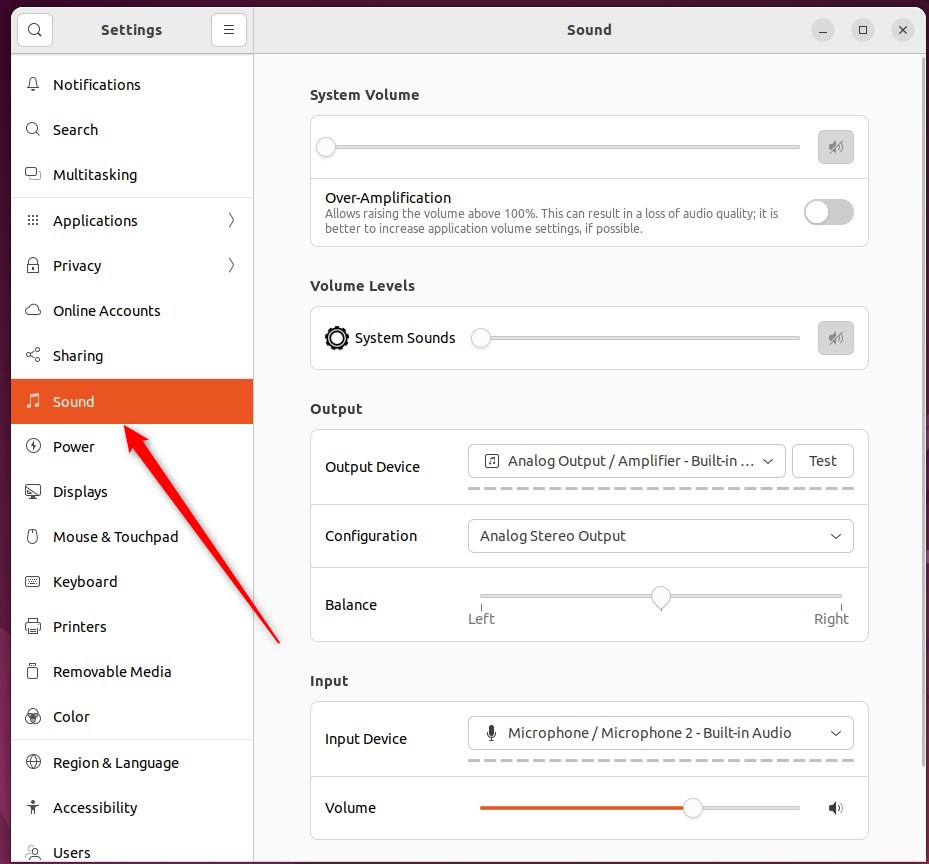
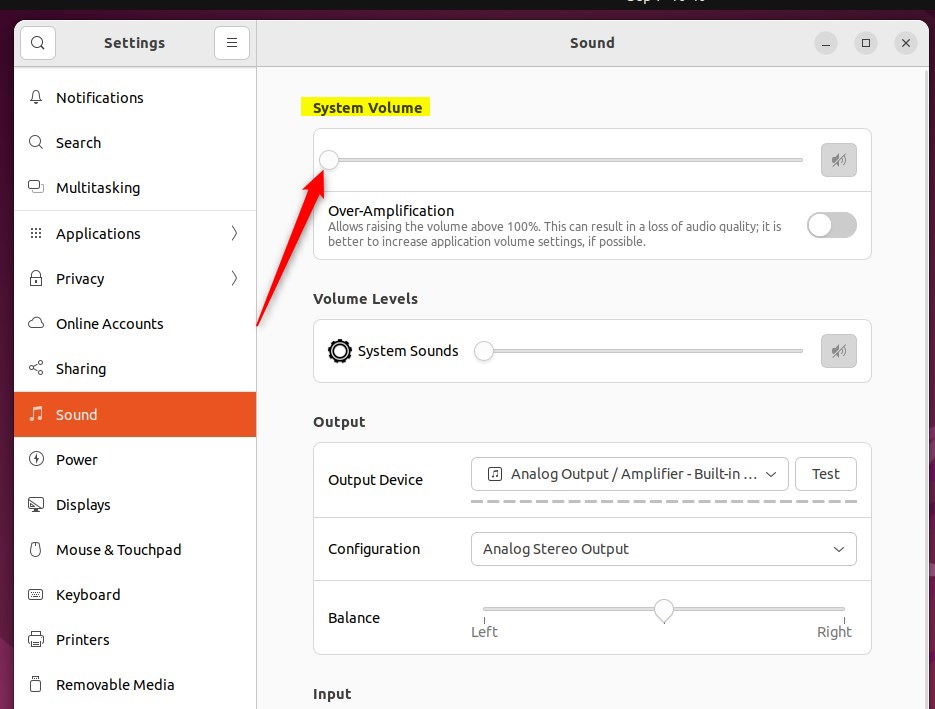
In the System Settings -> Sound panel, under System Volume, use the slider to change the volume on your computer.
Plus, if your keyboard has volume controls, you have even more convenient ways to manage your computer’s sound. They are often near the “F” keys at the top. For example, laptop keyboards usually use the “F” keys. Hold down the Fn key on your keyboard to use them.
That should do it!
Conclusion:
- Muting or unmuting the sound volume in Ubuntu Linux can be easily done from the system menu on the top bar.
- Users can adjust the volume using the slider and quickly mute or unmute the sound by accessing the system menu.
- Alternatively, the Ubuntu Linux settings app provides another option to adjust the sound volume and control system settings.
- With the availability of keyboard shortcuts for volume control, users have convenient alternatives to manage sound output on their computers.
Was this guide helpful?

About the Author
Richard
Tech Writer, IT Professional
Richard, a writer for Geek Rewind, is a tech enthusiast who loves breaking down complex IT topics into simple, easy-to-understand ideas. With years of hands-on experience in system administration and enterprise IT operations, he’s developed a knack for offering practical tips and solutions. Richard aims to make technology more accessible and actionable. He's deeply committed to the Geek Rewind community, always ready to answer questions and engage in discussions.




[…] can adjust the volume, switch the microphone off, or mute it from this […]
[…] can adjust the volume, switch the microphone off, or mute it from this […]