How to Mute and Unmute Sound in Windows 11

You mute and unmute sound in Windows 11 by using the Quick Settings panel on the taskbar.
Muting your PC completely silences all audio output, a crucial feature for avoiding distractions during calls or work. This guide shows you how to achieve this quickly.
To mute, locate and click the speaker icon in the system tray, typically found near the date and time on your taskbar. This action opens the Quick Settings flyout.
Within Quick Settings, click the small arrow situated next to the volume slider. This reveals the dedicated mute button. Simply click this button to toggle mute on or off.
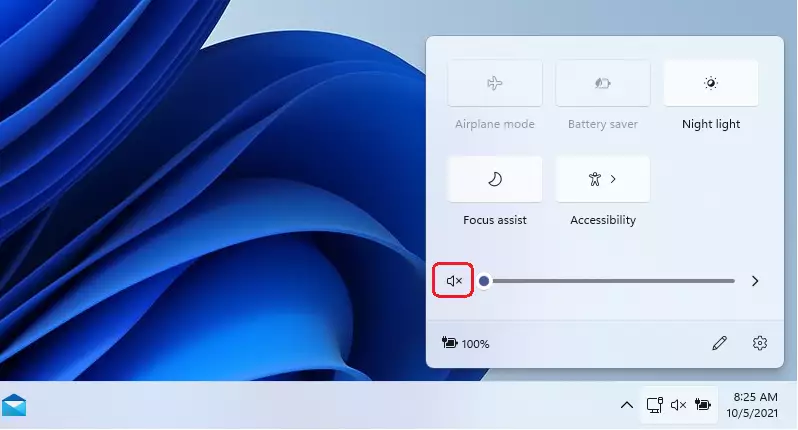
When sound is muted, Windows 11 provides a visual cue by displaying a small “x” icon overlaid on the speaker symbol, confirming that no audio will play through your connected devices.
Click the speaker icon on the taskbar to open Quick Settings, then click the arrow next to the volume slider to find and click the mute button. Alternatively, drag the volume slider to zero or use your keyboard’s dedicated mute key.
How to mute sound using the Quick Settings menu
Muting all sound in Windows 11 is simple using the Quick Settings menu right on your Taskbar.
- Click the Quick Settings area on your Taskbar.
- A menu will pop up. Locate the Speaker icon.
- Click the icon to mute the sound.
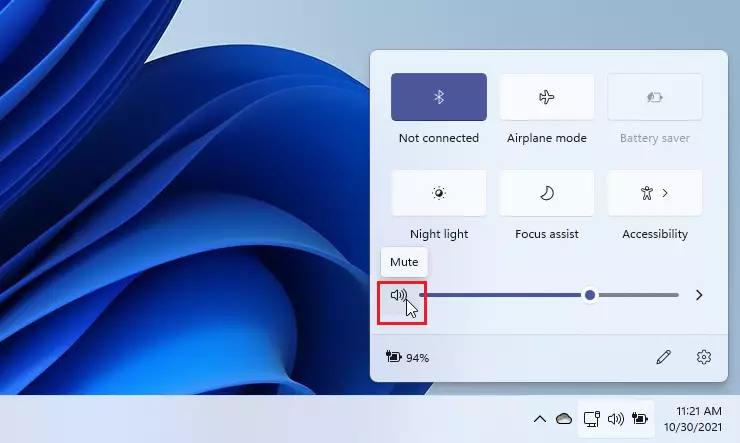
Alternatively, you can press Windows Key + A to open this menu instantly. You can also drag the volume slider all the way to the left. Once the volume is at zero, the speaker icon will show a small “x” to indicate it is muted.
Keyboard shortcuts to mute sound
Many keyboards have a dedicated mute button, often on the top row, that lets you mute sound in Windows 11 with a single press.
How to mute specific applications
You can mute the sound for just one app in Windows 11 using the Volume Mixer, which lets you control each program’s sound separately.
- Right-click the Speaker icon on your Taskbar.
- Select Open volume mixer.
- Find the app you want to silence and drag its volume slider to zero or click the speaker icon below it.
Troubleshooting sound muting issues
If your sound keeps muting itself in Windows 11, the most common fix is to check and update your audio drivers through Device Manager.
Note: You’ll need administrator privileges to update drivers or make changes to system registry paths like 🗝️HKEY_LOCAL_MACHINE\SOFTWARE\Microsoft\Windows\CurrentVersion\MMDevices.
Summary
Muting your sound in Windows 11 is quite simple using the Taskbar, keyboard shortcuts, or the Volume Mixer for specific apps. If you face persistent issues, checking your audio drivers is the best first step. For more details, visit the official Windows 11 Sound Settings page.
Why does my 🪟 Windows 11 sound mute itself?
This often happens due to conflicting audio drivers or a faulty keyboard mute key. Check your Device Manager for driver updates or ensure no physical keys are stuck. Sometimes, third-party communication apps like Zoom or Teams may automatically adjust your volume settings during calls.
How do I fix sound muting issues after a Windows update?
Fixing sound muting issues after a Windows update often involves updating your audio drivers via Device Manager.
Was this guide helpful?

About the Author
Richard
Tech Writer, IT Professional
Richard, a writer for Geek Rewind, is a tech enthusiast who loves breaking down complex IT topics into simple, easy-to-understand ideas. With years of hands-on experience in system administration and enterprise IT operations, he’s developed a knack for offering practical tips and solutions. Richard aims to make technology more accessible and actionable. He's deeply committed to the Geek Rewind community, always ready to answer questions and engage in discussions.


No comments yet — be the first to share your thoughts!