Set Default Speaker in Ubuntu Linux: A Step-by-Step Guide

You set your default speaker in Ubuntu Linux by configuring your sound output device within the system’s settings.
This process ensures that all your applications automatically send audio to your preferred output, whether it’s speakers or headphones, without manual switching for each program.
Ubuntu typically defaults to the device recognized first, often a standard TRS plug. However, you can easily override this.
For instance, if you connect both a dedicated sound card and Bluetooth headphones, you might want to specify one as the primary audio source in Ubuntu 22.04 LTS.
Open System Settings, then click on Sound. Under the Output tab, select your desired speaker from the list of available devices. Use the Test button to confirm your selection is working correctly.
How to choose the default speaker in Ubuntu Linux
As described above, you can set the default device and forget it in Ubuntu Linux. When it’s set, it will always be used by all apps on the system.
Ubuntu Linux will try to identify and select the best device. You can control the device’s volume from the system menu, but only one device can appear in the system menu at a time.
Ubuntu Linux has a centralized location for the majority of its settings. From system configurations to creating new users and updating, all can be done from the System Settings panel.

Alternatively, click on the System menu at the top-right corner of the top bar on your desktop.
On the System menu, select Settings, as highlighted below.

In the Settings app, click on a Sound tile to open the panel.
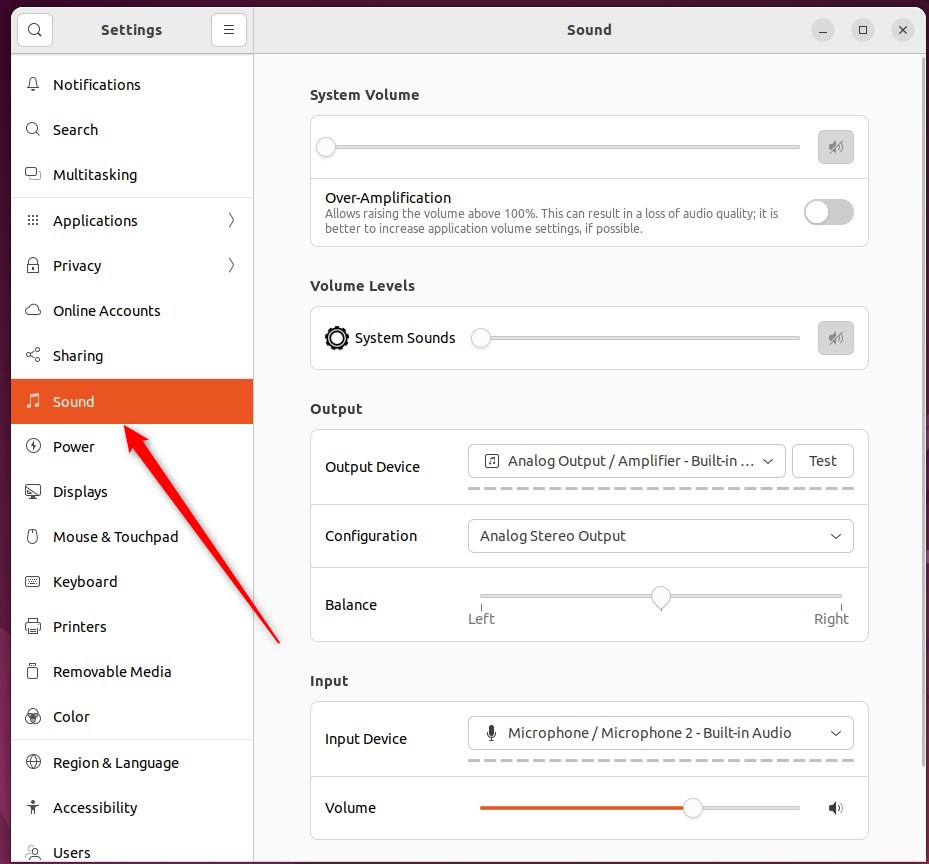
In the System Settings -> Sound panel, under Input, select the device you want to use.
Use the Test button to check that all speakers are working and are connected to the correct socket.
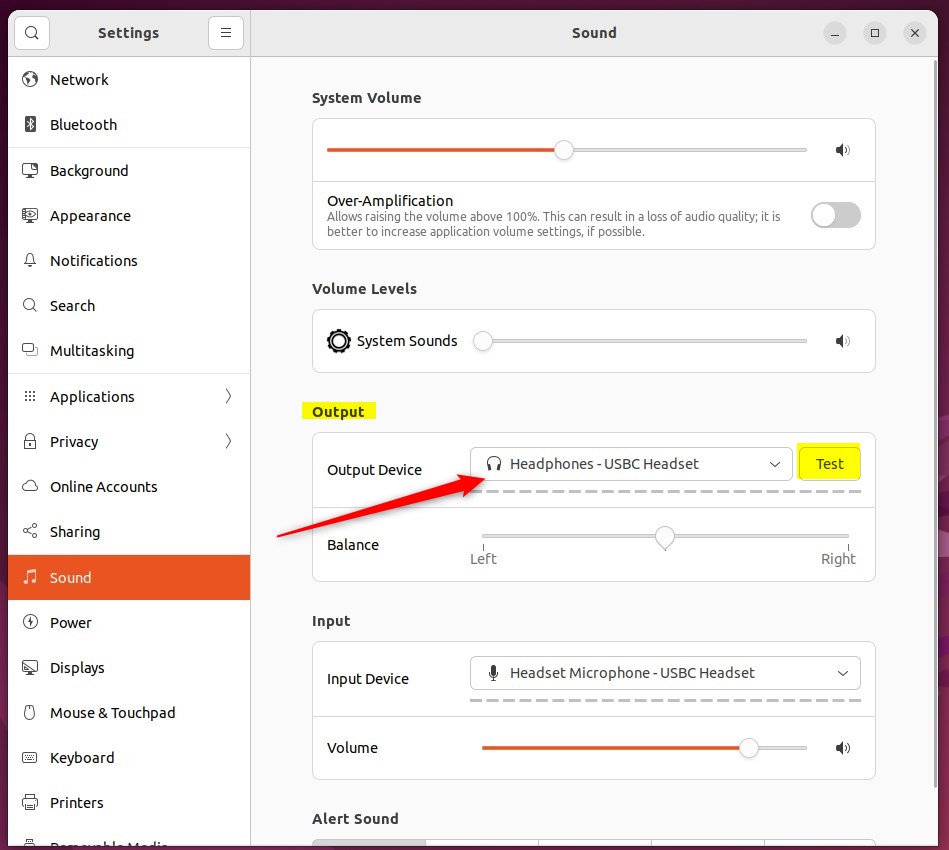
If you don’t see the connected mic device on the list, it may be that it is not recognized in Ubuntu Linux.
You can adjust the volume, switch the microphone off, or mute it from this panel.
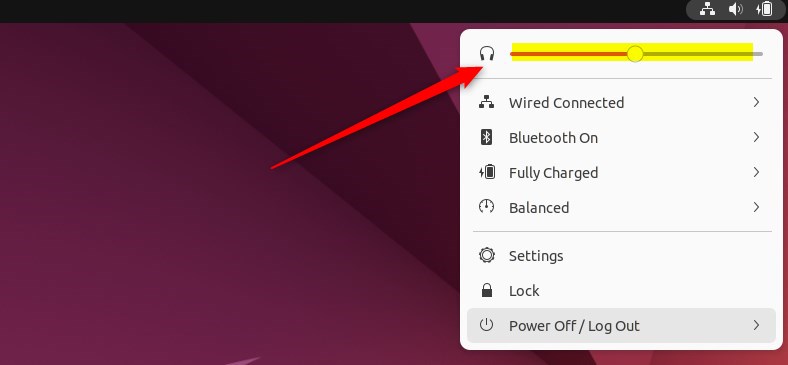
That should do it! You can now close the Settings app.
Conclusion:
- Setting the default speaker or headphones in Ubuntu Linux ensures the desired audio output for different applications.
- Ubuntu Linux provides a centralized location for adjusting sound settings, allowing users to select and test their preferred output devices.
- Users can easily access and customize sound settings through the System Settings panel, ensuring a seamless experience for managing audio output in Ubuntu Linux.
Was this guide helpful?

About the Author
Richard
Tech Writer, IT Professional
Richard, a writer for Geek Rewind, is a tech enthusiast who loves breaking down complex IT topics into simple, easy-to-understand ideas. With years of hands-on experience in system administration and enterprise IT operations, he’s developed a knack for offering practical tips and solutions. Richard aims to make technology more accessible and actionable. He's deeply committed to the Geek Rewind community, always ready to answer questions and engage in discussions.



No comments yet — be the first to share your thoughts!