How to Install VMware Tools Ubuntu for Faster VM Speed


VMware Tools for Ubuntu is a collection of helper programs that make your virtual machine run faster and share files with your host computer. Without this software, you face a sluggish mouse, a fixed screen resolution, and no way to drag and drop files between your desktop and Ubuntu.
Most modern releases like Ubuntu 22.04 LTS include basic tools by default, but manual setup fixes full feature support. Getting the software running takes a quick terminal command to repair your display and speed up performance.
Install Open VM Tools using the Ubuntu terminal. For desktop environments, run ‘sudo apt update’ followed by ‘sudo apt install open-vm-tools-desktop’. For servers, use ‘sudo apt install open-vm-tools’. Reboot your system after installation.
How to install the Open VM Tools on Ubuntu guest machines
Open VM Tools for Ubuntu installs essential drivers and utilities using terminal commands to improve virtual machine performance. You can use the open-vm-tools package for command-line servers, or the open-vm-tools-desktop package if you use the Ubuntu desktop environment with a graphical user interface.
The tools are split into two packages: open-VM-tools for headless systems and open-vm-tools-desktop for desktop systems.
To install the open-source version, run the command below:
Servers:
sudo apt update
sudo apt install open-vm-tools
Desktops:
Reboot the virtual machine after installation so Ubuntu loads the new drivers and settings. This ensures the operating system properly loads the VMware-specific components, improving performance and enabling features like better mouse integration and shared folders.
How to install VMware Guest Tools from VMware Host
VMware Guest Tools from VMware Host installation mounts a virtual CD drive inside your Ubuntu virtual machine to add drivers and improve screen resolution. You start this process by clicking the install option in the VM menu of your VMware host software while your Ubuntu guest is running.
To install, open the VMware host software. Start the guest machine and select VM -- Install VMware Tools from the guest machine menu.
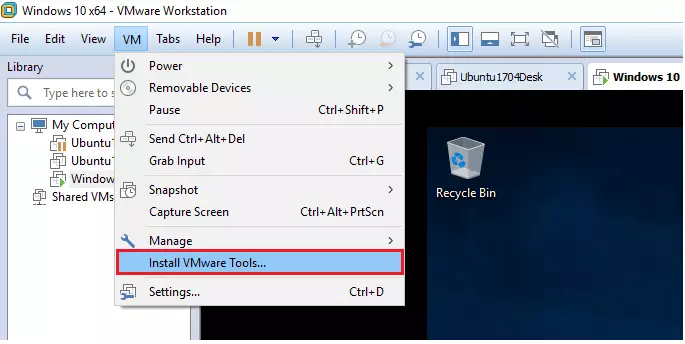
Mounting the virtual CD drive temporarily places the guest tools onto your Ubuntu machine. This virtual disk image contains the installation files.
While the virtual CD drive is mounted, open the Ubuntu terminal by pressing Ctrl + Alt + T keys on your keyboard.
The /tmp directory is a temporary location that the system deletes once it reboots.
The commands include the -d option, which ensures all recommended plugins and modules are installed.
To manually select installation options and configuration, run the VMware Guest Tools installer without the `-d` option, which is the default mode for automatic installation.
When the installation is complete, reboot your machine, and you're all set!
Conclusion:
If you run into any issues during the installation, drop a comment below.
How to make Ubuntu run faster on VMware?
Installing VMware Tools will improve performance in your virtualized Ubuntu instance. It also includes various utilities for administration of VMs. Open VM Tools is a version of VMware Tools built for open source use. To install Open VM Tools, run $ sudo apt-get update followed by $ sudo apt-get install open-vm-tools.
Was this guide helpful?

About the Author
Richard
Tech Writer, IT Professional
Richard, a writer for Geek Rewind, is a tech enthusiast who loves breaking down complex IT topics into simple, easy-to-understand ideas. With years of hands-on experience in system administration and enterprise IT operations, he’s developed a knack for offering practical tips and solutions. Richard aims to make technology more accessible and actionable. He's deeply committed to the Geek Rewind community, always ready to answer questions and engage in discussions.


Wow you guys (and gals 🙂 what a great job you did in this post. Very helpful, informative, and versatile. Appreciate your work.