Install Visual Studio Code on Ubuntu: Step-by-Step Guide


You install Visual Studio Code on Ubuntu by using its official APT repository, which ensures you always get the latest updates.
Visual Studio Code, often shortened to VS Code, is a free and powerful source-code editor developed by Microsoft for Windows, Linux, and macOS.
This method is the recommended way to install VS Code on Ubuntu, providing a seamless experience for developers.
It offers features like syntax highlighting, intelligent code completion, debugging tools, and integrated Git control, making it a top choice for coding projects.
Open your terminal and run `sudo snap install code –classic` to install VS Code via Snap. Alternatively, add the Microsoft APT repository and then run `sudo apt update && sudo apt install code`.
How to install VS Code on Ubuntu Linux
You can install VS Code using one of the two methods below. Most users prefer the first method.
Method 1 Installing via Snap (Recommended)
The easiest way to get VS Code is through the Snap Store. It updates automatically.
- Open your terminal.
- Run this command:
sudo snap install code --classic
Method 2 Installing via APT Repository
Installing Visual Studio Code on Ubuntu using the APT repository is a great way to keep it updated automatically.
First, check your system architecture to ensure compatibility: dpkg --print-architecture. Most modern systems use amd64.
Install the necessary helper tools:
sudo apt update && sudo apt install wget gpgNow, import the Microsoft GPG key to your keyring folder:
wget -qO- https://packages.microsoft.com/keys/microsoft.asc | gpg --dearmor > packages.microsoft.gpg

sudo install -D -o root -g root -m 644 packages.microsoft.gpg /etc/apt/keyrings/packages.microsoft.gpg
Next, add the repository source file for your Ubuntu system:
echo "deb [arch=amd64 signed-by=/etc/apt/keyrings/packages.microsoft.gpg] https://packages.microsoft.com/repos/code stable main" | sudo tee /etc/apt/sources.list.d/vscode.list > /dev/nullFinally, update your package list and install the editor:
sudo apt updatesudo apt install code
VS Code is now installed. You can find it in your application menu.
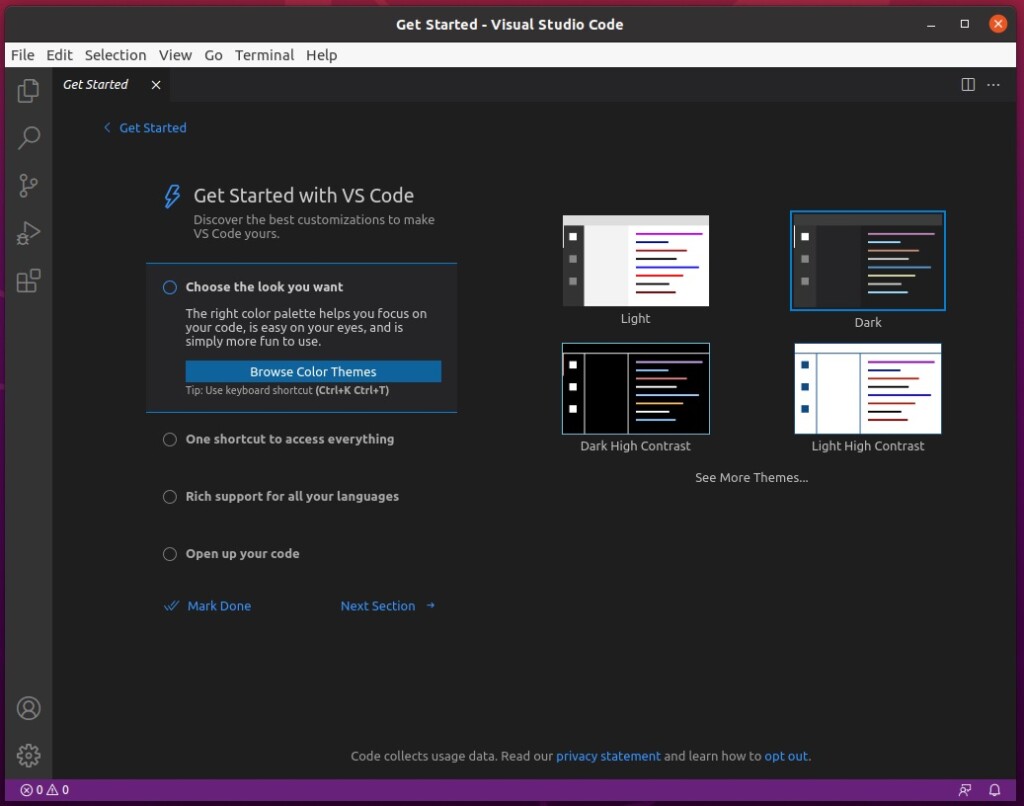
Post-Installation
After you install Visual Studio Code on Ubuntu, adding extensions can really boost your coding experience by adding new features.
- Remote Development pack: Allows you to code on remote machines or inside containers.
- GitHub Copilot: Uses AI to help you write code faster.
Conclusion
Visual Studio Code is a versatile, feature-rich code editor compatible with various platforms. Git control, syntax highlighting, and code completion are among the features supported by VS Code. By following these steps, developers can seamlessly install and utilize VS Code for their coding projects.
Was this guide helpful?

About the Author
Richard
Tech Writer, IT Professional
Richard, a writer for Geek Rewind, is a tech enthusiast who loves breaking down complex IT topics into simple, easy-to-understand ideas. With years of hands-on experience in system administration and enterprise IT operations, he’s developed a knack for offering practical tips and solutions. Richard aims to make technology more accessible and actionable. He's deeply committed to the Geek Rewind community, always ready to answer questions and engage in discussions.




No comments yet — be the first to share your thoughts!