How to Install VirtualBox on Ubuntu 24.04

VirtualBox version 7.x lets you run other operating systems, like Windows, directly inside Ubuntu 24.04 without restarting your computer. You can use this tool to test new software or run apps built for other platforms right alongside your usual Ubuntu apps.
Adding the official Oracle repository (a server holding software packages) to your system ensures you receive automatic security updates.
Install VirtualBox on Ubuntu 24.04 by opening a terminal and running the command: sudo apt update && sudo apt install virtualbox virtualbox-ext-pack. Accept the license agreement when prompted during installation.
Install VirtualBox
To install VirtualBox on Ubuntu 24.04, open your terminal and run a single command that sets up the main program and the extra features pack at the same time. This method gets you the correct version for your system without needing to download files manually from a website.
The required command for installing VirtualBox and its extension pack:
sudo update
sudo apt install virtualbox virtualbox-ext-pack
Accepting the license agreement appears as a prompt during the setup process. Proceeding through this prompt completes the core installation.
Verifying the installation takes a quick check of the extension package details using the command below, which produces similar output:
VBoxManage list extpacks
Expected terminal output resembles this format:
Extension Packs: 2
Pack no. 0:   VNC
Version:        7.0.16
Revision:       162802
Edition:
Description:    VNC plugin module
VRDE Module:    VBoxVNC
Crypto Module:
Usable:         true
Why unusable:

Pack no. 1:   Oracle VM VirtualBox Extension Pack
Version:        7.0.16
Revision:       162802
Edition:
Description:    Oracle Cloud Infrastructure integration, Host Webcam, VirtualBox RDP, PXE ROM, Disk Encryption, NVMe, full VM encryption.
VRDE Module:    VBoxVRDP
Crypto Module:  VBoxPuelCrypto
Usable:         true
Why unusable:
VirtualBox now sits fully installed and prepared for building virtual machines.
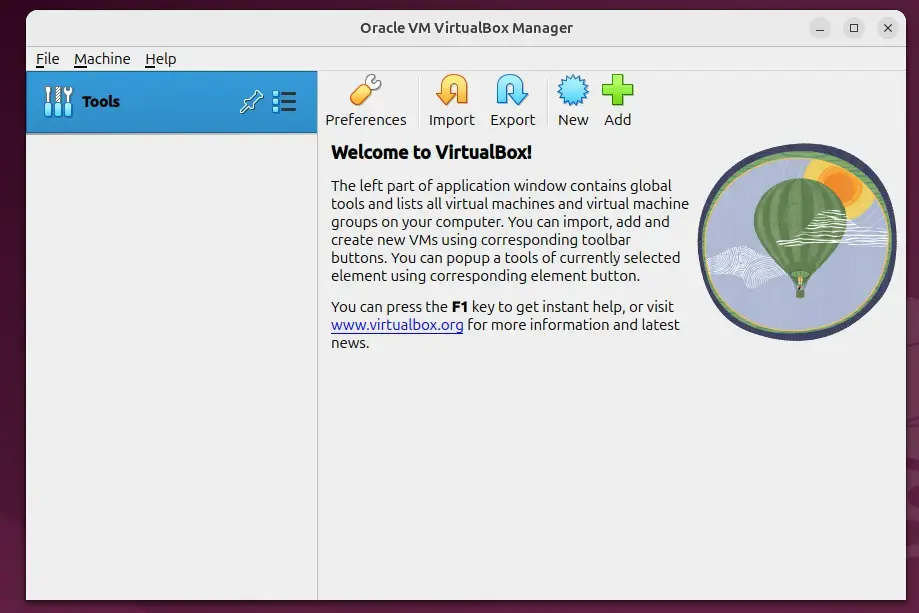
That completes the setup process!
Conclusion:
Wrapping up, setting up virtualization tools on Ubuntu provides several distinct advantages:
- Easy Installation: Use a single command in the terminal to install VirtualBox and its extension pack.
- Isolation for Testing: Create isolated environments for testing applications across different operating systems without additional physical hardware.
- Legacy Support: Run legacy applications by replicating specific operational environments through virtual machines.
- Versatile Applications: Utilize VirtualBox for various purposes, including development, testing, and concurrently running different operating systems.
- User-Friendly Management: Manage your virtual machines quickly and access detailed information about installed extension packs.
Virtualization capabilities are fully unlocked on the Ubuntu system now that VirtualBox is ready for action.
Was this guide helpful?

About the Author
Richard
Tech Writer, IT Professional
Richard, a writer for Geek Rewind, is a tech enthusiast who loves breaking down complex IT topics into simple, easy-to-understand ideas. With years of hands-on experience in system administration and enterprise IT operations, he’s developed a knack for offering practical tips and solutions. Richard aims to make technology more accessible and actionable. He's deeply committed to the Geek Rewind community, always ready to answer questions and engage in discussions.




[…] VirtualBox is a free and open-source virtualization software that lets you create and manage virtual machines (VMs) on your computer. You can run multiple operating systems like Windows, macOS, and various Linux distributions simultaneously within your Ubuntu environment. […]