How to Create a Headless VM on Ubuntu Using VirtualBox

A headless virtual machine (VM) runs in the background and never opens a normal VM window on your desktop. It suits server software, test code and anything else you reach over the network. You don’t lose desktop space or pay for a console you never look at.
Oracle VM VirtualBox starts the Ubuntu 24.04 guest directly in the background. You manage it with VBoxManage, VirtualBox’s command-line tool, from a regular terminal. Everything in this tutorial happens in that terminal, apart from the final installation step, which you do through a remote desktop client.
To create a headless VM on Ubuntu with VirtualBox, register it from the terminal using VBoxManage createvm with –register, then run VBoxManage modifyvm with –vrde on to enable remote display. The VM starts in the background with no desktop window, and you connect to it over a remote desktop client on the port you set.
Install VirtualBox
If it is already there, skip ahead. Also check three things:
- Hardware virtualization (Intel VT-x or AMD-V) is turned on in your BIOS/UEFI settings. Without it, 64-bit guests will not start.
- You have enough free disk space for the virtual disk. This tutorial uses 20 GB.
- You have a recent Ubuntu 24.04 installer ISO, or at least know where you will download it. You need it later.
A restart is normally not needed. If VirtualBox later complains that its kernel modules are not loaded, and your host uses Secure Boot, the modules may be blocked. In that case, finish the key enrollment that Ubuntu prompts for during installation, or turn Secure Boot off.
Create VM directory
The first job is to create a folder for the VM and register an empty virtual machine profile. You do both in the terminal. VBoxManage registers the new Ubuntu VM with VirtualBox. After that you can set its hardware and install the operating system without ever opening a graphical window.
- Open a terminal on the Ubuntu host.
- Run the command below to create the VirtualBox directory structure. You will keep the VM and its disk files here, so pick a location with enough free space.
- Run the next command to register a new Ubuntu 24.04 VM. The name you give it is the name you will use in every later command, so choose something short and note it down.
sudo VBoxManage createvm --name Ubuntu2404 --ostype Ubuntu_64 --register --basefolder /var/vbox
If the command works, VBoxManage prints a confirmation similar to the output below. It shows the VM’s settings file and a UUID. If you get an error saying the VM already exists, pick a different name or remove the old registration first.
Virtual machine 'Ubuntu2404' is created and registered.
UUID: 613dde34-dfa1-4342-9a04-f54c19b44b19
Settings file: '/var/vbox/Ubuntu2404/Ubuntu2404.vbox'
Change VM properties
A freshly registered VM has very modest default settings. Next you set the processor count, the amount of RAM and the networking. Run the command below with your own values. Give the guest enough for the workload, but leave the host enough memory to stay responsive. For a basic Ubuntu 24.04 server, 2 CPUs and 2 GB to 4 GB of RAM is a sensible starting point.
You can only change these settings while the VM is powered off. If you want different values later, shut the VM down and run the command again.
sudo VBoxManage modifyvm Ubuntu2404 --cpus 4 --memory 8192 --nic1 nat --boot1 dvd --vrde on --vrdeport 5001
Create the VM storage
The VM now needs a storage controller and a virtual hard disk to hold the operating system and your data. VBoxManage lets you choose the disk format and the size in megabytes, and then attach the drive to the VM.
- Create the virtual hard drive with the `VBoxManage createmedium disk` command. It takes the path of the disk file and the size you want. For example, `VBoxManage createmedium disk –format VDI "path/to/your/disk.vdi" –size 20480` creates a 20 GB disk image. The size is in megabytes, so 20480 MB equals 20 GB.
- Replace the path with a location inside the folder you made earlier, and keep the quotes if the path contains spaces.
A VDI disk is dynamically allocated by default. The file starts small and grows as the guest writes data, up to the size you set.
sudo VBoxManage createmedium disk --filename /var/vbox/Ubuntu2404/Ubuntu2404.vdi --size 20480 --format VDI --variant Standard
When the disk is created, the terminal reports the result. It looks like the example below and includes the UUID of the new disk. If you see a permissions error, check that your user can write to the target folder.
0%...10%...20%...30%...40%...50%...60%...70%...80%...90%...100%
Medium created. UUID: 703b125d-987c-41a1-a2c8-ba15baa2d7ec
Now attach the new disk to the VM. This takes two parts: a storage controller on the VM, and the disk connected to that controller. Use the instruction below, and make sure the VM name and disk path match what you used earlier.
sudo VBoxManage storageattach Ubuntu2404 --storagectl Ubuntu2404_SATA --port 1 --type hdd --medium /var/vbox/Ubuntu2404/Ubuntu2404.vdi
With the controller and disk in place, the VM is ready for an operating system. Before you go on, check the configuration with the query below. It lists the VM’s settings so you can confirm that the CPU count, memory and disk are what you set.
sudo VBoxManage showvminfo Ubuntu2404
The console prints the configuration details in a block like the one below. Look for the memory size, the CPU count and the storage controller with your disk attached. If something is wrong, fix it now while the VM is still powered off.
Name:                        Ubuntu2404
Encryption:                  disabled
Groups:                      /
Guest OS:                    Ubuntu (64-bit)
UUID:                        613dde34-dfa1-4342-9a04-f54c19b44b19
Config file:                 /var/vbox/Ubuntu2404/Ubuntu2404.vbox
Snapshot folder:             /var/vbox/Ubuntu2404/Snapshots
Log folder:                  /var/vbox/Ubuntu2404/Logs
Hardware UUID:               613dde34-dfa1-4342-9a04-f54c19b44b19
Memory size:                 8192MB
Page Fusion:                 disabled
VRAM size:                   8MB
CPU exec cap:                100%
HPET:                        disabled
CPUProfile:                  host
Chipset:                     piix3
Firmware:                    BIOS
Number of CPUs:              4
PAE:                         enabled
Long Mode:                   enabled
Triple Fault Reset:          disabled
APIC:                        enabled
X2APIC:                      enabled
The hardware setup is done. The VM exists, has its resources and has a blank disk.
Attach Ubuntu installation ISO
To install Ubuntu, the VM needs an installation ISO. An ISO is a single file that contains the operating system’s setup files. You connect it to the VM with the storageattach command in the terminal. VirtualBox then treats it as a virtual disc in the VM’s drive, and the machine boots from it into the Ubuntu installer when you start it.
- Download the Ubuntu 24.04 installer ISO from the official Ubuntu website to a folder on the host. Note the full path to the file.
- Run the command below to attach the ISO to the VM. Replace the example path with the real path to your ISO.
If the command fails with a message that the file cannot be found, check the path and the spelling of the filename. The ISO only needs to be readable. VirtualBox does not change it.
sudo VBoxManage storageattach Ubuntu2404 --storagectl Ubuntu2404_SATA --port 0 --type dvddrive --medium ~/Downloads/ubuntu-24.04.2-desktop-amd64.iso
- With the ISO attached, power on the VM in headless mode using the command below.
No window appears. That is normal for headless mode, because the VM is running in the background. This command also sets the port for the built-in remote display server, which you use in the next step.
sudo VBoxManage startvm Ubuntu2404 --type headless
If the VM started, VBoxManage prints a confirmation similar to the text below. It usually reports that the VM is starting in the background and then returns you to the prompt. If you get an error instead, run the VM-information query again and look at the settings it shows.
Waiting for VM "Ubuntu2404" to power on...
VM "Ubuntu2404" has been successfully started.
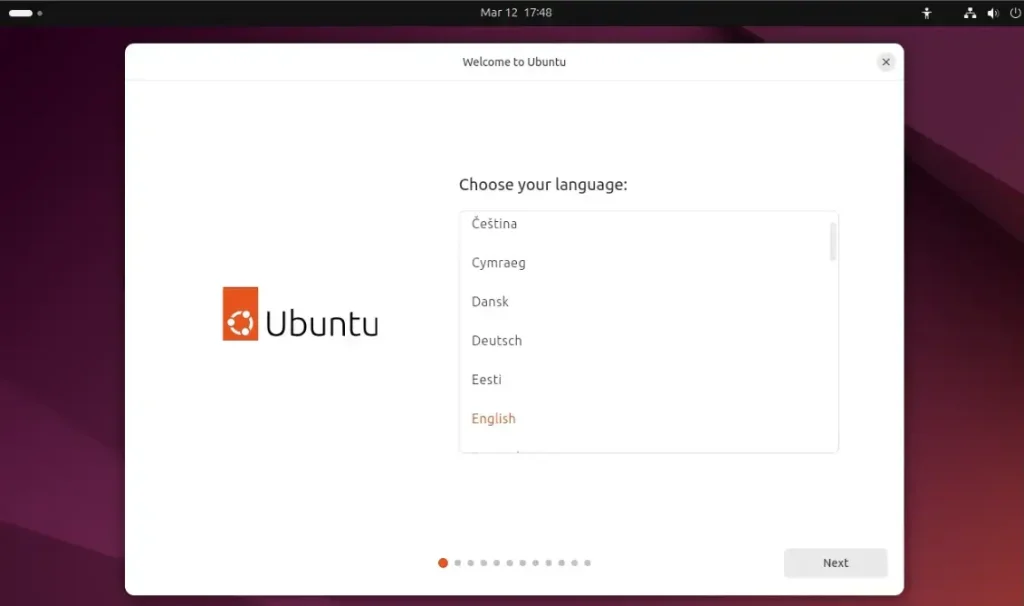
Because there is no VM window, you finish the Ubuntu installation through a remote desktop connection. Open an RDP client and connect to the host’s IP address and the port you set, which here is 5001. In the client, enter the address in the form VMHostIPaddress:vrdeport, for example the host’s IP followed by :5001. You should then see the Ubuntu installer screen and can run through setup as normal.
If the RDP client cannot connect, check that the VM is running and that the port is not blocked by a firewall on the host. VirtualBox's remote display feature also depends on the VirtualBox Extension Pack, so make sure it is installed if the connection is refused. When the installation finishes and the VM reboots, check that it boots from the virtual disk and not the ISO. If it boots from the ISO again, detach the ISO from the VM.
192.168.48.128:5001
Conclusion:
Running a virtual machine from the command line keeps resource overhead low, because there is no desktop window to render. Here is a recap of the steps:
- PreparationEnsure VirtualBox is installed, hardware virtualization is enabled and a directory for VMs is created.
- VM CreationThis creates the virtual machine with the desired parameters and registers it with VirtualBox.
- ConfigurationModify VM properties such as CPU and memory using
VBoxManage modifyvm. Do this while the VM is powered off. - Storage SetupCreate a storage controller and hard drive for the VM, then attach the drive.
- ISO AttachmentDownload the Ubuntu installation ISO and attach it to the VM.
- LaunchingStart the VM in headless mode and connect using an RDP client for installation.
Following these steps gives you a VM you can create, configure and run entirely from the command line. Once Ubuntu is installed, you can keep managing the VM with VBoxManage and reach it over the network, with no console window on your desktop.
Have a question about this guide?
Answered by AI from this guide. Good questions may be added to this page — please don't include personal details.
Did this guide fix your problem?

About the Author
Richard
Tech Writer, IT Professional
Richard is a writer at Geek Rewind who turns complex IT tasks into clear, step-by-step guides. He draws on years of hands-on experience in system administration and enterprise IT operations, focusing on Windows, Linux and WordPress: the problems people actually run into, and the fixes that work. His server and WordPress guides come from systems he runs himself. Richard builds and maintains the platform behind Geek Rewind, from its Ubuntu servers and Nginx configuration to its custom WordPress plugins. Many new tutorials start with readers' questions, and he's always glad to answer them in the comments.
No comments yet — be the first to share your thoughts!