How to Install Telnet on Windows 11


Telnet is a built-in network tool in Windows 11 that lets you send text commands to test connections and check if server ports are open. Microsoft turns off this feature by default on Windows 11 because newer tools like SSH offer better security for remote access.
You can turn on Telnet through the Windows Features menu in a few clicks, and then run tests straight from Command Prompt. Even though it is older technology, you still might need it to troubleshoot network problems or check if a specific port works on a server.
Enable the Telnet Client feature by going to Control Panel , then Programs, and selecting “Turn Windows features on or off.” Check the box for Telnet Client and click OK. You can also use the DISM command in an administrator Command Prompt: dism /online /Enable-Feature /FeatureName:TelnetClient.
Prerequisites
Before you begin, ensure you have an active internet connection. You must also have an administrator account on your computer to modify Windows features.
How to enable Telnet on 🪟 Windows 11
You can enable Telnet on Windows 11 using the Control Panel . This lets you use the Telnet client, which is a tool for connecting to remote computers. The steps are simple and don’t require any technical skills.
Latest Update
Turn Windows features on or off in the Control Panel to install Telnet on Windows 11. This tool lets you connect to remote computers and network devices for testing. Open the Control Panel from the Start Menu , click Programs, and choose ‘Turn Windows features on or off’ to find the Telnet Client checkbox and start the installation process.
- Open the Start Menu , search for Control Panel , and open it.
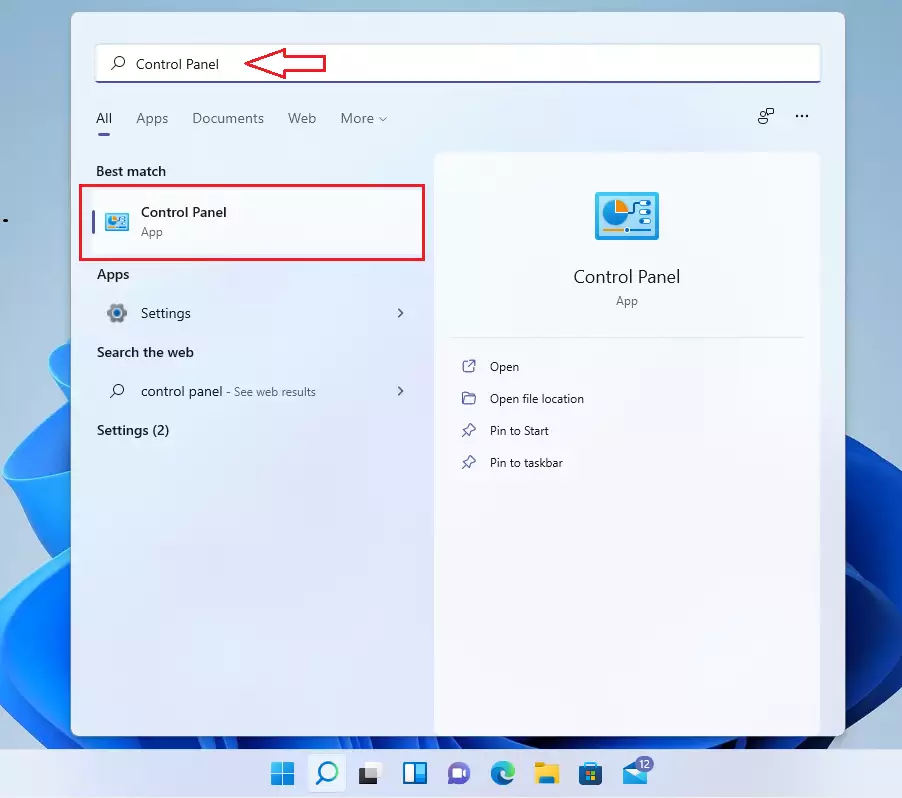
- Click on the Programs category.

- Select the link labeled Turn Windows features on or off. %📂%LNK0%%

- Find Telnet Client in the list, check the box next to it, and click OK.

Windows will now download and install the necessary files. Once finished, you can open your command prompt to start using it.
How to install Telnet via Command Prompt
Install Telnet via Command Prompt by running a single command with administrator rights. Open the Start Menu, search for Command Prompt, right-click the app, and choose 'Run as administrator'. Type the proper installation command and press Enter to add the feature without using the graphical Control Panel interface.
- Click the Start Menu and search for Command Prompt.
- Right-click the app and choose Run as administrator.

- Type the following command and press Enter:
dism /online /Enable-Feature /FeatureName:TelnetClientHow to install Telnet via PowerShell
Install Telnet via PowerShell by executing a quick deployment command with elevated privileges. Open the Start Menu, search for PowerShell, right-click the app, and select 'Run as administrator'. Enter the feature installation command to add the tool to your system in a few seconds.
- Search for PowerShell in the Start Menu.
- Right-click it and select Run as administrator.
- Run this command:
Install-WindowsFeature -name Telnet-ClientVerify Installation
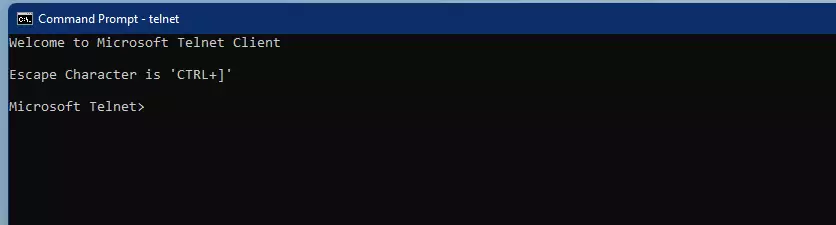
To check if Telnet is installed, open Command Prompt and type telnet. If it works, you will see a blank screen or a help menu. If you get an error, the installation did not complete.
Security Risks and SSH Alternative
Telnet is not safe to use on Windows 11 because it sends all data and login passwords in plain text. Anyone monitoring your network traffic can easily intercept this information. Always use SSH (Secure Shell), which encrypts your entire connection and keeps your sensitive data protected from snooping.
Disabling Telnet
If you no longer need it, go back to Turn Windows features on or off, uncheck Telnet Client, and click OK to remove it.
Summary
Telnet is a legacy network tool used primarily for testing connections. You can enable it through the Windows Control Panel, or by using the dism command in an administrator Command Prompt. Always remember that Telnet is insecure; use SSH for any sensitive tasks to protect your data.
Was this guide helpful?

About the Author
Richard
Tech Writer, IT Professional
Richard is a writer at Geek Rewind who turns complex IT tasks into clear, step-by-step guides. He draws on years of hands-on experience in system administration and enterprise IT operations, focusing on Windows, Linux and WordPress: the problems people actually run into, and the fixes that work. His server and WordPress guides come from systems he runs himself. Richard builds and maintains the platform behind Geek Rewind, from its Ubuntu servers and Nginx configuration to its custom WordPress plugins. Many new tutorials start with readers' questions, and he's always glad to answer them in the comments.




No comments yet — be the first to share your thoughts!