How to Install Telnet on Windows 11


Telnet is a built-in network tool in Windows 11 that lets you send text commands to test connections and check whether server ports are open. Microsoft turns the feature off by default on Windows 11 because newer tools like SSH offer better security for remote access.
You can turn on Telnet through the Windows Features menu in a few clicks, and then run tests straight from Command Prompt. It is older technology, but you may still need it to troubleshoot network problems or check that a specific port on a server answers. In practice you give Telnet a host name and a port number. If it connects, the port is open. If it fails with a “Could not open connection to the host” message, the port is closed, blocked by a firewall, or the service is not running.
To install Telnet on Windows 11, open Control Panel , go to Programs, select Turn Windows features on or off, tick Telnet Client and click OK. Windows installs the client without a restart in most cases. Telnet then runs from Command Prompt, where you can test whether a server port is open.
Prerequisites
Before you begin, make sure you have an active internet connection. Windows can usually install the Telnet client from files already on your PC, but it may need to download them from Windows Update .
You must also be signed in with an administrator account to change Windows features. To check, go to Settings Accounts Your info If the word Administrator appears under your name, you are set. Telnet Client is available on Home, Pro, Enterprise and Education, so the edition does not matter.
How to enable Telnet on 🪟 Windows 11
You can enable Telnet on Windows 11 using the Control Panel . This installs the Telnet client, a tool for connecting to remote computers and testing network ports. The steps are simple and don’t require any technical skills. Only the client is installed, not a Telnet server, so nobody can connect to your PC through it.
Latest Update
You install Telnet by turning on its checkbox in Windows features. The path is Control Panel Programs Turn Windows features on or off. The list that opens includes the Telnet Client checkbox. The steps below walk through each screen.
- Open the Start Menu, search for Control Panel, and open it. The Control Panel window appears with a list of categories.
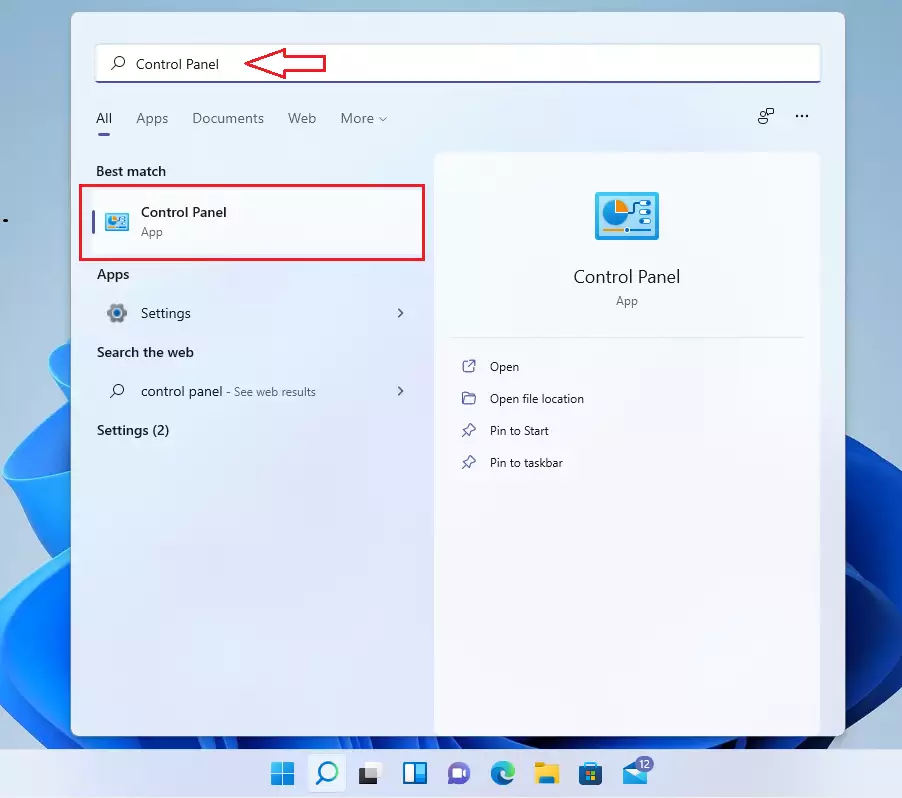
- Click on the Programs category. If you do not see categories, your Control Panel is set to large or small icons. In that case, open Programs and Features instead. You will see the same link in the next step on the left side of that window.

- Select the link labeled Turn Windows features on or off. %%LNK0%% A small Windows Features window opens with a list of optional features. If a User Account Control prompt appears, click Yes.

- Scroll down to find Telnet Client in the list, check the box next to it, and click OK. The list is alphabetical, so look near the bottom. A progress window then appears while Windows applies the change.

Windows will now download and install the necessary files. When it shows that it completed the requested changes, click Close. You do not normally need to restart. If Windows does ask for a restart, do it before you test. You can then open Command Prompt and start using Telnet.
If the install stalls or fails, check your internet connection and try again. Windows may be unable to reach Windows Update.
How to install Telnet via Command Prompt
You can also install Telnet from Command Prompt by running a single command with administrator rights. This skips the graphical Control Panel and is quicker once you know the command. It is also useful when you set up several PCs or want to script the install. The steps are: open the Start Menu, search for Command Prompt, right-click the app, and choose Run as administrator. Then type the installation command and press Enter.
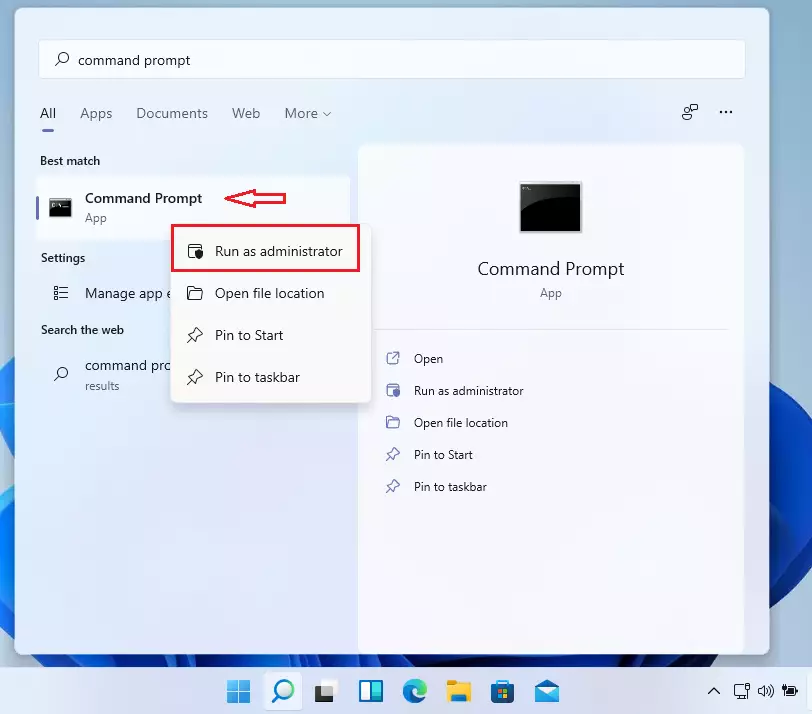
- Click the Start Menu and search for Command Prompt. The app appears at the top of the results.
- Right-click the app and choose Run as administrator. Click Yes if User Account Control asks for permission. A black window opens with "Administrator: Command Prompt" in the title bar. If the title bar does not say that, the command will fail, so close it and try again.
- Type the following command and press Enter. The command is shown below this step. You can copy and paste it to avoid typing mistakes. A progress bar runs, and the output ends with a message that the operation completed successfully. Any error message means the install did not complete.
dism /online /Enable-Feature /FeatureName:TelnetClientHow to install Telnet via PowerShell
You can install Telnet from PowerShell as well, with a quick command run with elevated privileges. The steps are: open the Start Menu, search for PowerShell, right-click the app, and select Run as administrator. Then enter the feature installation command. It adds the tool to your system in a few seconds.
- Search for PowerShell in the Start Menu. Windows PowerShell appears in the results.
- Right-click it and select Run as administrator. Click Yes if User Account Control appears. A blue window opens, and "Administrator" appears in the title bar.
- Run the command shown below this step. Paste it into the window and press Enter. When it finishes without an error, the Telnet client is installed.
Enable-WindowsOptionalFeature -Online -FeatureName TelnetClientVerify Installation
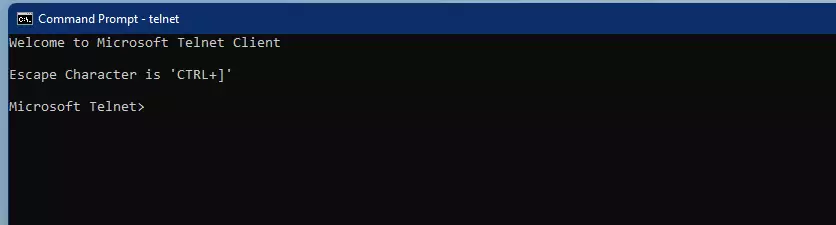
To check if Telnet is installed, open Command Prompt and type telnet. You do not need administrator rights for this. If it works, you will see a blank screen or a help menu. Depending on your setup, this may be a Microsoft Telnet prompt. Close the window when you are done.
If you get an error, such as a message that the command is not recognized, the installation did not complete. Repeat one of the install methods above. If you opened Command Prompt before the install finished, close it and open a new window first.
Security Risks and SSH Alternative
Telnet is not safe to use on Windows 11 for anything sensitive, because it sends all data and login passwords in plain text. Anyone monitoring your network traffic can easily intercept this information. Always use SSH (Secure Shell), which encrypts your entire connection and keeps your data protected from snooping. Windows 11 includes an OpenSSH client for this.
Checking whether a port is open does not send any passwords, so it is fine for quick tests. Avoid Telnet on untrusted networks, and never type credentials into a Telnet session.
Disabling Telnet
If you no longer need it, you can remove it the same way you added it:
- Open Control Panel Programs Turn Windows features on or off.
- Uncheck Telnet Client.
- Click OK to remove it, and then click Close when Windows finishes. You can turn it back on at any time by checking the box again.
Summary
Telnet is a legacy network tool used primarily for testing connections. You can enable it through the Windows Control Panel, or by using the dism command in an administrator Command Prompt. No restart is normally needed. Always remember that Telnet is insecure. Use SSH for any sensitive tasks to protect your data, and remove the Telnet client when you no longer need it.
Have a question about this guide?
Answered by AI from this guide. Good questions may be added to this page — please don't include personal details.
Did this guide fix your problem?

About the Author
Richard
Tech Writer, IT Professional
Richard is a writer at Geek Rewind who turns complex IT tasks into clear, step-by-step guides. He draws on years of hands-on experience in system administration and enterprise IT operations, focusing on Windows, Linux and WordPress: the problems people actually run into, and the fixes that work. His server and WordPress guides come from systems he runs himself. Richard builds and maintains the platform behind Geek Rewind, from its Ubuntu servers and Nginx configuration to its custom WordPress plugins. Many new tutorials start with readers' questions, and he's always glad to answer them in the comments.
No comments yet — be the first to share your thoughts!