How to Install Signal Desktop on Ubuntu 24.04


Signal Desktop is a private messaging app that protects your chats with end-to-end encryption. Installing this app on Ubuntu 24.04 (Noble Numbat) takes only a few terminal commands by connecting directly to the official Signal software repository.
Adding the official repository ensures you receive the newest features and security patches straight from the developers the moment they arrive. You can set this up in minutes using your command line and start messaging securely on your Linux PC.
Install Signal Desktop via APT
To install Signal Desktop Ubuntu using the APT package manager, you add the official Signal software repository to your system and run the standard install command in your terminal. This method downloads the app directly from the creators and keeps it updated alongside your regular system updates.
To do that, first, install some prerequisites by running the command below.
sudo apt update && sudo apt upgrade
sudo apt install software-properties-common apt-transport-https curl
Next, run the command below to import the Signal Desktop GPG key for its repository.
curl -fSsL https://updates.signal.org/desktop/apt/keys.asc | gpg --dearmor | sudo tee /usr/share/keyrings/signal-desktop-keyring.gpg
Once the GPG key is imported, run the command below to add the Signal Desktop repository to Ubuntu.
echo deb [arch=amd64 signed-by=/usr/share/keyrings/signal-desktop-keyring.gpg] https://updates.signal.org/desktop/apt xenial main | sudo tee /etc/apt/sources.list.d/signal-messenger.list
After that, update the Ubuntu packages index and install Signal.
sudo apt update
sudo apt install signal-desktop
Once installed, you can launch the app using the command below.
signal-desktop
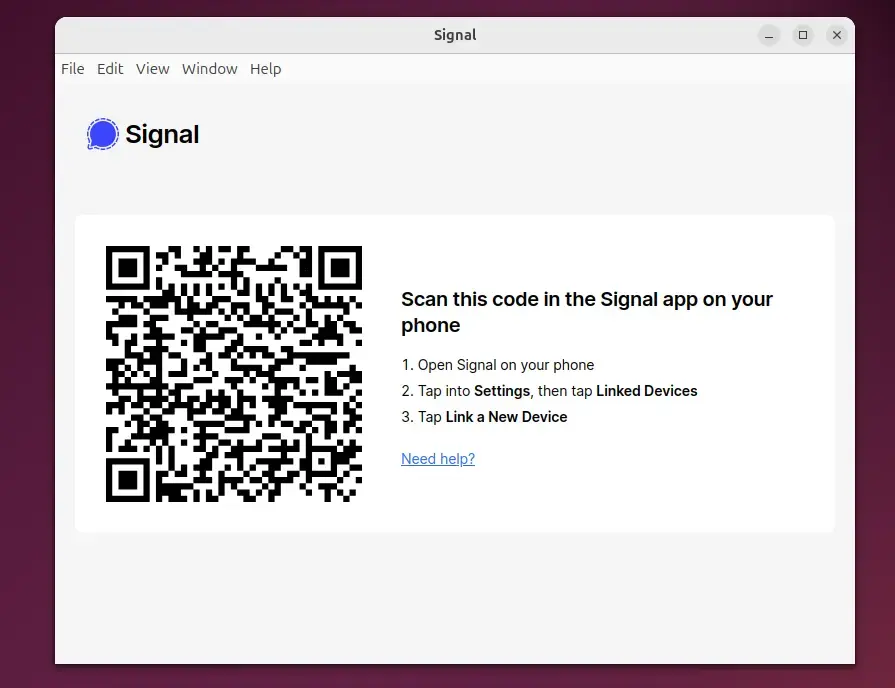
You can also launch Signal directly from your desktop environment by using the steps below:
- Open Activities.
- Click on Show Applications.
- Search for Signal and launch the app.
Install Signal Desktop via Snap
To install Signal Desktop Ubuntu using Snap, you run a single command in your terminal that downloads and sets up the app automatically through the Snap store. This method is the fastest way to get the app running because Snap packages include everything the program needs to run in one bundle.
To do that, install the Snap package manager if it’s not already installed.
sudo apt install snapd
Next, install core Snap by running the command below.
sudo snap install core
After that, run the command below to install the Snap Desktop app.
sudo snap install signal-desktop
To run the app after installing, run the command below.
snap run signal-desktop
To uninstall, run the command below.
sudo snap remove signal-desktop
Install Signal Desktop via Flatpak
To install Signal Desktop Ubuntu using Flatpak, you first set up the Flatpak tool and then download the app from the Flathub store. This method runs the app inside a sandbox (a secure, isolated container that keeps apps separate from the rest of your system) for better security.
Flatpak is a third-party application distribution system that is not included in Ubuntu by default.
You must install the Flatpak package manager and then install the Signal app.
First, update and install Flatpak.
sudo apt update && sudo apt upgrade
sudo apt install flatpak
Next, add the Flatpak repository to Ubuntu.
sudo flatpak remote-add --if-not-exists flathub https://flathub.org/repo/flathub.flatpakrepo
Finally, install Signal Desktop.
flatpak install flathub org.signal.Signal
Once installed, you can launch it using the command below or open the app in the desktop apps center.
flatpak run org.signal.Signal
Uninstall the app using the command below.
flatpak uninstall org.signal.Signal
That should do it!
Conclusion:
In conclusion, installing Signal Desktop on Ubuntu 24.04 is straightforward, with multiple methods available to suit your preferences. Here are the key takeaways:
- Multiple Installation Methods: You can install Signal Desktop using APT, Snap, or Flatpak, depending on your comfort level and system configuration.
- Secure Communication: Signal Desktop ensures your messages remain private with strong encryption and privacy-focused features.
- Easy to Launch: After installation, launching Signal is simple, whether from the command line or your desktop environment.
- Uninstallation Simplicity: If you need to remove Signal Desktop, each installation method provides a straightforward command for uninstallation.
- Up-to-date Features: Using these package managers lets you easily keep Signal Desktop updated to the latest version for enhanced security and features.
Now, you can enjoy secure messaging on your Ubuntu system!
Is there a Signal desktop app for Linux?
Signal Desktop links with Signal on Android or iOS and lets you message from your Windows, macOS, and Linux computers. Install the production version or help us out by installing the beta version.
Was this guide helpful?

About the Author
Richard
Tech Writer, IT Professional
Richard, a writer for Geek Rewind, is a tech enthusiast who loves breaking down complex IT topics into simple, easy-to-understand ideas. With years of hands-on experience in system administration and enterprise IT operations, he’s developed a knack for offering practical tips and solutions. Richard aims to make technology more accessible and actionable. He's deeply committed to the Geek Rewind community, always ready to answer questions and engage in discussions.

No comments yet — be the first to share your thoughts!