How to Install SeaMonkey on Ubuntu 24.04


SeaMonkey brings a classic all-in-one web browser and email client to Ubuntu 24.04 so you can handle your daily web tasks in one spot. This open-source app carries on the tradition of the original Mozilla suite as a light alternative to running separate programs.
Installing SeaMonkey on Ubuntu 24.04 takes just a few quick terminal commands using the apt package manager. You can get the suite up and running in minutes without needing extra tools.
Install SeaMonkey on Ubuntu 24.04 by first updating your system. Then, import the GPG key, add the SeaMonkey repository, and finally install the package using `sudo apt update` and `sudo apt install seamonkey-mozilla-build`.
Prepare Ubuntu
Run the command below to do that.
sudo apt update && sudo apt upgrade
sudo apt install dirmngr ca-certificates software-properties-common apt-transport-https
Import the GPG key for the SeaMonkey repository
Importing the GPG key tells your Ubuntu 24.04 computer that the SeaMonkey software from its official source is safe to download. This is the first step to install SeaMonkey on Ubuntu 24.04. You need to run a specific command to add this key, ensuring a secure installation process.
Run the command below to do that.
sudo gpg --no-default-keyring --keyring /usr/share/keyrings/ubuntuzilla.gpg --keyserver keyserver.ubuntu.com --recv-keys 2667CA5C
Add the SeaMonkey repository to Ubuntu.
After importing the GPG key, run the command below to add the SeaMonkey's repository file to Ubuntu.
printf 'deb [signed-by=/usr/share/keyrings/ubuntuzilla.gpg] https://downloads.sourceforge.net/project/ubuntuzilla/mozilla/apt all mainn' | sudo tee /etc/apt/sources.list.d/ubuntuzilla.list >/dev/null
Finally, run the command below to update Ubuntu package indexes and install SeaMonkey.
sudo apt update
sudo apt install seamonkey-mozilla-build
Once installed, type the command below to launch the app from the terminal.
seamonkey
On the desktop, go to Activities > Show Applications > SeaMonkey.
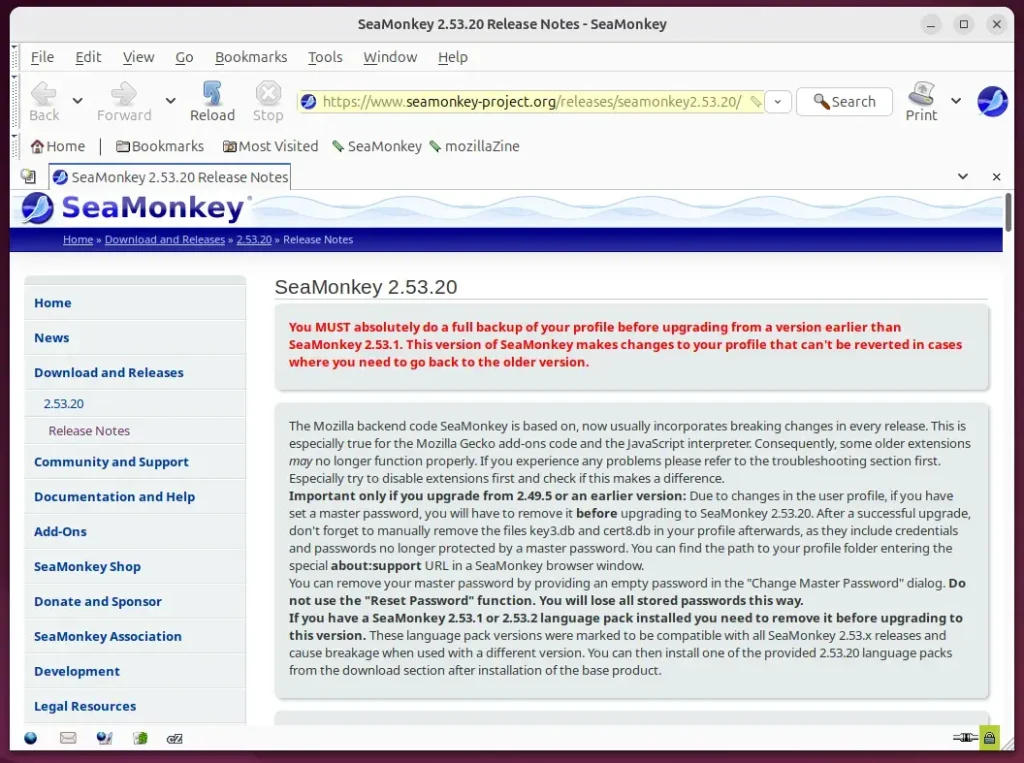
Uninstall SeaMonkey
Uninstalling SeaMonkey on Ubuntu 24.04 is a simple process that completely removes the browser and all its related files. To uninstall, you first remove the application and its settings, then you delete the software source list and its security key using specific commands.
sudo apt install seamonkey-mozilla-build --purge
sudo rm /etc/apt/sources.list.d/ubuntuzilla.list
sudo rm /usr/share/keyrings/ubuntuzilla.gpg
That should do it!
Conclusion:
In summary, installing SeaMonkey on Ubuntu 24.04 provides users with an efficient and integrated suite of internet tools. Here are some key takeaways:
- SeaMonkey offers comprehensive features, including a web browser, email client, and chat tools.
- The installation process is straightforward, requiring a few terminal commands for setup.
- It is a lightweight application, making it an excellent choice for older hardware or those seeking speed.
- Regular updates and community support ensure that SeaMonkey remains reliable for internet users.
- Uninstalling SeaMonkey is just as easy, allowing users to remove it without hassle.
Following the outlined steps, you can enjoy the benefits of SeaMonkey, which is seamlessly integrated into your Ubuntu environment.
How do I install SeaMonkey?
To install SeaMonkey, you'll first download the installer file from its official website, then double-click the downloaded file to start the setup program.
How to install Chrome on Ubuntu 24.04 LTS?
And then wait for it to complete if you want you can see what's going on behind GDB by clicking the terminal. And it will show what commands what progress it makes in the terminal.
Was this guide helpful?
0% of readers found this helpful (1 votes)

About the Author
Richard
Tech Writer, IT Professional
Richard, a writer for Geek Rewind, is a tech enthusiast who loves breaking down complex IT topics into simple, easy-to-understand ideas. With years of hands-on experience in system administration and enterprise IT operations, he’s developed a knack for offering practical tips and solutions. Richard aims to make technology more accessible and actionable. He's deeply committed to the Geek Rewind community, always ready to answer questions and engage in discussions.




Most of these command are obsolete and/or not working. I want Seamonkey back and am sick and tired of the bad looking, confusing, useless and bloated thunderbird