How to Install ProFTPD on Ubuntu 24.04


ProFTPD is a free software program that turns your Ubuntu 24.04 machine into an FTP server so you can send and share files between different computers over a network.
You can install this file transfer tool in just a few minutes using the standard APT package manager and secure your connections with TLS/SSL encryption.
Install ProFTPD on Ubuntu 24.04 using the command sudo apt update && sudo apt install proftpd-core. After installation, configure basic settings by editing the proftpd.conf file and restart the service with sudo systemctl restart proftpd.
Install ProFTPD
On Ubuntu, you can install ProFTPD using the command below. There are no additional packages to install since ProFTPD packages are included in Ubuntu’s default repositories.
sudo apt update
sudo apt install proftpd-core
Once installed, its default configuration file is at [/etc/proftpd/proftpd.conf].
Configure basic settings
To install ProFTPD Ubuntu and configure basic settings, you need to edit the main configuration file located on your system. Open the terminal and run the command sudo nano /etc/proftpd/proftpd.conf to edit the file. Once open, you can adjust the server name, port numbers, and directory paths to match your network setup and make the server work the way you want.
sudo nano /etc/proftpd/proftpd.conf
Then, adjust the server settings based on your environment.
# Set off to disable IPv6 support which is annoying on IPv4 only boxes.
# Comment out to turn off IPv6 if you don't need it

#UseIPv6 on

#
#Change the server name to match your environment

ServerName "proftpd.example.com"

# Use this to jail all users in their homes
# line 39 : uncomment (specify root directory for chroot)

DefaultRoot ~

#
..........
..........
Save the file and exit.
The ftpusers file controls which accounts cannot access the FTP server. You run the command below to open the ftpusers file, which lists these restricted accounts for ProFTPD on Ubuntu 24.04.
sudo nano /etc/ftpusers
Add other accounts on separate lines to prevent more users from accessing FTP.
root
Save and exit the file, then restart Pro-FTPD.
sudo systemctl restart proftpd
At this point, you should be able to access Pro-FTPD using any FTP client. All user accounts not included in the ftpusers file will be granted access.
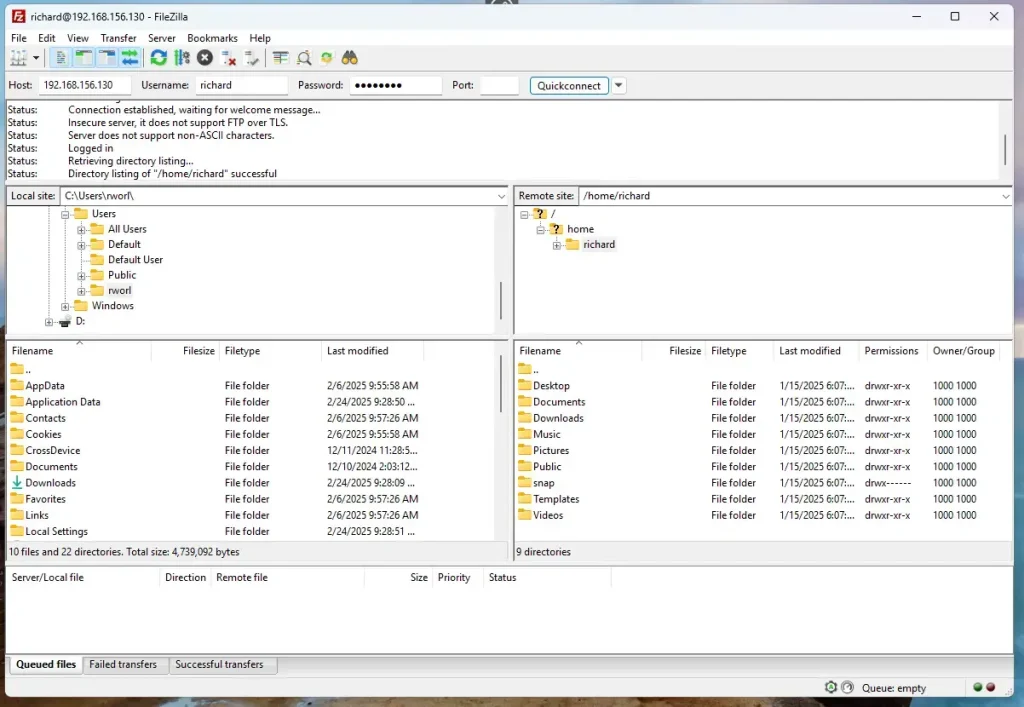
Access ProFTPD over SSL/TLS
To access ProFTPD over SSL/TLS and secure your data transfers with encryption, you must set up a security certificate on your server. When you install ProFTPD Ubuntu, you can use a free certificate from a public provider like Let's Encrypt or create your own self-signed certificate. This encrypts your usernames, passwords, and file transfers so people on the same network cannot read them.
Use a public certificate like Let's Encrypt or a self-signed on your server.
For this post, we'll be creating a self-signed certificate for ProFTPD.
Run the command below to generate a self-signed certificate to use with ProFTPD.
sudo openssl req -x509 -nodes -newkey rsa:3072 -keyout proftpd.pem -out proftpd.pem -days 3650
When prompted, enter the certificate details.
Country Name (2 letter code) [AU]:US
State or Province Name (full name) [Some-State]:NY
Locality Name (eg, city) []:Brooklyn
Organization Name (eg, company) [Internet Widgits Pty Ltd]:GeekRewind
Organizational Unit Name (eg, section) []:IT
Common Name (e.g. server FQDN or YOUR name) []:proftpd.example.com
Email Address []:
After generating the certificates, copy them into the [/etc/ssl/private] directory.
sudo cp proftpd.* /etc/ssl/private
sudo chmod 600 /etc/ssl/private/proftpd.pem
Next, install the Pro-FTPD SSL module by running the command below.
sudo apt install proftpd-mod-crypto
After installing the module, run the command below to open its configuration file.
sudo nano /etc/proftpd/modules.conf
Update the lines below in the file to reference the new certificates.
# Install proftpd-mod-crypto to use this module for TLS/SSL support.
# Uncomment to enable SSL/TLS

LoadModule mod_tls.c

........
........
Save the exit the file.
Next, reopen the Pro-FTPD configuration file.
sudo nano /etc/proftpd/proftpd.conf
Then, uncomment line #143 to include the TLS configuration.
# This is used for FTPS connections
#

Include /etc/proftpd/tls.conf

#
Save the file and exit.
Next, open the Pro-FTPD TLS configuration file.
sudo nano /etc/proftpd/tls.conf
Uncomment
#Uncomment the lines below and update the TLS protocol.

TLSEngine                               on
TLSLog                                  /var/log/proftpd/tls.log
TLSProtocol                             TLSv1.3

#
#

#Uncomment lines 27/8 and specify the certificates created above.

TLSRSACertificateFile                   /etc/ssl/private/proftpd.pem
TLSRSACertificateKeyFile                /etc/ssl/private/proftpd.pem

#
#
Exit and save the file, then restart Pro-FTPD services by running the command below.
sudo systemctl restart proftpd
With SSL/TLS configured, open your FTP client and set up the sites to use SSL/TLs.
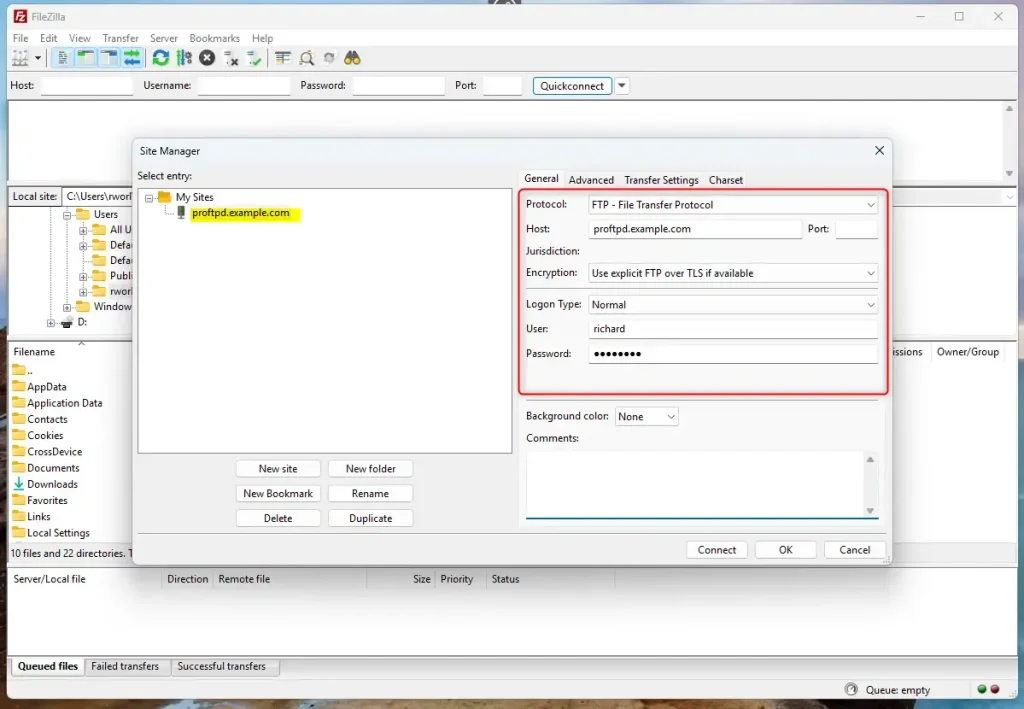
Since we used a self-signed certificate when prompted to trust it, OK.
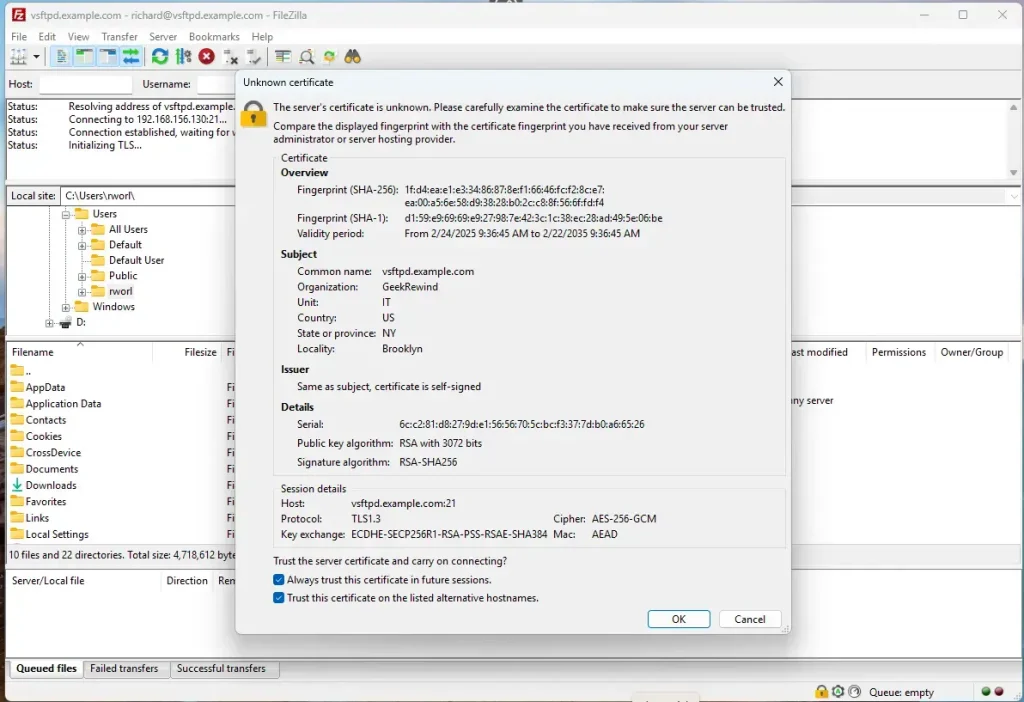
Now, Pro-FTPD is communicating over SSL/TLS.
That should do it!
Conclusion:
- ProFTPD Installation: Installing ProFTPD on Ubuntu 24.04 is straightforward, requiring minimal setup.
- Secure Communication: Configuring SSL/TLS enhances security, ensuring safe data transmission.
- Customization: ProFTPD allows customization of server settings to fit specific user needs.
- Reliable Performance: Known for its stability, ProFTPD is a trusted choice for file transfers.
- User Access Control: Utilizing the
ftpusersfile helps manage which users can access the FTP server. - Self-Signed Certificates: A self-signed certificate can provide an immediate solution for secure connections.
You can effectively set up and secure your ProFTPD server for efficient file management by completing the outlined installation and configuration steps.
What is the best FTP program for Ubuntu?
In short, FileZilla is the best FTP client on Ubuntu for 95% of users. It's free and includes all the most useful features. On Ubuntu Server, lFTP and NcFTP are suitable alternatives for the command-line interface.
How do I install FTP on Linux?
Most Linux systems come with the FTP command already installed, but if yours doesn't, you can easily install FTP on Ubuntu or other Debian-based systems using `sudo apt-get install ftp`.
Was this guide helpful?

About the Author
Richard
Tech Writer, IT Professional
Richard, a writer for Geek Rewind, is a tech enthusiast who loves breaking down complex IT topics into simple, easy-to-understand ideas. With years of hands-on experience in system administration and enterprise IT operations, he’s developed a knack for offering practical tips and solutions. Richard aims to make technology more accessible and actionable. He's deeply committed to the Geek Rewind community, always ready to answer questions and engage in discussions.




No comments yet — be the first to share your thoughts!