
If you’re having problems with the sound on your Windows 11 computer, updating or installing the audio driver can often help fix the issue. This guide will show you simple steps to update or install your audio drivers.
What is an audio driver? It’s a small program that helps your computer talk to your speakers or headphones. Keeping it up-to-date means better sound and fewer problems.
1. Update Audio Drivers Using Windows Optional Updates
Sometimes, Windows 11 will automatically update your drivers when you install regular updates. But you can also check for audio driver updates yourself through the Optional Updates section.
Here’s how:
- Click the Start menu (the Windows icon on the bottom left).
- Select Settings (the gear icon).
- In Settings, click Windows Update on the left side.
- Click Advanced options.
- Then click Optional updates.
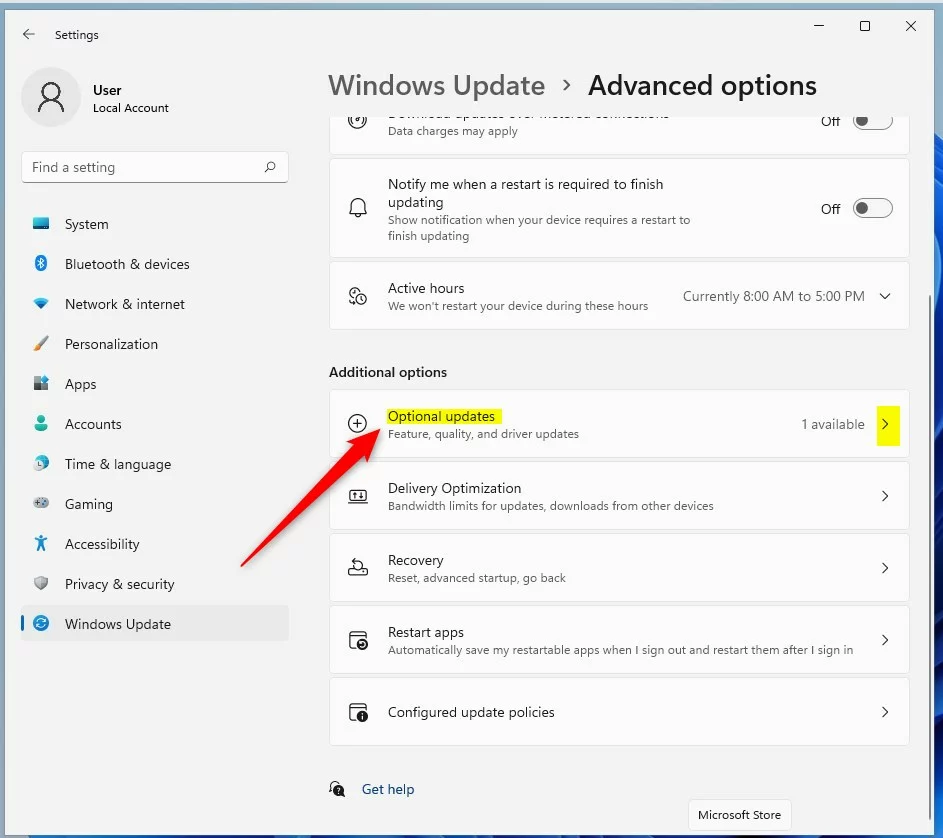
If there’s an audio driver update available, it will show up here. Just check the box next to it and click Download & install.
Learn more about Optional Updates
2. Update Audio Drivers Using Device Manager
If you want to update the audio driver manually or install one you downloaded from the manufacturer’s website, you can use the Device Manager app.
Follow these steps:
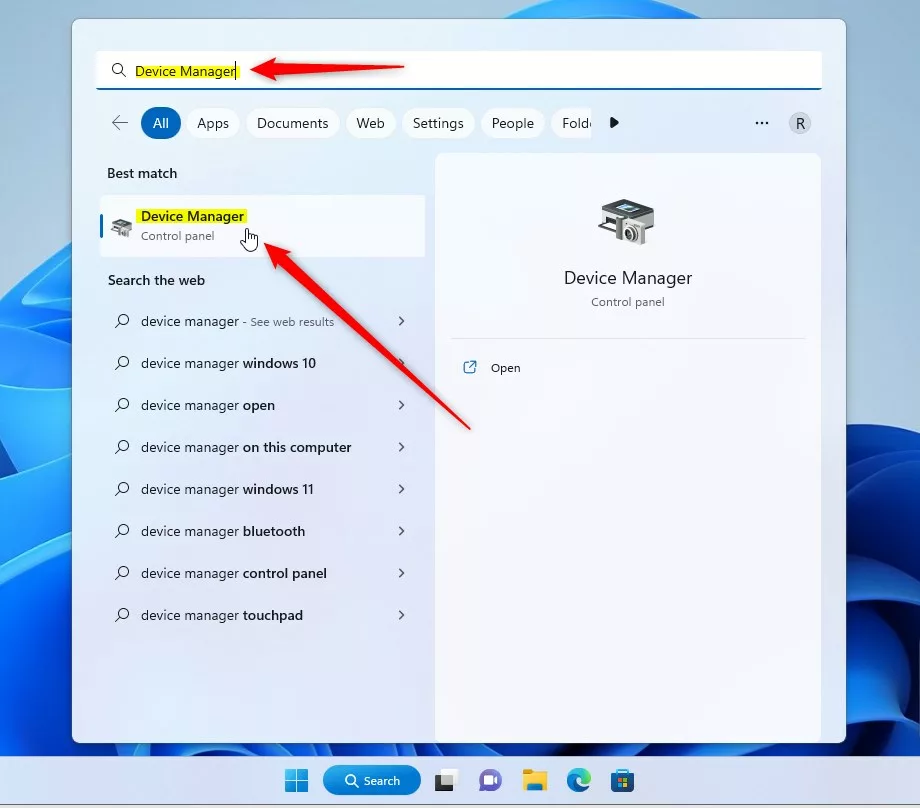
- Click the Start menu and type Device Manager in the search box.
- Click the Device Manager app from the search results.
In Device Manager:
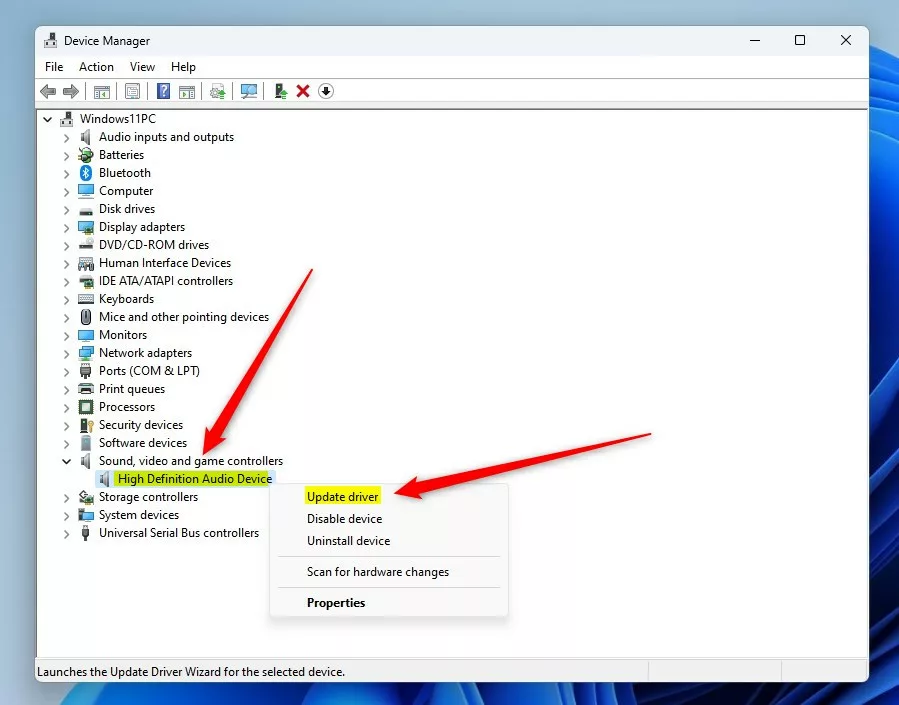
- Find and click the arrow next to Sound, video, and game controllers to expand it.
- Right-click on your audio device (it might be called High Definition Audio Device or something similar).
- Select Update driver from the menu.
Next, you will see two options:
- Search automatically for drivers: Windows will look online for the best driver.
- Browse my computer for drivers: You can pick a driver file if you already downloaded one.
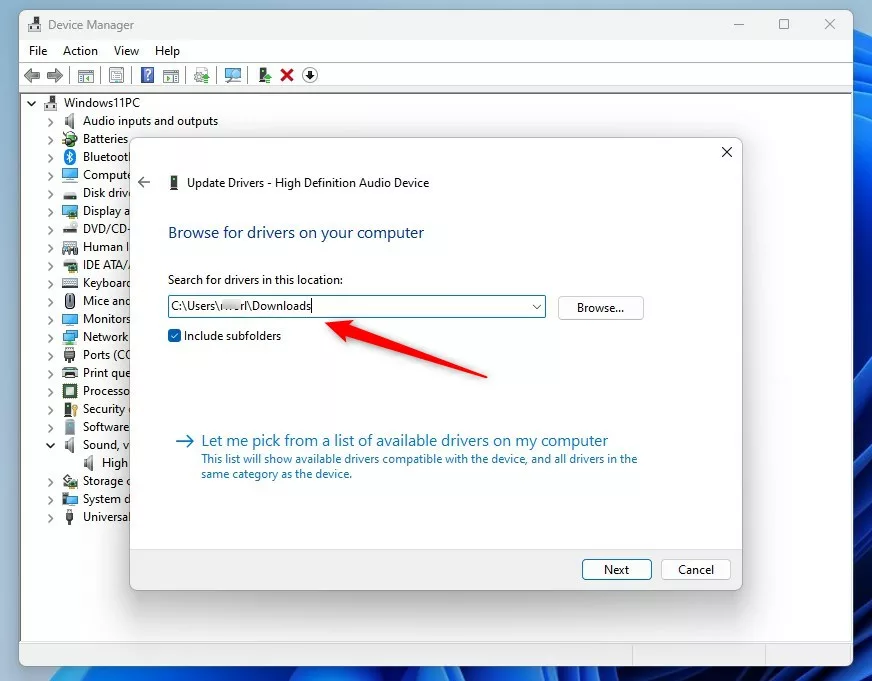
If you have the driver saved on your PC (for example, from the manufacturer’s website), choose Browse my computer for drivers.
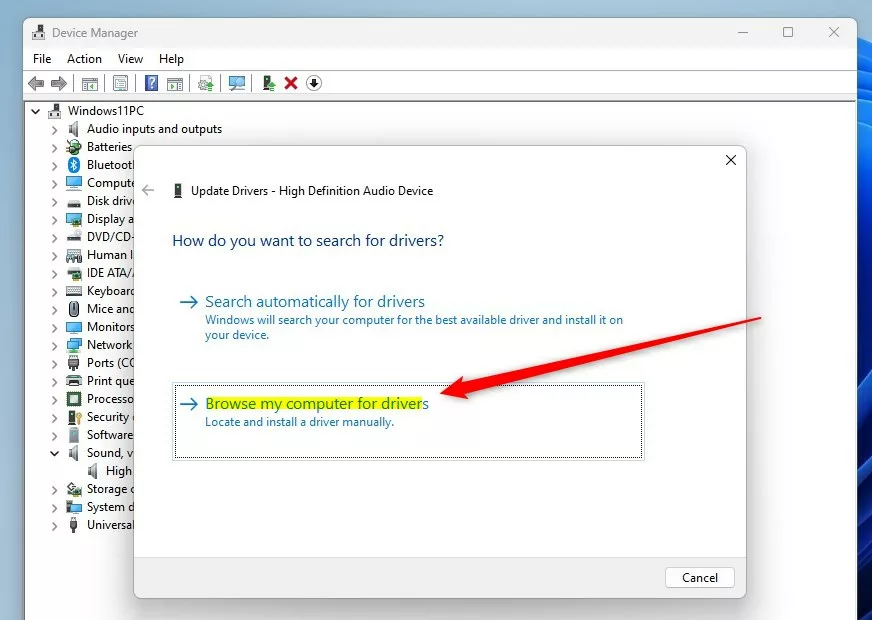
Find the folder where the driver is saved, select it, and click Next to install.
If you don’t have a driver downloaded, you can also choose Let me pick from a list of available drivers to select from drivers already on your computer.
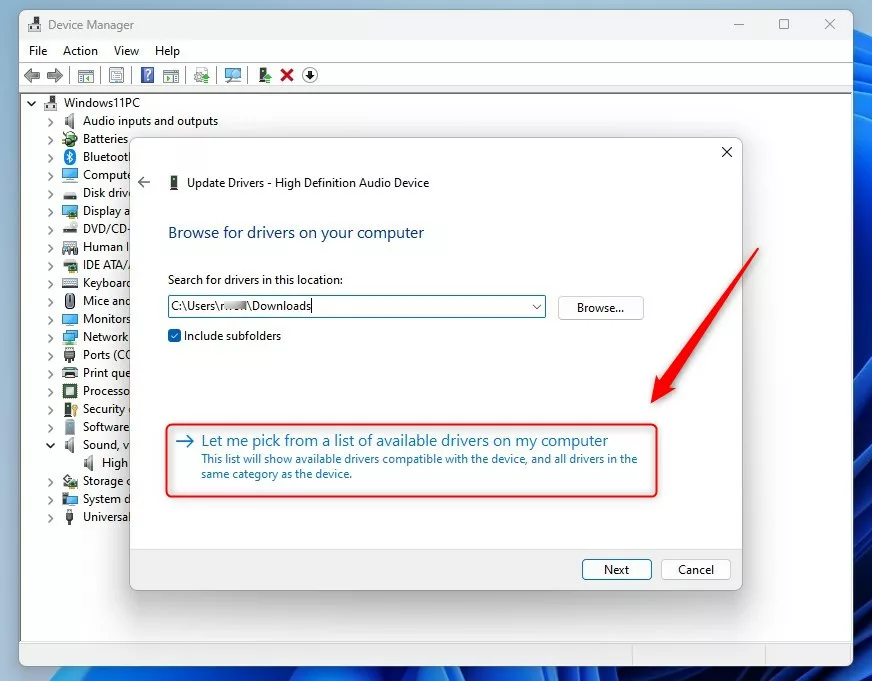
If one driver isn’t working, you can try another one listed here that worked before.
After updating or installing the driver, it’s a good idea to restart your computer to make sure the changes take effect.
Summary
- Updating audio drivers can fix sound problems and improve audio quality.
- You can update drivers using Windows Optional Updates or Device Manager.
- Optional Updates are found in Settings > Windows Update > Advanced options > Optional updates.
- Device Manager lets you manually update or install drivers you have downloaded.
- Restart your PC after updating drivers for best results.
If you’d like to learn more about managing drivers on Windows 11, check out this helpful guide: How to Update Device Drivers in Windows 11.

Leave a Reply