How to Install NetBeans on Ubuntu 24.04


Apache NetBeans is a free integrated development environment (IDE, a workspace with tools for writing and testing code) that lets you build software in Java, PHP, and C++ on Ubuntu 24.04. The software gives you a smart workspace with tools that check your work for mistakes and help you finish typing code faster.
Ubuntu 24.04 supports multiple ways to set up this software on your system, depending on whether you want a quick installation or a specific version. You can pick the method that fits your setup best and start building projects right away.
Install NetBeans on Ubuntu 24.04 by downloading the DEB package and running “sudo apt install ./apache-netbeans_24-1_amd64.deb”. Alternatively, use the App Center, Snap (“sudo snap install netbeans –classic”), or Flatpak (“flatpak install flathub org.apache.netbeans”).
Install NetBeans using DEB
You can install NetBeans using DEB on Ubuntu 24.04 by downloading the official package file directly from the Apache NetBeans website and running it on your system. This method lets you set up the software without using the terminal, giving you a straightforward installation path.
First, visit the download site and copy the link for the appropriate Apache NetBeans 24+JDK 23 Deb package you want to install.
Use the command below to download the file, remembering to replace the version number with the current one.
wget https://github.com/codelerity/netbeans-installers/releases/download/v24-build1/apache-netbeans_24-1_amd64.deb
Once the download is complete, use this command to install the package.
sudo apt install ./apache-netbeans_24-1_amd64.deb
After installation, launch the app from your Application menu. Search for NetBeans, select it, and then launch it.
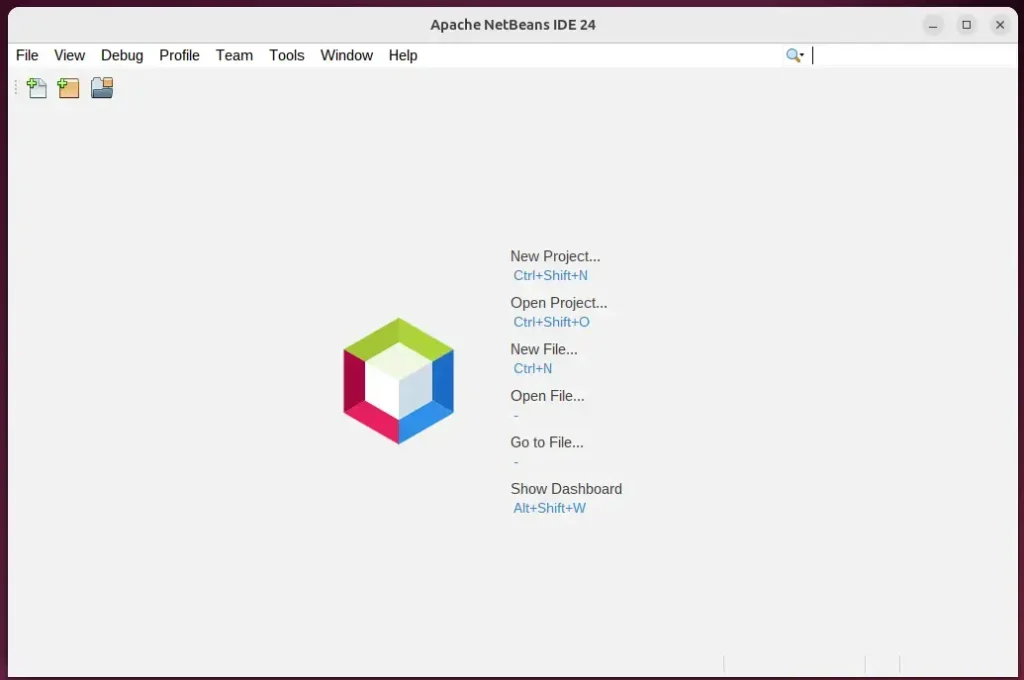
Start developing your apps.
Install NetBeans using the App Center
You can install NetBeans using the App Center on Ubuntu 24.04 by opening the built-in software store, searching for the application, and clicking the install button. This graphical method lets you set up the program completely without the command line, making it ideal for desktop users.

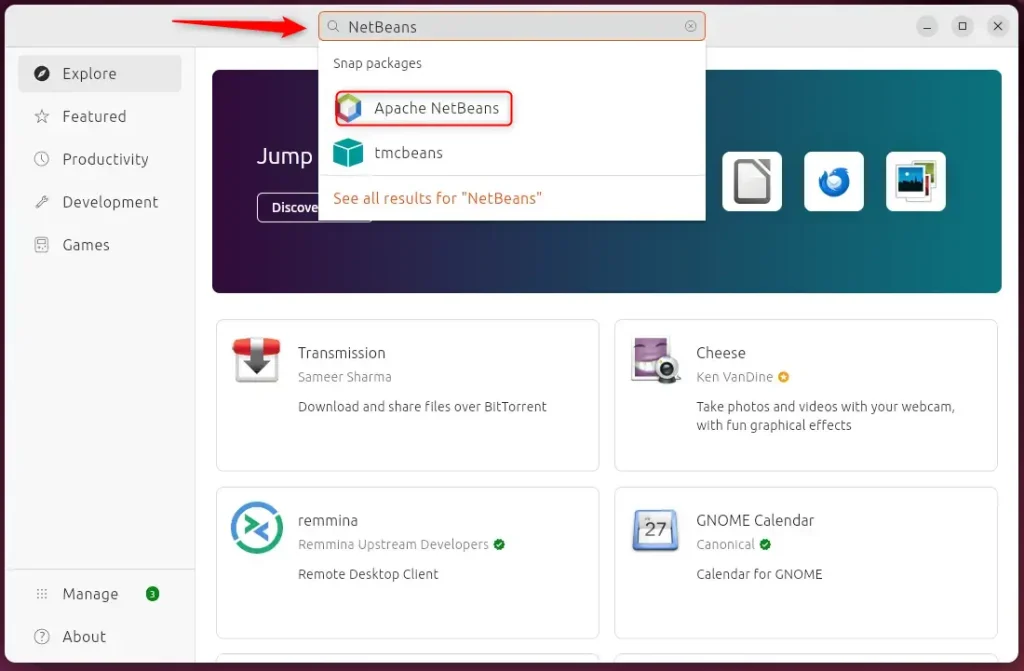
Once the app opens, use the search box to find NetBeans and install it.
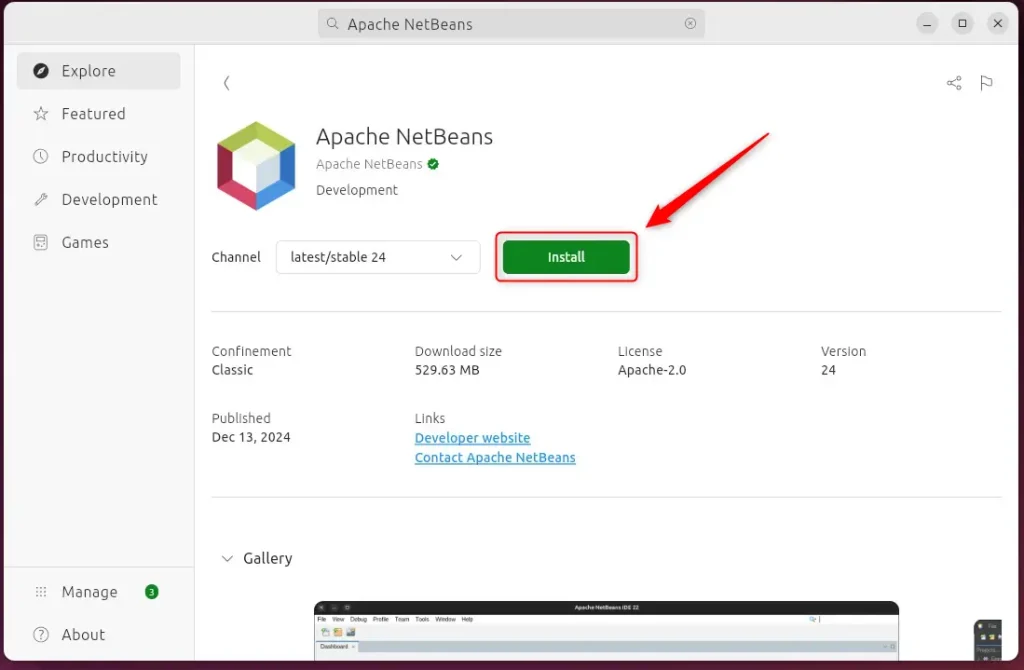
Install the app
After installation, use the Dock on the left sidebar to search and launch the NetBeans app.
Install NetBeans using Snap
You can install NetBeans using Snap on Ubuntu 24.04 by running a quick command in your terminal to download the application bundle and its dependencies. Snap (a package manager that bundles applications and their dependencies together) manages updates automatically and keeps your software safely isolated from the rest of the system.
If it’s not already installed, run `sudo apt install snapd` again.
sudo apt install snapd
Then, run the command below to install NetBeans from the Snap package manager.
sudo snap install netbeans --classic
After installation, use the Dock on the left sidebar to search and launch the NetBeans app.
You can also run the app using the command below.
sudo snap run netbeans
Remove the app using the command below.
sudo snap remove netbeans
Install NetBeans using Flatpak
You can install NetBeans using Flatpak on Ubuntu 24.04 by setting up the package manager and then downloading the software from a third-party repository. Flatpak (a universal package system for Linux) lets you run apps securely outside of Ubuntu's default software sources.
First, update and install Flatpak.
sudo apt update && sudo apt upgrade
sudo apt install flatpak
Next, add the Flatpak repository to Ubuntu.
sudo flatpak remote-add --if-not-exists flathub https://flathub.org/repo/flathub.flatpakrepo
Finally, install NetBeans.
flatpak install flathub org.apache.netbeans
Once installed, you can launch it using the command below or open the app in the desktop apps center.
flatpak run org.apache.netbeans
Uninstall the app using the command below.
flatpak uninstall flathub org.apache.netbeans
That completes the setup process.
Conclusion:
Installing Apache NetBeans on Ubuntu 24.04 significantly enhances the development experience. Reviewing the key takeaways helps clarify the options:
- Multiple Installation Methods: Choose from several methods, including DEB packages, App Center, Snap, and Flatpak, based on your preference.
- User-Friendly IDE: Apache NetBeans provides robust support for various programming languages, making it an excellent choice for developers.
- Integrated Tools: The IDE has essential features like code completion, syntax highlighting, and debugging tools to streamline the coding process.
- Enhanced Productivity: Utilizing the features of NetBeans can lead to more efficient project management and application development.
- Community Support: Being an open-source platform, NetBeans has a supportive community that can assist with troubleshooting and enhancements.
Apache NetBeans operates as a powerful Integrated Development Environment (IDE) to elevate coding projects. Completing these steps gets NetBeans up and running on Ubuntu 24.04 so building complex applications can begin immediately.
How do I install NetBeans in Ubuntu?
Run `sudo snap install netbeans --classic` to pull the latest available package version onto the system, providing the Ubuntu password when prompted.
How to install NetBeans latest version?
Button under the version. And then you have a few options. So you have the binary options, which is platform independent. And then you have the installers and packages. So for Windows operating.
Is there NetBeans for Linux?
Apache NetBeans can be installed on all operating systems that support Java, i.e., Windows, Linux, Mac OSX, and BSD. Write Once, Run Anywhere applies to NetBeans too.
Was this guide helpful?

About the Author
Richard
Tech Writer, IT Professional
Richard, a writer for Geek Rewind, is a tech enthusiast who loves breaking down complex IT topics into simple, easy-to-understand ideas. With years of hands-on experience in system administration and enterprise IT operations, he’s developed a knack for offering practical tips and solutions. Richard aims to make technology more accessible and actionable. He's deeply committed to the Geek Rewind community, always ready to answer questions and engage in discussions.




No comments yet — be the first to share your thoughts!