How to Install Google Earth on Ubuntu 24.04

Google Earth is a desktop program that lets you explore 3D maps, satellite photos, and street views of the entire globe right from your screen. Installing the software on Ubuntu 24.04 takes only a few minutes when you use an official .deb file.
You can set up the application using either the built-in Ubuntu Software Center or a quick command in the terminal. Once the install finishes, you can search for any address, measure distances, and view detailed terrain.
Download the .deb package from Google’s website. Then, open your terminal and navigate to the download directory. Install the package using the command sudo dpkg -i google-earth-pro-stable_current_amd64.deb.
Prepare Ubuntu
Run the command to do that.
sudo apt update
sudo apt upgrade
Then, install some essential packages by running the command below.
sudo apt install curl software-properties-common apt-transport-https ca-certificates
Import Google Earth repository GPG key
Next, run the command below to import Google’s repository GPG key to authenticate installed packages.
curl -fSsL https://dl.google.com/linux/linux_signing_key.pub | gpg --dearmor | sudo tee /usr/share/keyrings/google-earth.gpg > /dev/null
Add Google Earth repository
Adding the Google Earth repository on Ubuntu lets your system find and download the app files safely. You need to set up this software source before you can run the installation command. Open your terminal and paste the required repository key and address to prepare your system for Google Earth.
echo "deb [arch=amd64 signed-by=/usr/share/keyrings/google-earth.gpg] http://dl.google.com/linux/earth/deb/ stable main" | sudo tee /etc/apt/sources.list.d/google-earth.list
Update and install Google Earth.
Finally, update the Ubuntu package index and install Google Earth using the command below.
sudo apt update
sudo apt install google-earth-pro-stable
Once Google Earth is installed, you can launch it from the command line using the command below.
google-earth-pro
From the desktop, click on Activities in the top left corner of your screen. Select Show Applications.
Search for Google Earth in the application list or use the search bar. Click on the Google Earth icon to launch the application.
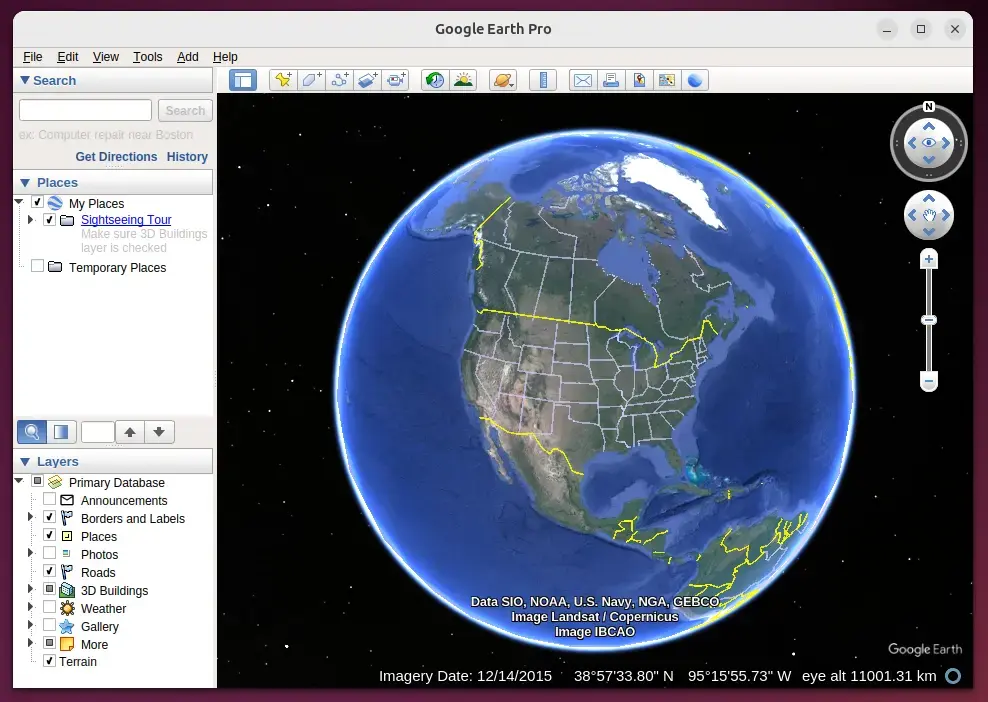
Start using Google Earth.
Uninstall Google Earth
Uninstalling Google Earth from Ubuntu completely removes the mapping program and its leftover software lists from your system. You can do this quickly by running a couple of simple commands in your terminal. This process deletes the application files while leaving your personal settings alone unless you delete them manually.
sudo apt remove google-earth-pro-stable
sudo rm /etc/apt/sources.list.d/google-earth.list
sudo rm /usr/share/keyrings/google-earth.gpg
That should do it!
Conclusion:
Installing Google Earth on Ubuntu is a straightforward process that enhances your ability to explore and learn about our planet. Here are the key takeaways:
- User-Friendly Installation: The installation process can be completed in simple steps.
- Comprehensive Exploration: Google Earth provides a wealth of information through 3D imagery, terrain, and street views.
- Educational Resource: It's an invaluable tool for students, educators, and professionals.
- Easy Access: Once installed, launching Google Earth is easy from both the command line and desktop applications.
- Simple Uninstallation: Removing Google Earth is just as easy, ensuring you can manage your applications effectively.
Start your journey of exploration with Google Earth today!
Can I install Google Earth on Ubuntu?
Recommended installation methods deb packages for Ubuntu. Open http://www.google.com/earth/download/ge/agree.html and download Google Earth for Linux. Select the . deb package for your CPU architecture (32 or 64-bit).
Is there a Linux version of Google Earth?
Import and export GIS data, and go back in time with historical imagery. Available on PC, Mac, or Linux. By installing, you agree to Google Earth's Privacy Policy. You are downloading version 7.3 of Google Earth Pro.
Can I install Google on Ubuntu?
Google Chrome is not available in Ubuntu's official repositories because it is proprietary software. Installing it requires adding Google's APT repository manually. This process also sets up automatic updates so Chrome keeps itself current the same way other system packages do.
Was this guide helpful?

About the Author
Richard
Tech Writer, IT Professional
Richard, a writer for Geek Rewind, is a tech enthusiast who loves breaking down complex IT topics into simple, easy-to-understand ideas. With years of hands-on experience in system administration and enterprise IT operations, he’s developed a knack for offering practical tips and solutions. Richard aims to make technology more accessible and actionable. He's deeply committed to the Geek Rewind community, always ready to answer questions and engage in discussions.


No comments yet — be the first to share your thoughts!