How to Install Drupal with OpenLiteSpeed on Ubuntu Linux

Installing Drupal (a free tool for building websites) with OpenLiteSpeed on Ubuntu Linux gives you a fast website setup that loads pages over 10 percent faster than standard Apache servers. OpenLiteSpeed is a lightweight web server that handles high visitor traffic with ease.
Getting this server setup running takes a few clear steps on your Ubuntu system. Follow the steps below to install both programs so your site runs at top speed.
Install OpenLiteSpeed, download Drupal to `/tmp`, move it to `/usr/local/lsws/Example/drupal`, and set permissions. Create a database and user in MySQL. Finally, configure OpenLiteSpeed’s Virtual Host document root and index files, enable rewrite rules, and reload the server.
How to install OpenLiteSpeed on Ubuntu Linux
To install OpenLiteSpeed on Ubuntu Linux for Drupal, you must set up the OpenLiteSpeed web server, install the latest version of PHP, and configure the MariaDB database server. These three components work together to provide the environment required to run your Drupal site smoothly on your Ubuntu server.
This post below shows you how to install OpenLiteSpeed, the latest PHP version, and the MariaDB database server. Those three components are required to run Drupal.
How to Install OpenLiteSpeed on Ubuntu Linux – Website for Students
After installing OpenLiteSpeed, continue below.
How to download Drupal on Ubuntu Linux for OpenLiteSpeed
To download Drupal on Ubuntu Linux for OpenLiteSpeed, you use the terminal to fetch the latest archive file directly from the official Drupal website and extract it into your web server directory. This places the core website files in the correct location so OpenLiteSpeed can serve them to visitors.
cd /tmp
wget https://www.drupal.org/download-latest/tar.gz
tar -zxvf tar.gz
After extracting the Drupal archive, move the content into the OpenLiteSpeed default VirtualHost directory.
sudo mv /tmp/drupal-* /usr/local/lsws/Example/drupalNext, run the commands below to change the permissions of the Drupal folder to run on OpenLiteSpeed.
sudo chown -R nobody:nogroup /usr/local/lsws/Example/drupal/
sudo chmod -R 755 /usr/local/lsws/Example/drupal/
How to create a Drupal database on Ubuntu
To create a Drupal database on Ubuntu, you log into the MariaDB command line interface as the root user and run SQL commands to set up a dedicated database and user account. This database securely stores all your website content, user accounts, and configuration settings.
To create a database for Drupal, run the commands below:
sudo mysql -u root -p
Then, create a database called drupaldb
CREATE DATABASE drupaldb;Next, create a database user called drupaldbuser and set a password
CREATE USER 'drupaldbuser'@'localhost' IDENTIFIED BY 'new_password_here';
Then, grant the user full access to the database.
GRANT ALL ON wpdb.* TO 'drupaldbuser'@'localhost' WITH GRANT OPTION;Finally, save your changes and exit.
FLUSH PRIVILEGES;
EXIT;
How to configure OpenLiteSpeed to support Drupal
To configure OpenLiteSpeed to support Drupal, you log into the web server administration panel and update the Document Root setting to point directly to your extracted Drupal file folder. This tells the server where to find your website files when someone visits your domain name.
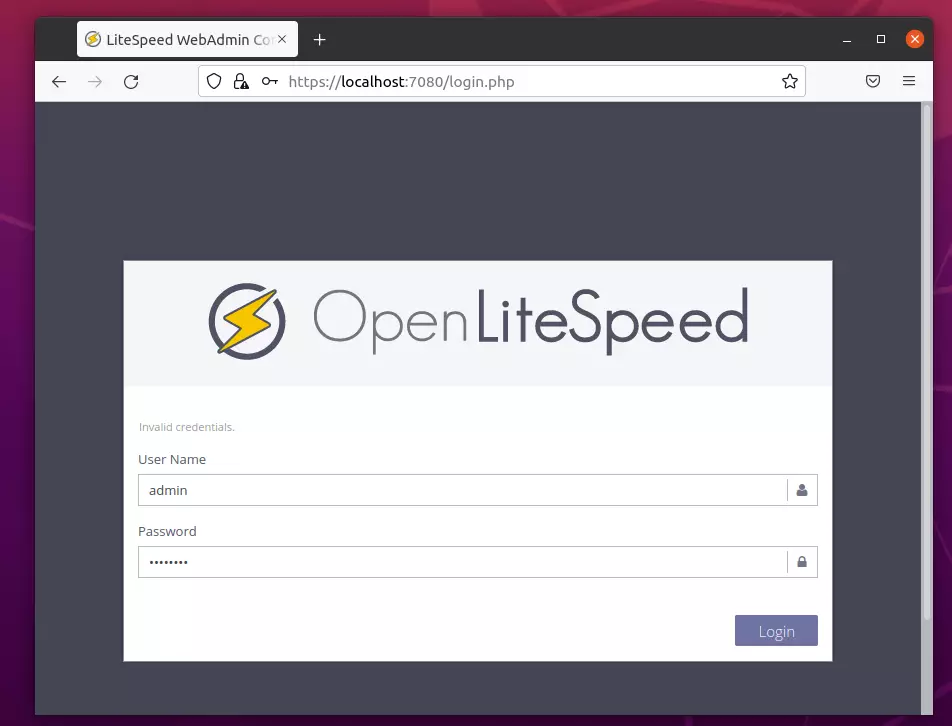
https://localhost:7080/login.php
Login using the admin login details above.
After logging on, go to the Virtual Hosts ==> General tab and edit the Document Root location section.
Then, edit the Document Root to point to the Drupal folder created above.
$VH_ROOT/drupal/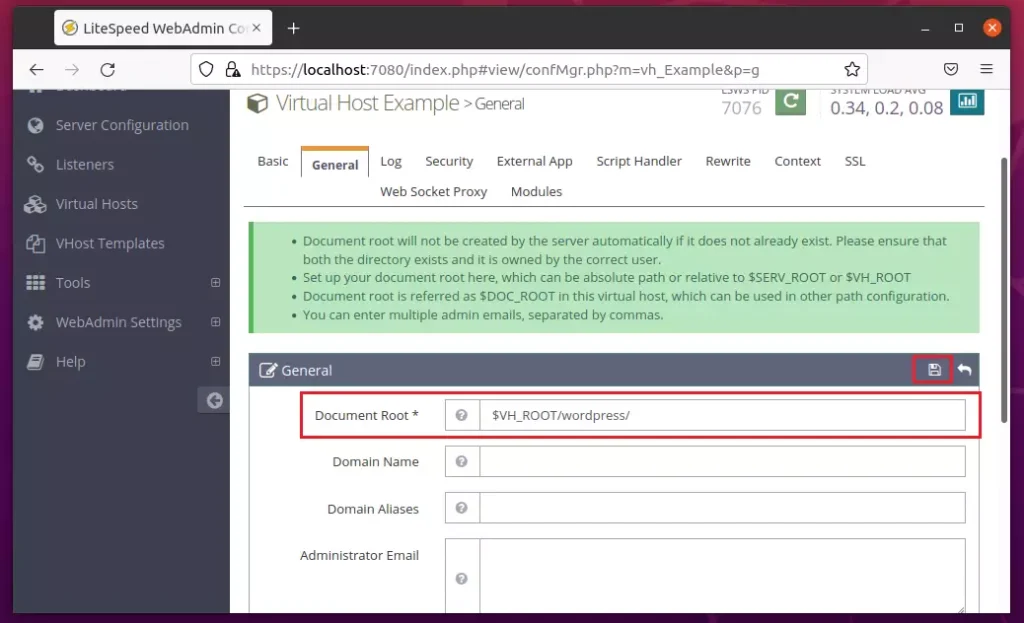
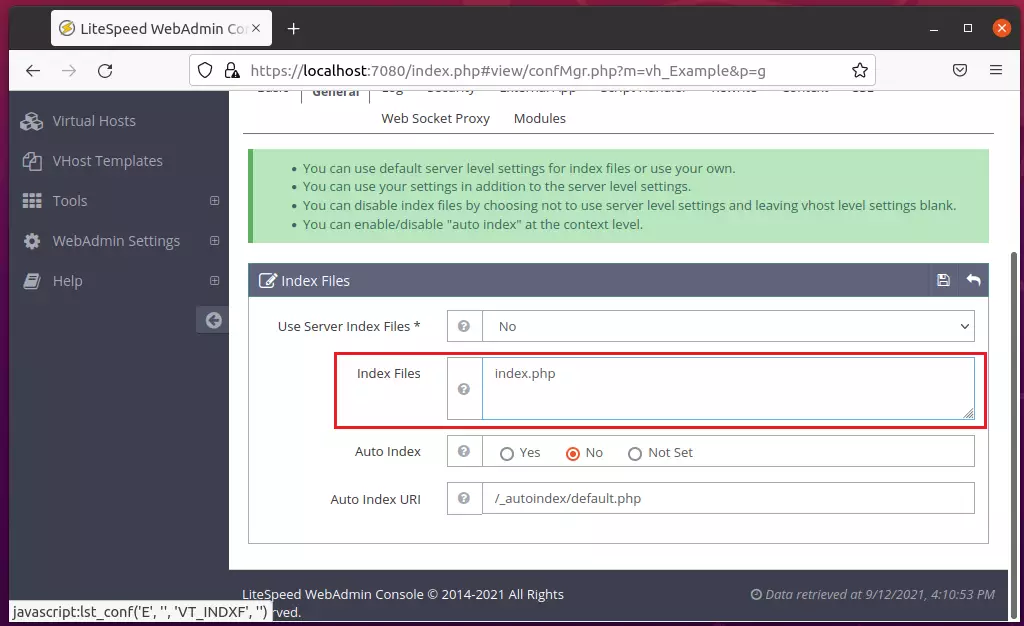
index.php
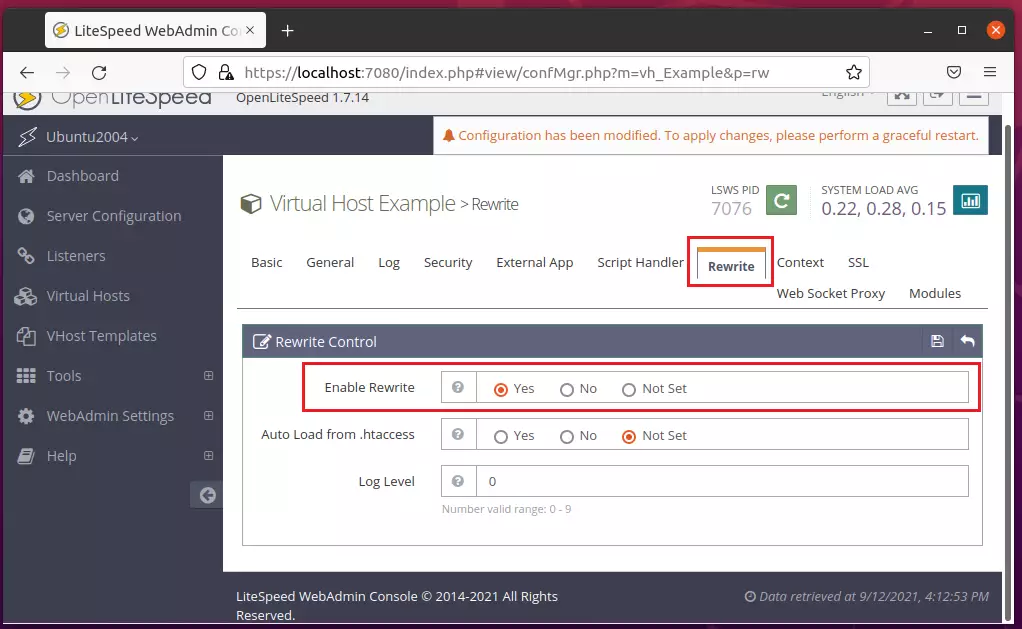
Next, go to Virtual Hosts ==> Rewire Rules, edit Rewrite Control, then choose Yes to enable rewrite.
Save your change.
Next, under Virtual Hosts ==> Rewrite, edit the Rewrite Rules. Copy and paste the lines below into the rules box and save.
ReWriteEngine On
RewriteCond %{REQUEST_FILENAME} !-f
RewriteCond %{REQUEST_FILENAME} !-d
RewriteCond %{REQUEST_URI} !=/favicon.ico
RewriteRule ^/ index.php [L]
<IfModule LiteSpeed>
CacheLookup on
</IfModule>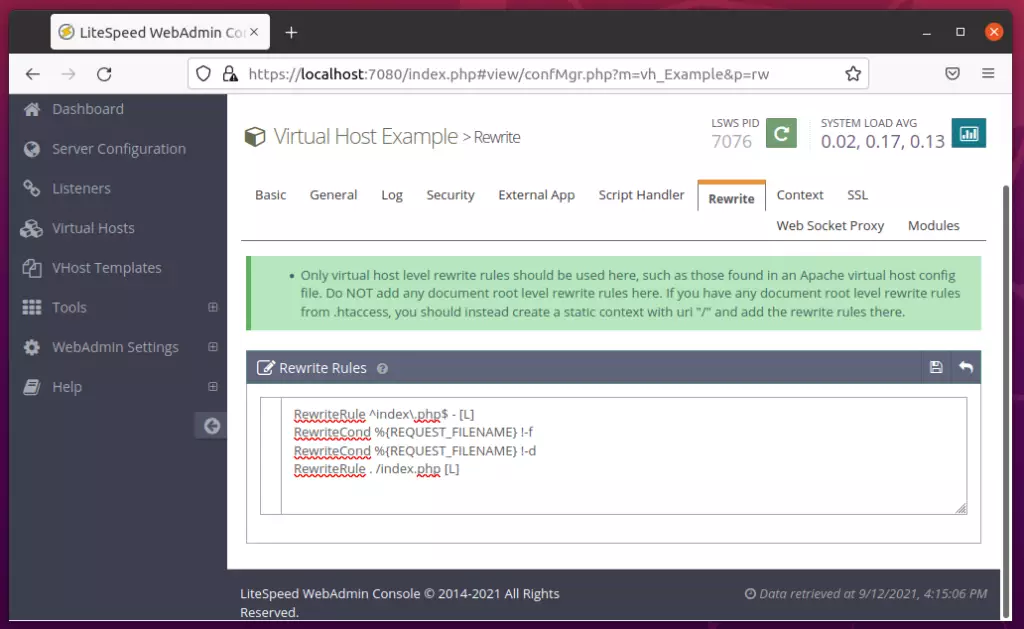
After making all the changes above, reload OpenLiteSpeed.
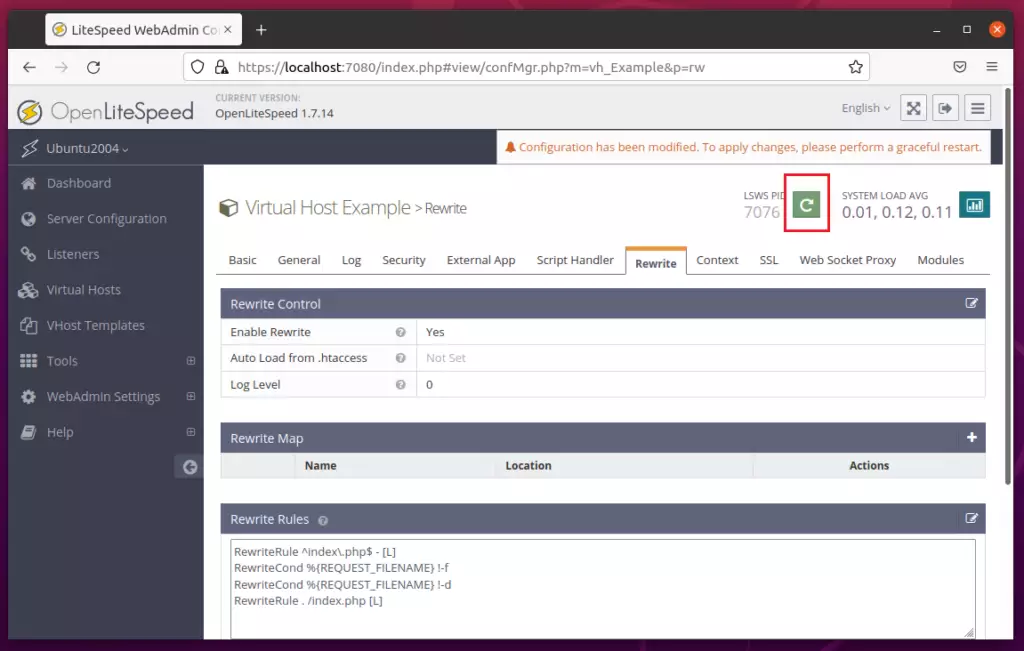
Finally, open your web browser and browse to the server hostname or IP address.
http://localhost
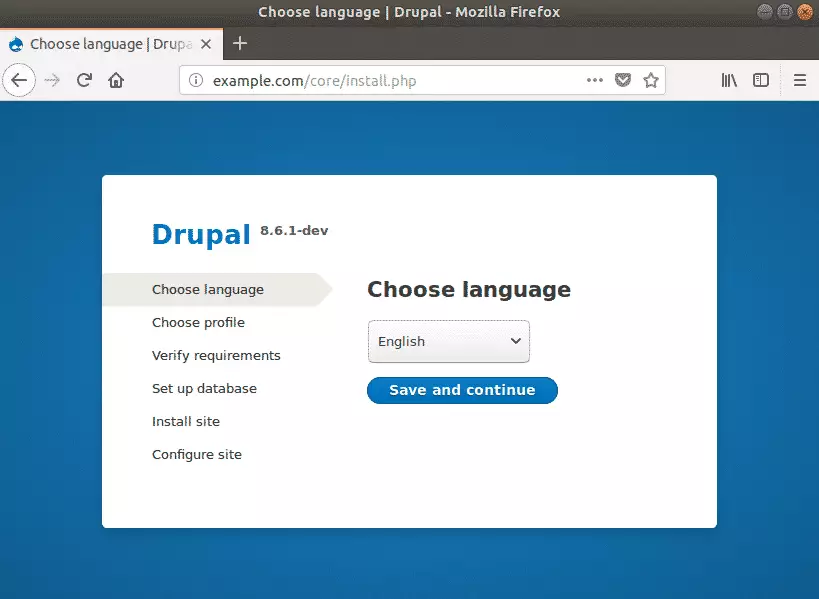
A Drupal setup wizard should appear. Follow the wizard to complete the setup.
Select the installation language, then click Save and Continue.
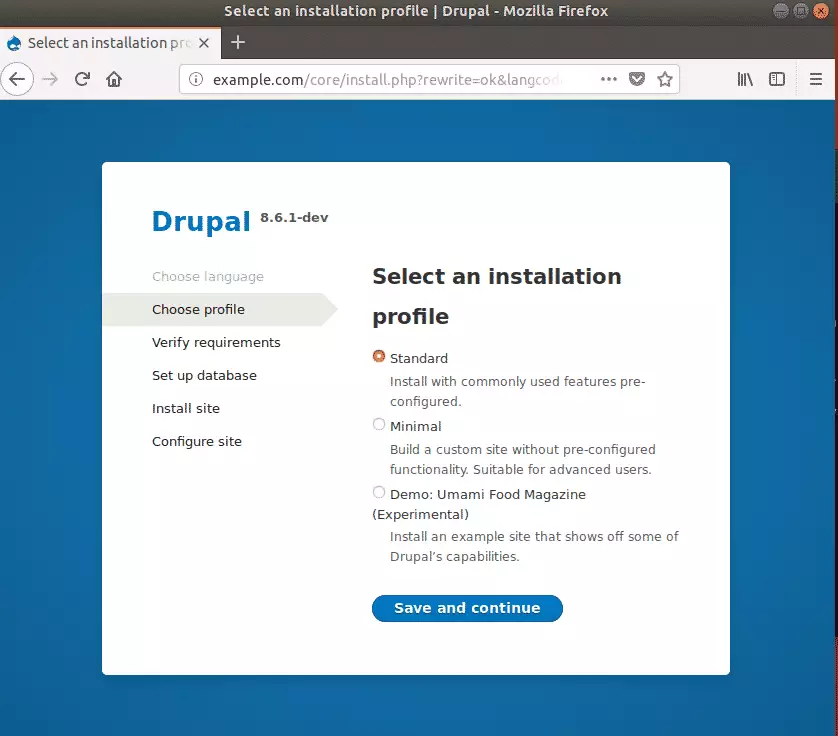
On the next screen, choose the Standard installation option to include commonly used pre-configured features.
This is the most popular option for most websites running Drupal CMS.
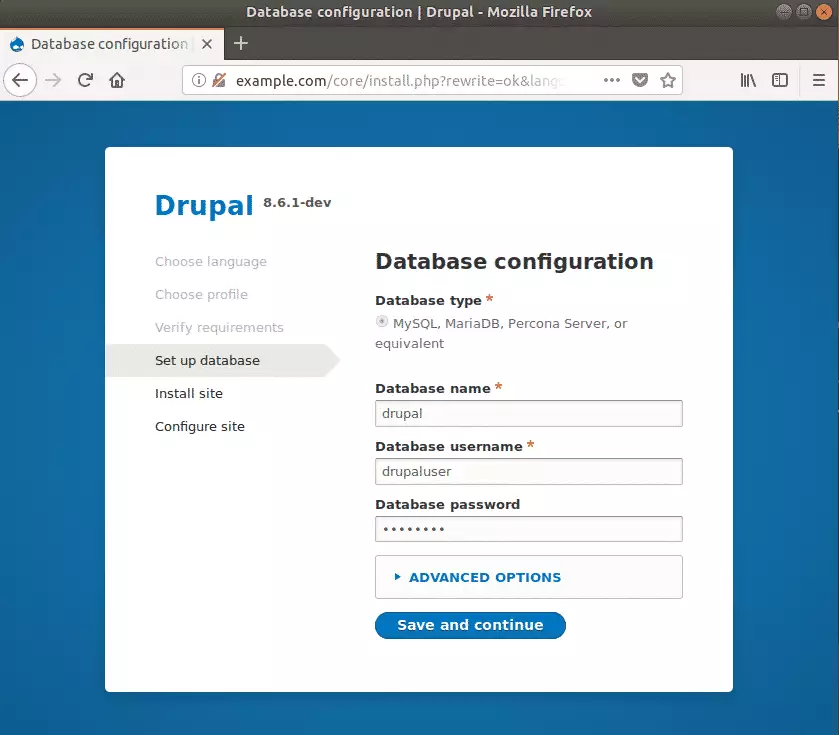
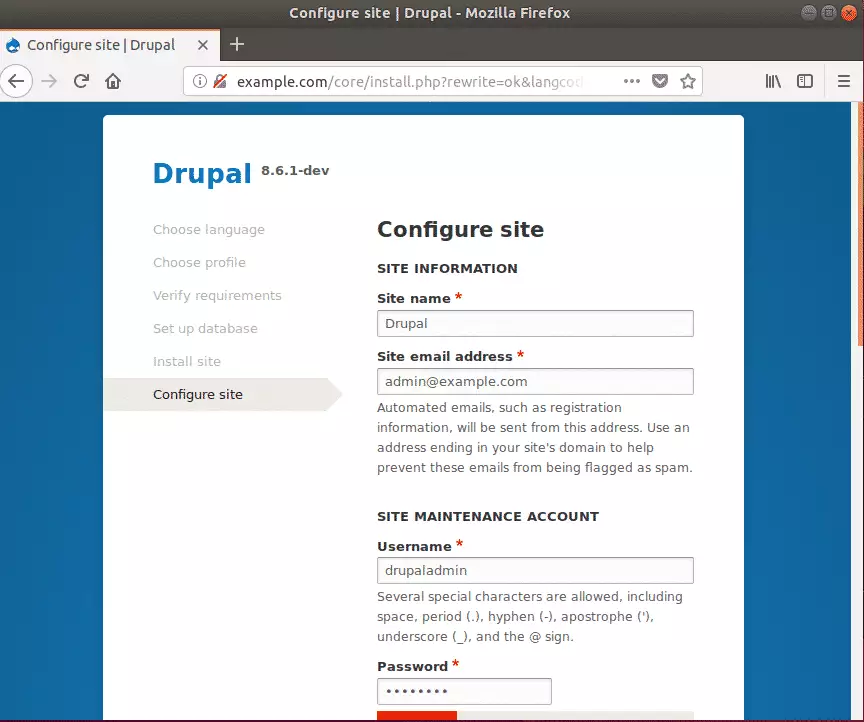
After that, enter the site information, including the Site name, Site admin email address, username, and password, and continue.
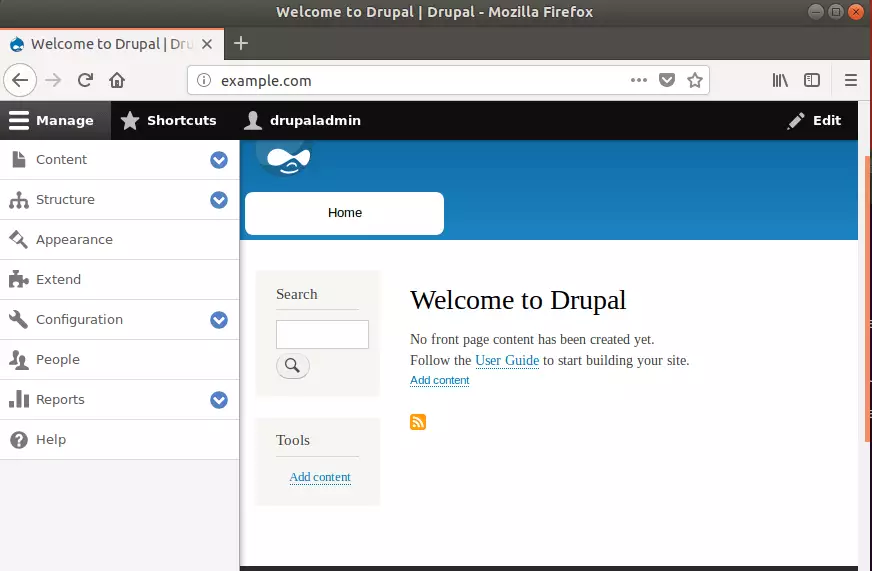
When you're done, Drupal should be installed and ready to use. Login as admin and begin configuring your site.
That should do it!
Conclusion:
This guide shows how to install the Drupal content management system on Ubuntu Linux with the OpenLiteSpeed web server. Users can report errors or share information using the comment form below.
Was this guide helpful?

About the Author
Richard
Tech Writer, IT Professional
Richard is a writer at Geek Rewind who turns complex IT tasks into clear, step-by-step guides. He draws on years of hands-on experience in system administration and enterprise IT operations, focusing on Windows, Linux and WordPress: the problems people actually run into, and the fixes that work. His server and WordPress guides come from systems he runs himself. Richard builds and maintains the platform behind Geek Rewind, from its Ubuntu servers and Nginx configuration to its custom WordPress plugins. Many new tutorials start with readers' questions, and he's always glad to answer them in the comments.




hi, i install drupal as you explain but i have problem with borken images, site installs image but the image styles can not created. I think litespeed can not read htaccess rewrit direcktives. I use cyberpanel with opnlitespeed. Thank you for information.