How to Install CUPS Print Server on Ubuntu Linux


CUPS (Common UNIX Printing System) is the software that turns an Ubuntu Linux computer into a print server so you can share one printer with every device on your home network. It acts like a traffic cop for your print jobs and lets you manage everything from a simple web page.
Setting up CUPS on Ubuntu 22.04 or 24.04 takes a few terminal commands and works with almost any USB or network printer. Once you finish the setup, you can send documents from Windows, Mac, or Linux computers to your shared printer without plugging cables into every device.
Install CUPS by opening a terminal and running ‘sudo apt update’ followed by ‘sudo apt install cups’. Then, manage CUPS using its web interface at http://localhost:631/admin or by editing the ‘/etc/cups/cupsd.conf’ file.
How to install CUPS on Ubuntu Linux
Installing the CUPS print server on Ubuntu requires running a few quick commands in your terminal to download and set up the printing software. Open your terminal and run sudo apt update to refresh your software list, and then type sudo apt install cups to install the print server on your system.
To install CUPS on Ubuntu, run the commands below.
sudo apt update
sudo apt install cups
Once CUPS is installed, the commands below can be used to stop and enable CUPS service to start when the server boots automatically.
sudo systemctl stop cups
sudo systemctl start cups
sudo systemctl enable cups
To verify that CUPS is installed and running, run the commands below.
sudo systemctl status cups
You should then see similar output as below:
cups.service - CUPS Scheduler
     Loaded: loaded (/lib/systemd/system/cups.service; enabled; vendor preset: >
     Active: active (running) since Sat 2021-10-16 14:15:03 CDT; 2min 36s ago
TriggeredBy: ● cups.socket
             ● cups.path
       Docs: man:cupsd(8)
   Main PID: 664 (cupsd)
      Tasks: 1 (limit: 4651)
     Memory: 2.3M
     CGroup: /system.slice/cups.service
             └─664 /usr/sbin/cupsd -l

Oct 16 14:15:03 ubuntu2004 systemd[1]: Started CUPS Scheduler.
How to configure CUPS on Ubuntu Linux
Configuring the CUPS print server on Ubuntu happens mostly through a web browser where you can manage printers, adjust settings, and add new devices. Open your web browser and go to http://localhost:631/admin to access the setup page and manage your printing network.
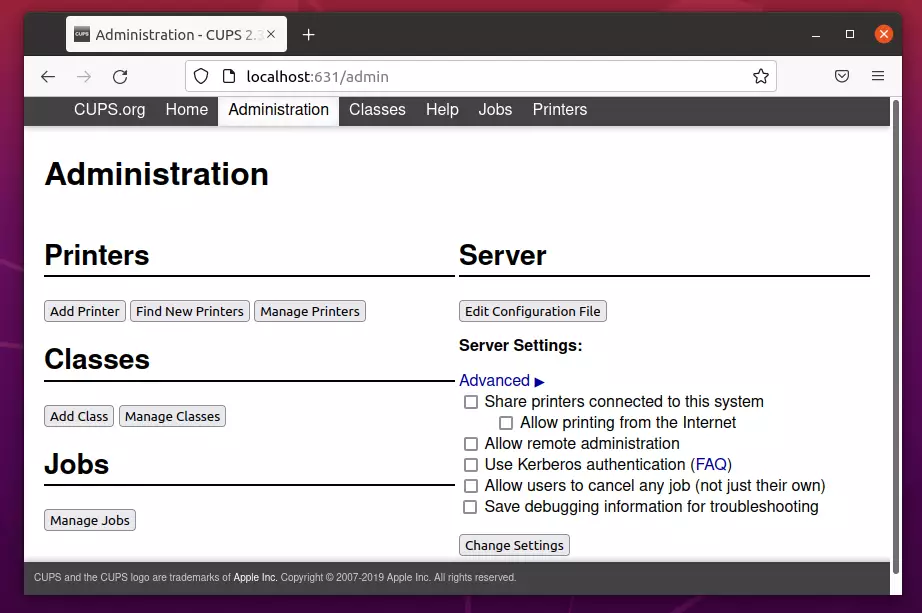
If you prefer the command line interface, the CUPS configuration file is located at /etc/cups/cupsd.conf.
sudo cp /etc/cups/cupsd.conf /etc/cups/cupsd.conf.original
Then run the commands below to open the CUPS configuration file.
sudo nano /etc/cups/cupsd.conf
You can then begin configuring settings that suit your environment.
By default, CUPS listens on port 631.
# Only listen for connections from the local machine.
Listen localhost:631
Listen /run/cups/cups.sock
You can also ensure browsing is enabled to allow CUPS to make shared printers available on the network.
CUPS print server uses the `dnsd` protocol, which supports Bonjour for network discovery. By default, the `dnsd` protocol setting is enabled in CUPS. Changing this setting allows the CUPS server to find printers using the Bonjour network service.
# Show shared printers on the local network.
Browsing On
BrowseLocalProtocols dnssd
You can add Allow @LOCAL to allow computers from the local network to access the CUPS web interface.
#Restrict access to the server
<Location />
 Order allow,deny
Allow @LOCAL
<Location>

#Restrict access to the admin pages.
<Location /admin>
Order allow,deny
Allow @LOCAL
<Location>
If you prefer to configure using the CUPS web interface, root or a user authenticated in the lpadmin group is recommended.
To add a user to lpadmin group, type:
sudo usermod -aG lpadmin username
Replace the username with the account you want to add to the lpadmin group.
When you're done, run the commands below to restart CUPS.
sudo systemctl restart cups
How to install printer drivers on Ubuntu Linux
Installing printer drivers on Ubuntu ensures your computer can talk to your specific printer model properly. Open your terminal and run sudo apt install hplip to get the driver software for HP printers, and make sure to install avahi-daemon so CUPS can share your printers across the network.
Run the commands below to install hplip on Ubuntu.
sudo apt install hplip
For CUPS to publish a shared printer, you may need to install avahi-daemon. avahi-daemon is a Bonjour server that will broadcast your computer's information on the network.
sudo apt install avahi-daemon
sudo systemctl start avahi-daemon
If you have a firewall enabled, you must also allow CUPS traffic through the firewall. You can run the commands below to enable CUPS through the Ubuntu firewall.
sudo ufw allow 631/tcp
sudo ufw allow 5353/udp
How to add a printer on Ubuntu Linux
Now that CUPS is installed and configured log on to your Ubuntu machine, browse the CUPS print server, and access any shared printers.
Below we showed you how to install printers on Ubuntu Linux. Reference the post below to learn how to add a printer to Ubuntu.
How to add printers to Ubuntu Linux

That should do it!
Conclusion:
- Setting up a CUPS print server on Ubuntu Linux allows for efficient management of print jobs in environments with multiple printers.
- The installation process is straightforward, with CUPS readily available in the Ubuntu repositories.
- CUPS provides both graphical and command-line interfaces for configuration, catering to different user preferences.
- Installing printer drivers and allowing necessary firewall traffic ensures optimal printer functionality and accessibility.
- Following these steps helps students and new users gain valuable experience in managing print services on Linux systems.
- Overall, CUPS is a powerful and cost-effective solution for individuals and businesses seeking to enhance their printing capabilities.
Was this guide helpful?

About the Author
Richard
Tech Writer, IT Professional
Richard, a writer for Geek Rewind, is a tech enthusiast who loves breaking down complex IT topics into simple, easy-to-understand ideas. With years of hands-on experience in system administration and enterprise IT operations, he’s developed a knack for offering practical tips and solutions. Richard aims to make technology more accessible and actionable. He's deeply committed to the Geek Rewind community, always ready to answer questions and engage in discussions.

No comments yet — be the first to share your thoughts!