Easy Printer Setup in Ubuntu Linux: A Step-by-Step Guide

- 12 steps
- Needs administrator rights
Printer setup in Ubuntu Linux lets you connect USB and wireless printers so you can print documents straight from your desktop. Recent versions, such as Ubuntu 22.04 LTS, detect most printers on their own when you plug in a USB cable or when the printer is on the same Wi-Fi network as your computer.
When Ubuntu misses your device, the built-in Printers tool can add local and network printers in a few clicks. Press the Super key (the Win on most keyboards), type “Printers” in the search box, and open the settings panel to set up your hardware.
To set up a printer in Ubuntu Linux, plug in the USB cable and turn the printer on, or make sure a network printer is on the same Wi-Fi as your computer. Then open Settings, select Printers, and click Add a Printer. Ubuntu 22.04 LTS usually detects the printer and installs its driver without a disc.
How to install local or network printer in Ubuntu Linux
To install a local or network printer, open the Settings app, select Printers, and click Add a Printer. Ubuntu looks for a matching driver on your system and on the network, so you usually don’t need an installation disc. A restart is not required at any point.
Start with the automatic method. Most USB printers work this way and need no extra steps.
- Plug the printer into a power outlet and turn it on.
- Connect the USB cable from the printer to your Ubuntu desktop. Turn the printer on first, because Ubuntu can only detect a device that is powered up.
- Enter your administrator password if Ubuntu asks for it. This lets the system finish installing the driver. Ubuntu picks the best driver it has for your model.
- Wait for the notification that says the printer is ready. You should see a message when the installation finishes.
- Choose Print Test Page in the message to confirm the printer works. To change settings such as paper size or print quality, select Options instead.
If the printer does not show up this way, or the message never appears, add it by hand. The steps below use the Printers panel. They also work for network printers. If the printer needs a specific driver file for your model, the last part of this guide points to a separate post on that.
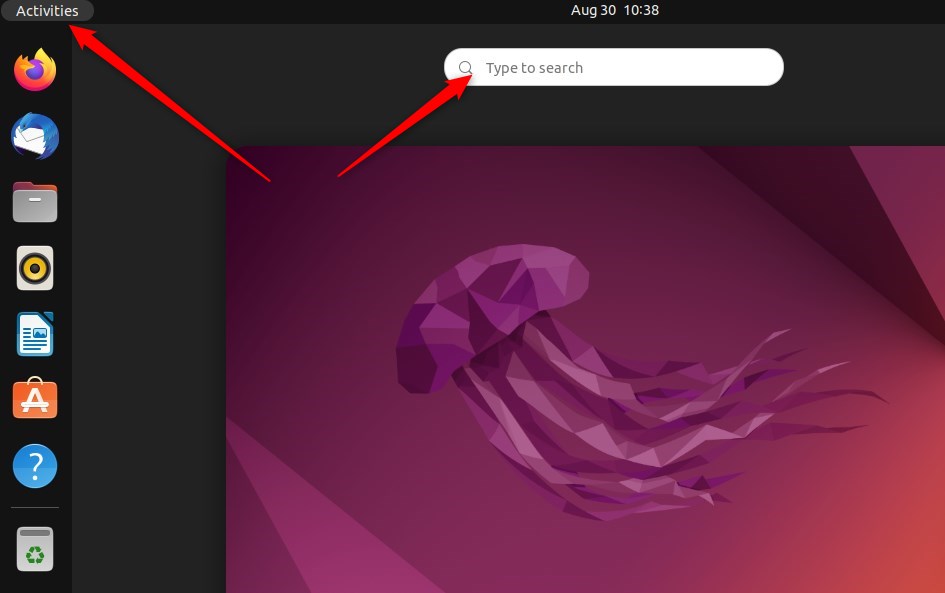
You can also reach Settings from the top bar, as the next steps show.
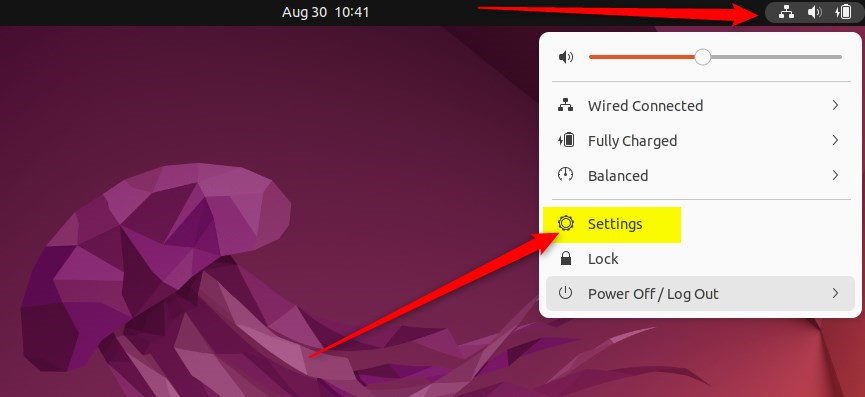
- Click the System menu in the top-right corner of your desktop’s top bar. A menu opens with volume, network and power controls.
- Select Settings from that menu, as shown below. The Settings window opens.
- Click the Printers tile in the Settings sidebar. The Printers panel opens on the right. If you don’t see it, scroll down the sidebar or use the search icon in the Settings window.
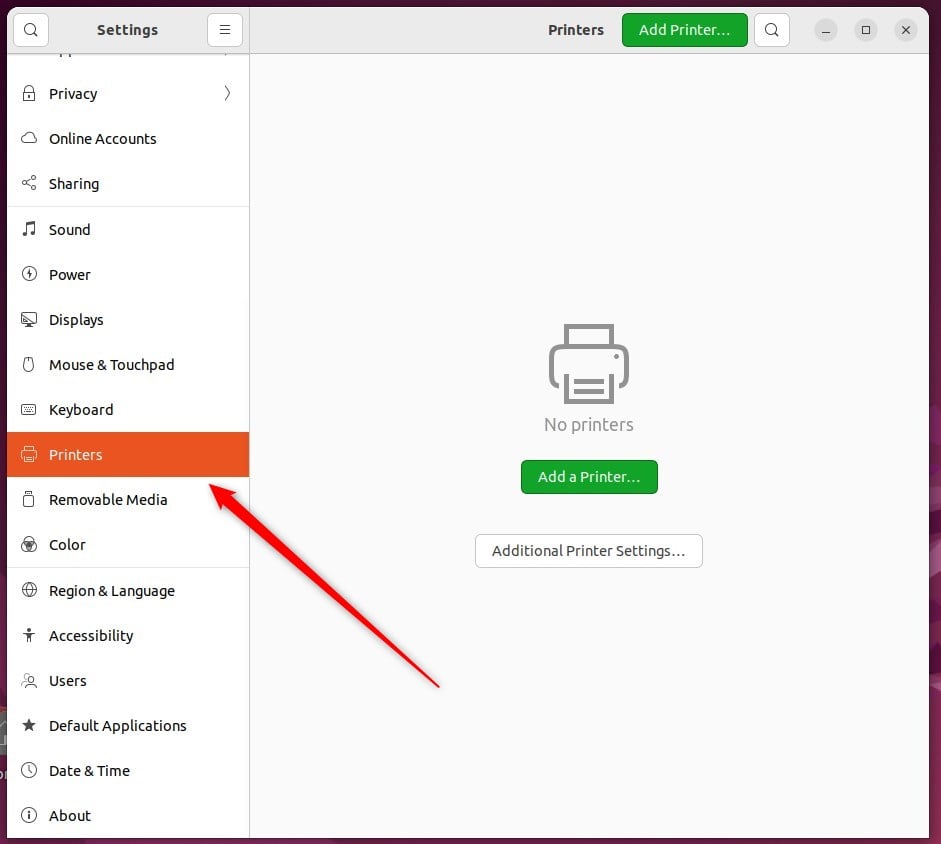
- In the Printers pane (the original path shows as System Printers), click the Add a Printer button. On some Ubuntu versions the button is greyed out until you click Unlock and enter your administrator password. If you are on a standard account without admin rights, you can’t add a printer.
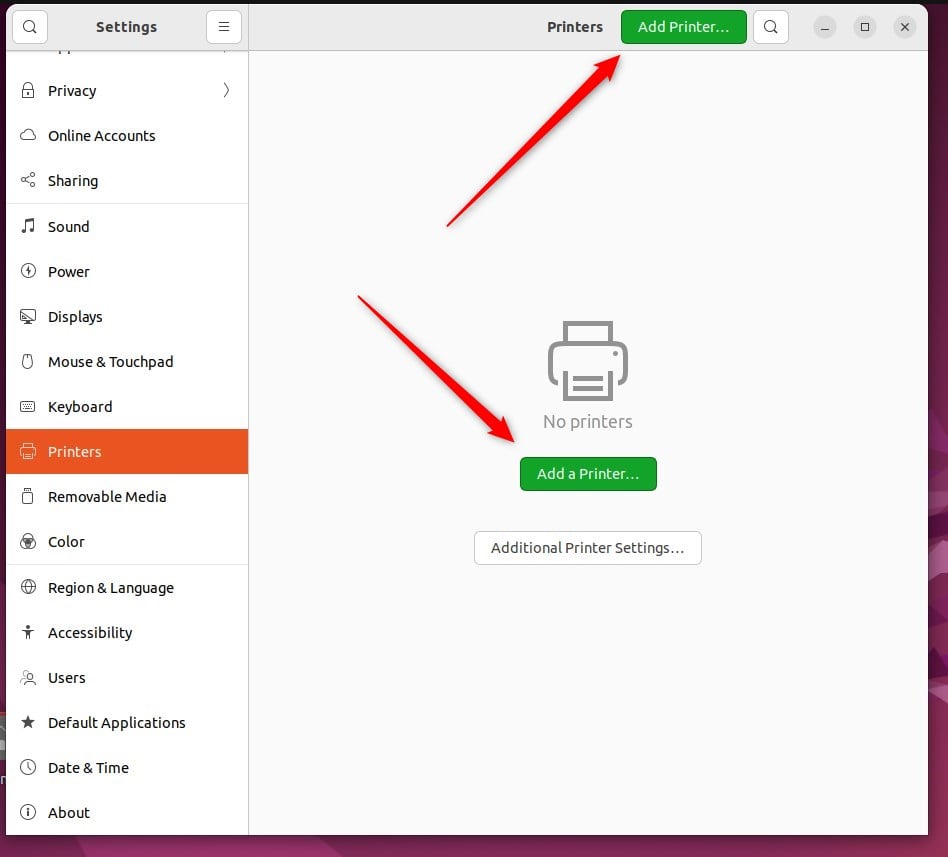
- Select your new printer in the pop-up window.
- Click Add. The printer is now listed in the Printers panel and is ready to use.
- Print a test page from any application to check the result.
If you ever need to undo this, open Settings Printers, select the printer, and choose the option to remove it. You can then add it again later with the same steps.
If the printer still does not appear, check that the cable is firmly connected, that the printer is on, and that the printer and computer are on the same network. Then run the scan again. If it still fails, you may need to install the driver from the manufacturer’s website, or update your Ubuntu system first, because newer updates often add support for more printer models.
The post below explains how to install additional printer drivers in Ubuntu Linux.
How to install additional printer drivers in Ubuntu Linux
Getting a printer running on Ubuntu takes very little effort. Modern versions recognize most major brands right away using drivers that are already installed.
- Setting up a printer in Ubuntu Linux is now effortless, whether it’s a local or network printer.
- Ubuntu’s improved recognition of printer brands with pre-installed drivers simplifies the installation process.
- The centralized System Settings panel and the “Add a Printer” button streamline the manual installation of printers.
- Troubleshooting options, such as installing additional printer drivers from the manufacturer’s website, are available if needed.
Questions readers asked
The System menu shows volume, wireless and power, but I can't find a Settings option. Where is it?
Click the System menu in the top-right corner of your desktop's top bar, then select Settings from that menu. The Settings window opens. If you can't find it there, press the Super key, type "Settings", and click the result. Both ways open the same window, where you can find Printers and continue with the setup.
Still have a question?
Answered by AI from this guide. Good questions may be added to this page — please don't include personal details.
Did this guide fix your problem?

About the Author
Richard
Tech Writer, IT Professional
Richard is a writer at Geek Rewind who turns complex IT tasks into clear, step-by-step guides. He draws on years of hands-on experience in system administration and enterprise IT operations, focusing on Windows, Linux and WordPress: the problems people actually run into, and the fixes that work. His server and WordPress guides come from systems he runs himself. Richard builds and maintains the platform behind Geek Rewind, from its Ubuntu servers and Nginx configuration to its custom WordPress plugins. Many new tutorials start with readers' questions, and he's always glad to answer them in the comments.
[…] How to add printers to Ubuntu Linux […]