How To Fix Microsoft Edge Not Opening On Windows 11

It is incredibly frustrating when you click your browser icon and nothing happens. You have work to do, but Microsoft Edge refuses to launch on your Windows 11 computer. This usually happens because of corrupted system files, conflicting background processes, or interference from third-party software.
Why does this happen? Often, a browser process termination or a corrupt user profile prevents the app from starting. What happens when you fix it? Your browser will regain its ability to launch, allowing you to access websites and sync your data smoothly.
Step 1: Close Background Processes
Sometimes Edge is already running in the background but is stuck. Closing these processes forces it to restart fresh.
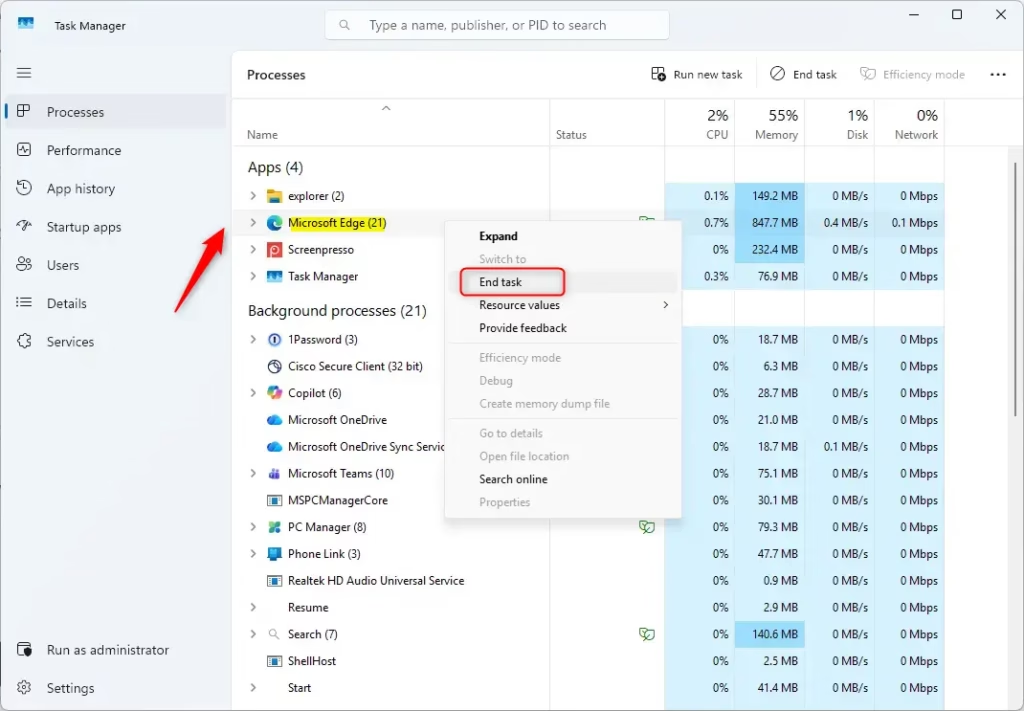
- Press Ctrl + Shift + Esc to open Task Manager.
- Find Microsoft Edge in the list.
- Right-click it and select End task.
Step 2: Check Third-Party Antivirus
Can antivirus software prevent Microsoft Edge from opening? Yes. Sometimes programs like Malwarebytes or other third-party security suites flag the browser executable as a threat. Temporarily disable your antivirus to see if Edge launches. If it does, add an exception for the Edge executable in your security settings.
Step 3: Repair Microsoft Edge
Windows 11 has a built-in tool to fix broken apps. This is the safest way to repair your browser without losing your data.
- Open Settings by pressing Windows Key + I.
- Go to Apps > Installed apps.
- Find Microsoft Edge, click the three dots, and select Modify.
- Click Repair. (Requires Admin Privileges)
Step 4: Check for Windows Updates
Outdated system files can cause compatibility issues. Keeping your OS current is vital for browser health.
- Open Settings and select Windows Update.
- Click Check for updates.
- Install any pending updates and restart your computer.
Step 5: Run System File Checker (SFC) and DISM
If core Windows files are corrupted, Edge may fail to open. Use these tools to fix them. (Requires Admin Privileges)
- Search for cmd, right-click it, and select Run as administrator.
- Type
sfc /scannowand press Enter. - After that finishes, type
DISM /Online /Cleanup-Image /RestoreHealthand press Enter.
Step 6: Disable Extensions via Command Line
If a bad extension is causing the crash, you can launch Edge without them.
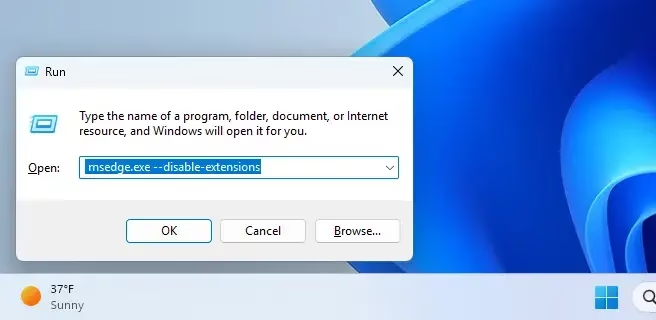
- Press Windows Key + R.
- Type
msedge.exe --disable-extensionsand press Enter. - If it opens, remove your extensions one by one to find the culprit.
Step 7: Clear Cache and Browsing Data
Does a corrupt user profile cause Edge to crash on startup? Yes. If Edge opens but crashes immediately, your cache might be corrupted. Since you cannot open the browser, you must delete the folder manually.
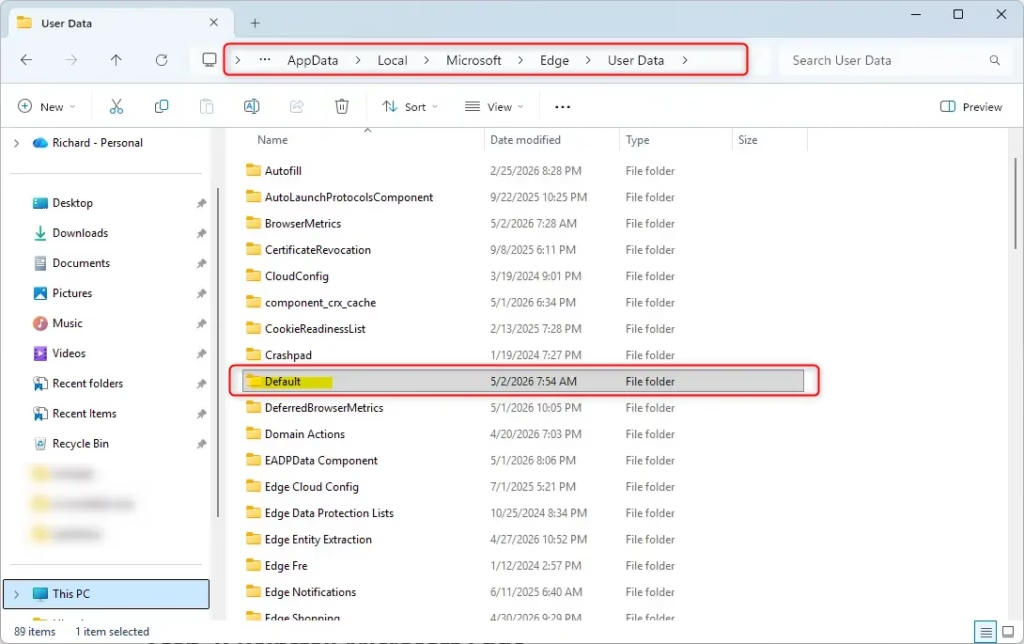
Navigate to this path in File Explorer:
C:\Users\Username\AppData\Local\Microsoft\Edge\User Data
Delete the folder named Default. This will reset your browser settings to their original state.
Step 8: Check Proxy Server Settings
Incorrect network settings can prevent the browser from connecting to the internet. Go to Settings > Network & internet > Proxy and ensure Automatically detect settings is turned on and manual proxy setup is turned off.
Step 9: Reinstall Microsoft Edge
If nothing else works, a fresh install is the best solution. Disclaimer: Back up your data before performing a full reinstallation. Download the latest version from the official Microsoft Edge download page. (Requires Admin Privileges)
Step 10: Check Registry Settings
Sometimes, registry keys get modified by third-party software. Check this path to ensure nothing is blocking the browser:
HKEY_LOCAL_MACHINE\SOFTWARE\Policies\Microsoft\Edge
If you see suspicious entries here, consult a professional before deleting them. (Requires Admin Privileges)
Summary
Microsoft Edge not opening is usually caused by temporary glitches, corrupted files, or software conflicts. By closing background tasks, running the Windows repair tool, clearing your cache, and checking for system updates, you can resolve most issues. If the problem persists, a clean reinstallation usually fixes the browser startup failure.
How do I reset Microsoft Edge settings to default?
You can reset Edge by navigating to the browser settings menu once it is open. Go to Settings, select Reset settings, and click Restore settings to their default values. If the browser will not open, you can manually rename the User Data folder in your AppData directory to force a reset.
Can antivirus software prevent Microsoft Edge from opening?
Yes, third-party antivirus software can sometimes incorrectly identify Microsoft Edge processes as malicious, leading to browser startup failure. If you suspect your security software is the cause, try temporarily disabling it or adding Microsoft Edge to your antivirus exclusion list to see if the browser launches successfully.
Does a corrupt user profile cause Edge to crash on startup?
Yes, a corrupt user profile is a common reason for Edge not responding. When the profile data becomes damaged, the browser may fail to initialize correctly. Deleting or renaming the Default folder within the Edge user data directory forces the browser to create a fresh, clean profile upon the next launch.
Was this guide helpful?




Leave a Reply Cancel reply