

This article explains how to keep certain websites out of Recall snapshots in Windows 11.
Recall & Snapshots is an AI feature in Windows 11 that works like a camera for your screen. It takes snapshots of what you’re doing. Later, you can search through these snapshots to find things you’ve seen on your computer.
These snapshots are stored safely on your computer. Windows has a limit on how many snapshots it keeps. Once you hit that limit, the oldest snapshots get deleted automatically.
You have control over Recall. You can choose which apps and websites you want to exclude from snapshots. To filter out websites and private browsing, you’ll need to use Microsoft Edge or other Chromium-based browsers.
Browsers that support website filtering:
- Microsoft Edge: blocks websites and filters private browsing
- Firefox: blocks websites and filters private browsing
- Opera: blocks websites and filters private browsing
- Google Chrome: blocks websites and filters private browsing
- Other Chromium-based browsers: filters private browsing only
How to Filter Out Websites from Recall Snapshots in Windows
Important notes:
- Website filtering only works in supported browsers like Microsoft Edge and other Chromium-based browsers
- Recall won’t save anything from your private browsing when you use Microsoft Edge or other Chromium-based browsers
- When you open Recall or click the Now button, your current screen shows without saving a new snapshot
Step 1: Open the Settings App
Click the Start menu and select Settings. Or use the keyboard shortcut (Windows key + I) to open the Settings app.
Step 2: Go to Privacy & Security
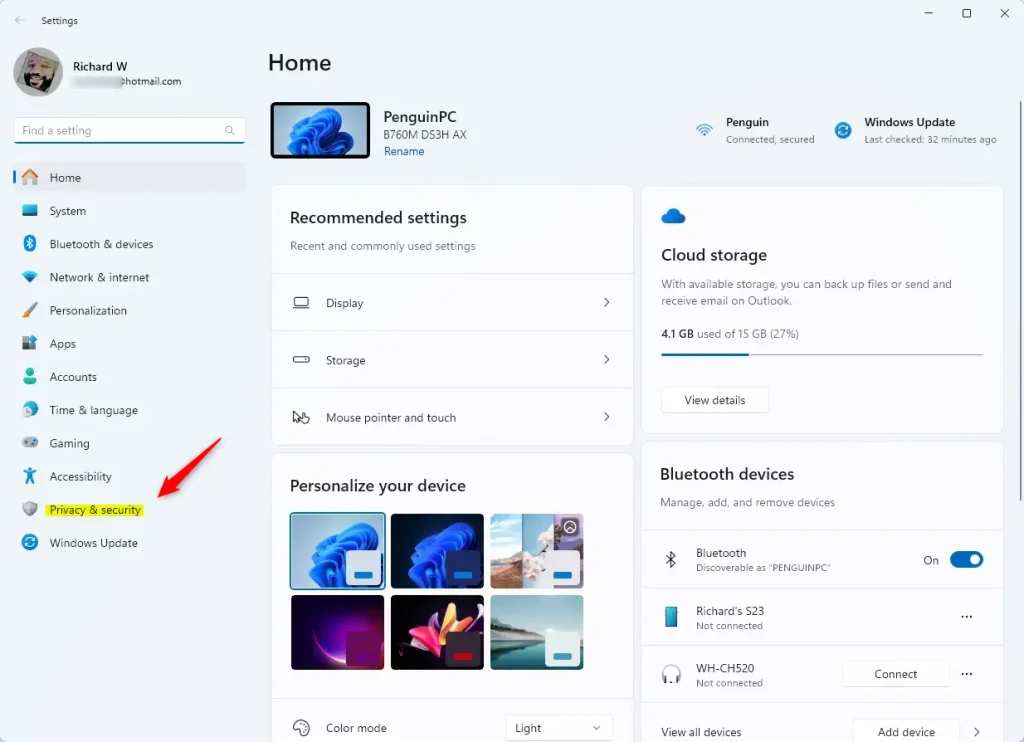
When the Settings app opens, click Privacy & security on the left side.
Step 3: Open Recall & Snapshots Settings
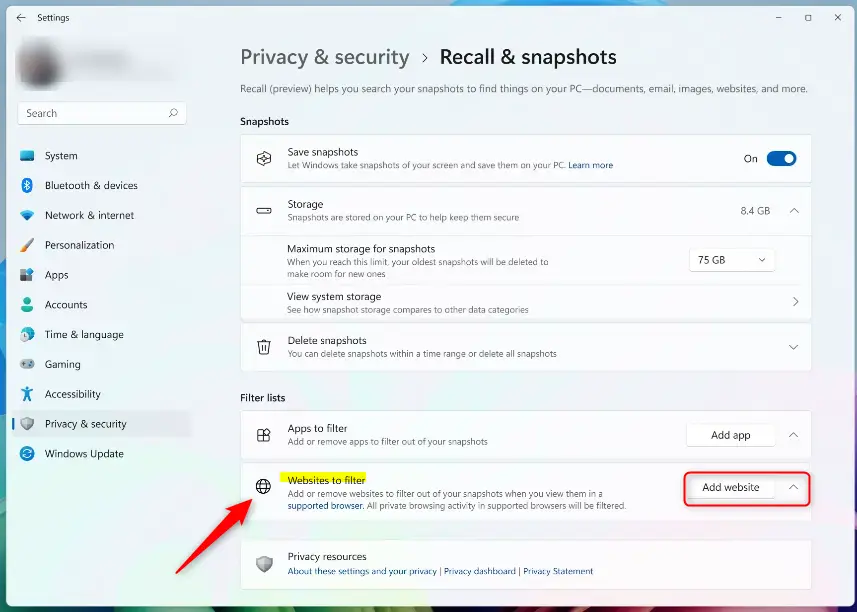
On the right, click the Recall & snapshots page to open its settings. Turn on the “Save snapshots” feature.
Step 4: Add a Website to Filter
Click the Add website button under the “Filter lists” section.
Type the website you want to exclude into the text box. For example, type 192.168.1.101 or example.com.

Click Add to add it to your filtered websites list.
That’s it! The website is now excluded from Recall snapshots.
Summary
Filtering websites from Recall snapshots helps you keep your privacy safe. Using the “Filter lists” feature in Recall & snapshots settings, you can easily stop specific websites from being captured. This gives you control over what Recall saves. Sensitive information and private browsing activity stay private and won’t be stored in snapshots.
Reference:



Leave a Reply