
This guide shows you how to turn on or off Remote PC controls on Windows 11, so you can control your PC from your phone easily.
Windows Mobile devices (also called Phone Link) let you connect your phone to your PC. This helps you do things like transfer files, send text messages, and see phone notifications right on your computer.
To link your phone to your PC, you’ll first need to sign in with your Microsoft account. After signing in, you can connect your mobile devices to Windows.
Windows 11 now includes a new switch in the Mobile Devices settings that lets you enable or disable Remote PC controls. This means your phone can do things like lock your PC remotely for added security.
How to Turn On Remote PC Controls on Windows 11
Follow these simple steps to enable Remote PC controls:
- Open the Settings app: Click the Start menu (Windows icon) and select Settings, or press Windows key + I on your keyboard.

- In the Settings window, click Bluetooth & devices on the left side.

- On the right, find and click Mobile devices.
- Then, click the Manage devices button under “Allow this PC to access your mobile device”.

- Find your phone listed under My devices and click to expand it.
- Look for the Remote PC controls option and switch it On to allow your phone to control your PC.
- If you want to turn it off later, just toggle the switch Off.
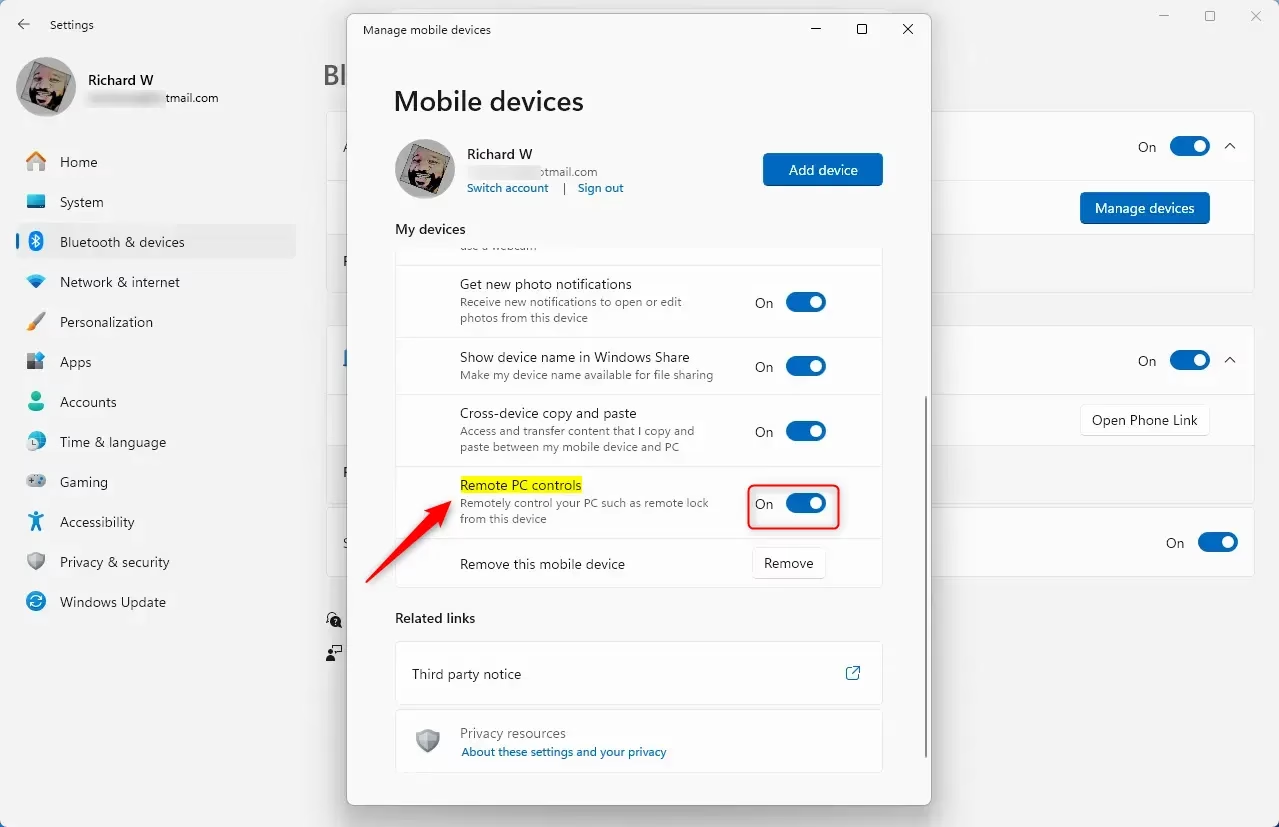
That’s it! You have now enabled Remote PC controls.
Why Use Remote PC Controls?
- Easy Access: Control your PC from your phone without needing to be near your computer.
- File Transfers & Messaging: Quickly move files and send texts while you work on your PC.
- Remote Security: Lock your PC remotely if you walk away and forget to secure it.
- Simple Setup: Turn this feature on or off anytime from the Settings app.
- Stay Safe: Make sure your phone is connected securely to prevent unwanted access.
With Remote PC controls, your phone and PC work better together, making your daily tasks faster and smoother.
For more tips on using Windows 11, visit Geek Rewind Windows 11 Guides.



Leave a Reply