How to Enable or Disable Show Recommended Section in File Explorer Home in Windows 11

You can enable or disable the “Show recommended” section in home-folder-from-windows-11-file-explorer/" class="sal-link" rel="noopener" target="_blank" data-sal-id="20000">File Explorer Home on Windows 11 to customize your experience.
The “Recommended” section appears in the File Explorer Home view, replacing the traditional “Quick access” when activated. It intelligently displays recently accessed files and frequently used folders.
This feature aims to provide quick access to your most relevant documents, making it easier to resume your work. It’s a key part of the Windows 11 File Explorer’s updated interface, introduced in recent updates.
What is File Explorer Home?
File Explorer Home lets you see your files and folders in one place. Here’s what you’ll find:
- Quick access = Shows up to 13 folders you pinned or opened often
- Favorites = Files you pinned
- Recent = Shows up to 25 files you opened most recently
Why Use the Recommended Section?
Starting with Windows 11 build 26100.7309 (24H2), the Recommended section makes it easier to find files you use often or recently downloaded. This feature now works for everyone, including people with personal Microsoft accounts.
If you’re signed in with a work or school account, File Explorer shows people icons in the Activity column. Hover over these icons to see Microsoft 365 Live Persona Card information. This shows who the person is and how they connect to your file.
Windows Insiders with a Microsoft account now see people icons in the Activity column on File Explorer Home. When you hover or click on these icons, you’ll see the Windows People Card. This card tells you who recently worked on the file and lets you start a chat or call through your apps.
What Happens When You Enable the Recommended Section?
When you turn on the Recommended section, it replaces the Quick access section on your File Explorer Home page.
Method 1Use Folder Options
To Turn On the Recommended Section
This is the default setting.
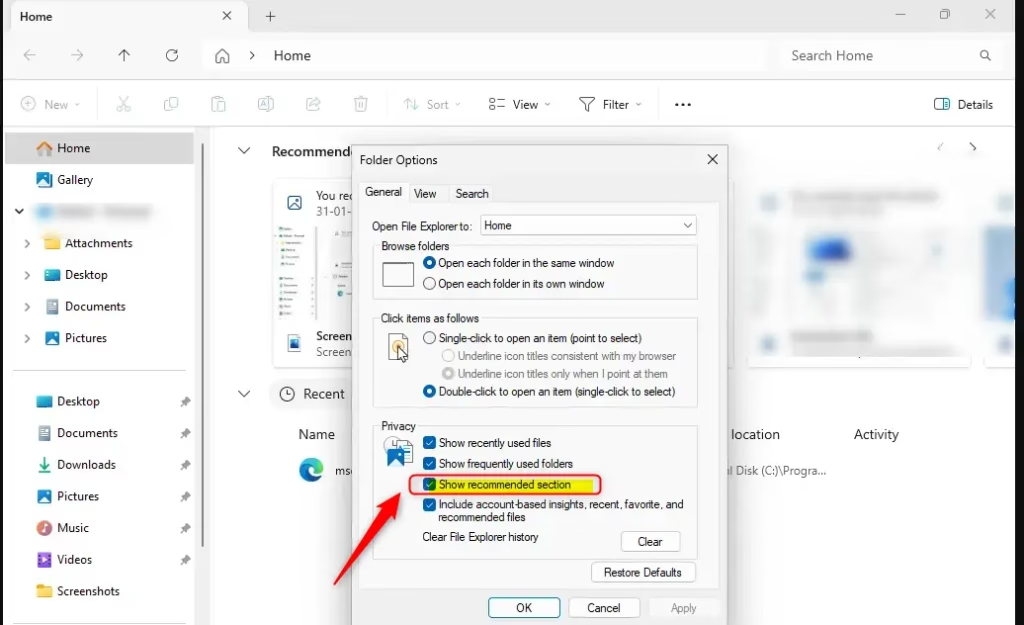
- Open Folder Options.
- Go to the General tab.
- Under Privacy, check the box for Include account-based insights, recent, favorite, and recommended files.
- Under Privacy, check the box for Show recommended section.
- Click OK.
To Turn Off the Recommended Section
- Open Folder Options.
- Go to the General tab.
- Under Privacy, uncheck the box for Show recommended section.
- Click OK.
Method 2Use Windows Terminal
⚠️ Admin privileges required
Open Windows Terminal as an administrator and run the commands below.
To Turn On the Recommended Section
This is the default setting.
reg add "HKEY_CURRENT_USER\Software\Microsoft\Windows\CurrentVersion\Explorer" /v ShowCloudFilesInQuickAccess /t REG_DWORD /d 1 /f
reg add "HKEY_CURRENT_USER\Software\Microsoft\Windows\CurrentVersion\Explorer" /v ShowRecommendations /t REG_DWORD /d 1 /f
To Turn Off the Recommended Section
reg add "HKEY_CURRENT_USER\Software\Microsoft\Windows\CurrentVersion\Explorer" /v ShowRecommendations /t REG_DWORD /d 0 /f
Summary
The Recommended section in File Explorer Home helps you quickly access files you use often or recently downloaded. You can turn this feature on or off in two ways: through Folder Options or by using Windows Terminal commands. When enabled, the Recommended section replaces Quick access on your File Explorer Home page. This feature is available to all Windows 11 users with the latest builds and works with personal Microsoft accounts, work accounts, and school accounts.
What is recommended in File Explorer?
The Recommended section in Windows 11 File Explorer Home is a feature that displays files you use frequently or have recently downloaded. It helps you quickly access your most relevant documents. When active, it replaces the traditional Quick access section, providing a centralized view of your recent activity and cloud-synced files.
How to disable recommended in File Explorer 🪟 Windows 11?
To disable the Recommended section, open File Explorer, click the three-dot menu icon in the top toolbar, and select Options. In the Folder Options window, navigate to the General tab. Under the Privacy section, uncheck the box labeled 'Show recommended section' and click Apply or OK to save your changes.
How do I change the File Explorer view back to normal?
To revert your File Explorer view, go to the Folder Options menu by clicking the three-dot icon in the toolbar. Under the General tab, you can toggle off the 'Show recommended section' setting. Additionally, you can adjust your 'Open File Explorer to' settings to default to 'This PC' instead of Home.
How do I disable Microsoft recommendations?
You can disable Microsoft recommendations in File Explorer by accessing the Folder Options menu. Click the three-dot icon in the File Explorer toolbar, select Options, and go to the General tab. Uncheck 'Show recommended section' under the Privacy area. This removes the personalized file suggestions from your File Explorer Home view.
Was this guide helpful?

About the Author
Richard
Tech Writer, IT Professional
Richard, a writer for Geek Rewind, is a tech enthusiast who loves breaking down complex IT topics into simple, easy-to-understand ideas. With years of hands-on experience in system administration and enterprise IT operations, he’s developed a knack for offering practical tips and solutions. Richard aims to make technology more accessible and actionable. He's deeply committed to the Geek Rewind community, always ready to answer questions and engage in discussions.

No comments yet — be the first to share your thoughts!