How to Enable or Disable Microsoft Defender SmartScreen Check Apps and Files from Web in Windows 11

This tutorial will show you how to turn on or off Microsoft Defender SmartScreen in Windows 11. SmartScreen checks apps and files that you download from the web.
What Does SmartScreen Do?
Microsoft Defender SmartScreen protects your computer from dangerous websites and malware. It checks files and apps before you download them.
On (Default): SmartScreen warns you that a download might be dangerous. You can choose to download it anyway or stop.
Off: SmartScreen stops warning you. You won’t get alerts about dangerous downloads.
What You Need
You must be logged in as an administrator to change these settings. ⚠️ Admin Required
Option One: Using Windows Security (Easiest)
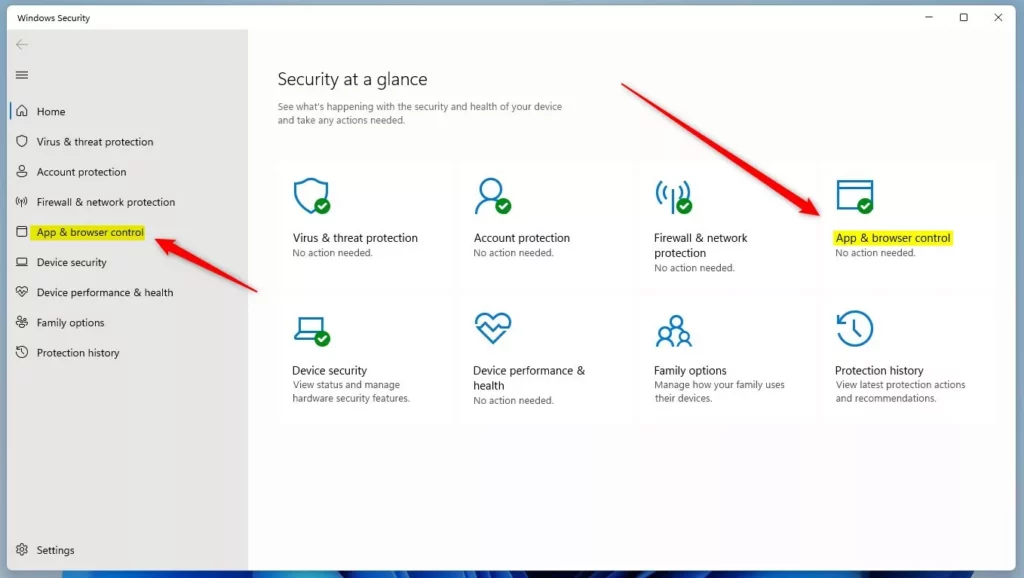
- Open Windows Security.
- Click App & browser control.
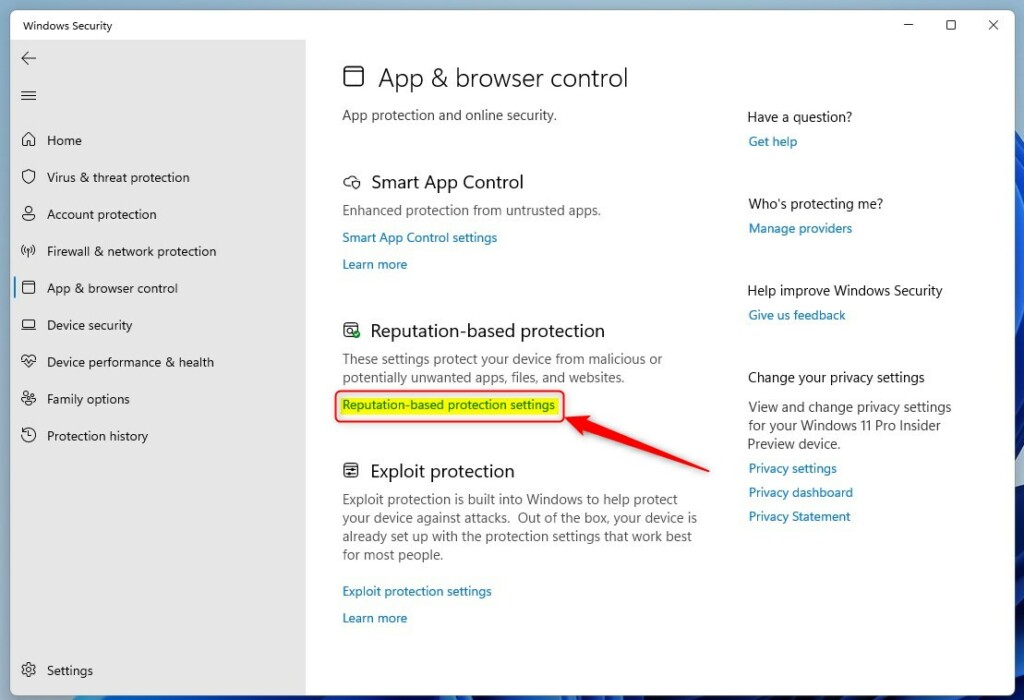
- Click Reputation-based protection settings.
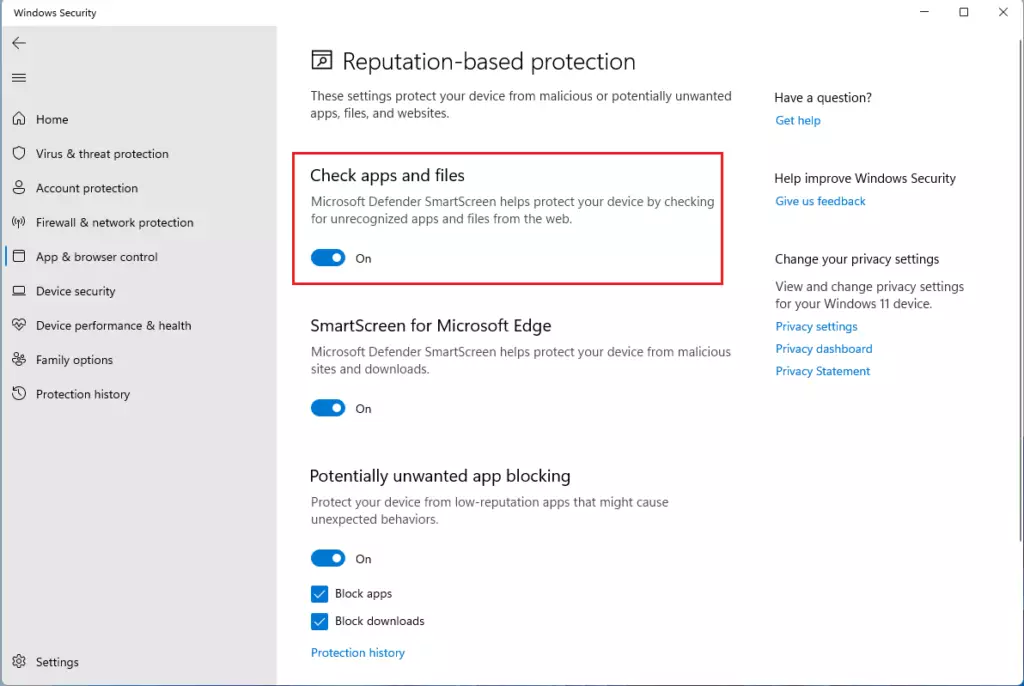
- Find Check for apps and files. Turn it On or Off.
- ⚠️ Admin Required: Click Yes when Windows asks for permission.
- Close Windows Security when done.
Option Two: Using Registry Editor
Registry Editor lets you change SmartScreen settings directly in Windows files.
To Turn On SmartScreen (Default):
reg add "HKEY_LOCAL_MACHINE\SOFTWARE\Microsoft\Windows\CurrentVersion\Explorer" /v SmartScreenEnabled /t REG_SZ /d Warn /fTo Turn Off SmartScreen:
reg add "HKEY_LOCAL_MACHINE\SOFTWARE\Microsoft\Windows\CurrentVersion\Explorer" /v SmartScreenEnabled /t REG_SZ /d Off /fOption Three: Using Local Group Policy Editor
Note: This option only works on Windows 11 Pro, Enterprise, or Education versions.
- Press Windows Key + R and type
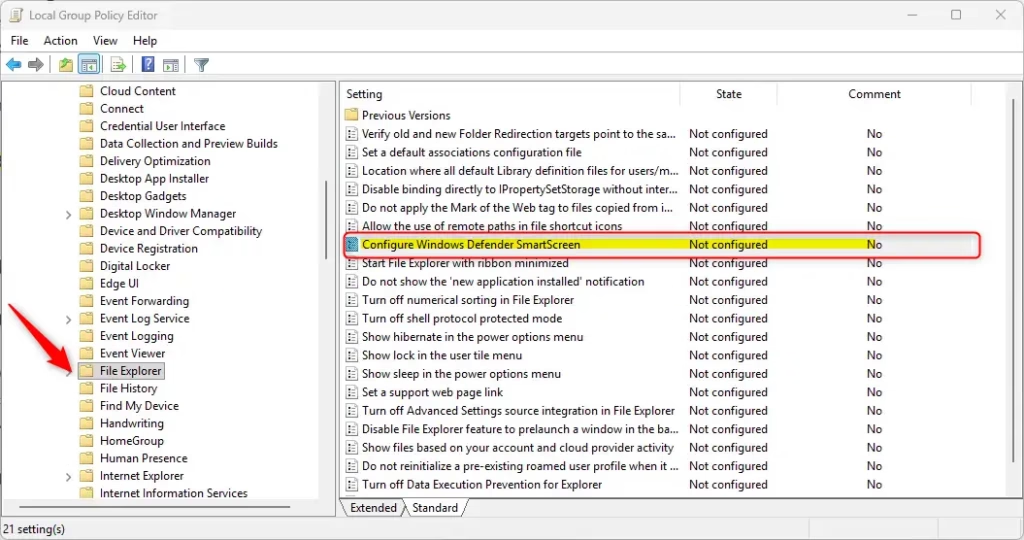
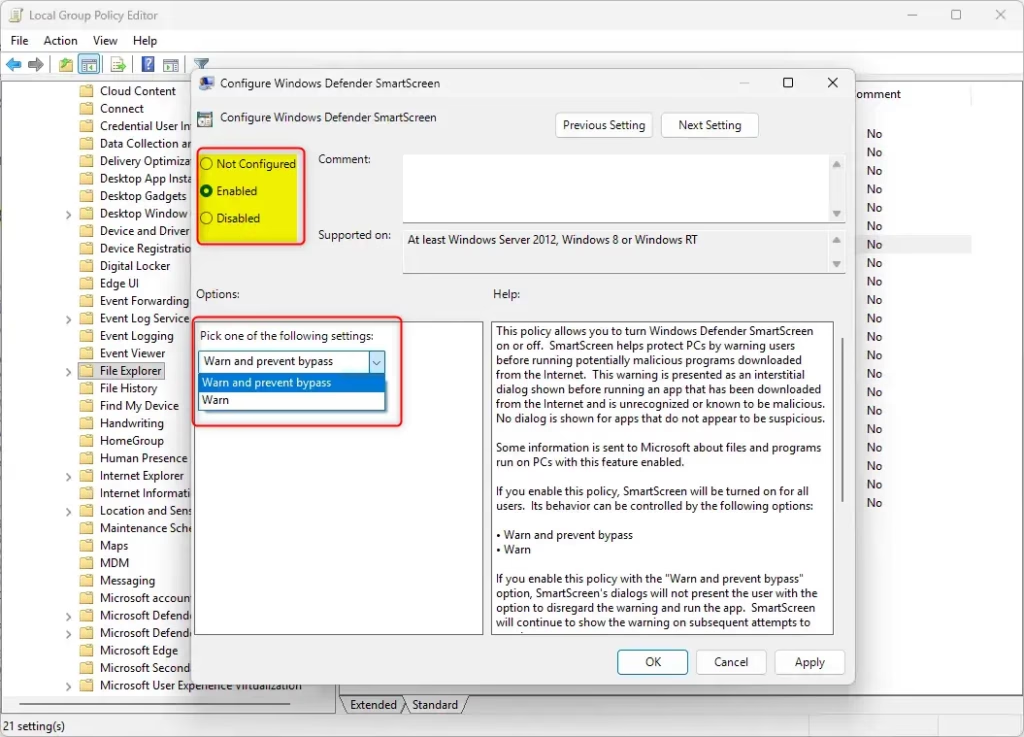
gpedit.msc. Press Enter. - In the left panel, go to: Computer Configuration > Administrative Templates > Windows Components > File Explorer.
- Double-click Configure Windows Defender SmartScreen.
- Choose one of these options:
- Warn: SmartScreen warns you about dangerous apps but lets you download them.
- Block: SmartScreen stops you from downloading dangerous apps.
- Off: SmartScreen doesn’t check anything.
- Click OK.
- ⚠️ Admin Required: Close Local Group Policy Editor when done.
Option Four: Using Registry Editor (Advanced)
To Turn On SmartScreen and Block Dangerous Files:
reg add "HKEY_LOCAL_MACHINE\SOFTWARE\Policies\Microsoft\Windows\System" /v EnableSmartScreen /t REG_DWORD /d 1 /f
reg add "HKEY_LOCAL_MACHINE\SOFTWARE\Policies\Microsoft\Windows\System" /v ShellSmartScreenLevel /t REG_SZ /d Block /f
To Turn On SmartScreen and Warn About Dangerous Files:
reg add "HKEY_LOCAL_MACHINE\SOFTWARE\Policies\Microsoft\Windows\System" /v EnableSmartScreen /t REG_DWORD /d 1 /f
reg add "HKEY_LOCAL_MACHINE\SOFTWARE\Policies\Microsoft\Windows\System" /v ShellSmartScreenLevel /t REG_SZ /d Warn /f
To Turn Off SmartScreen:
reg add "HKEY_LOCAL_MACHINE\SOFTWARE\Policies\Microsoft\Windows\System" /v EnableSmartScreen /t REG_DWORD /d 0 /f
Summary
Microsoft Defender SmartScreen helps protect your computer from dangerous downloads. You can control it in four ways:
- Option One is the easiest and best for most people.
- Options Two and Four use Registry Editor for advanced users.
- Option Three uses Group Policy Editor (only on Pro versions).
We recommend keeping SmartScreen On to stay safe. Set it to Warn if you want to be alerted but still able to download files, or Block if you want SmartScreen to stop dangerous downloads completely.
Was this guide helpful?

About the Author
Richard
Tech Writer, IT Professional
Richard, a writer for Geek Rewind, is a tech enthusiast who loves breaking down complex IT topics into simple, easy-to-understand ideas. With years of hands-on experience in system administration and enterprise IT operations, he’s developed a knack for offering practical tips and solutions. Richard aims to make technology more accessible and actionable. He's deeply committed to the Geek Rewind community, always ready to answer questions and engage in discussions.
📚 Related Tutorials


No comments yet — be the first to share your thoughts!