How to Scan for Malware in Windows 11

You scan for malware in Windows 11 using Microsoft Defender Antivirus, the free security software built right into the operating system.
Microsoft Defender Antivirus acts as your PC’s primary defense against viruses, ransomware, and other harmful threats, ensuring your system stays clean and secure.
This comprehensive tool offers quick, full, and custom scan options, allowing you to check your system thoroughly. For instance, a quick scan can typically complete in just a few minutes.
Performing regular scans is crucial for maintaining your PC’s health and protecting your personal data from malicious attacks.
Scan for malware in Windows 11 by opening Settings, navigating to Privacy & security, then Windows Security. Click Virus & threat protection, then select Quick scan or Scan options for deeper checks.
How to run a scan in 🪟 Windows 11
You can start a scan right from your settings menu.
1. Open your Settings by pressing the Windows key + I or by clicking Start then Settings.
2. Click on Privacy & security on the left side, then select Windows Security.
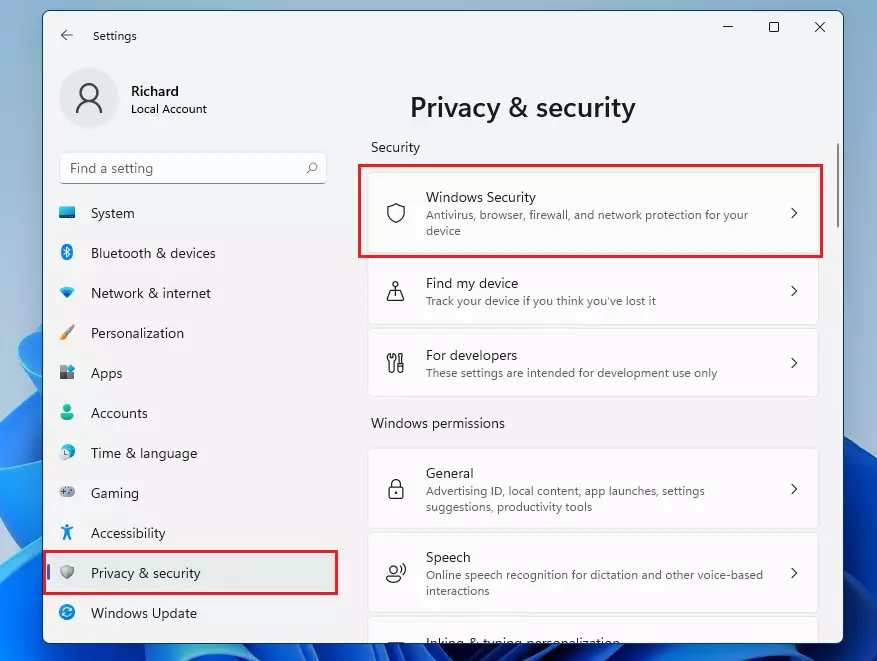
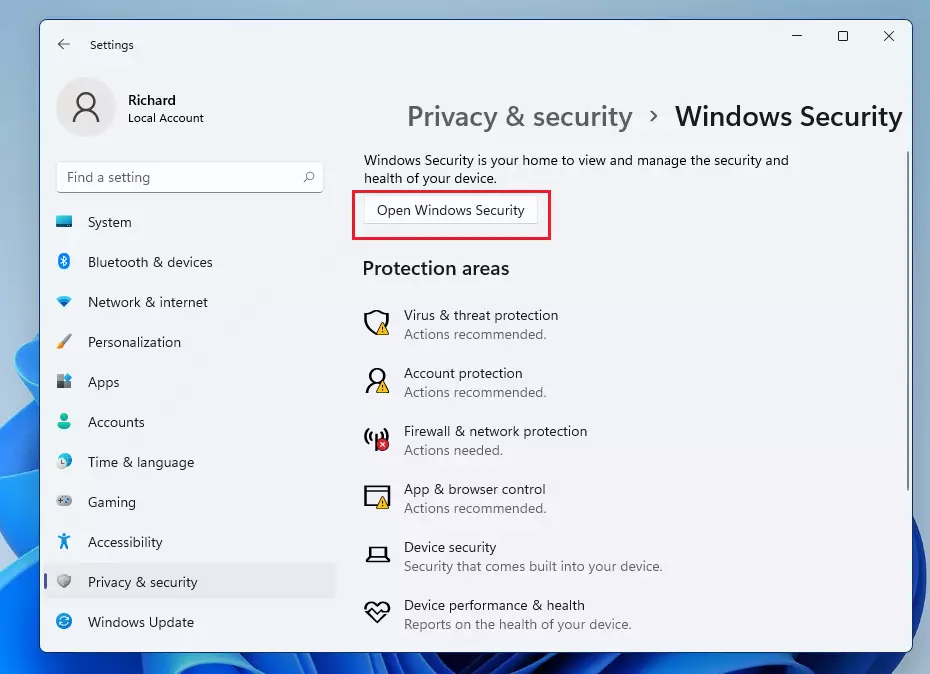
3. Click the Open Windows Security button.
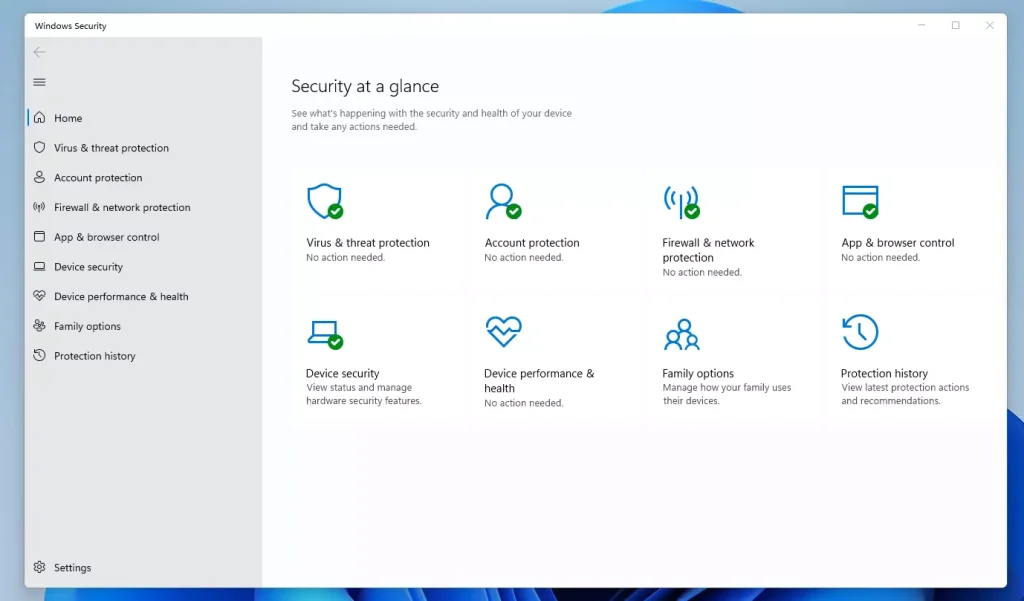
4. Check your dashboard. If you see a green checkmark, your computer is protected. If you see a red X, follow the prompts to fix the issue.
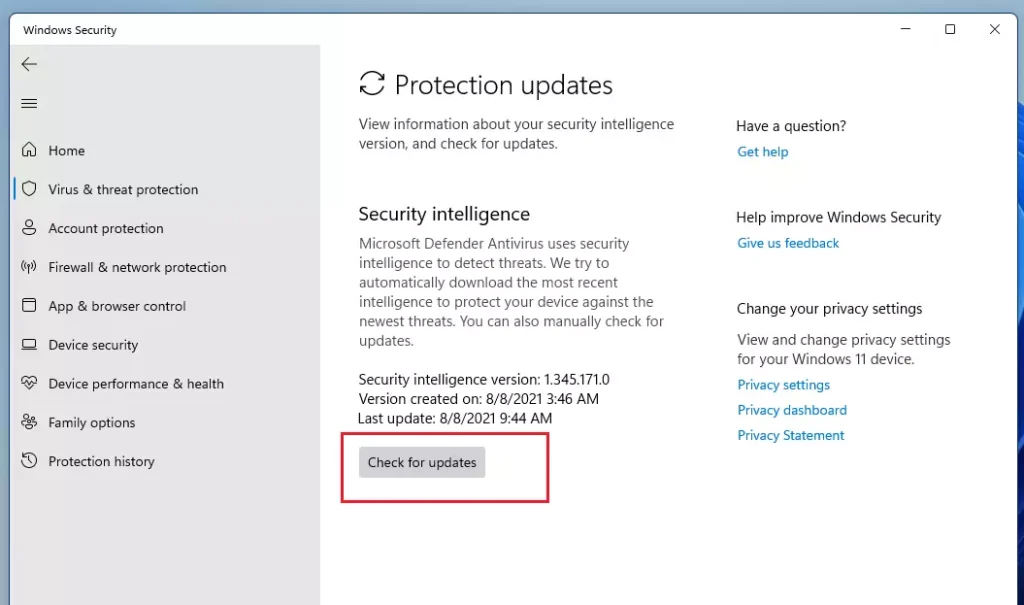
5. Click on Virus & threat protection, then click Protection updates.
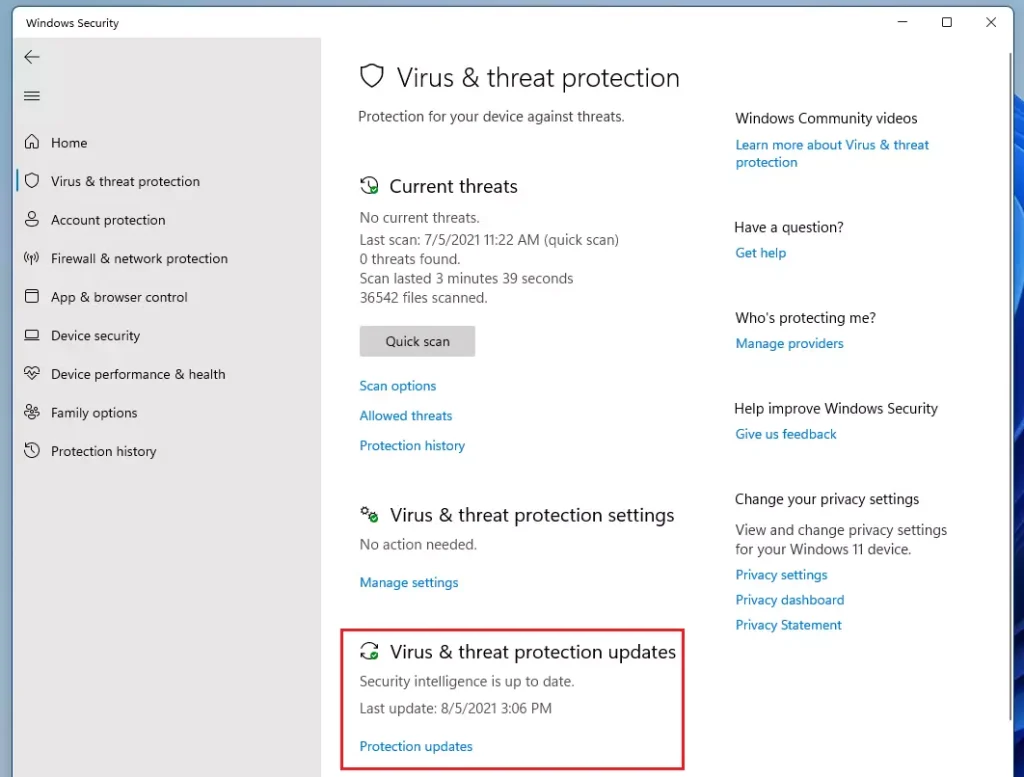
6. Click Check for updates to make sure your security tools have the latest information. %📂%LNK1%%
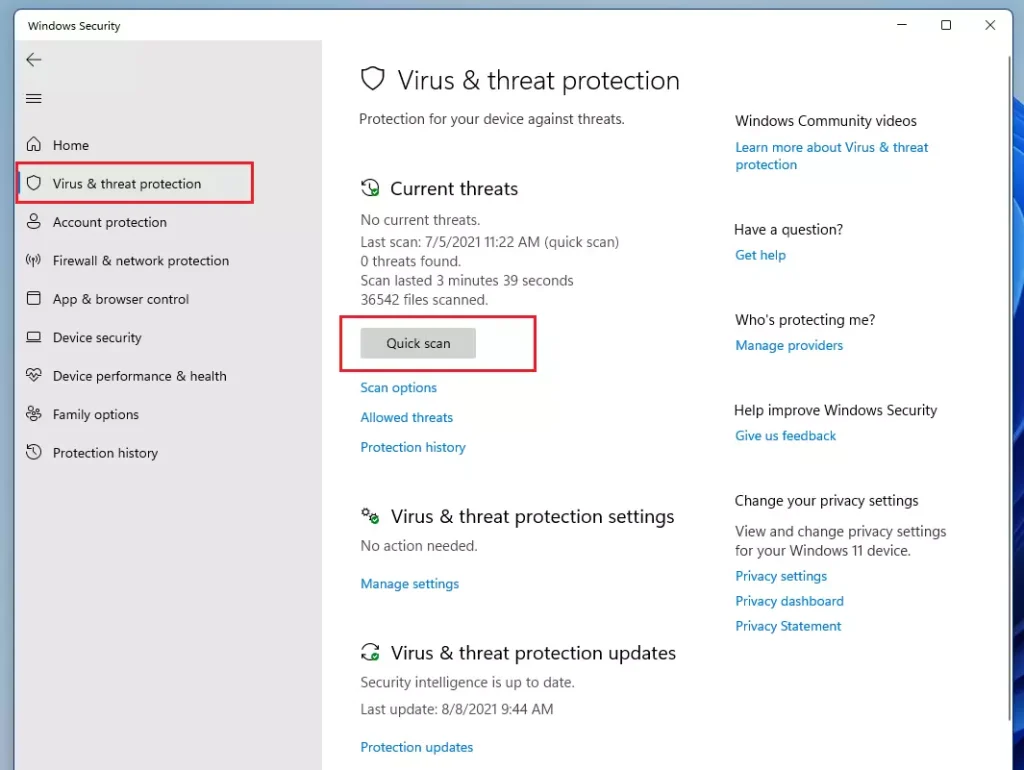
7. Go back to Virus & threat protection and select Quick scan.
Understanding Scan Types
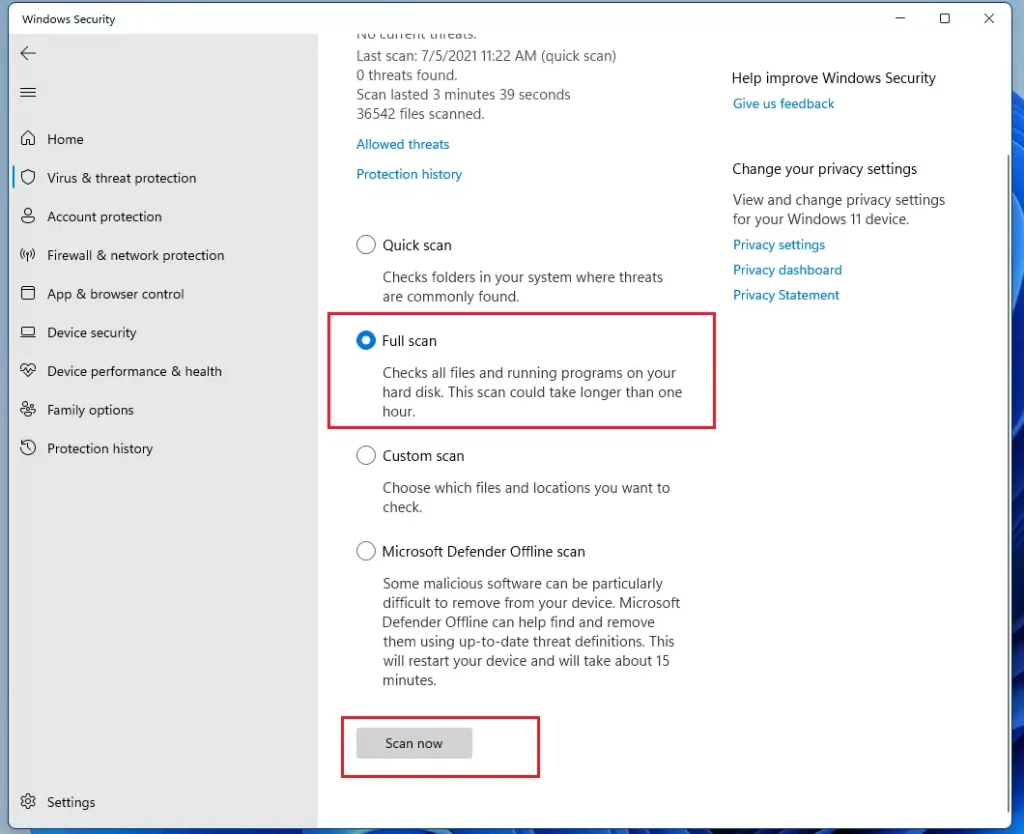
Windows 11 offers different ways to check your PC. A Quick scan checks common areas where threats hide. A Full scan checks every file and program on your hard drive. Use the Microsoft Defender Offline scan if you suspect a stubborn virus that resists normal removal.
How to run an advanced scan
If you want a deeper look at your files, use an advanced scan.
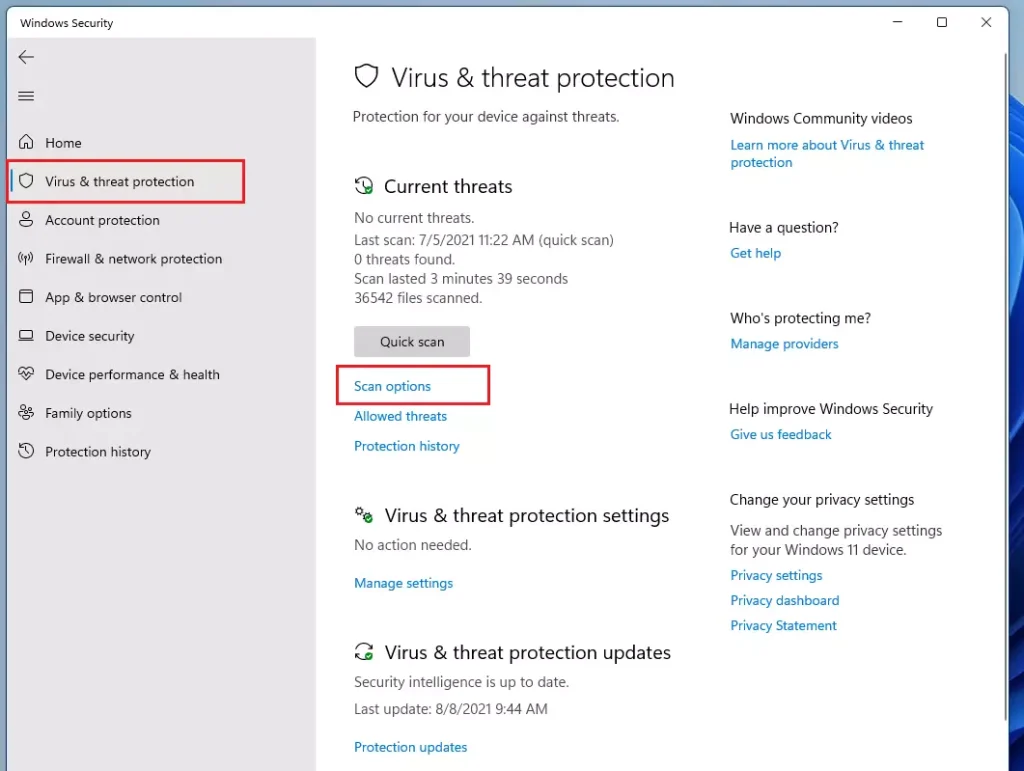
1. Follow the steps above to get to Virus & threat protection.
2. Click on Scan options.
3. Select your choice and click Scan now.
Checking Protection History
After a scan, you should verify what was found. Go to Virus & threat protection and click Protection history. Here, you can see if any items were moved to quarantine or if a false positive occurred.
Troubleshooting Failed Scans
If a scan fails, ensure your Windows is fully updated. Check for pending updates in Settings > Windows Update. Also, ensure no other antivirus software is interfering with Microsoft Defender.
How to schedule scans (Requires Admin Privileges)
You can tell your computer to scan itself automatically.
1. Click Start and search for Task Scheduler.
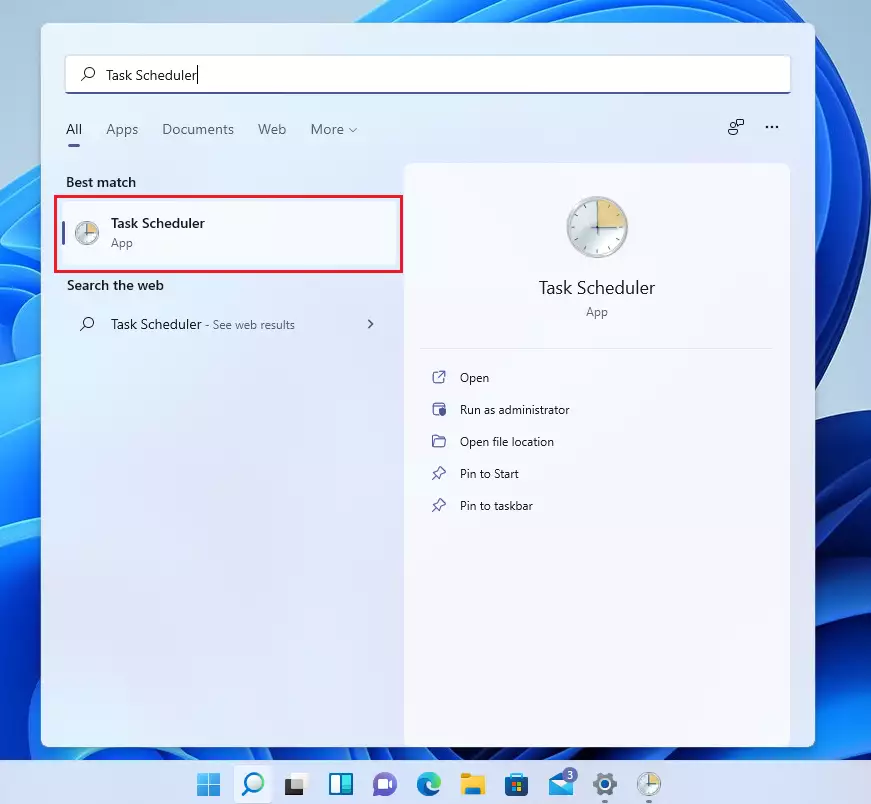
2. In the folder list on the left, go to Task Scheduler Library > Microsoft > Windows, then double-click the Windows Defender folder.
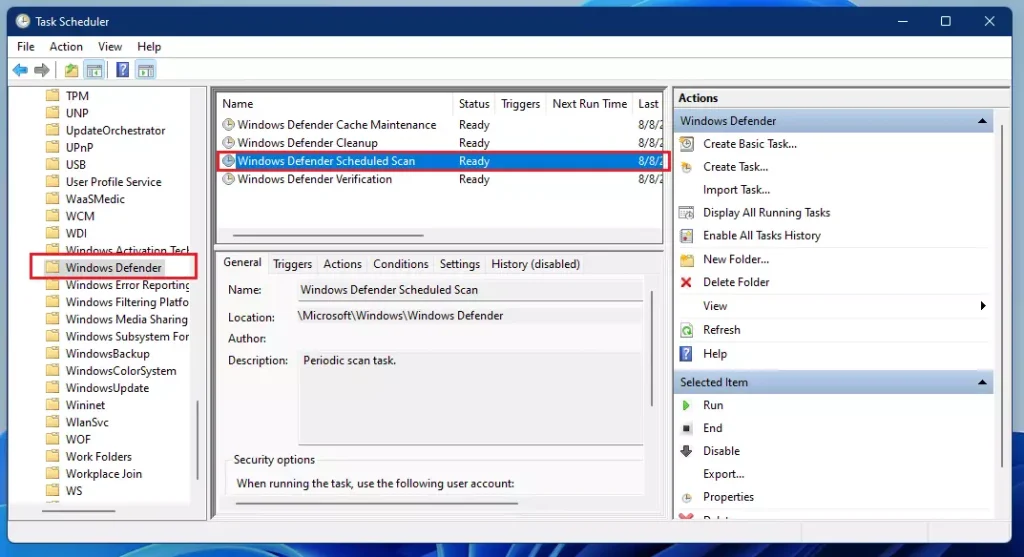
3. Double-click Microsoft Defender Scheduled Scan in the middle window.
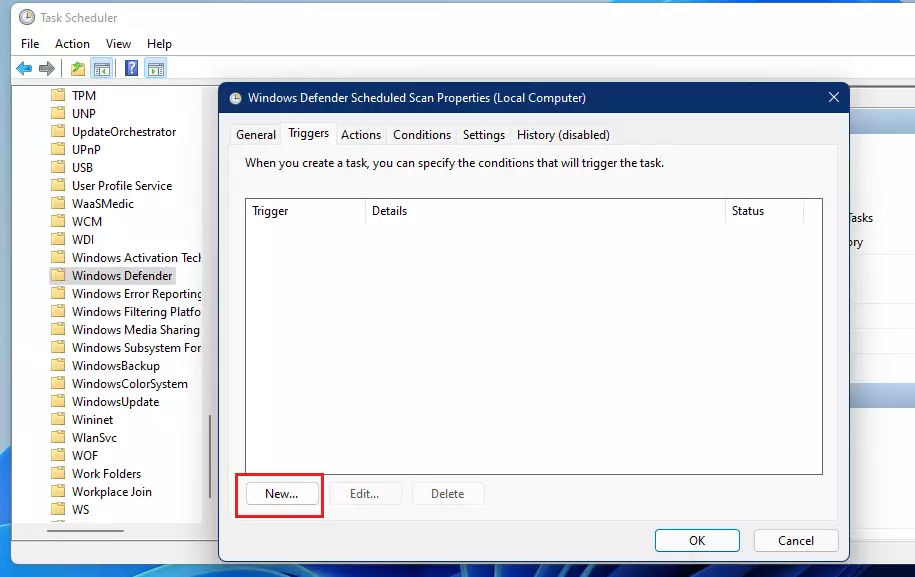
4. Go to the Triggers tab and click New.
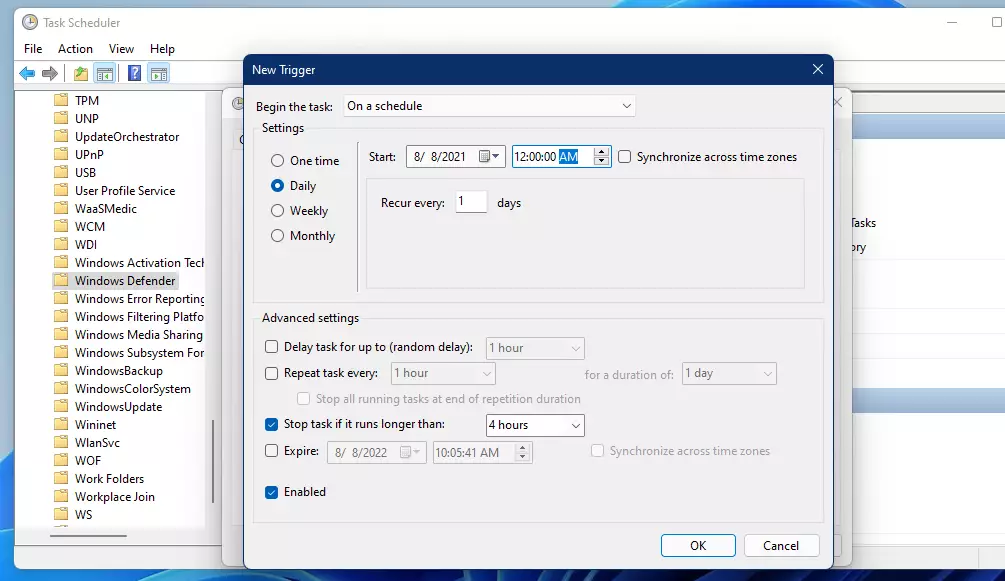
5. Set how often you want the scan to run and click OK.
Summary
Regularly scanning your computer keeps it safe from malicious software. Use the Quick scan for routine checks and the Advanced scan if you suspect a deeper problem. Always keep your security intelligence updates current and use the Task Scheduler to automate your security. Staying proactive is the best way to keep your data secure.
How long does a full scan take on 🪟 Windows 11?
A full scan can take anywhere from 30 minutes to several hours depending on the number of files and the speed of your hard drive. It is best to run this when you do not need to use your computer for intensive tasks.
Can I use my computer while a malware scan is running?
Yes, you can continue using your computer during a scan. However, you might notice that your system runs a bit slower than usual because the scan uses your computer’s resources to check files in the background. If performance drops significantly, consider waiting until you are finished with your work.
Does 🪟 Windows 11 need third-party antivirus software?
For most everyday users, Microsoft Defender is more than enough. It provides robust, real-time protection that is built directly into the operating system. Unless you have specific professional needs, you do not need to install extra third-party antivirus software, which can sometimes slow down your computer.
Was this guide helpful?

About the Author
Richard
Tech Writer, IT Professional
Richard, a writer for Geek Rewind, is a tech enthusiast who loves breaking down complex IT topics into simple, easy-to-understand ideas. With years of hands-on experience in system administration and enterprise IT operations, he’s developed a knack for offering practical tips and solutions. Richard aims to make technology more accessible and actionable. He's deeply committed to the Geek Rewind community, always ready to answer questions and engage in discussions.


[…] Once you have updated the Microsoft Edge browser, scan your device for viruses and malware to stay safe and protected with Windows Security. […]
[…] How to scan and remove viruses in Windows 11 […]
[…] How to scan and remove viruses in Windows 11 […]