How to Enable Hover Click in Ubuntu Linux


Hover click opens items when you rest your mouse pointer on them for a set time, letting you click without pressing a physical button. This built-in Ubuntu accessibility feature, also known as dwell click, helps you work around hand pain or use alternative input devices.
Most people set the hover delay to around 500 milliseconds for a natural speed, but you can adjust this timer in your settings to match what feels right for you.
Open Settings , navigate to Accessibility, then select Click Assist. Toggle the Hover Click switch to On and adjust the Delay setting to your preference.
How to turn on or off Hover click in Ubuntu Linux
Hover Click Ubuntu Linux lets you select items by resting your mouse pointer over them instead of pressing a mouse button. You can turn this feature on or off through the main Settings app on your desktop. This helps if physical clicking is hard for you, and you can even change how long you need to wait before the click happens.
Enabling or disabling this functionality takes only a few moments:
Open the Settings app.

Alternatively, click on the System menu at the top-right corner of the desktop top bar.
From the System menu, select Settings, as shown below.

In the Settings app, click the Accessibility tile to open the panel.

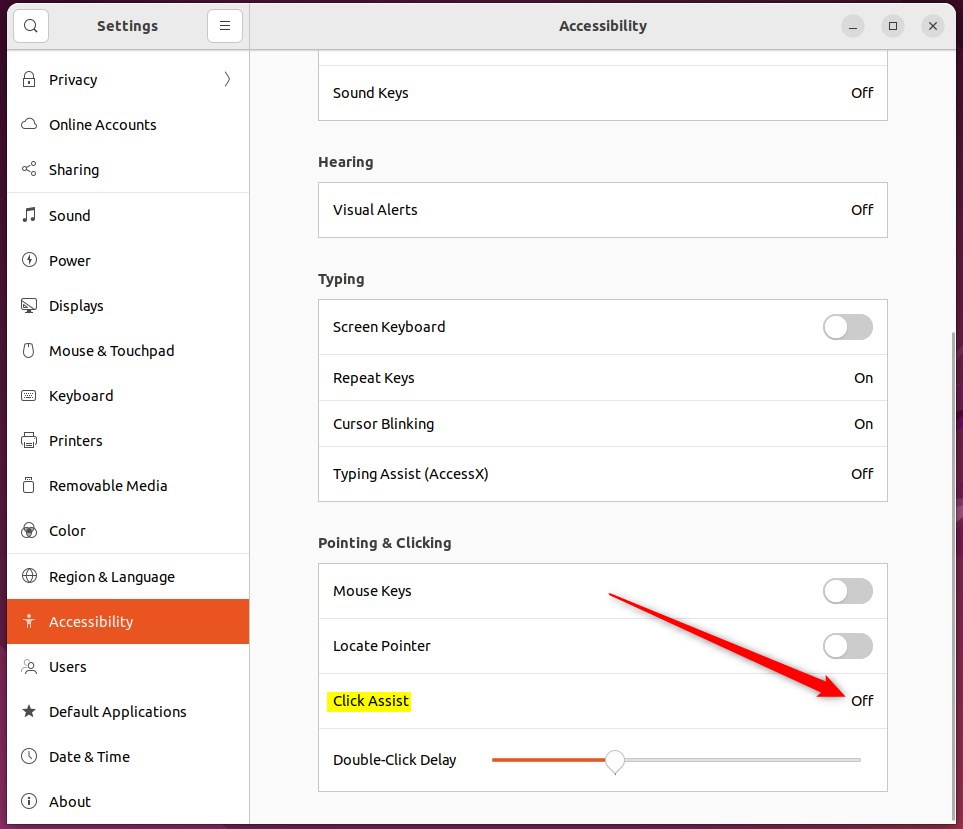
Within the System Settings - Accessibility panel, under Pointing & Clicking, select the Click Assist tile to expand it.
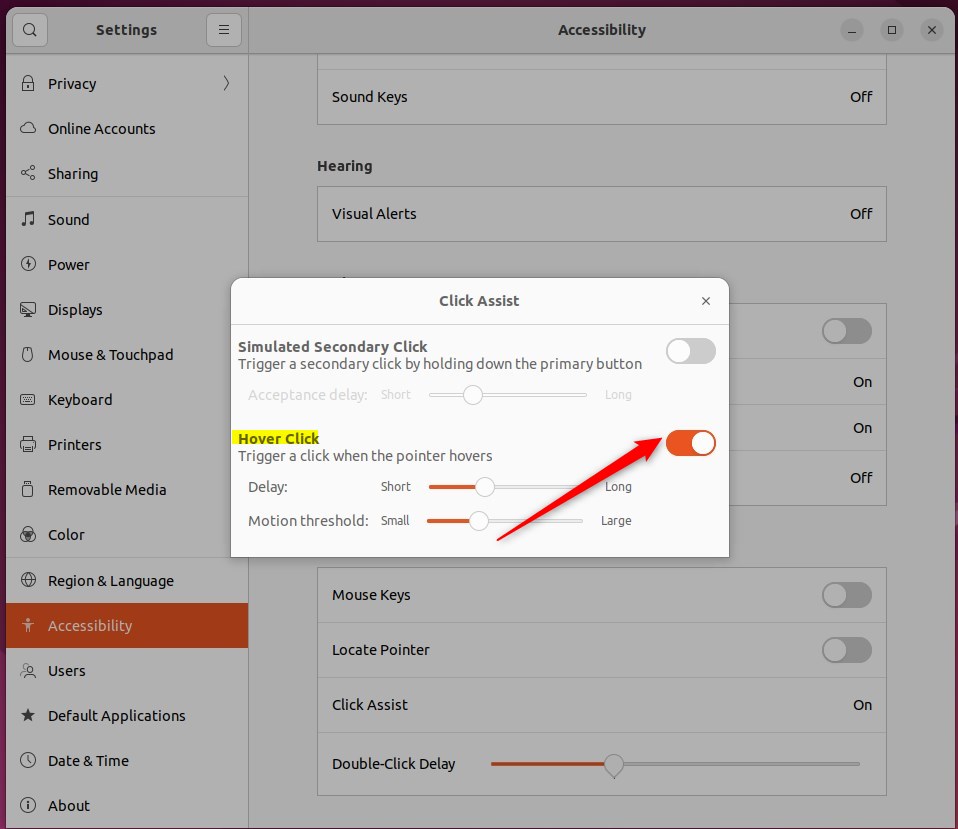
In the Click Assist pop-up window, flip the Hover Click switch to the On position to activate the feature.
Disabling the feature requires flipping the switch back to the Off position.
Holding the mouse pointer steady over a button causes the control to gradually change color. Once the color transition finishes, the button registers a click.
Adjust the Delay setting to control how long the mouse pointer must remain stationary before triggering a click.
Closing the Settings app finishes the configuration process.
Conclusion:
- Enabling or disabling Hover Click in Ubuntu Linux allows users to tailor their mouse interaction experience according to their preferences.
- Single-click mode and Hover Click can be useful alternatives for those with double-clicking difficulty.
- The Delay setting can be adjusted to customize the timing required for clicking with Hover Click enabled.
- Accessing the Hover Click feature is straightforward through the Settings panel in Ubuntu Linux.
Was this guide helpful?

About the Author
Richard
Tech Writer, IT Professional
Richard is a writer at Geek Rewind who turns complex IT tasks into clear, step-by-step guides. He draws on years of hands-on experience in system administration and enterprise IT operations, focusing on Windows, Linux and WordPress: the problems people actually run into, and the fixes that work. His server and WordPress guides come from systems he runs himself. Richard builds and maintains the platform behind Geek Rewind, from its Ubuntu servers and Nginx configuration to its custom WordPress plugins. Many new tutorials start with readers' questions, and he's always glad to answer them in the comments.



No comments yet — be the first to share your thoughts!