How to Enable or Disable Internet Explorer Mode in Microsoft Edge

You can enable or disable Internet Explorer Mode in settings-on-windows-11/" class="sal-link" rel="noopener" target="_blank" data-sal-id="31672">Microsoft Edge to open specific websites using the legacy Internet Explorer engine.
Internet Explorer Mode allows you to access older websites that may not function correctly in modern browsers like Edge. This is particularly useful for legacy internal company applications.
This tutorial guides you through configuring Internet Explorer Mode, choosing whether to apply it for your user account only or for all users on Windows 10 and Windows 11.
Why Internet Explorer Mode?
Microsoft Edge is a newer web browser based on Chromium. It came out on January 15, 2020. It works on Windows and macOS. It’s fast, secure, and works with most websites and browser extensions.
Some older websites were built to work only with Internet Explorer. These sites may not work properly in modern browsers like Microsoft Edge. If you need to visit one of these sites, you can use Internet Explorer Mode in Microsoft Edge to view them.
Most websites work better in modern browsers. For the best speed and security, only use Internet Explorer mode when you really need it.
What Happens When You Enable It?
When you set “Allow sites to be reloaded in Internet Explorer mode” to Allow, you can reload pages in Internet Explorer mode. To do this, go to Settings and more > More tools > Reload in Internet Explorer mode. If this setting is off, you won’t see this option.
References:
- Internet Explorer mode in Microsoft Edge | Microsoft Support
- Microsoft Edge + Internet Explorer mode Getting Started guide (PDF)
- The dual engine advantage of Internet Explorer Mode | Windows IT Pro Blog
- Modernize security with Microsoft Edge and IE mode | Windows IT Pro Blog
Option 1Use Settings
Turn Internet Explorer Mode On or Off in Microsoft Edge Settings
- Open Microsoft Edge.
- Click the Settings and more menu (the three dots). You can also press Alt+F. Then click Settings.
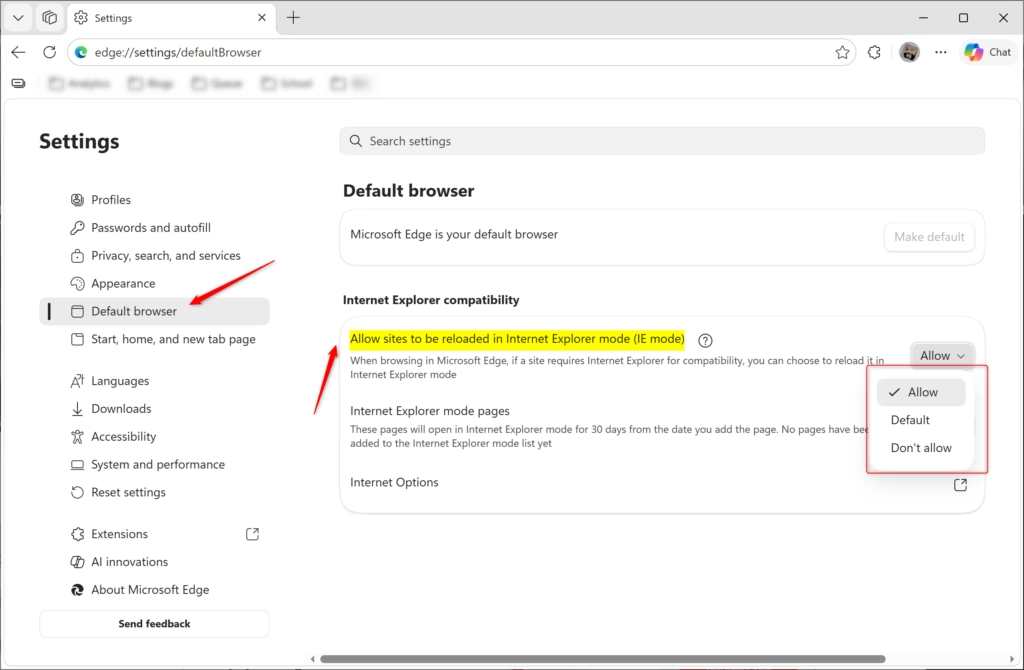
- Click Default browser on the left side.
If you don’t see a left panel, click the three lines menu button at the top left. Or make the Microsoft Edge window wider.
- Find the option called Allow sites to be reloaded in Internet Explorer mode. Click the drop-down menu and choose one of these options:
- Default — Microsoft Edge will show you the option to reload in Internet Explorer mode based on what you’ve used before.
- Allow — You can reload a page in Internet Explorer mode. Go to
Settings and more > Reload in Internet Explorer mode. You can also right-click a tab and select Reload tab in Internet Explorer mode. Or right-click a link and select Open link in new Internet Explorer mode tab. - Don’t allow — You won’t see the option to reload in Internet Explorer mode.
- Click Restart to apply your changes.
- You can close the Settings tab now if you want.

Option 2Use Registry Editor
⚠️ Admin privileges required — You must be signed in as an administrator to use this option. Open the Windows Terminal app as an administrator and run the commands below.
This option uses the InternetExplorerIntegrationReloadInIEModeAllowed policy for Microsoft Edge.
Turn On “Allow sites to be reloaded in Internet Explorer mode” for All Users
This will override and prevent using Option One.
reg add "HKEY_LOCAL_MACHINE\SOFTWARE\Policies\Microsoft\Edge" /v InternetExplorerIntegrationReloadInIEModeAllowed /t REG_DWORD /d 1 /f
Turn Off “Allow sites to be reloaded in Internet Explorer mode” for All Users
This will override and prevent using Option One.
reg add "HKEY_LOCAL_MACHINE\SOFTWARE\Policies\Microsoft\Edge" /v InternetExplorerIntegrationReloadInIEModeAllowed /t REG_DWORD /d 0 /f
Return to Default Setting for “Allow sites to be reloaded in Internet Explorer mode”
This is the normal setting that comes with Windows.
reg delete "HKEY_LOCAL_MACHINE\SOFTWARE\Policies\Microsoft\Edge" /v InternetExplorerIntegrationReloadInIEModeAllowed /f
Summary
Internet Explorer Mode in Microsoft Edge lets you view older websites that only work with Internet Explorer. You can turn this feature on, off, or set it to default. Use Option One if you want to change the setting for just your account through Settings. Use Option Two if you need to change it for all users on your computer using the Registry Editor. Remember, only use Internet Explorer mode when you need it. Modern browsers are faster and more secure.
Was this guide helpful?

About the Author
Richard
Tech Writer, IT Professional
Richard, a writer for Geek Rewind, is a tech enthusiast who loves breaking down complex IT topics into simple, easy-to-understand ideas. With years of hands-on experience in system administration and enterprise IT operations, he’s developed a knack for offering practical tips and solutions. Richard aims to make technology more accessible and actionable. He's deeply committed to the Geek Rewind community, always ready to answer questions and engage in discussions.


i have been being targeted for some years now.i know who is doing it, but im not sure how to catch them and prosecute them ,ive had 4 smartphones destroyed and almost 1 computer.
i have been being targeted for some years now.i know who is doing it, but im not sure how to catch them and prosecute them ,ive had 4 smartphones destroyed and almost 1 computer.
[…] Microsoft Edge browser is cross-platform and supports all Windows, macOS, and Linux systems. In addition, the new Microsoft Edge browser has adopted the Chromium open-source project code base, which offers better web compatibility and performance over the legacy edge. […]