How to Enable or Disable Internet Explorer Mode in Microsoft Edge

You can enable or disable Internet Explorer Mode in Microsoft Edge to run older websites that require the Internet Explorer engine.
Internet Explorer Mode is a compatibility feature within Microsoft Edge that allows you to open specific websites using the legacy Internet Explorer 11 engine. This is crucial for accessing outdated internal company applications or websites that fail to render correctly in modern browsers.
You can configure this setting for individual use or deploy it across multiple machines running Windows 10 or Windows 11.
Open Microsoft Edge, navigate to Settings, then Default browser. Find “Allow sites to be reloaded in Internet Explorer mode” and choose “Allow” to enable or “Don’t allow” to disable. Restart the browser to apply changes.
Why Internet Explorer Mode?
Internet Explorer mode in Microsoft Edge is useful because some older websites were built only for Internet Explorer and might not work well in newer browsers like Edge.
Some older websites were built to work only with Internet Explorer. These sites may not work properly in modern browsers like Microsoft Edge. If you need to visit one of these sites, you can use Internet Explorer Mode in Microsoft Edge to view them.
Most websites work better in modern browsers. For the best speed and security, only use Internet Explorer mode when you really need it.
What Happens When You Enable It?
When you turn on the setting to allow sites in Internet Explorer mode, you get a new option to reload specific pages using that older mode.
References:
Option 1Use Settings
Turn Internet Explorer Mode On or Off in Microsoft Edge Settings
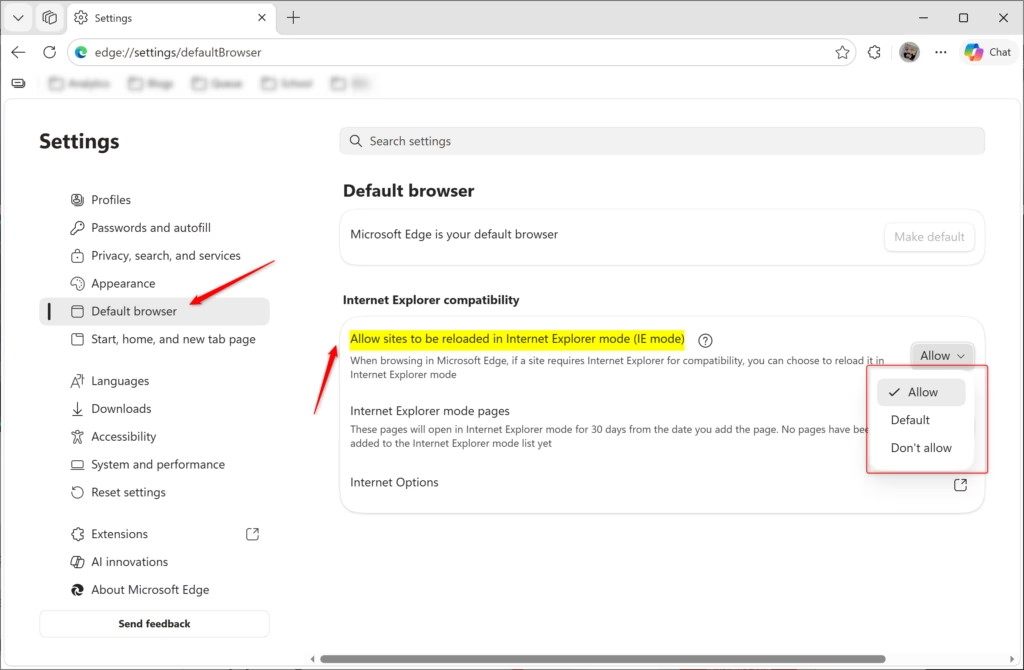
- Open Microsoft Edge.
- Click the Settings and more menu (the three dots). You can also press Alt+F. Then click Settings.
- Click Default browser on the left side.
You can turn Internet Explorer mode on or off in Microsoft Edge settings by first opening the browser and clicking the three dots menu.
- Find the option called Allow sites to be reloaded in Internet Explorer mode. Click the drop-down menu and choose one of these options:
- Default — Microsoft Edge will show you the option to reload in Internet Explorer mode based on what you’ve used before.
- Allow — You can reload a page in Internet Explorer mode. Go to
Settings and more > Reload in Internet Explorer mode. You can also right-click a tab and select Reload tab in Internet Explorer mode. Or right-click a link and select Open link in new Internet Explorer mode tab. - Don’t allow — You won’t see the option to reload in Internet Explorer mode.
- Click Restart to apply your changes.
- You can close the Settings tab now if you want.
Option 2Use Registry Editor
⚠️ Admin privileges required — To use this method, you’ll need to be signed in as an administrator. Open the Windows Terminal app with administrative rights and run the commands below.
This approach utilizes the InternetExplorerIntegrationReloadInIEModeAllowed policy within Microsoft Edge.
Turn On “Allow sites to be reloaded in Internet Explorer mode” for All Users
This will override and prevent using Option One.
reg add "HKEY_LOCAL_MACHINE\SOFTWARE\Policies\Microsoft\Edge" /v InternetExplorerIntegrationReloadInIEModeAllowed /t REG_DWORD /d 1 /f
Turn Off “Allow sites to be reloaded in Internet Explorer mode” for All Users
This will override and prevent using Option One.
reg add "HKEY_LOCAL_MACHINE\SOFTWARE\Policies\Microsoft\Edge" /v InternetExplorerIntegrationReloadInIEModeAllowed /t REG_DWORD /d 0 /f
Return to Default Setting for “Allow sites to be reloaded in Internet Explorer mode”
This is the normal setting that comes with Windows.
reg delete "HKEY_LOCAL_MACHINE\SOFTWARE\Policies\Microsoft\Edge" /v InternetExplorerIntegrationReloadInIEModeAllowed /f
Summary
Internet Explorer mode in Microsoft Edge lets you visit older websites that don’t work in modern browsers, and you can choose to turn it on or off in the settings.
Was this guide helpful?

About the Author
Richard
Tech Writer, IT Professional
Richard, a writer for Geek Rewind, is a tech enthusiast who loves breaking down complex IT topics into simple, easy-to-understand ideas. With years of hands-on experience in system administration and enterprise IT operations, he’s developed a knack for offering practical tips and solutions. Richard aims to make technology more accessible and actionable. He's deeply committed to the Geek Rewind community, always ready to answer questions and engage in discussions.


i have been being targeted for some years now.i know who is doing it, but im not sure how to catch them and prosecute them ,ive had 4 smartphones destroyed and almost 1 computer.
i have been being targeted for some years now.i know who is doing it, but im not sure how to catch them and prosecute them ,ive had 4 smartphones destroyed and almost 1 computer.
[…] Microsoft Edge browser is cross-platform and supports all Windows, macOS, and Linux systems. In addition, the new Microsoft Edge browser has adopted the Chromium open-source project code base, which offers better web compatibility and performance over the legacy edge. […]