How to Enable Hidden Education Themes in Windows 11

You can enable hidden educational themes in Windows 11 to give your desktop a fresh, clean look with unique backgrounds and color schemes.
These themes, often seen on Windows 11 SE or school-managed devices, are intentionally tucked away within your system’s files.
Unlocking these special education themes is straightforward and can be done directly on your personal PC without complex steps.
Why use these themes?
You might want these themes to give your desktop a fresh, professional look. They offer a minimalist style that differs from standard Windows options. It is a fun way to customize your computer and experience the interface used in classrooms.
What happens when you are done?
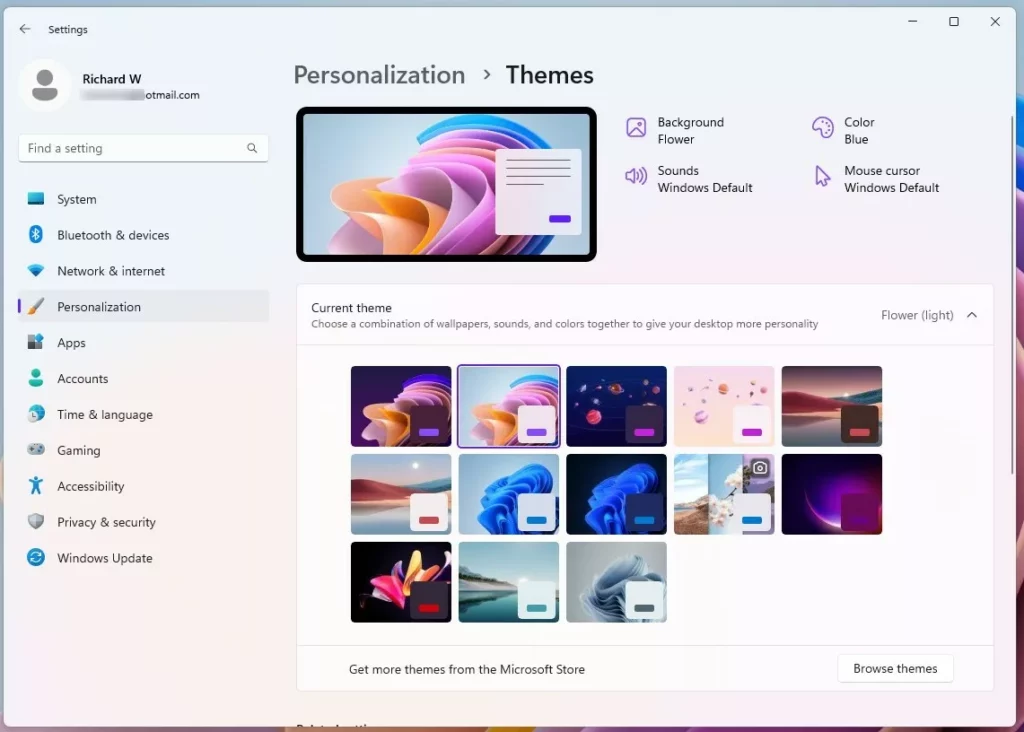
Once you finish these steps and restart your PC, new theme options will appear in your personalization settings. You can then select them just like any other theme. Your computer will apply the education-specific wallpaper and color accents.
Method 1Using the Registry Editor (Most Common)
Warning: Editing the Windows Registry can cause system issues if done incorrectly. Please back up your registry before proceeding. This process requires administrator privileges.
- Press ⊞ Win+R, type
regedit, and hit Enter. - Navigate to:
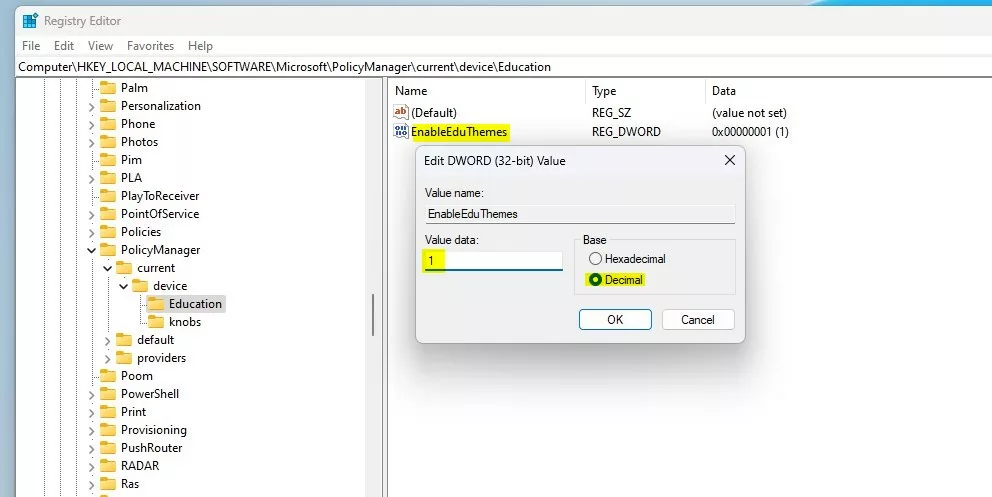
HKEY_LOCAL_MACHINE\SOFTWARE\Microsoft\PolicyManager\current\device\Education - If the Education folder is missing, right-click device, select New > Key, and name it
Education. - Right-click in the right pane, select New > DWORD (32-bit) Value.
- Name it
EnableEduThemes. - Double-click
EnableEduThemesand set the Value data to1.
Method 2Using PowerShell for IT Admins
If you prefer command-line tools, you can enable these themes using PowerShell. This requires administrator privileges.
New-Item -Path "HKLM:\\SOFTWARE\\Microsoft\\PolicyManager\\current\\device\\Education" -Force
Set-ItemProperty -Path "HKLM:\\SOFTWARE\\Microsoft\\PolicyManager\\current\\device\\Education" -Name "EnableEduThemes" -Value 1
Method 3OMA-URI for Enterprise Deployment
For IT administrators managing multiple machines, you can use Microsoft Intune to deploy these settings via OMA-URI. Use the following configuration:
- Name: Enable Education Themes
- OMA-URI:
./Device/Vendor/MSFT/Policy/Config/Education/EnableEduThemes - Data Type: Integer
- Value: 1
Summary
By using the Registry Editor, PowerShell, or OMA-URI, you can unlock hidden education themes on any Windows 11 device. This customization does not require a school account and is fully reversible. Always ensure you have administrator privileges before modifying system settings. For more tips, check out our guide on managing Windows 11 apps.
Are education themes available on 🪟 Windows 11 Home edition?
Yes, the registry method works on Windows 11 Home, Pro, and Enterprise editions. While these themes are native to Windows 11 SE, the underlying policy settings exist in all versions of the operating system, allowing you to manually enable them regardless of your specific edition.
Do I need an active school account to use these themes?
No, you do not need a school or work account. By manually modifying the registry, you are telling Windows to treat your device as if it were part of an education environment. This bypasses the need for official school account credentials to access the hidden theme files.
Can I revert to standard themes after enabling education themes?
Yes, you can easily revert. Simply return to the registry path and change the EnableEduThemes value back to 0 or delete the key entirely. After a quick restart, your system will return to its original state, and you can select any standard Windows theme.
Was this guide helpful?

About the Author
Richard
Tech Writer, IT Professional
Richard, a writer for Geek Rewind, is a tech enthusiast who loves breaking down complex IT topics into simple, easy-to-understand ideas. With years of hands-on experience in system administration and enterprise IT operations, he’s developed a knack for offering practical tips and solutions. Richard aims to make technology more accessible and actionable. He's deeply committed to the Geek Rewind community, always ready to answer questions and engage in discussions.




No comments yet — be the first to share your thoughts!