
Have you ever tried to install a driver on Windows 11 and Windows blocked it? Windows blocked it because the driver isn’t “signed” by Microsoft. This guide will explain what driver signature enforcement is. It will also show you how to turn it off if you need to install unsigned drivers.
What is Driver Signature Enforcement?
Windows 11 has a built-in security feature called driver signature enforcement. What does this mean? It means Windows only allows drivers (software that helps your computer work with hardware) that Microsoft has checked and approved. This keeps your PC safe from bad or harmful drivers.
But sometimes you might need older drivers or special drivers. These drivers might not be signed by Microsoft. When this happens, Windows won’t let you install them. You have to temporarily turn off driver signature enforcement to install them.
Important Note
Disabling driver signature enforcement can make your computer less secure. Only turn it off if you trust the driver you want to install.
How to Turn Off Driver Signature Enforcement in Windows 11
Follow these simple steps to disable driver signature enforcement:
- Turn off BitLocker and Secure Boot (if enabled). BitLocker is a security feature that encrypts your drive. Secure Boot helps protect your PC from malicious software during startup. You can read how to turn off BitLocker here and how to disable Secure Boot here.
- Restart Windows into Advanced Startup Mode. Click
Start > Settings > System > Recovery. Under Recovery options, click theRestart nowbutton next to Advanced startup.
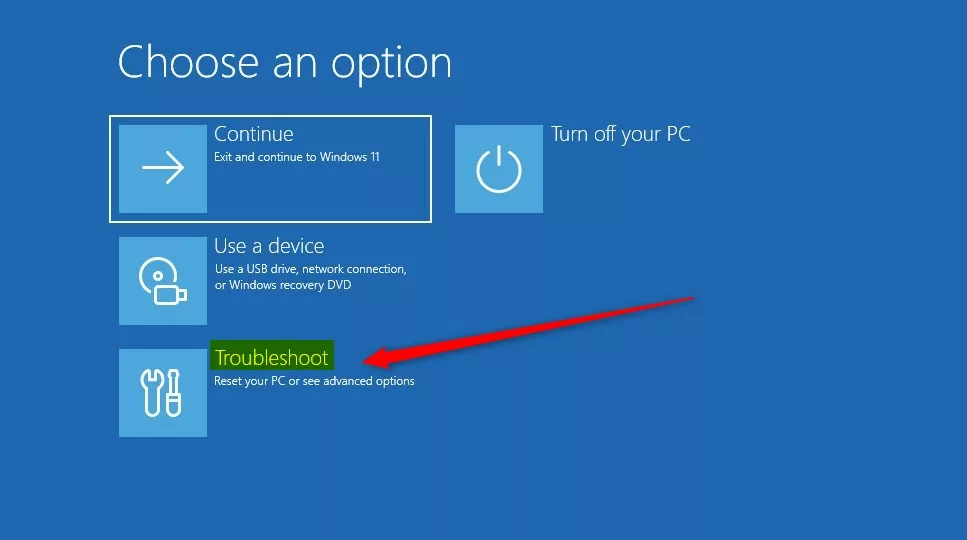
- When Windows restarts, select
Troubleshoot.
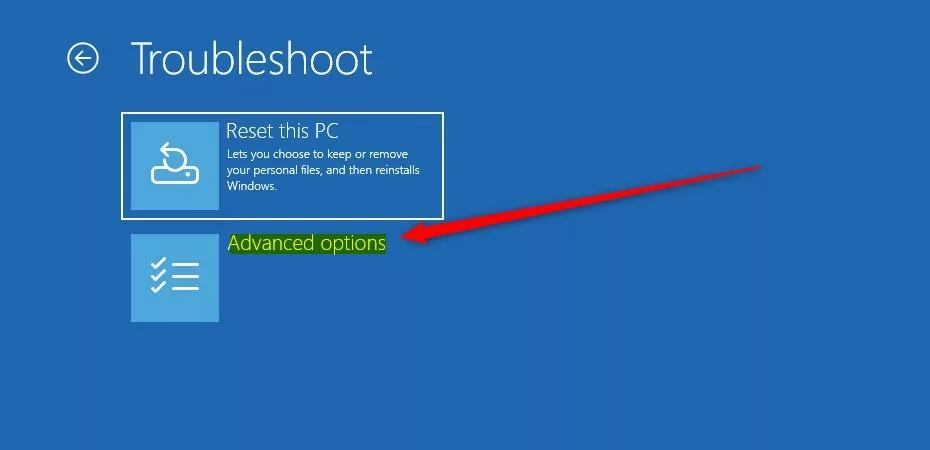
- Click
Advanced options. - Select
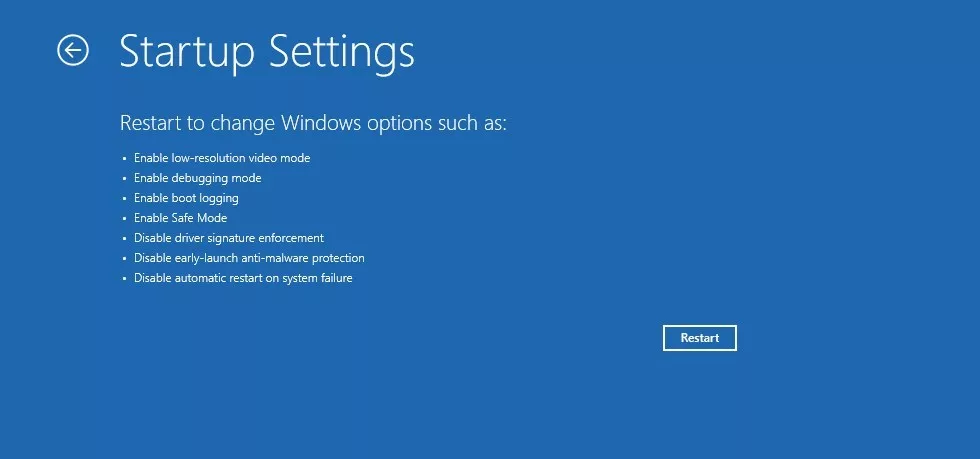
Startup Settings.
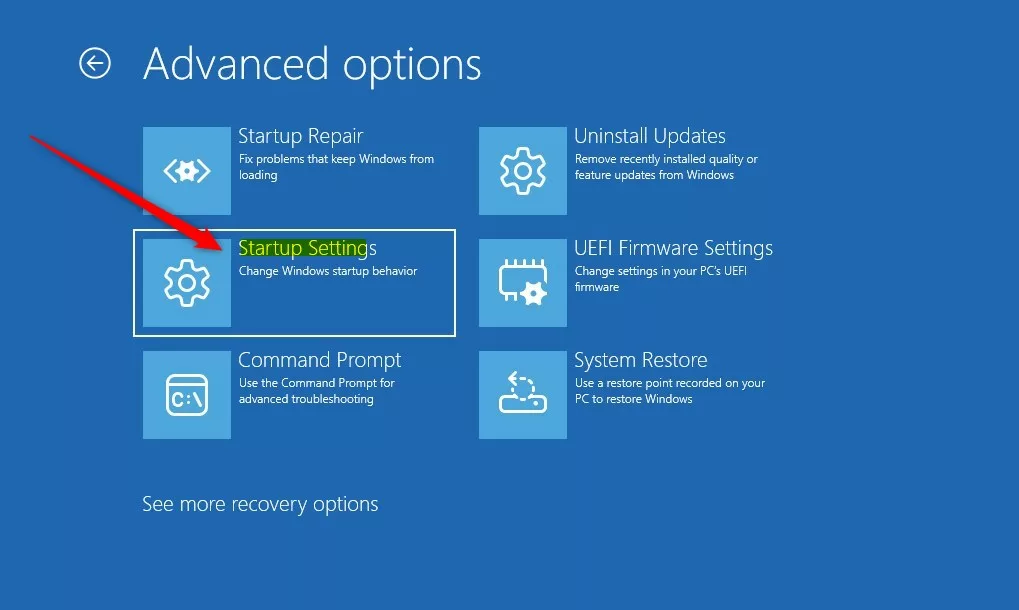
- Click
Restart.
- After your PC restarts, press
7orF7on your keyboard. This will disable driver signature enforcement.
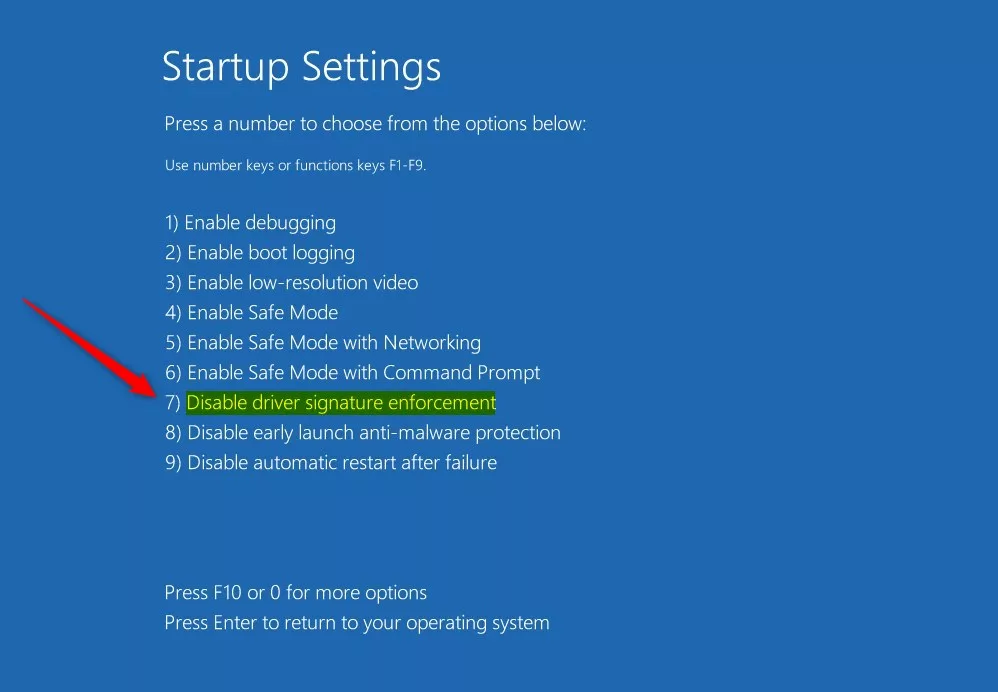
Your PC will now start normally. Driver signature enforcement will be turned off. You can install unsigned drivers while this mode is active.
To Turn Driver Signature Enforcement Back On
Just repeat the steps above. This time don’t press 7 or F7. Instead, let Windows boot normally. Or simply restart your PC normally to re-enable the feature.
How to Enable or Disable Driver Signature Enforcement Using Command Prompt
If you prefer using commands, here’s another way:
- Make sure BitLocker is off and Secure Boot is disabled (see links above).
- FLAG: Admin privileges required. Open Windows Terminal as an Administrator. You can read how to open Windows Terminal as admin here.
- Switch to the Command Prompt tab inside Windows Terminal.
- To disable driver signature enforcement, type this command and press Enter:
bcdedit /set nointegritychecks off - To enable driver signature enforcement again, type this command and press Enter:
bcdedit /set nointegritychecks on - Restart your computer to apply the changes.
Summary
- Driver signature enforcement helps keep your Windows 11 PC safe. It only allows trusted drivers.
- You can temporarily turn off this feature to install unsigned drivers if you need to.
- Use the Advanced Startup menu or Command Prompt to turn this feature on or off.
- Always be careful. Only install drivers from sources you trust.



Leave a Reply