
This guide will show you easy ways to check the Reserved storage on your Windows 11 computer. We’ll use simple tools like the Settings app and the Command Prompt.
What is Reserved Storage?
Reserved storage is a special space on your computer’s hard drive that Windows keeps aside. Why does Windows do this? It needs room for important things like system updates, apps, temporary files, and system caches. This helps your computer run smoothly. What happens when your disk is running low on space? Reserved storage makes sure Windows still has room to work properly.
Usually, Windows sets aside about 7 GB for reserved storage. But this size can change depending on your computer and how much free space you have.
Checking your reserved storage helps you understand how much room is left for your personal files and programs. It can also help you figure out if low disk space is causing your computer to slow down.
How to Check Reserved Storage Using the Settings App
Follow these simple steps to see your reserved storage size in Windows 11:
- Open the Settings app.
- Click the Start button (the Windows icon in the bottom-left corner) and select Settings.
- Or, press Windows key + I on your keyboard to open Settings right away.
- Click on System in the left menu.

- Click Storage on the right side.

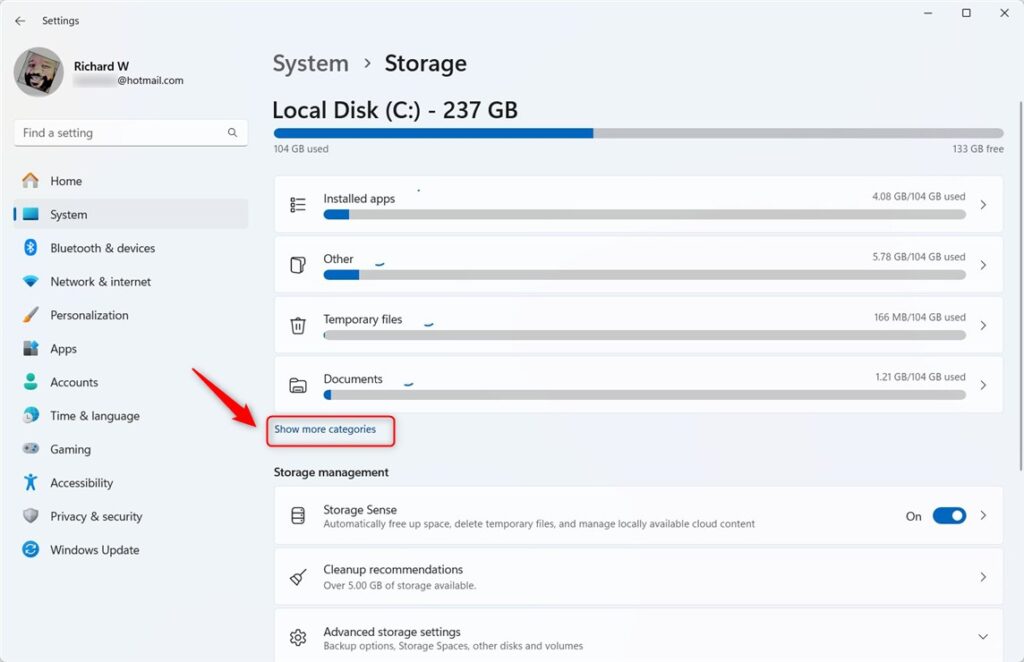
- Click Show more categories to see all storage categories.
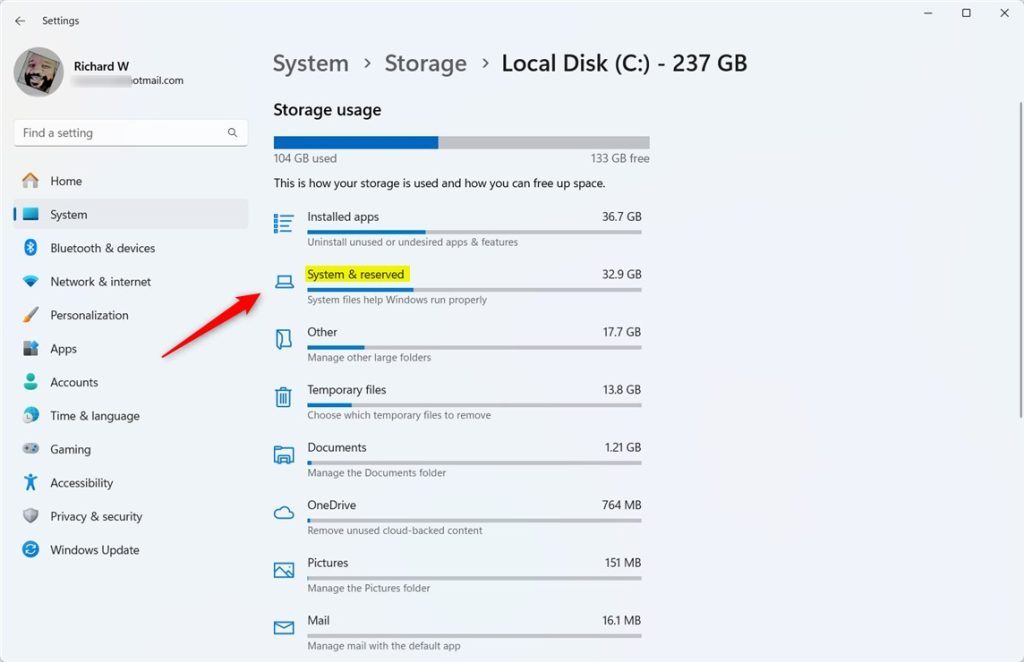
- Click on System & reserved to open details.
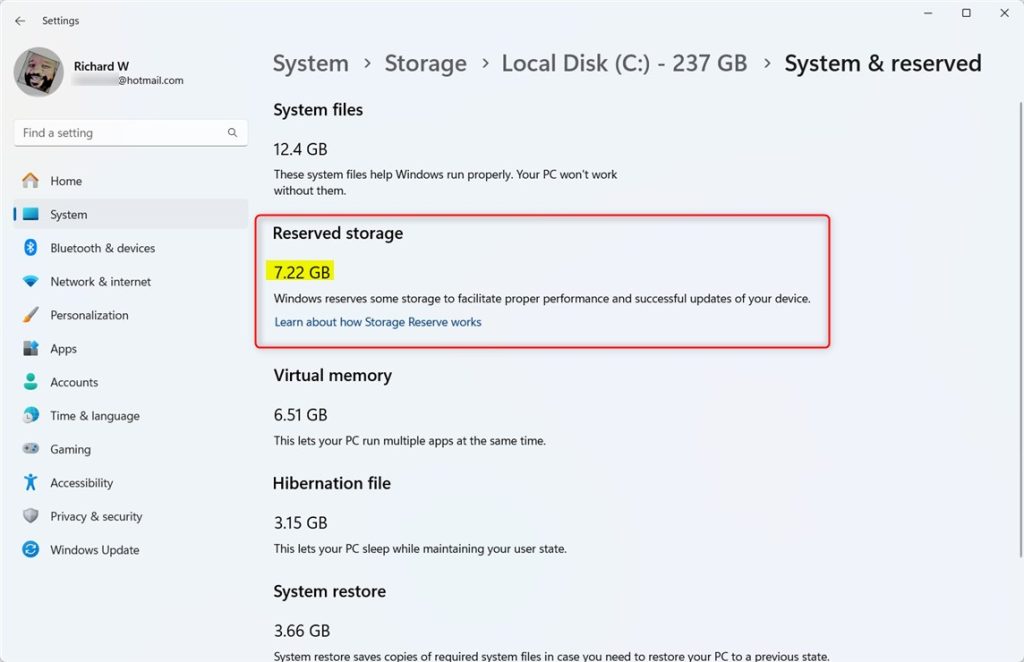
- Look for the Reserved storage size on this page.
This shows how much space Windows has reserved for system use.
- When you’re done, you can simply close the Settings app.
How to Check Reserved Storage Using the Command Line
If you like using commands, here’s an easy way to check your reserved storage through the Windows Terminal:
- [ADMIN] Open Windows Terminal as an administrator.
- Click the Start button, type Windows Terminal, right-click it, and select Run as administrator.
- Learn more about opening Windows Terminal as admin
- Choose either the PowerShell or Command Prompt tab.
- You can switch tabs at the top of the Terminal window.
- Type this command and press Enter:
fsutil storagereserve query C:This checks the reserved storage on your C: drive (usually your main drive).
- The result will show you the reserved storage space in bytes.
Summary
- Reserved storage is space Windows keeps for updates and important system tasks.
- You can easily check it using the Settings app or the Command Prompt.
- Knowing your reserved storage size helps you manage your disk space better.
- Checking it regularly can prevent problems caused by low disk space.
- Keeping an eye on reserved storage ensures your Windows 11 PC runs smoothly and stays healthy.


Leave a Reply