How to Change Your Wi-Fi Settings in Windows 11

You change your Wi-Fi settings in Windows 11 by accessing the Network & internet settings. This allows you to modify details for saved Wi-Fi networks, such as the password or security type, without having to re-add the network from scratch.
Windows 11 provides a straightforward way to manage your wireless connections. This means you can easily update the credentials for your home or office network if it changes.
For example, if your router’s Wi-Fi password was updated recently, you can update it on your PC in just a few clicks. You’ll typically find the relevant options under the “Wi-Fi” section in your Settings app.
Go to Settings > Network & internet > Wi-Fi > Manage known networks. Select the network you want to change, then click Edit to update the password, security type, or connection preferences.
What is Wi-Fi?
Wi-Fi lets your computer connect to the internet without wires. It uses radio waves to send data. When you connect to a Wi-Fi network for the first time, Windows saves its name, password, and other details. This way, your computer can connect automatically next time.
Why Change Wi-Fi Settings?
You might need to change your Windows 11 Wi-Fi settings if your home network password has changed, you want a stronger security type like WPA3, or if you want to stop your computer from automatically connecting to certain networks.
- You changed the Wi-Fi password on your router.
- You want to use a newer security type (like WPA3 instead of WPA2).
- You want to control if your PC connects automatically or not.
The good news? You can do this without deleting the network and starting over.
How to Change Wi-Fi Network Settings
- Open Settings. Press
Win + Ion your keyboard. - Click Network & internet on the left menu. Then click Wi-Fi on the right.
Windows 11 Settings app showing Wi-Fi network tile option - Click on Manage known networks.
Changing your Windows 11 Wi-Fi settings is simple and done through the Settings app; open it by pressing the Windows key and ‘I’ together, then go to Network & internet, click Wi-Fi, and select Manage known networks.
- Find the Wi-Fi network you want to change (for example, “Penguin”) and click it.
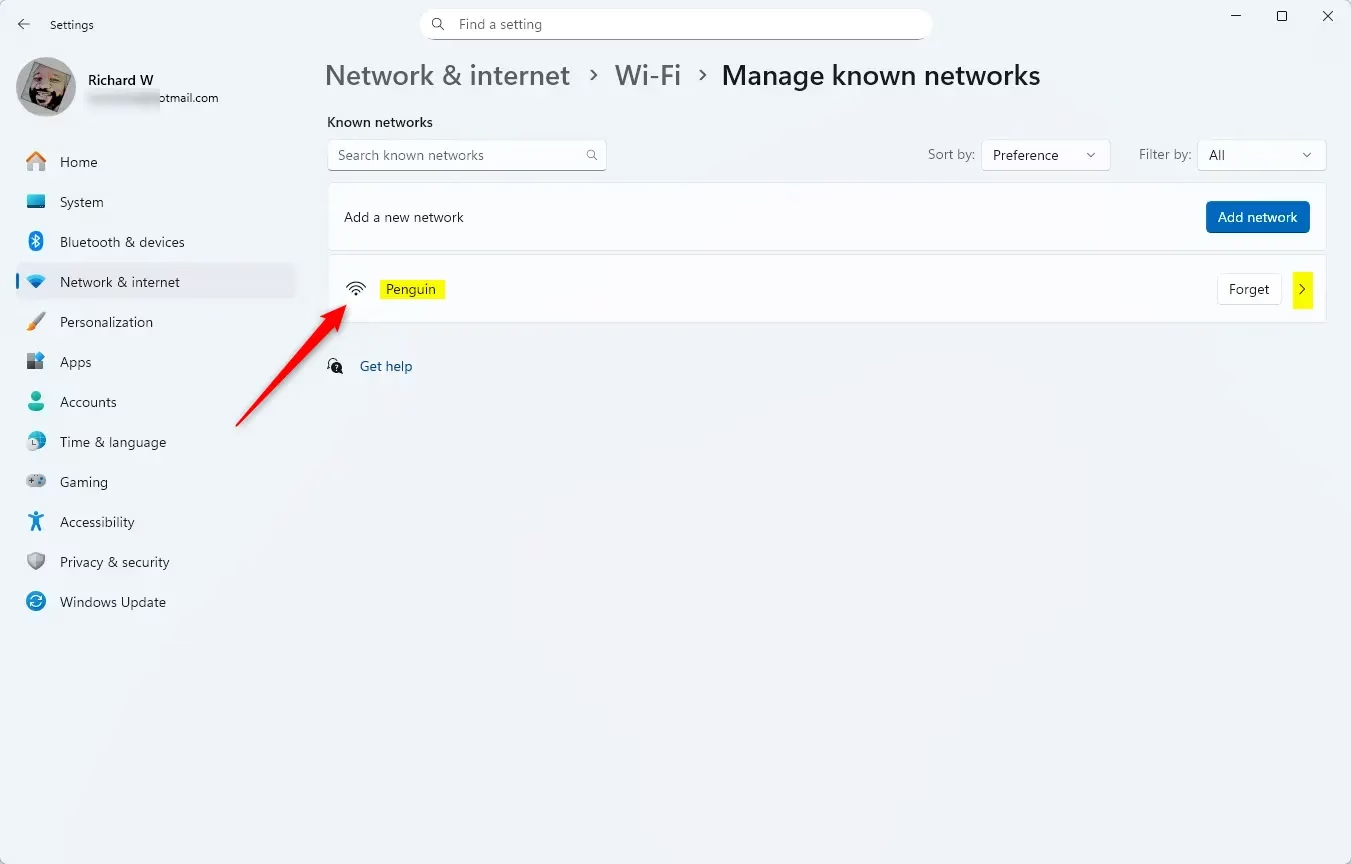
WiFi profile in Windows 11 - Click the Edit button under Advanced Wi-Fi network properties.
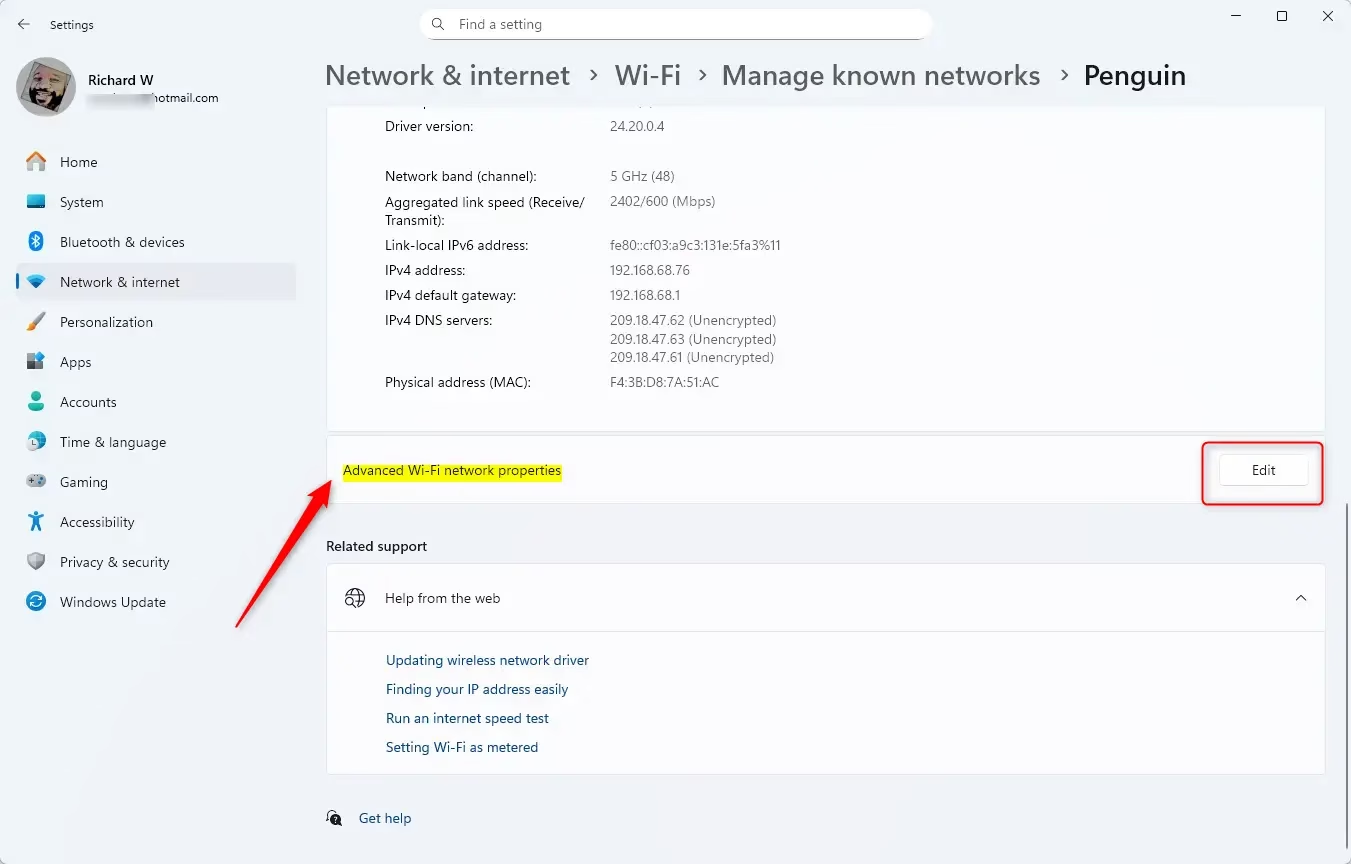
WiFi profile in Windows 11 edit - Change Connection Settings:
- Choose whether your PC should connect automatically when the network is nearby.
- Decide if your PC should look for other Wi-Fi networks while connected.
- Allow connection even if the network name (SSID) is hidden.
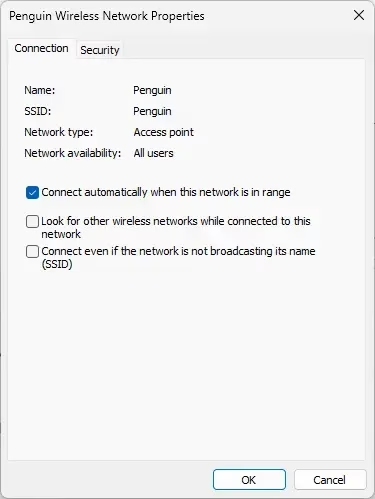
WiFi profile in Windows 11 connection tab
- Change Security Settings:
- Select the Security type from the dropdown (like WPA2 or WPA3).
- Pick the Encryption type if available.
- Type in the new Network security key ( Wi-Fi password).
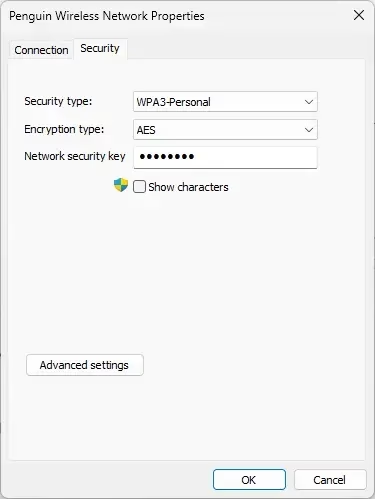
WiFi profile in Windows 11 security tab
- Click OK when done.
- Close the Settings window if you want.
Summary
- Changing Wi-Fi settings in Windows 11 is easy and doesn’t require deleting the saved network.
- You can update your password, security type, and connection preferences.
- These changes help keep your Wi-Fi connection safe and working well.
- Now your Windows 11 PC will connect using the updated Wi-Fi settings!
Where are the Wi-Fi settings on 🪟 Windows 11?
In the Settings app on your Windows device, select > Network & Internet > Wi-Fi .
Was this guide helpful?

About the Author
Richard
Tech Writer, IT Professional
Richard, a writer for Geek Rewind, is a tech enthusiast who loves breaking down complex IT topics into simple, easy-to-understand ideas. With years of hands-on experience in system administration and enterprise IT operations, he’s developed a knack for offering practical tips and solutions. Richard aims to make technology more accessible and actionable. He's deeply committed to the Geek Rewind community, always ready to answer questions and engage in discussions.



No comments yet — be the first to share your thoughts!